


In many companies, approval requests still move through inboxes, chat messages, or even paper forms. When that happens, requests can easily get lost, and no one knows exactly who needs to approve what next. Without structure or visibility, projects slow down and frustration grows, both for employees requesting approvals and for managers responsible for giving them.
An automated approval workflow changes that completely. It’s a digital process that replaces manual back-and-forth with a clear route for each task or document. By introducing workflow and approval automation, you can simplify the entire workflow approval process, so that every request goes to the right person at the right time, with reminders and notifications built in.
In this article, we’ll look at what workflow approvals are and why they matter, how to build and test an automated approval process, and which workflow approval software can help. You’ll also find a practical approval workflow example and learn how to use Power Automate and SharePoint to create efficient approval workflows.
What Is an Automated Approval Workflow?
In simple terms, an automated approval workflow is a predefined route that moves a request or document automatically from one approver to another according to established business rules. Instead of sending endless emails or following up manually, the system handles routing, reminders, and status updates on its own. This way, it reduces the risk of human error and keeps every step transparent.
Let’s look at how a typical approval workflow process functions:
- Automatic routing. The system decides who needs to approve each request, when to send it, and what to do next based on preset conditions. This eliminates the risk of lost forms or misdirected messages.
- Clear escalation rules. If an approver does not respond within a certain time, the workflow automatically forwards the task to a supervisor or backup approver to keep things moving.
- Unified status visibility. All participants can see the current state of a request at any time—who is reviewing it, how long it has been pending, and whether final approval has been given.
- Automatic notifications. The system sends reminders about pending tasks via email, chatbots, or mobile push notifications so that approvals do not get stuck.
- Centralized storage. All requests, comments, and document versions are kept in one place—such as SharePoint—so nothing gets lost in email chains or personal folders.
These functions form the backbone of workflow and approval automation, helping organizations save time and maintain accountability in every stage of decision-making.
What Is the Difference Between a Workflow and an Approval Process?
Although the terms often overlap, there is a clear distinction between a workflow and an approval process. A workflow is any sequence of tasks that moves through defined steps—from document creation to completion or delivery. An approval process, on the other hand, is a specific type of workflow focused solely on obtaining confirmations, permissions, or sign-offs from people or departments.
For example:
- Approving an employee’s vacation request
- Reviewing and signing a customer contract
- Approving a technical specification or purchase order
- Validating a software access request
Each of these tasks involves structured human approvals that can be sped up with workflow approval software. Automating them gives faster responses, fewer communication gaps, and better traceability.
Key Steps in an Approval Workflow
Every approval workflow process follows a clear sequence of actions that helps documents and requests move smoothly from submission to final approval. Understanding these stages is crucial before you start to automate the approval process, since automation relies on well-defined steps and rules.
So, what are the key steps in an approval workflow?
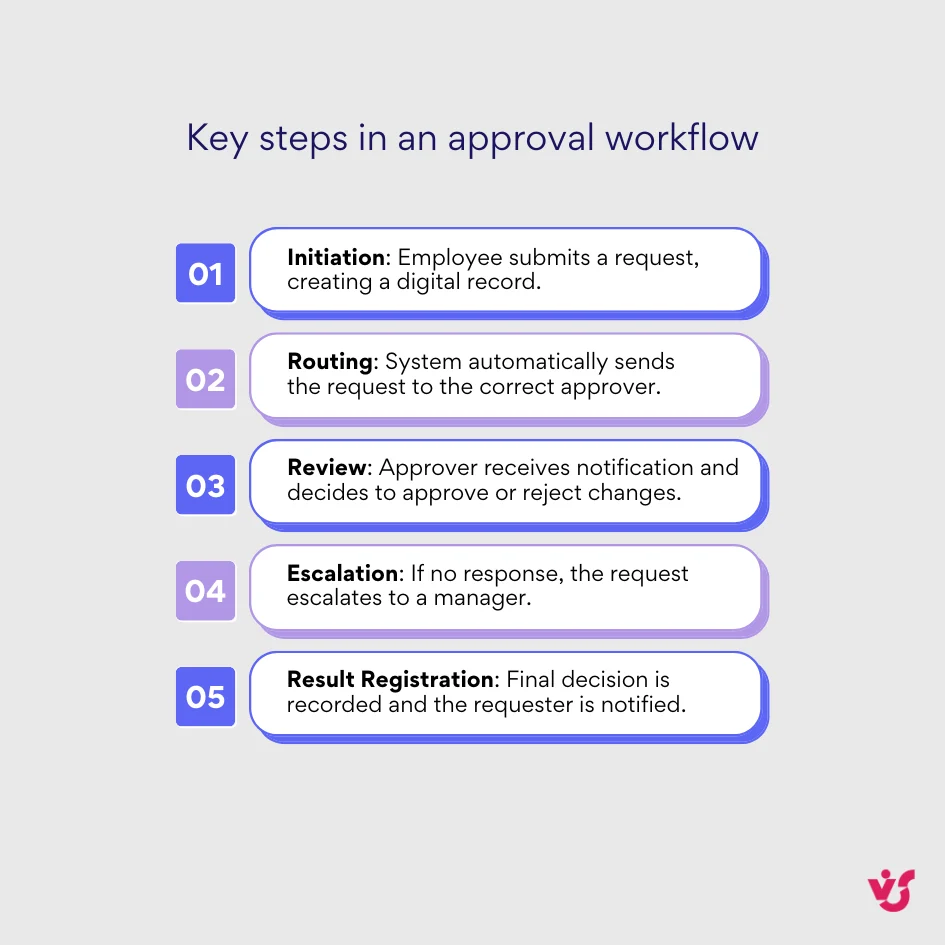
Automating these steps through workflow approval software makes the entire process faster, more transparent, and far less prone to human error. Instead of manually chasing approvals or checking email threads, employees can rely on automation tools that handle routing, reminders, and reporting—giving teams more time to focus on work rather than administrative follow-up.
Benefits of Automating Approval Workflows for Business
Implementing workflow and approval automation can significantly improve how an organization manages requests and decisions. Automated tools not only simplify internal communication but also deliver measurable benefits that affect productivity.
Here are the key advantages companies experience after introducing an automated approval workflow:
✅ Speed. Automation reduces approval time from days to hours. As soon as a request is submitted, it’s instantly routed to the right person, with reminders and escalations managing delays automatically.
✅ Transparency. Everyone involved can see the current status of each request—who is reviewing it, how long it has been pending, and which stage comes next. This real-time visibility helps managers eliminate bottlenecks.
✅ Accountability. An automated system clearly tracks each action and assigns responsibility to specific approvers. This structure promotes ownership and makes it easy to audit decisions if needed.
✅ Fewer errors. When the workflow approval process runs automatically, there’s no risk of lost emails, overlooked attachments, or forgotten approvals. Everything is centralized and traceable.
✅ Analytics and insights. Most workflow approval software includes reporting tools that reveal which processes are the slowest and where delays occur. This data allows you to optimize performance based on real results.
✅ Resource savings. Automation frees employees from repetitive follow-up tasks and manual coordination. Instead of chasing approvals, they can focus on more value-adding work.
Altogether, these benefits turn approval workflows from an administrative burden into a business advantage. A well-designed automated approval process not only accelerates decisions but also builds a culture of accountability in a company.
Initiating an Automated Approval Workflow
While automated approval systems may sound complex, the process of submitting a request for approval is designed to be simple. The aim is to remove manual steps so employees can focus on their tasks rather than the administrative side of approvals. In most automated approval workflows, the only thing an employee needs to do is fill out a request form correctly—the system will handle the rest.
Submitting an Approval Request
Once your organization sets up workflow approvals in a digital environment, such as SharePoint, Microsoft Teams, or another internal workspace, starting a workflow becomes effortless. Here’s how the process usually looks:
- Access the request form. The employee opens a specific form available on the corporate portal, SharePoint site, or Teams workspace.
- Fill in required fields. They provide all necessary details—subject, description, amount (for financial approvals), and attach related files like contracts and budgets.
- Select approval parameters. If applicable, the requester can choose deadlines, categories, or other options that define how the workflow for approval process should be carried out.
- Submit the request. With one click on “Submit” or “Start Process,” the approval workflow begins automatically. The initiator receives confirmation that their request has been sent for review.
This intuitive design makes the workflow approval process accessible for any employee, even without technical knowledge. Most of the complexity happens behind the scenes, where automation takes over.
What Happens Next: System Automation
After the request is submitted, the automated approval workflow executes several tasks without any manual intervention:
- Automatic routing. The system identifies the right approver based on defined business rules—usually the requester’s manager or department head.
- Notifications. Approvers receive instant alerts by email, chat, or directly in Teams with a link to open the request.
- Status transparency. The requester can check the live status of their submission at any time to see who is reviewing it and how much time has passed.
- Automated reminders. If an approver doesn’t act within a set period, the system sends a reminder automatically, avoiding extra calls or follow-up emails.
Such automation provides a consistent experience for employees while maintaining full visibility across all workflow approvals. It not only speeds up decision-making but also strengthens the process control.
Best Practices for Faster and More Efficient Approvals
Even in a fully automated system, employees can further improve the efficiency of the workflow approval process by following a few simple practices. These habits help requests move smoothly through the automated approval workflow, without delays or manual clarifications.
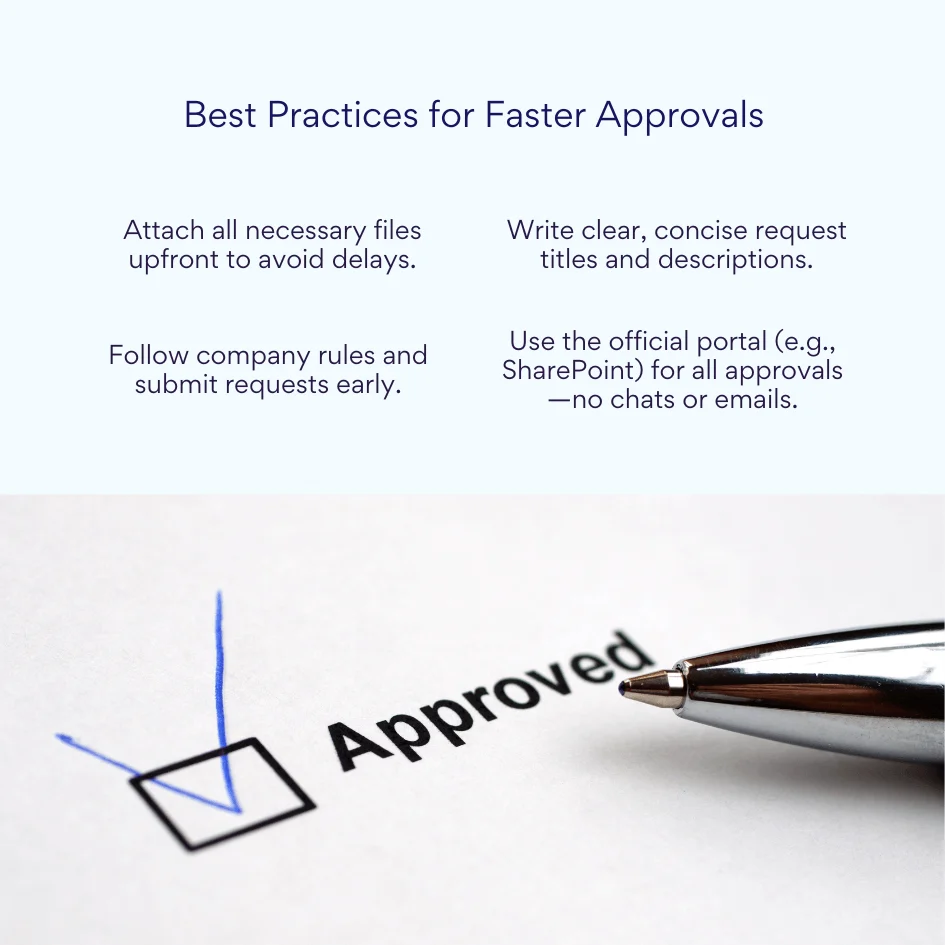
- Attach all necessary files in advance. Always include supporting documents such as contracts, estimates, or technical specifications. This allows approvers to make informed decisions without having to request extra materials.
- Write clear and concise descriptions. Use specific, straightforward wording in the “Subject” and “Description” fields. Avoid vague phrases—this helps the approver immediately understand the essence of the request.
- Follow internal rules and timelines. Submit requests early enough to respect approval deadlines. This is especially important for financial or procurement-related workflows.
- Use the central portal only. Work through the organization’s dedicated system, such as a SharePoint portal with automated approval flows, instead of sending approvals via chat or email. This keeps all requests traceable and provides consistent data storage.
Examples of Automated Approval Workflows
To better illustrate how automation works in different business scenarios, let’s look at several approval workflow examples that show how rules and routes can be customized to fit real company needs.
1️⃣ Sales proposal approval. A sales manager submits a commercial proposal that automatically follows a route: Manager → Head of Sales → CFO → CEO.
Each approval stage can depend on the deal amount—for example, requests under $5,000 might only require the head of sales, while larger deals route to finance and executive management.
2️⃣ New employee onboarding. HR submits an onboarding form that moves through departments automatically: HR → Department Manager → IT Department → Office Administration.
The workflow checks whether the employee’s role requires specific equipment or system access. IT receives instant tasks for device provisioning, while office administration prepares the workspace.
👉 Read more about HR compliance calendar »>
3️⃣ Expense request approval. An employee creates a financial request that routes as follows: Employee → Project Manager → Accounting Department.
If the amount exceeds a defined threshold, the system automatically escalates it to the finance director. When the expense is approved, the requester is notified and the data syncs with accounting records.
👉 Learn about Payment approval workflow »>
Each workflow for approval process in these examples operates under predefined logic—conditions, limits, and escalation rules—eliminating manual oversight and making sure that all steps happen in the right order and in the right time.
Explore Our Use Cases for Approval Workflows
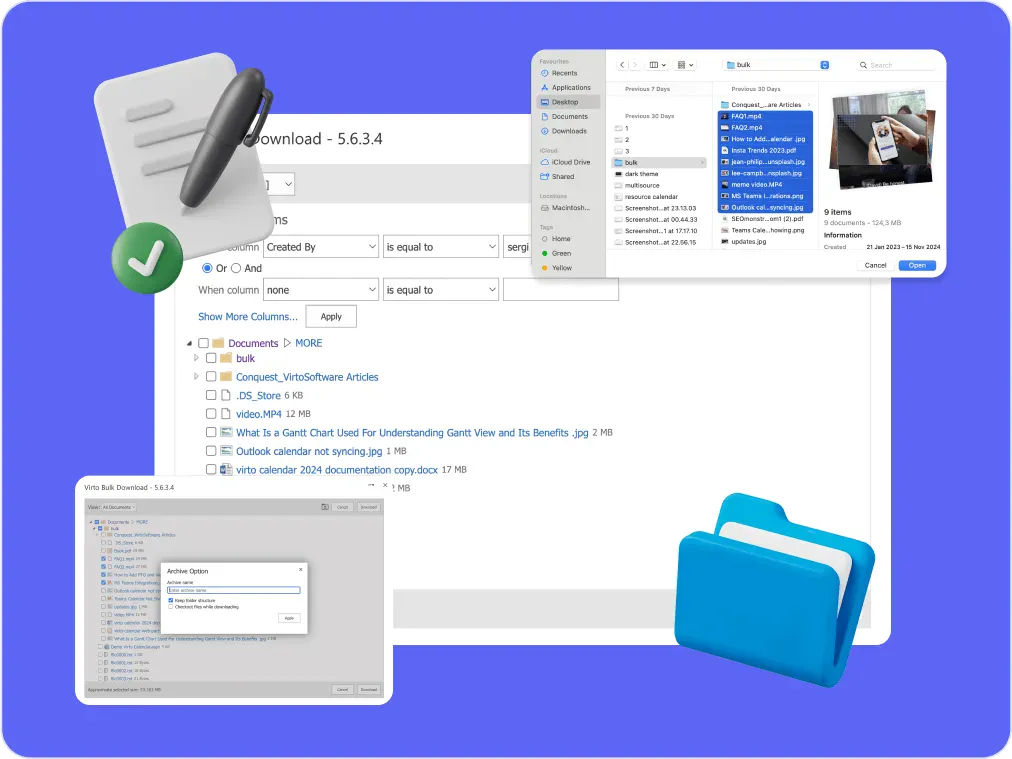
Multiple File Management
Built for high-compliance organizations: Virto Multiple File Operations uploads, moves, copies, deletes and re-tags SharePoint files in bulk, under the permissions you already set—without scripting or IT help.
Learn more about Multiple File Management
Compliance Management Software
See every audit and filing date in one calendar, move remediation tasks across Kanban boards, and email owners before compliance deadlines, all in Microsoft 365.
Learn more about Compliance Management Software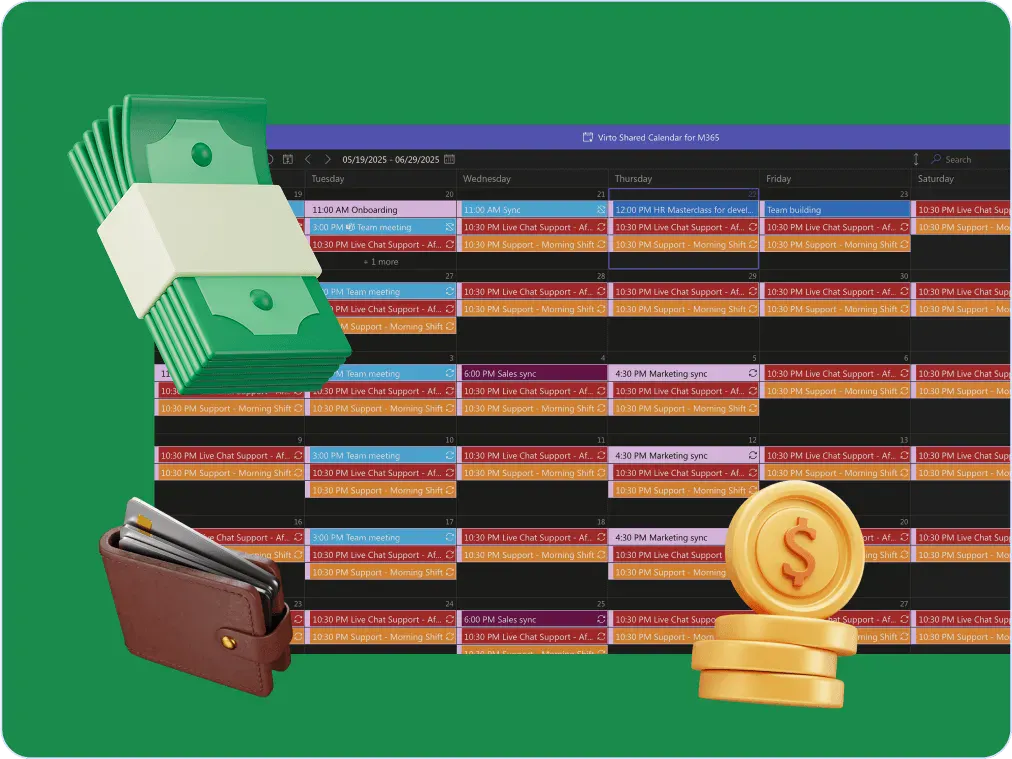
Payment Calendar
One shared payment calendar for a small finance team: due dates, recurring payments and bank holidays, color-coded by vendor or type, in a browser or in Teams. The payments run in your accounting system.
Learn more about Payment CalendarTools for Automation: Overview and Selection Criteria
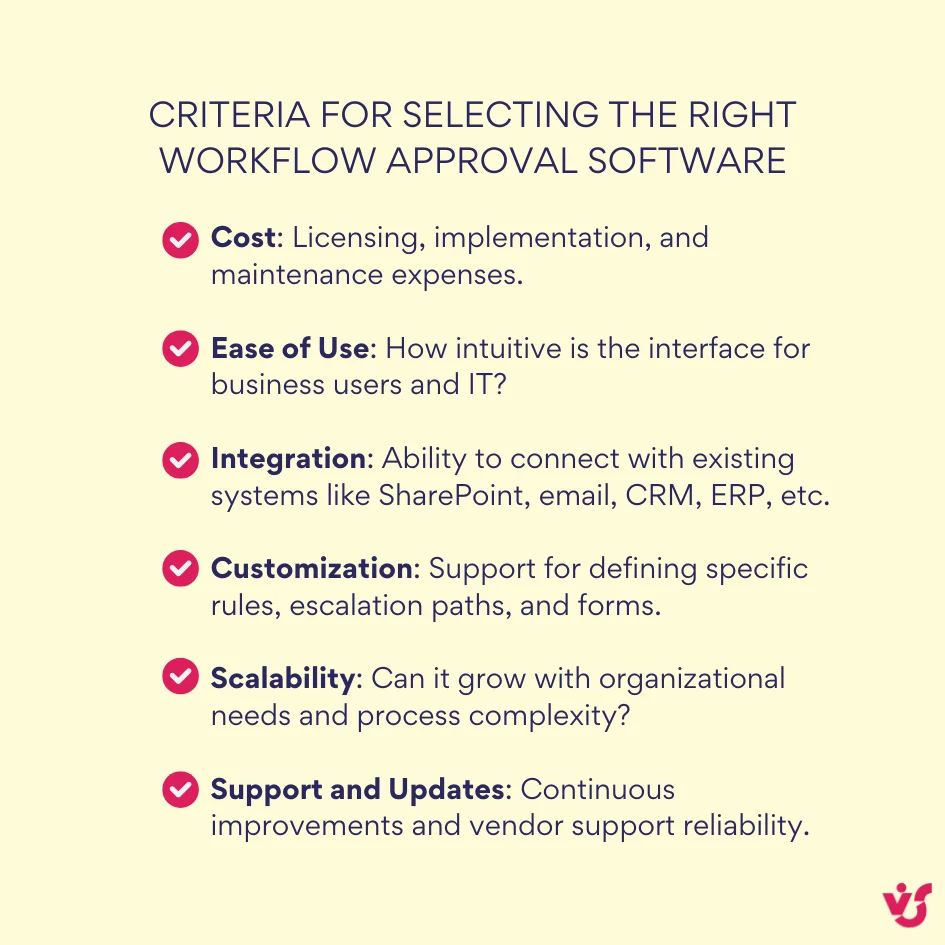
To create an effective automated approval workflow, you need specialized workflow approval software for your business needs. These tools vary widely—from flexible general-purpose platforms to dedicated business process management (BPM) systems and built-in options within ecosystems like SharePoint. Choosing the right tool depends on factors such as ease of use, integration capabilities, cost, and the complexity of your approval processes.
Popular Approaches and Tools for Approval Workflows
👉 Universal Builders: These are versatile platforms suitable for a broad range of workflow automation tasks. They usually provide drag-and-drop interfaces and integrate with many third-party systems. Examples include Microsoft Power Automate, Zapier, and Nintex.
- Pros: Flexible, often user-friendly, and able to connect diverse applications.
- Cons: Might require customization for highly regulated or complex processes.
👉 Specialized BPM Systems: Designed for large enterprises with complex, regulated workflows, BPM systems like IBM Business Automation Workflow, Appian, or Pega offer advanced process modeling, compliance tracking, and scalability.
- Pros: Robust process control, audit trails, and compliance features.
- Cons: Higher cost and steeper learning curve; often require IT involvement.
👉 Built-in Corporate Platform Tools: For companies using platforms like SharePoint, built-in or extended tools (e.g., SharePoint Designer workflows, Virto Workflow Automation for SharePoint Server, and Power Automate integration) provide seamless attachment to existing data and collaboration spaces.
- Pros: Native integration with existing content repositories and familiar user experiences.
- Cons: May have limitations in handling highly customized workflows.
Criteria for Selecting the Right Workflow Approval Software
Modern systems often offer ready-made forms that simplify the initiation of approval workflows by automatically triggering the process once a form is submitted.
Automating Approvals in SharePoint
For companies already using SharePoint, choosing tools deeply integrated into this ecosystem is a natural choice. SharePoint (both Online and On-Premises versions) offers robust options to automate approval processes, using its document libraries, lists, and tight integration with Microsoft Power Automate.
How Approval Automation Works in SharePoint
The automation of approval workflows in SharePoint typically involves the following steps:
- Setting up a SharePoint list or document library to hold items or documents that require approval. This acts as the centralized repository and triggers the workflow when new items are added or existing ones are modified.
- Using Power Automate, an administrator or power user creates a workflow (also called a “flow”) that starts when a SharePoint item is created or changed. The flow includes actions like sending approval requests, collecting responses, and updating the item’s status.
- Approvers receive notification emails or Teams messages with direct links to review and approve or reject the item.
- The workflow can include conditional logic for multiple approval stages, parallel approvals, and escalation rules.
- Upon completion, SharePoint automatically updates the item’s status field (e.g., Approved, Rejected) and records comments and history for auditing.
This tight integration between SharePoint and Power Automate allows companies to automate even sophisticated approval workflows without custom coding. It also keeps all relevant information and documents in a single location—the SharePoint portal itself.
This approach works similarly whether using SharePoint Online, where cloud-based Power Automate flows offer the latest functionality, or SharePoint On-Premises in hybrid environments that connect to Microsoft 365 capabilities.
👉 Learn more about SharePoint automation »>
Power Automate
Microsoft Power Automate is one of the most popular tools for creating automated approval workflows within the Microsoft 365 ecosystem. It is well-suited for quickly building standard approval processes without requiring deep technical skills.
Here’s a step-by-step outline for setting up an approval workflow in Power Automate:
- Create a new flow: Sign into Power Automate and select the “Automated cloud flow” option, then choose a template like “Start an approval”.
- Configure the trigger: Define how the workflow will start—for example, when a new item is created in a SharePoint list or a document is added to a library.
- Add “Start and wait for an approval” action: Choose the approval type (e.g., single approver, everyone must approve, first to respond), specify approvers’ emails, and add fields for request details.
- Set conditions: Branch the workflow based on the approval outcome. If approved, notify the initiator and update SharePoint status; if rejected, send a request for revision.
- Add notifications: Configure email or Teams alerts for all stakeholders at each important step.
👉 Read Microsoft’s instructions on how to Get started with Power Automate approvals »>
Beyond simple approvals, Power Automate supports advanced scenarios such as:
- Sequential approvals: Routing requests through a chain of approvers in a specific order.
- Conditional routing: Directing approvals based on criteria like amount thresholds, request categories, or departments.
- Escalations: Automatically forwarding overdue requests to supervisors.
- Attachment management: Automatically storing approved documents in designated SharePoint folders.
Power Automate Limitations
However, Power Automate does have some important limitations to be aware of when designing approval workflows:
❌ Complexity with many workflows: Managing a large number of mixed workflows can become difficult, especially as processes grow and diversify, requiring careful administration to keep flows organized.
❌ Customization challenges: Highly specialized or non-standard approval scenarios with complex logic may be difficult to implement within standard Power Automate capabilities, leading to multiple parallel flows.
❌ Processing delays and timeouts: Approval flows can time out if waiting for responses beyond 28-30 days, causing potential failures. Heavy volumes of requests or complex multi-stage workflows may also experience slower processing or delays.
❌ Licensing and usage limits: There are limits on the number of flow runs and actions per license tier, which can require upgraded plans for high-volume enterprise use.
❌ Handling errors and stuck workflows: Common issues like connection failures, permission problems, or approval requests getting stuck require monitoring and manual intervention to resolve, disrupting smooth automation.
To mitigate some of these challenges, advanced configurations can split approval creation and waiting actions, introduce timeout handlers and escalations, and separate long-running processes into chained flows. But these increase complexity and require technical expertise.
Where SharePoint runs decides which tool carries a complex, mission-critical approval:
- SharePoint Online and Microsoft 365: Power Automate is the workflow engine. Microsoft retired SharePoint 2013 workflows in SharePoint Online on April 2, 2026, so cloud approvals are built as flows, with the mitigations above.
- SharePoint Server on-premises: Virto Workflow Automation extends SharePoint Designer workflows with 70+ no-code activities for advanced routing, multi-level approvals, escalations, and scheduled runs.
Power Automate for SharePoint Online & Microsoft 365
In SharePoint Online, approvals are built in Power Automate. The Approvals connector sends requests that approvers answer in the Teams Approvals app or from Outlook, and a flow can start when an item or document is added to a SharePoint list or library. For multi-stage chains, keep each stage in its own flow and add the timeout and escalation handling described above.
Workflow Activities Kit for SharePoint On-Premises
For organizations running SharePoint on local servers, VirtoSoftware Workflow Activities Kit extends SharePoint Designer workflows with an extensive arsenal of custom activities geared toward advanced approval logic that exceeds out-of-the-box capabilities. This kit helps implement robust, secure, and complex automated approvals in environments where data control and on-premises infrastructure reliability are top priorities.
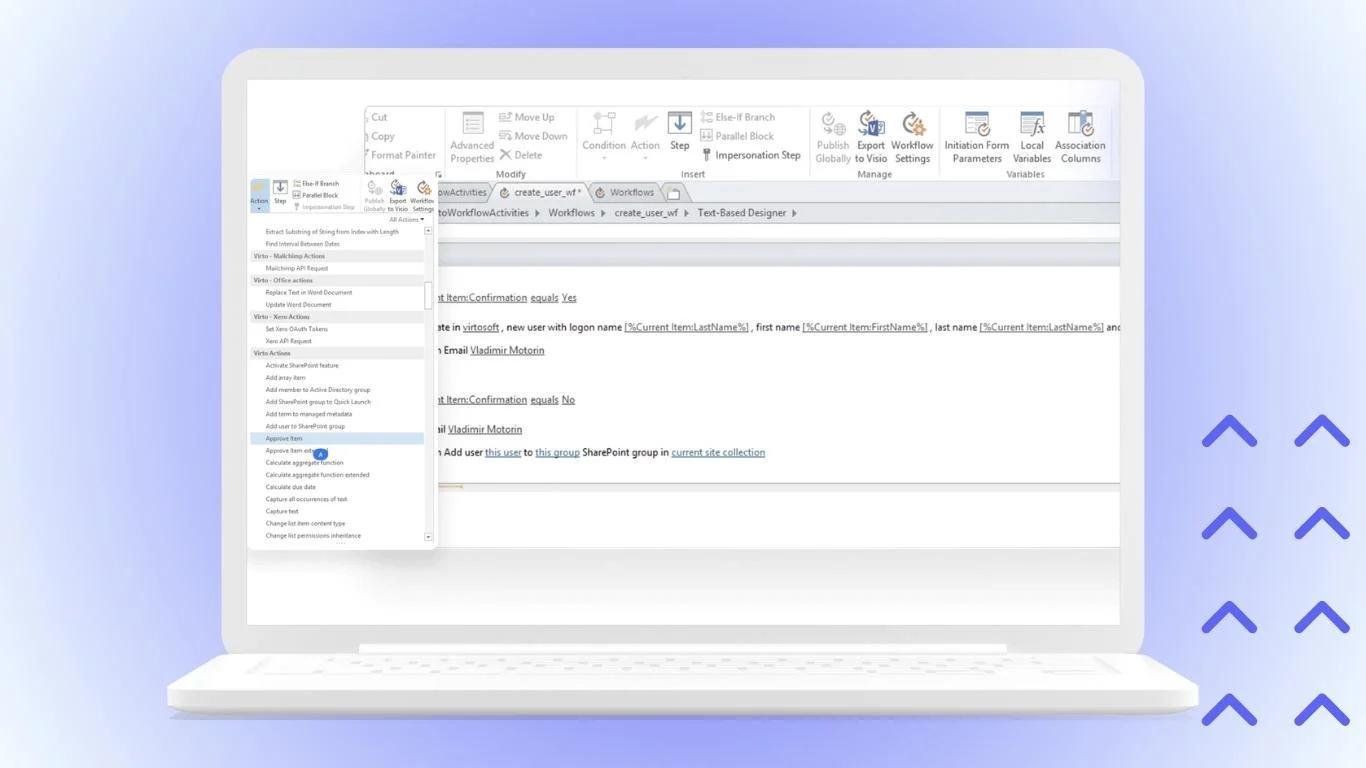
Benefits include:
- Expanded capabilities: Adds functionality to model approvals with complex branching, escalations, and integrations not available by default.
- Security-focused: Operates inside the company network, ideal for handling sensitive or confidential document approvals with strict compliance requirements.
- Critical business automation: Supports automation of mission-critical workflows with full control over the hardware and software environment, vital for regulated industries.
Improve Your Approval Workflows with Virto Apps



Practical Use Cases with Virto Tools
On SharePoint Server, Virto Workflow Automation provides versatile tools for automating complex approval processes across different business functions.
Sales Contract Approval Sales proposals can be automatically routed through multiple managerial levels such as Sales Manager, Sales Director, CFO, and CEO. The system supports dynamic escalation: if an approver misses the approval deadline, the request is forwarded to a higher authority to keep the process moving.
Employee Onboarding Workflow The onboarding process typically involves approvals and tasks across HR, IT, and Facilities departments. Virto tools can coordinate sequential and parallel steps, such as HR submitting the hire request, the department manager approving, IT provisioning necessary hardware and software, and Facilities preparing the workspace. Integrated notifications and status tracking keep all stakeholders informed.
Expense Report Automation Expense requests can trigger multi-condition approval paths based on spending limits, departmental budgets, and project codes. The Virto solution consolidates all audit trails and approval history inside SharePoint, providing transparency and compliance. It also supports attaching receipts and automatically routing finalized reports for accounting processing.
Document Publishing and Legal Review Marketing content, legal documents, or public communications can be routed through predefined approval chains involving marketing managers, legal counselors, and executives. Virto activities in SharePoint Designer workflows allow creating branching logic, for example, sending certain document types to additional reviewers or restarting workflows if edits are requested.
In all these scenarios, VirtoSoftware enhances SharePoint’s native workflow capabilities with no-code activities, scheduled runs, and workflow status monitoring. This allows companies to automate approvals efficiently, enforce compliance, and maintain clear audit trails without difficult custom development.
👉 Discover Company Intranet Examples and Software for Modern Business »>
How to Implement an Automated Approval Process: Practical Steps
Implementing an effective automated approval workflow requires a structured approach. Here is a step-by-step guide to help you smoothly transition from manual to automated approvals:
Choose the Most Problematic Process for a Pilot Launch Start with a process that causes frequent delays or confusion. This focused pilot allows you to test automation on a manageable scale and demonstrate quick wins.
Document the Process in Detail Write down who the participants are, what approval conditions and deadlines apply, and how the process currently works. Clear documentation ensures all stakeholders have a shared understanding.
Select the Appropriate Tool Evaluate workflow approval software options based on your needs, from universal builders like Power Automate to specialized tools like Virto Workflow Automation for SharePoint Server environments.
Configure the Process in a Test Environment Set up the automated workflow in a sandbox or test system to validate logic, routing, notifications, and escalation rules before going live.
Train a Small Group of Users Pilot the new workflow with a select user group. Provide training on how to submit requests, review approvals, and interpret status notifications within the automated system.
Launch, Collect Feedback, and Optimize Deploy the workflow organization-wide once tested. Continuously gather user feedback and monitor system performance to refine approval paths, notifications, and automation rules for top efficiency.
Conclusion
Automating approval workflows is no longer a luxury but a necessity for efficient and transparent business process management. It accelerates routine tasks, reduces errors, and provides clear visibility into every approval stage, helping organizations stay agile.
Choosing the right tool depends on your company’s specific needs and IT infrastructure. For SharePoint users, solutions like the VirtoSoftware tools represent an optimal path to quick and reliable results, thanks to their deep integration and advanced workflow capabilities.
The best way to start is by analyzing one manual approval process in your organization. Consider how automation could improve speed and accuracy, then explore the tools discussed here to begin your journey toward quick and automated approval workflows.