


Microsoft Teams’ built-in calendar only shows your personal Exchange/Outlook calendar. To display SharePoint, Planner, and external calendars in Teams, install a third-party calendar app like Virto Calendar App as a channel tab — it aggregates every calendar source your team uses into a single, color-coded view.
If your team’s events live in SharePoint lists, Planner boards, or external calendars like Google Calendar, they’re invisible in the native Teams calendar. That forces people to switch between apps to see their full schedule — and important deadlines quietly fall through the cracks.
This guide walks through exactly how to set up a multi-source calendar inside Microsoft Teams that aggregates SharePoint, Outlook, Planner, and external iCal feeds into one channel tab. The solution is the Virto Calendar App for Teams (listed as Virto Calendar Pro in the Teams App Store), and we’ll cover installation, data source configuration, real-world use cases, and a side-by-side comparison with the native Teams calendar.
What the Built-In Teams Calendar Can and Can’t Do
Before adding a third-party app, it’s worth understanding precisely where the native Teams calendar stops — because its limitations are the reason teams end up with fragmented scheduling in the first place.
What the built-in Teams calendar does well:
The Teams calendar is, at its core, a personal Exchange/Outlook calendar rendered inside Teams. It shows your personal events, lets you schedule Teams meetings with one click, surfaces channel meetings created in a given channel, and syncs automatically with Outlook on desktop, mobile, and web. For 1:1 scheduling and personal time management, it works exactly as expected.
What the built-in Teams calendar can’t do:
It was never designed as a team calendar. It cannot display SharePoint list calendars, overlay another person’s calendar, surface Microsoft Planner tasks as calendar events, connect to external calendars like Google Calendar or iCal feeds, or show meeting room availability outside the meeting-creation flow. There’s no color-coding by source or category, and no true channel-level shared event calendar — the separate Channel Calendar app only displays Teams meetings created inside that specific channel, not non-meeting events or external data.
Table 1. Built-In Teams Calendar — what it supports
| Capability | Supported? | Notes |
|---|---|---|
| Personal Outlook calendar | Yes | Automatic sync |
| Other people’s calendars | No | Only via Outlook scheduling assistant |
| SharePoint list calendars | No | Not connected |
| Microsoft Planner tasks | No | Separate app |
| Google Calendar / iCal feeds | No | Not supported |
| Meeting room availability | Partial | Only during meeting creation |
| Channel-level shared calendar | Partial | Only channel meetings, not a shared event calendar |
| Color-coding by source | No | — |
| Multiple calendar overlay | No | — |
For a broader primer on native behavior, see the Microsoft Teams calendar guide.
Native Workarounds (and Why They Fall Short)
Most Teams admins try a few native options before concluding that a dedicated calendar app is needed. Here’s an honest look at each.
The Channel Calendar App
Microsoft ships a built-in channel calendar app that can be added as a tab. It looks promising at first — it’s a channel-level calendar, after all — but it only displays Teams meetings created inside that specific channel. You cannot add non-meeting events, connect a SharePoint list, or pull in Planner tasks. It’s a filtered view of the meetings list, not a true shared calendar.
Adding a SharePoint Page as a Teams Tab
You can embed a SharePoint page (using the Events web part) as a Website or SharePoint tab in a Teams channel. Events will show up — but you inherit all the Events web part limitations: no true monthly view, no overlay of multiple lists, no integration with Planner or Exchange. You end up with a web page rendered inside Teams rather than a native calendar experience, and the UX clashes with Teams’ navigation patterns.
The Planner Tab in Teams
The Planner app has a built-in schedule view that shows tasks on a calendar grid. It’s useful for one plan at a time — but the calendar view is siloed. It can’t display Outlook events, SharePoint list entries, or tasks from a second plan alongside the first. If your work crosses multiple plans or involves non-Planner events, it’s not enough.
Each native option solves one slice of the puzzle, but none combines multiple sources into a unified calendar view inside Teams. That’s the gap Virto Calendar fills.
How to Set Up Virto Calendar in Microsoft Teams (Step-by-Step)
The full setup takes about 10–15 minutes the first time and gets faster with repetition. You’ll need Microsoft 365 credentials and, for org-wide deployment, Teams Admin Center access.
Step 1 — Install Virto Calendar Pro from the Teams App Store
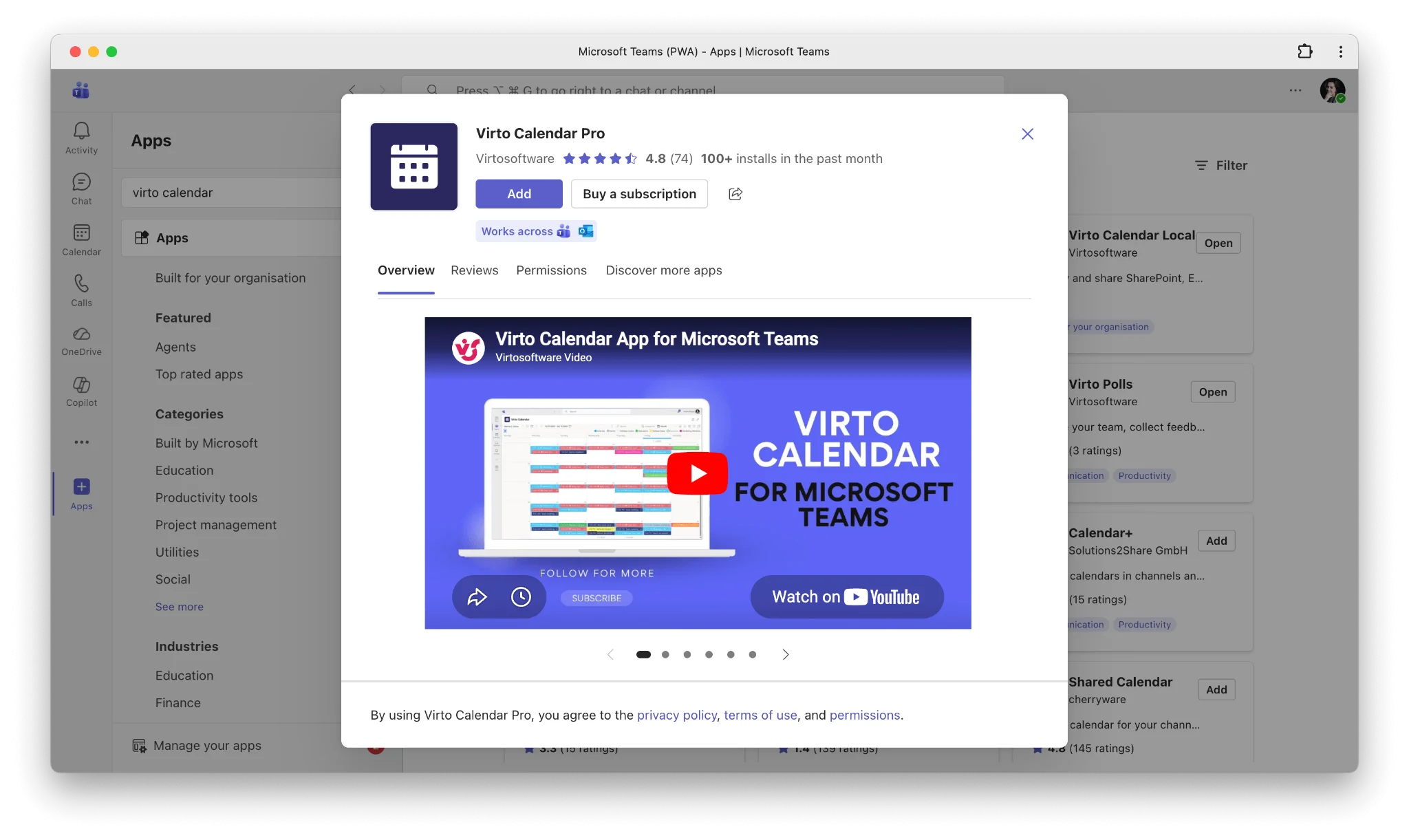
Open Microsoft Teams and click Apps in the left rail. Search for “Virto Calendar” — the listing appears as Virto Calendar Pro. Click Add to install it for yourself, or choose Add to a team to install it to a specific channel in one step.
For organization-wide deployment, IT admins should use the Teams Admin Center (Teams apps → Manage apps) to approve Virto Calendar Pro and assign it via an app setup policy. This makes the app available to every user without each team installing it independently. See our detailed installation guide for admin-level deployment steps.
Step 2 — Add Virto Calendar as a Channel Tab
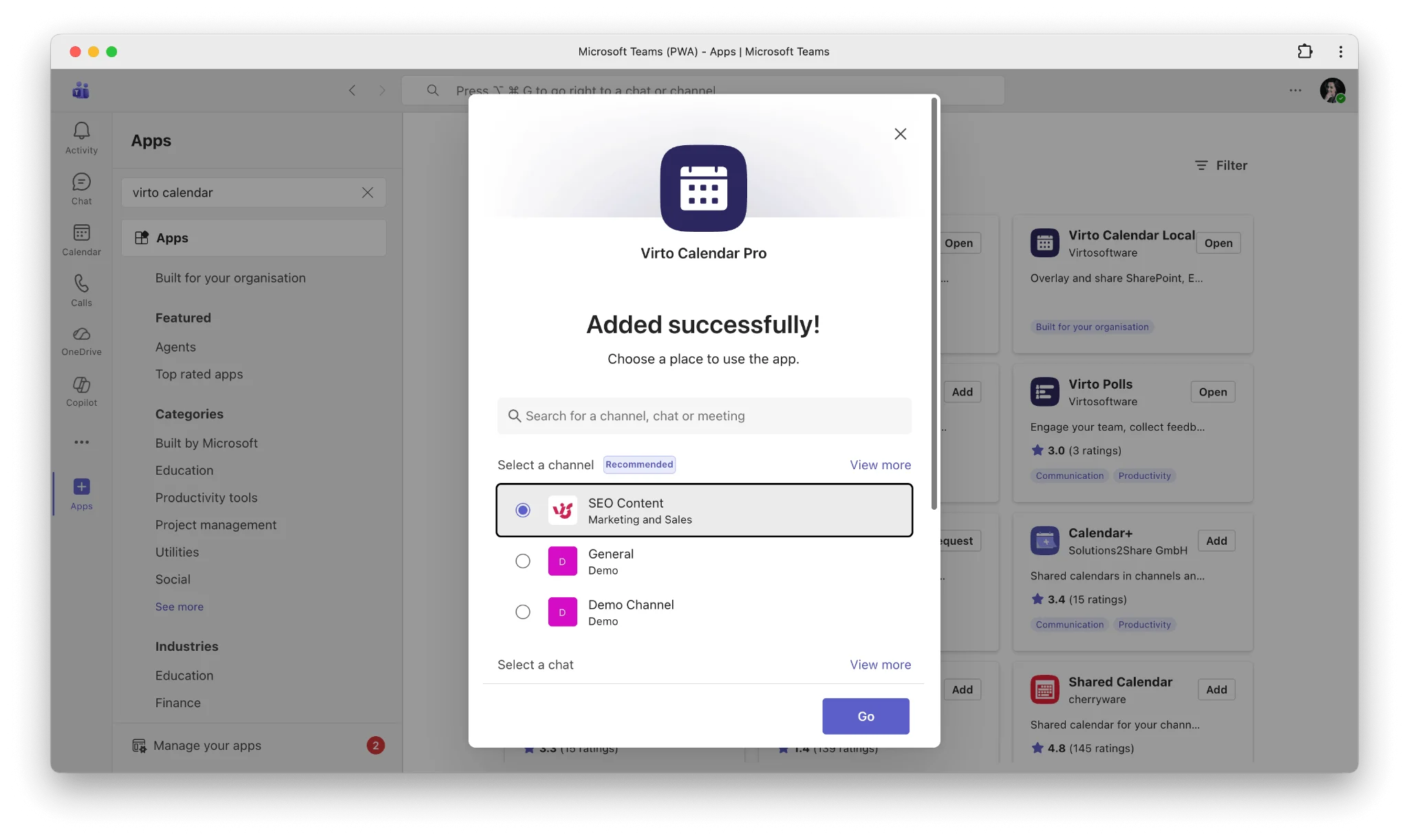
Navigate to the channel where you want the shared calendar to live — typically a project channel, a team’s general channel, or a department-wide channel. At the top of the channel, click the + icon to add a tab and select Virto Calendar from the list.
Give the tab a descriptive name: Team Calendar, Project Schedule, Campaign Tracker — something that matches the channel’s purpose. Each channel can have its own independent Virto Calendar tab with its own data sources, which is what makes channel-level scheduling practical.
Step 3 — Connect SharePoint Lists as a Data Source
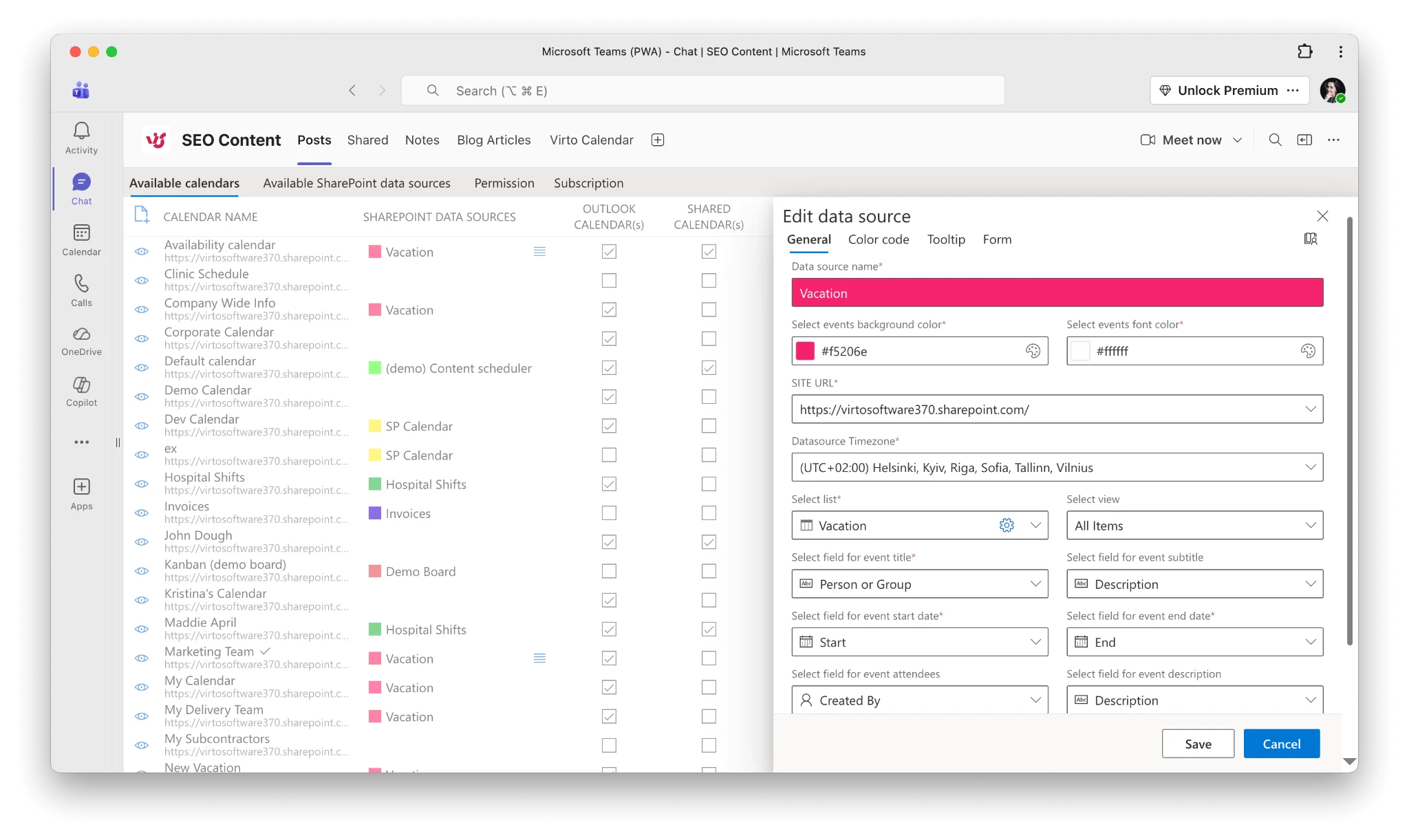
Inside the newly created tab, open Settings → Data sources and click Add data source → SharePoint List. Select the site collection (Virto Calendar can reach any site collection in the tenant that your account has access to), then pick the list — a classic SharePoint calendar list, an Events list, a custom list with date columns, or a tasks list with due dates.
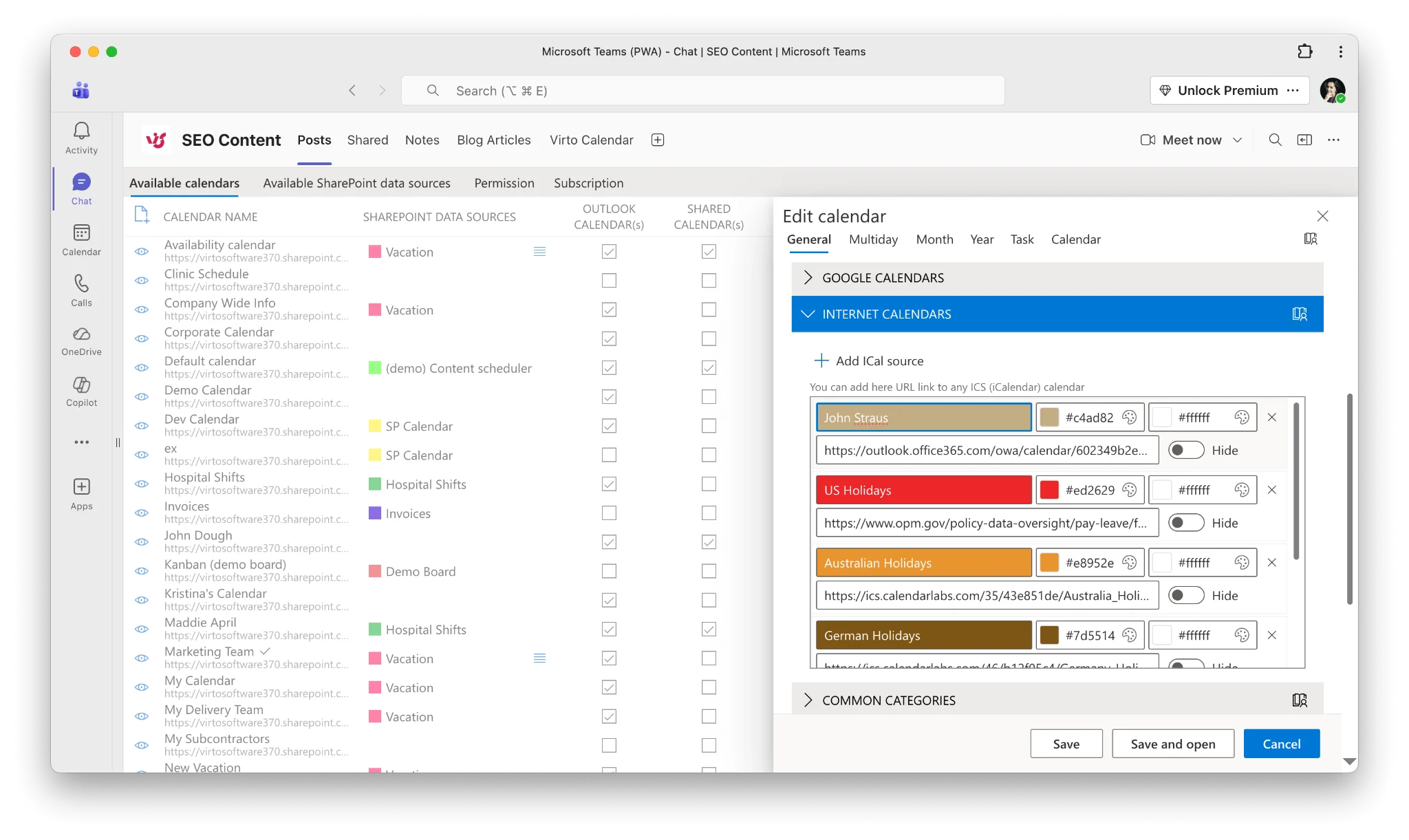
Assign a color to this source. That color will flag every event from this list in the final calendar view, which becomes essential once you have four or five sources layered together. If your list uses categories, you can color-code by category as well — useful for distinguishing, say, Release, Planning, and Off-site events within a single source.
Step 4 — Connect Exchange/Outlook Calendar
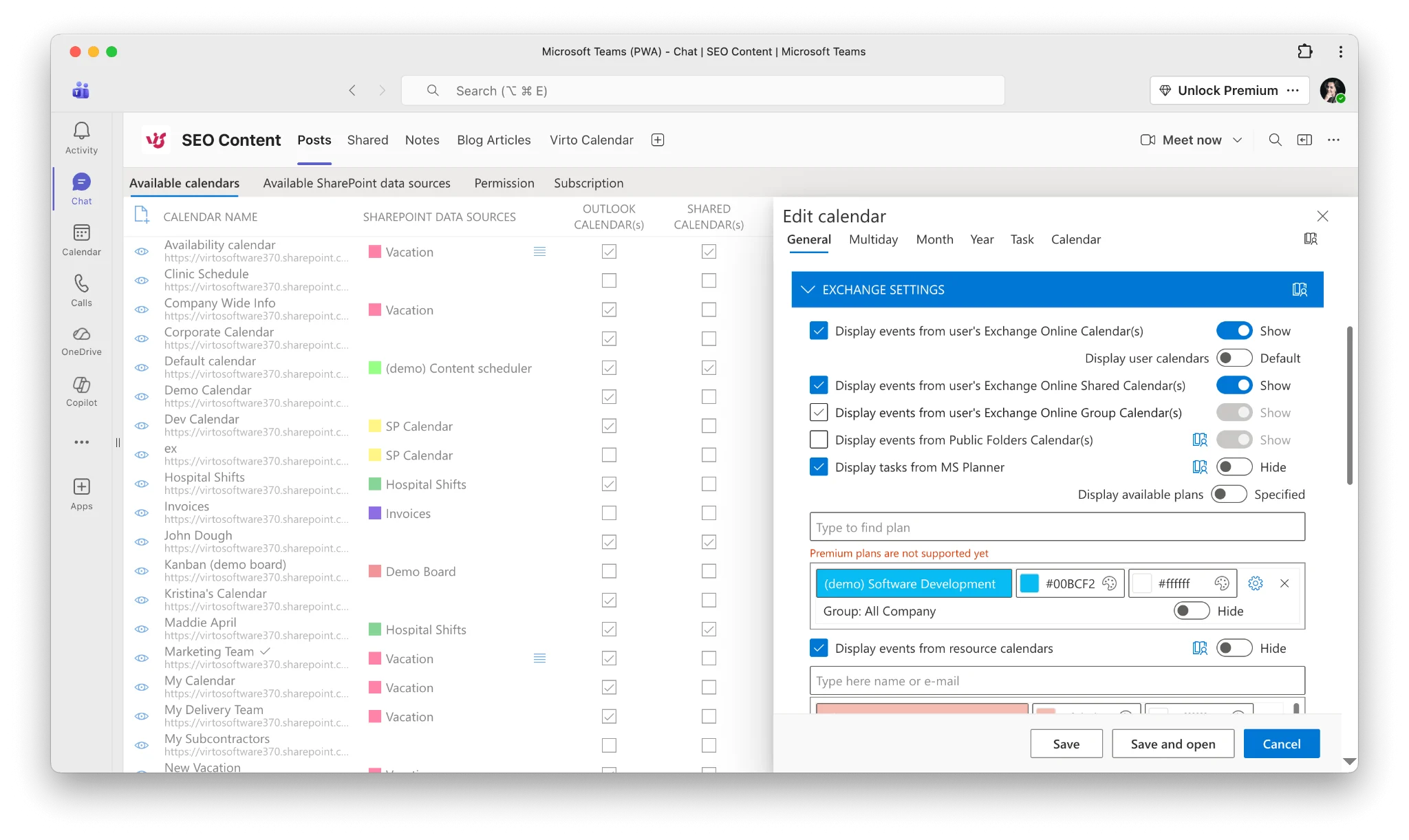
Click Add data source → Exchange Calendar. You’ll be prompted to authenticate with your Microsoft 365 credentials. Once connected, select which calendar to display: your personal calendar, a shared mailbox (for example, a Team Events mailbox used for department-wide scheduling), a resource mailbox, or a specific Outlook calendar.
Assign a distinct color — typically a neutral blue or green for personal and a bolder color for shared mailboxes. If you’re connecting multiple Exchange calendars (personal + shared mailbox + meeting room), use clearly different colors so the layered view stays readable.
Step 5 — Add Microsoft Planner Tasks
Click Add data source → Microsoft Planner and select the plan to display. Tasks with due dates automatically appear as calendar events on their due date. You can filter by bucket, assignment, or label so the calendar only shows relevant tasks — for instance, only tasks assigned to members of this team, or only tasks in the This Sprint bucket. For a dedicated walk-through, see our guide on how to integrate Planner tasks with Virto Calendar.
Step 6 — Add External iCal / Google Calendar
Click Add data source → Internet Calendar (iCal) and paste the iCal URL. This works with any iCal-compliant feed: Google Calendar (each calendar has a Secret address in iCal format in its settings), Apple iCloud Calendar, partner calendars, industry event feeds, sports schedules — anything that publishes an .ics URL.
Events from the feed sync automatically on Virto Calendar’s refresh cycle. This is the most common way to bring external collaborator calendars, partner event schedules, or personal Google Calendars into a Teams view.
Step 7 — Configure Views and Color-Coding
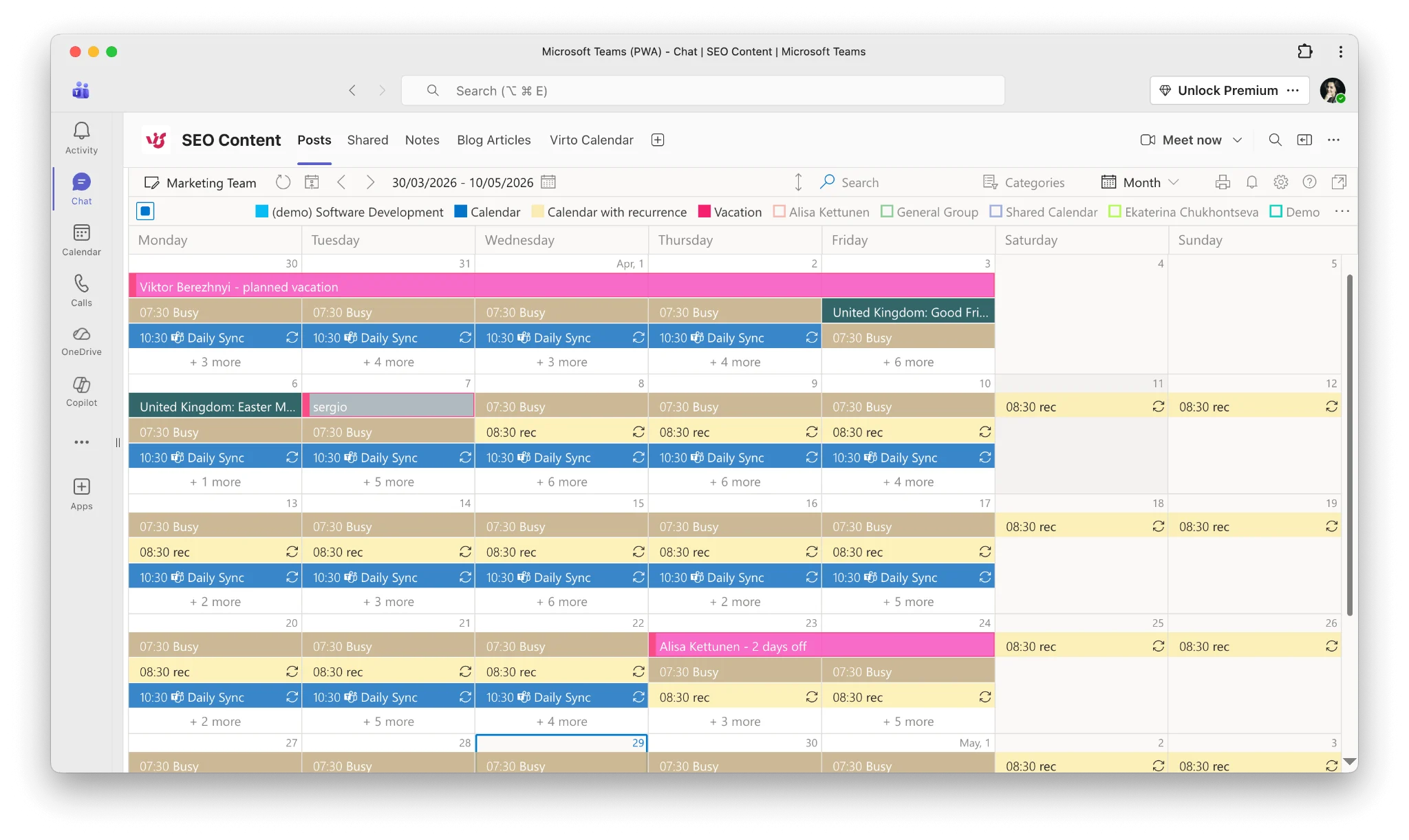
With your sources connected, switch between Day / Week / Month / Year / Task views and pick the default that matches how your team plans. Project teams usually default to Month view; operations teams often prefer Week. The Task view renders every event as a list grouped by source — helpful for backlog-style reviews.
Fine-tune color-coding per source and per category, then save the configuration. Every team member who opens the channel will see the same calendar, with the same sources, in the view you chose.
Good to know: Virto Calendar App for Teams is part of the Virto M365 Productivity Kit. It’s also available as a standalone product. Enterprise customers can deploy it org-wide through the Teams Admin Center.
What You Can Do With a Multi-Source Calendar in Teams
Once the calendar is set up, it changes how people plan — not just what they see. Here are four patterns that consistently deliver value.
Project Management — Channel-Level Scheduling
Add a calendar tab to each project channel, and connect the project’s SharePoint task list, the project’s Planner board, and team members’ Outlook calendars as data sources. Milestones, meetings, deadlines, and availability all sit in one view. When someone asks “when are we shipping?”, the answer is a tab, not a scavenger hunt across three apps. You can also overlay calendars on SharePoint pages for stakeholders who live in SharePoint instead of Teams.
Department-Wide Visibility
HR teams overlay company holidays, PTO calendars, and recruitment event schedules into a single department calendar — useful for spotting interview conflicts and planning around company closures. Marketing teams combine campaign deadlines from Planner, the editorial calendar from a SharePoint list, and external partner events via iCal. IT teams blend the change management calendar, maintenance windows, and vendor schedules so on-call engineers see every relevant event at a glance.
Meeting Room and Resource Management
Connect Exchange meeting room calendars as a data source and see room availability next to team events. When creating a new meeting directly from Virto Calendar, you can book the room and generate the Teams meeting link in the same flow — no switching to Outlook to check whether the big conference room is free.
Cross-Platform Teams (Zoom + Google Meet)
Not every external collaborator runs on Teams. For organizations that meet with partners, clients, or contractors on Zoom or Google Meet, Virto Calendar imports their external calendars via iCal feeds and lets you join Zoom or Google Meet sessions directly from calendar events. This matters for hybrid meeting-platform environments where forcing everyone into Teams isn’t an option.
Virto Calendar for Teams vs Native Teams Calendar
A side-by-side view of what each calendar actually supports:
Table 2. Feature comparison — native Teams calendar vs Virto Calendar for Teams
| Feature | Native Teams Calendar | Virto Calendar for Teams |
|---|---|---|
| Personal Outlook calendar | Yes | Yes |
| SharePoint list calendars | No | Yes (any site collection) |
| Microsoft Planner tasks | No | Yes |
| iCal / Google Calendar | No | Yes |
| Meeting room calendars | Partial | Yes |
| Multi-source overlay | No | Yes (unlimited) |
| Color-coding by source | No | Yes |
| Channel-level calendar tab | Partial (meetings only) | Yes (full calendar) |
| Month / Week / Day views | Yes | Yes (plus Year, Task) |
| Teams meeting creation | Yes | Yes |
| Zoom / Google Meet join | No | Yes |
| Drag-and-drop rescheduling | No | Yes |
The native Teams calendar is a personal scheduling tool tied to Exchange. Virto Calendar for Teams is a team-level scheduling platform that brings every calendar source your organization uses into the Teams workspace — where your team already is.
Frequently Asked Questions
Can I show SharePoint calendar events in a Microsoft Teams channel?
Not with the built-in Teams calendar. The native channel calendar only shows Teams meetings created in that channel. To display SharePoint list events in a Teams channel, add Virto Calendar as a tab and connect SharePoint lists as data sources. Events then appear in a full calendar view with monthly, weekly, and daily layouts, and you can overlay them with other sources like Outlook and Planner.
What is the best calendar app for Microsoft Teams?
Virto Calendar (available in the Teams App Store) is the most comprehensive option for multi-source calendar management in Teams. It aggregates SharePoint lists, Exchange/Outlook calendars, Planner tasks, meeting rooms, and external iCal feeds into a single channel tab with color-coding, multiple views, and drag-and-drop editing — capabilities that no native Microsoft option covers in one place.
Can I see Planner tasks on a calendar in Microsoft Teams?
The Planner app in Teams has a built-in schedule view, but it only shows tasks from one plan at a time with no way to layer other sources on top. Virto Calendar for Teams can display Planner tasks alongside Outlook events, SharePoint calendars, and external calendars in a unified view — and each channel can show a different plan.
How do I add a Google Calendar to Microsoft Teams?
There’s no native way to add Google Calendar to Teams. With Virto Calendar for Teams, paste a Google Calendar iCal URL (available from Google Calendar’s Integrate calendar settings) as a data source. Google Calendar events then appear color-coded alongside your Teams, SharePoint, and Outlook events in a single calendar tab.
Is Virto Calendar for Teams free?
Virto Calendar for Teams is free to try for 30 days. The calendar is also a part of the Virto M365 Productivity Kit. Contact sales for pricing and trial options.
Can I deploy Virto Calendar to all Teams channels at once?
Yes. IT administrators can deploy Virto Calendar App organization-wide through the Teams Admin Center by approving the app and pinning it via an app setup policy. This makes it available to every user and team without individual installations, and ensures consistent configuration across the organization.
Putting It All Together
Microsoft Teams’ built-in calendar is a personal, single-source Outlook tool. It was designed for 1:1 scheduling and meeting creation, not for teams whose events live across SharePoint, Planner, and external platforms. For organizations that run their daily work inside Teams, the fragmentation is a real cost — missed deadlines, double-bookings, and constant context-switching between apps.
Virto Calendar App for Teams closes the gap. It lives natively in the Teams workspace, supports unlimited data sources per channel, and brings SharePoint, Outlook, Planner, meeting rooms, and external calendars into a single color-coded view — with channel-level flexibility that no native Microsoft option offers.
Ready to try it? Install Virto Calendar Pro from the Teams App Store and connect your first three sources in under 15 minutes.
Planning an enterprise rollout? Book a demo — our team will walk through admin deployment, governance, and integration with your existing Microsoft 365 setup.