


Workflow management used to mean someone chasing signatures over email and updating spreadsheets by hand. In 2025, it looks very different. Processes run across SharePoint, Teams, Outlook and line-of-business systems. Approvals kick off automatically. Data flows between tools without anyone copying and pasting. And when something stalls, you can usually see exactly where and why.
This is the territory of workflow management software: tools that capture the steps in your processes, route work to the right people, enforce rules, and give you visibility into what is going on. That includes everything from heavyweight BPM platforms through low-code tools to specialised add-ons that live inside Microsoft 365, Jira or Salesforce.
In this article, we’ll unpack what workflow management software actually does, how it works in technical terms, where SharePoint and Microsoft 365 now fit, and how VirtoSoftware’s workflow tools extend that stack. We will also look beyond the Microsoft world and review a range of the best workflow management tools.
All of this sits against an important backdrop: classic SharePoint 2013 workflows in Microsoft 365 were retired on 2 April 2026. That has real implications for anyone who relied on them and for how you plan new automation projects. Part of this guide is about understanding that shift and putting a more future-proof workflow approach in place now that the old engine is gone.
The Concept of Workflow Management Software in a Business Context
Understanding workflow management starts with understanding what a workflow actually represents.
What is workflow in business process management?
A business workflow consists of defined steps, tasks, and actions that must occur in a specific sequence to achieve a particular outcome. Hiring a new employee involves a workflow: posting the job, reviewing applications, conducting interviews, checking references, making an offer, and completing onboarding paperwork. Approving an invoice follows a workflow: submission, manager review, budget verification, director approval, and payment processing. Processing a vacation request requires its own workflow: employee submission, calendar check, manager approval, HR notification, and payroll adjustment.
Business workflow management focuses on analyzing these sequences, designing them for efficiency, executing them consistently, monitoring their progress, and continuously optimizing their performance. The goal is maximum operational efficiency through predictable, repeatable processes.
| Element | Question it answers | Example in practice |
|---|---|---|
| Trigger | What starts the workflow? | New hire accepted, invoice submitted, ticket created |
| Inputs | What information is needed? | Employee details, invoice amount, customer ID |
| Steps / tasks | What work is performed? | Review CV, validate budget, troubleshoot issue |
| Decisions | How are choices made along the way? | Approve/reject, send back for rework, escalate to manager |
| Actors / roles | Who is responsible at each stage? | Hiring manager, finance approver, service desk agent |
| Outputs | What should exist at the end? | Activated account, posted payment, resolved ticket |
| Controls & rules | What policies govern the process? | Spend thresholds, approval matrices, compliance checks |
Fig. Core elements of a business workflow.
What is workflow management software?
Workflow management software provides the digital tools to accomplish this. These platforms allow companies to create visual models of their workflows, automatically route tasks to appropriate people based on conditions, track progress in real time, and ensure that every step follows established rules. Rather than relying on email chains and manual handoffs, the software becomes the engine that drives work forward.
At their core, these tools make work more predictable, faster, and transparent. When someone submits a document for approval, the system knows exactly who needs to review it, in what order, and what criteria must be met at each stage. If a step takes too long, the system can send reminders or escalate to a supervisor. If an error occurs, the system provides a complete audit trail showing exactly what happened.
Key features of workflow management software include several essential capabilities:
- Visual modeling tools provide simple designers that let you create process diagrams without writing code, often described as Low-Code or No-Code platforms. You draw boxes and arrows to represent steps and connections, then the software handles the technical implementation.
- Task management and routing handles the automatic assignment of tasks to responsible parties based on conditions. If an expense report exceeds a certain amount, the system sends it to a director for approval rather than just a manager. If a support ticket mentions a specific product, it routes to the team that handles that product.
- Integration capabilities allow the software to connect with other systems you already use. CRM platforms, ERP systems, email services, SharePoint libraries, and hundreds of other applications can exchange data with your workflow system, eliminating manual data entry and ensuring information stays synchronized.
- Forms and data collection tools enable you to create digital forms that automatically trigger processes when submitted. An employee fills out a vacation request form, and that submission immediately kicks off the approval workflow without anyone manually forwarding emails or filling out additional paperwork.
- Reporting and analytics provide tools for analyzing how long processes take, where delays occur, and which steps consume the most time or generate the most errors. This data-driven visibility makes continuous improvement possible rather than relying on anecdotal feedback.
| Feature | What it does for you | Typical example |
|---|---|---|
| Visual modeling tools | Capture processes without code using diagrams and flows | Drag-and-drop approval flow for invoices |
| Task management and routing | Send the right task to the right person at the right time | Route high-value expenses to a director automatically |
| Integration capabilities | Connect workflows to systems you already use | Push approved invoices into ERP, update CRM after contract sign |
| Forms and data collection | Standardise how information enters the process | Self-service vacation request form that kicks off approvals |
| Reporting and analytics | Show where work is slow or error-prone | Dashboard of average approval times by department |
| Monitoring and audit trail | Record who did what and when for compliance and review | Timeline of every approver on a regulatory filing |
Fig. Feature → What it gives you.
The main components of a workflow management system work together to create a functioning automation engine:
- Process routing defines the sequence of steps—who does what, in what order, and under what conditions.
- Automation rules establish the conditions, triggers, and transitions that determine how work moves forward.
- Assignees and roles specify who participates in each step and what permissions they have.
- Monitoring and reporting track progress and provide visibility into system performance.
- Integration with other systems ensures workflow software works within your existing technology ecosystem rather than requiring you to abandon tools you already use.
💡 Learn more in related resources:
- SharePoint Workflows: How to Create and Use Them
- Boost Your Workflow with Kanban Swimlanes: Best Practices and Top Applications
- SharePoint Automation: Best Practices, Use Cases and Recommended Tools
- SharePoint Alerts Retirement: Alternatives and Next Steps
Key Benefits of Implementing Software for Workflow Management
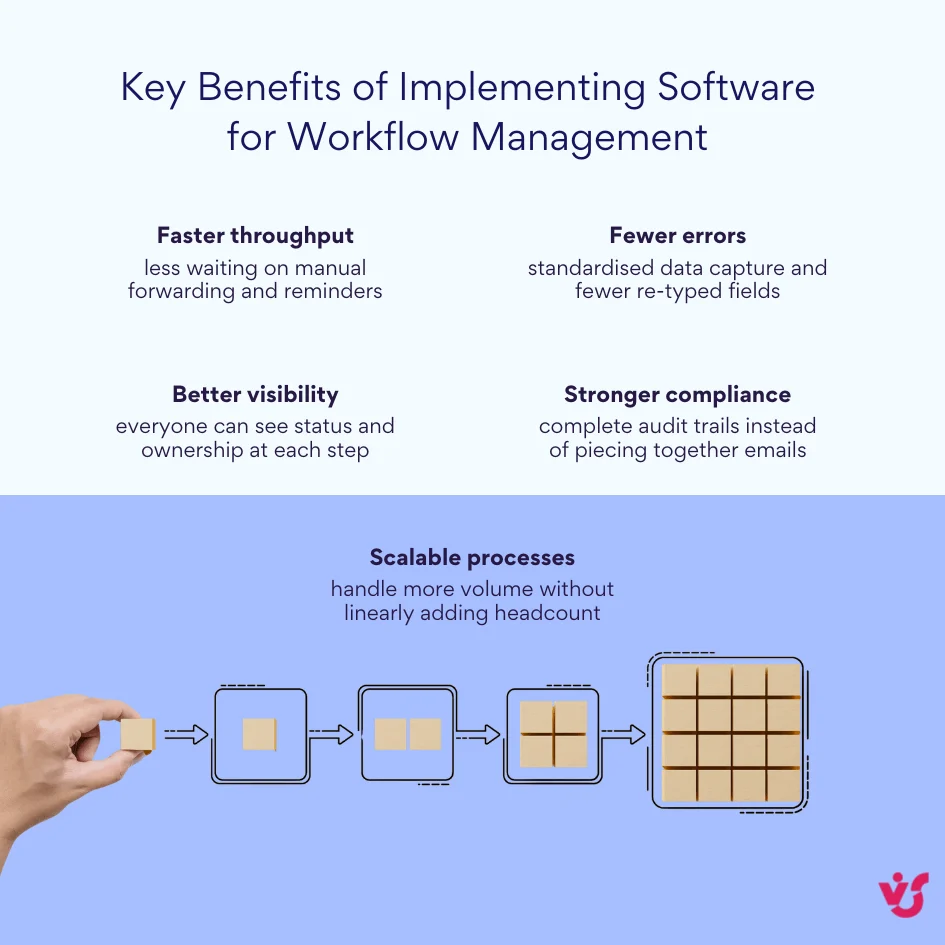
Here are the main benefits you can expect from implementing workflow management software:
- Increased efficiency and speed: This is usually the quickest benefit you’ll notice. Automation removes the lag that happens when someone has to remember to forward an email, ping the next person, or hunt down missing information. Workflow software makes sure every task goes to the right person at the right time, with the context they need already attached. A document approval that might drag on for a week over email can be completed in a few hours when the system routes it automatically and sends notifications whenever action is required.
- Reduced errors through standardization: Manual data transfer almost always introduces mistakes. Numbers get mistyped, fields are skipped, and key details never make it from the original form into the final record. Workflow management tools standardize how information is captured and passed along. Data entered at the start of a process flows through each step without manual reentry, which preserves accuracy and consistency from beginning to end.
- Greater visibility and accountability: One of the biggest frustrations with manual processes is not knowing where work is stuck or who owns the next step. A workflow platform shows the real-time status of every process, highlights recurring bottlenecks, and makes it easy to track deadlines so items don’t quietly stall. If a critical approval hasn’t moved for three days, you can see exactly where it’s waiting and who needs to respond. That level of visibility naturally builds accountability because everyone knows their tasks are tracked.
- Improved compliance and audit readiness: For organizations with regulatory or internal policy requirements, this is a major advantage. The system automatically records who did what, when they did it, what information they saw, and what criteria they used. That end-to-end audit trail makes both internal reviews and external audits far simpler. When auditors ask for evidence that the correct approval path was followed, you can provide a detailed log instead of piecing together timelines from inboxes and memory.
- Scalable processes as you grow: As the organization expands, manual coordination becomes a bottleneck. Workflow management software lets you handle higher volumes and roll out new processes without increasing headcount at the same pace. Once you automate key steps, the same infrastructure that handled a hundred documents can handle a thousand. When a new process is needed, you design the workflow once and let the system run it repeatedly, instead of assigning someone to manage every step by hand.
👉 How does workflow process software differ from a business workflow management system? Workflow process software usually focuses on automating a single process or a small set of tasks end-to-end, like an approval flow or a ticket handoff. A business workflow management system is broader: it provides a central platform to design, run, monitor, and improve many workflows across the organisation, with added features like analytics, governance, and integration to multiple systems.
Workflow Management Software Use Cases
Workflow management platforms aren’t limited to one department or a handful of niche processes. Once you define the steps, rules, and approvals behind everyday work, you can apply automation across almost any team. From hiring and onboarding to invoice approvals, ticket handling, and document control, the same core capabilities—routing, notifications, approvals, and tracking—play out in different ways. The examples below show how those building blocks come together in HR, finance, IT, and beyond.
Human resources: HR teams run many recurring processes that are ideal for automation. Hiring workflows can publish job postings, route applications to the right hiring managers based on role and department, schedule interview reminders, request reference checks, and generate offer letters once approvals are in place.
Onboarding workflows then take over: creating user accounts, assigning training modules, collecting tax and compliance documents, scheduling orientation, and notifying IT, facilities, and other teams when a new hire needs equipment or system access. Even routine tasks like vacation requests can be automated so that requests route to the correct manager, are checked against team calendars, update leave balances, and trigger notifications to payroll once time off is approved.
Finance: Finance teams rely on clear approval chains and tight control over cash flow. Invoice approval workflows can route invoices to the appropriate approvers based on amount, department, or vendor, automatically escalate when approvals stall, verify budget availability before sign-off, and trigger payment once all approvals are captured.
Budget request workflows standardize how teams ask for funding, ensuring each request includes required justifications and attachments. They route proposals through the appropriate review levels and preserve a complete audit trail of every decision. Procurement workflows manage purchase requisitions from the initial request through vendor review, approvals at each spend threshold, and final purchase order creation.
IT and service desks: IT and service teams handle a constant influx of tickets that must be triaged, routed, and resolved quickly. Automated ticket workflows categorize requests as they arrive, assign them to the right specialists based on issue type and urgency, escalate tickets that sit unresolved beyond a defined SLA, and only close tickets once the requester confirms that the issue is resolved.
Access request workflows manage system access and permission changes. Requests move through security and manager approval, accounts and permissions are created or updated automatically once approved, and a detailed log is stored for compliance and security audits.
Document management: Document-heavy processes also gain significant value from workflow automation. Contract approval workflows route agreements through legal review, business owner approval, executive sign-off, and then into the correct repository for storage. Internal request workflows manage everything from facility changes to creative asset requests, ensuring each submission follows a standard path and doesn’t get lost in someone’s inbox.
Archiving workflows automatically move completed documents to the right long-term storage location, apply retention rules, and help keep document lifecycle management aligned with regulatory requirements.
| Department | Typical workflows to automate | Main benefits |
|---|---|---|
| Human resources | Hiring, onboarding, leave requests, policy sign-offs | Faster onboarding, fewer missed steps, clearer employee records |
| Finance | Invoice approvals, budget requests, procurement flows | Better spend control, fewer delays, cleaner audit trails |
| IT / service desk | Ticket routing, access requests, incident escalation | Shorter resolution times, clearer accountability, SLA compliance |
| Operations | Change requests, maintenance schedules, production checks | Reduced downtime, fewer defects, predictable maintenance windows |
| Legal & compliance | Contract review, policy approvals, regulatory submissions | Reduced risk, consistent approval paths, stronger evidence |
Fig. Where automation fits first.
Explore VirtoSoftware use cases:
Examples in different organizational settings
So far, we’ve looked at where workflow automation fits in different teams. To make it more tangible, it helps to see what this looks like in practice. The following examples show how organizations in sectors like financial services, manufacturing, customer support, and large enterprise HR have used workflow management software to shorten cycle times, reduce risk, and improve the day-to-day experience for employees and customers.
Example of financial services approvals: A financial services firm can use workflow automation to streamline document approvals for client agreements and regulatory filings. Instead of a single document spending 12 days bouncing between inboxes and stalling when someone is traveling or misses an email, the firm could define a digital approval path that moves each item automatically from one reviewer to the next. Approvers receive targeted notifications, deadlines are tracked, and the system can cut that cycle time down to something closer to 3 days. At the same time, an automated audit trail records every action, which makes compliance reporting far simpler than reconstructing decisions from scattered emails and spreadsheets.
Example of industrial manufacturing quality control: An industrial manufacturer might configure workflows to manage quality checks throughout the production line. Those checkpoints, which may currently rely on paper forms and manual data entry, can instead trigger automatically at each stage of production. If a measurement falls outside the defined tolerance, the system can immediately alert supervisors and, if needed, pause the line before defects multiply. Behind the scenes, the workflow can generate quality control reports and maintain detailed production records for regulatory requirements. In practice, this approach could reduce defects by around a third and significantly cut the time teams spend compiling quality documentation.
Example of customer support ticket handling: A service company running a customer support operation can design workflows to control how tickets move from intake to resolution. Incoming requests might be automatically categorized and routed to the right specialists based on topic, product, or urgency, while the system tracks response and resolution times against internal SLAs. If a ticket nears its deadline without progress, an automated escalation can notify supervisors or reassign the work. With this kind of setup, the organization could realistically move from average resolution times of 4.2 days to something closer to 1.8 days, while also creating the conditions for higher and more consistent customer satisfaction scores.
Example of large-scale employee onboarding: A large organization with thousands of employees can automate its onboarding workflow end to end. Rather than having new hires endure a disjointed first week while teams scramble to create accounts, arrange hardware, and schedule training, the company might define a single workflow that coordinates every step. IT can receive automatic requests for accounts and devices as soon as an offer is accepted, HR can schedule orientation and benefits enrollment, managers can be prompted to assign mentors and starter projects, and learning systems can enroll new employees in required courses. The result is an onboarding experience where employees are much more likely to arrive on day one with everything ready—and HR can spend more time on strategic initiatives instead of chasing down logistics.
Before/after snapshots
- Financial services approvals – reducing document cycle time from weeks of email back-and-forth to a few days with tracked digital approvals
- Manufacturing quality control – catching out-of-tolerance measurements earlier and cutting time spent compiling quality reports
- Customer support – moving from multi-day average resolution times to less than two days with automatic routing and escalation
- Large-scale onboarding – ensuring new hires arrive with accounts, equipment and training ready instead of scrambling during their first week
Review and Comparison of Popular Workflow Management Solutions & Business Workflow Software
When you start looking at workflow tools, the market can feel crowded: big enterprise BPM platforms, low-code suites, plugins inside Microsoft 365, automations baked into Jira or Salesforce, and niche apps like VirtoSoftware that go deep on SharePoint.
This section breaks workflow management system software down into categories, then compares them against concrete selection criteria.
Types of software workflow management
To keep things clear, it helps to group the market into a few practical categories. At one end are specialised BPM platforms for very large, complex organisations. In the middle are universal low-code and no-code tools that cover most departmental needs. And wrapped around existing systems are integration-first solutions that make the most of the platforms you already own.
Let’s start with the most heavyweight option: specialised BPM systems.
| Category | Example tools | Best suited for | Not ideal when… |
|---|---|---|---|
| Specialised BPM platforms | Pega, Appian | Large, regulated enterprises with many complex, cross-system processes | You mainly need to automate a handful of straightforward approvals |
| Universal low-code / no-code | Nintex, Microsoft Power Automate | Departments and cross-department flows in mid–large organisations | You need deep, case-management style control across the whole enterprise |
| Ecosystem-integrated solutions | VirtoSoftware, Jira automation, Salesforce Flow | Organisations already heavily invested in Microsoft 365, Atlassian or Salesforce | You want a neutral layer that orchestrates every system in the estate |
Fig. Tool categories at a glance.
1. Specialized BPM systems (Pega, Appian)
Specialized BPM (business process management) platforms are built to run mission-critical, end-to-end processes across an entire enterprise. They combine workflow, case management, business rules, integrations and often advanced decisioning and analytics in one stack.
- Pega Platform focuses on large, often regulated organisations that need complex case management and decisioning. It lets teams build applications and workflows through a visual, low-code interface while running a powerful rules engine and decision engine in the background. It is used for things like customer service, claims, onboarding and other high-stakes processes that touch many systems.
- Appian is another enterprise low-code platform aimed at orchestrating end-to-end business processes. It provides visual process modeling, automation, integration with external systems, and case management capabilities, again with a drag-and-drop designer rather than raw code. It is common in finance, insurance, government and healthcare where structured, auditable workflows are essential.
Strengths:
- Very strong on complex, multi-step processes that span several departments and systems
- Rich visual process modeling with support for detailed business rules and exception paths
- Deep integration options, including APIs, RPA and legacy system connectors
- Designed for high volume and high availability
Limitations
- Typically expensive to licence and implement
- Steeper learning curve; projects often require specialist partners or in-house experts
- Overkill for simple or medium-complexity workflows that could be handled in Microsoft 365 or similar
These are usually a fit for very large enterprises that want a central platform for hundreds of processes, not for teams just trying to automate approvals on SharePoint.
2. Universal low-code / no-code platforms (Nintex, Power Automate)
This category covers tools that give business users and analysts a graphical way to design workflows without writing code, while remaining flexible enough to handle a wide variety of processes.
Nintex
Nintex started as a SharePoint-centric workflow tool and has grown into a broader process automation platform. Key traits:
- Drag-and-drop workflow designer for building workflows visually
- Tight integration with SharePoint and Microsoft 365, including Nintex for SharePoint and Nintex for Office 365
- Hundreds of predefined actions that let you automate simple to sophisticated workflows without coding
- Cloud offerings (Nintex Automation Cloud) as well as on-prem options for organisations that still run SharePoint Server or hybrid environments
Microsoft Power Automate
Power Automate is Microsoft’s cloud-based workflow and automation service built into Microsoft 365 and Power Platform. It is central for workflows in SharePoint Online, Teams, Outlook and hundreds of other services.
- Provides an intuitive designer where users can drag and drop steps into “flows”
- Offers hundreds of connectors to Microsoft 365 apps (SharePoint, Teams, Outlook, Dynamics) and many third-party systems
- Uses triggers to start flows when events occur, such as a SharePoint item being created or an email arriving
- Runs fully in the cloud, with some on-premises connectivity through data gateways
Power Automate is both a universal low-code platform and, in Microsoft 365, an integration layer for the ecosystem, which is why it appears in more than one category.
Where these workflow management systems shine
In day-to-day use, the same kinds of teams keep gravitating toward these platforms. They’re especially useful when:
- Teams that want to move away from custom scripts and one-off macros
- Business analysts who know the process inside out and need to build or tweak workflows themselves
- Organisations that value speed of delivery and the ability to iterate quickly
3. Integration solutions for existing ecosystems (Power Automate, VirtoSoftware, Atlassian, Salesforce)
This category focuses on tools that are tightly integrated into an existing platform, turning that platform into your workflow hub. They are less about being “everything for everyone” and more about automating where your work already lives.
Microsoft Power Automate in Microsoft 365
Within the Microsoft ecosystem, Power Automate is the primary integration and workflow layer. It connects SharePoint Online, Teams, Outlook, OneDrive, Dynamics 365 and many external systems, all under your Microsoft 365 tenant.
In practice, this means you can:
- Trigger flows from SharePoint list or document library events
- Post to Teams when something changes
- Move data between Microsoft 365 apps and external SaaS tools
VirtoSoftware workflow apps for SharePoint
VirtoSoftware sits specifically inside SharePoint Server:
- The Virto Workflow Automation Web Part for SharePoint on-premises offers more than 270 no-code SharePoint activities to build workflows on SharePoint Server 2016, 2019 and Subscription Edition, extending SharePoint Designer’s capabilities significantly. It also now includes the Virto Scheduler and Status Monitor components.
VirtoSoftware is a good example of an “ecosystem add-on”: it does not replace Power Automate in the cloud, but deepens what you can do inside SharePoint Server, where cloud Power Automate is not directly available and you need advanced SharePoint-specific actions.
Atlassian (Jira automation)
Atlassian’s Jira includes built-in automation rules that act much like workflows for issues and projects:
- Rules consist of triggers, conditions and actions that respond to events like issue creation, status changes or field updates
- You can automatically transition issues, send notifications, update fields or integrate with other tools inside the Atlassian ecosystem
This is ideal if your processes are already centered on Jira boards and issues, such as software delivery or service management.
Salesforce Flow
Salesforce Flow is Salesforce’s low-code automation tool used to orchestrate processes in and around customer data:
- Flow Builder provides a visual designer to create flows that react to record changes, user actions or schedules
- It can automate complex business processes using “clicks, not code”, coordinating tasks, approvals and integrations around CRM objects
For companies heavily invested in Salesforce, Flow becomes the natural place to automate customer-related workflows.
Why integration-centric tools matter
These solutions are attractive because they:
- Work where your users already are (SharePoint, Teams, Jira, Salesforce)
- Reuse existing identity, permissions and compliance models
- Often reduce licensing and training costs compared with bringing in a completely separate BPM stack
Comparison by key selection criteria for business workflow tools
Now let’s compare these categories against practical criteria you would use when selecting software. To keep things digestible, think in terms of BPM platforms (Pega/Appian), universal low-code platforms (Nintex/Power Automate) and ecosystem-integrated tools (Power Automate, Virto, Jira, Salesforce Flow).
Visual process modeling capabilities
If you start with the design experience, each group of tools handles visual process modeling differently, from heavyweight BPM suites to lighter low-code and ecosystem-native options:
- BPM platforms (Pega, Appian)
- Very strong: rich process modeling, case management, and rule definition with enterprise-grade notation and tooling.
- Best suited for highly detailed, multi-branch processes.
- Universal low-code (Nintex, Power Automate)
- Also strong: drag-and-drop designers, intuitive flow diagrams designed for non-developers.
- Slightly less formal than BPM suites but easier for analysts to adopt quickly.
- Ecosystem tools (Virto, Jira, Salesforce Flow)
- Provide visual designers that are tuned to their home platform:
- Virto’s activities are used inside familiar SharePoint workflow designers or app UIs.
- Jira and Salesforce Flow have visual layouts optimised for issues and records.
- Provide visual designers that are tuned to their home platform:
Easy setup without coding
When it comes to getting something live without writing code, there’s a clear spread between enterprise platforms, general low-code tools and workflow add-ons inside existing systems:
- BPM platforms
- Low-code on paper, but real-world setups often need specialist expertise and considerable configuration.
- Universal low-code
- Designed for quick wins: Nintex and Power Automate both let power users build flows with little or no code through templates and straightforward UIs.
- Ecosystem tools
- Typically easy for existing users of the platform.
- Virto’s workflow apps, Jira automation rules and Salesforce Flow are built so admins of those platforms can create rules and flows with minimal coding knowledge.
Ability to automate complex scenarios
Not every product is aiming at the same level of complexity, so it helps to see how each type of solution copes with more demanding, multi-step workflows:
- BPM platforms
- Best suited to very complex, mission-critical workflows with intricate rules, dynamic case handling and many touchpoints.
- Universal low-code
- Handle a wide range of small to medium-complexity processes.
- Can manage complex scenarios too, but very large flows can become harder to maintain and may need architectural patterns or multiple flows chained together.
- Ecosystem tools
- Strong for complexity inside the ecosystem (for example, intricate SharePoint permissions flows with Virto, or detailed CRM logic in Salesforce Flow).
- Less suited when you need to orchestrate dozens of external systems beyond that core platform.
Integration of business process workflow software with other systems (CRM, ERP, email, Teams)
Integration is often the deciding factor, so it’s worth looking at how well each category connects to CRM, ERP and collaboration tools:
- BPM platforms
- Deep integration options, including APIs, RPA connectors and adapters for legacy systems. Well suited for mixed estates where many systems are still on-prem or custom.
- Universal low-code
- Power Automate: extremely wide connector catalogue for Microsoft 365 and many SaaS platforms.
- Nintex: strong for SharePoint and Office 365, with connectors to a range of cloud services and line-of-business systems.
- Ecosystem tools
- Very good inside their core environment and usually integrate with related tools:
- VirtoSoftware integrates deeply with SharePoint and Microsoft 365 apps such as Teams and Outlook via the same tenant.
- Jira integrates within the Atlassian family and supports external integrations through webhooks and apps.
- Salesforce Flow is focused on CRM and Salesforce-adjacent systems but connects to external apps via APIs and integration tools such as MuleSoft.
- Very good inside their core environment and usually integrate with related tools:
Notifications, triggers and business rules
Under the hood, these tools also differ in how they handle events, notifications and business rules that control when work moves forward:
- BPM platforms
- Advanced rule engines and event handling, with complex conditions, SLAs, and escalations as first-class features.
- Universal low-code
- Power Automate and Nintex offer rich trigger libraries (events in SharePoint, email, databases, schedules) and a wide range of notification options (email, Teams, mobile).
- Ecosystem tools
- Well-tuned triggers based on the underlying platform:
- VirtoSoftware apps react to SharePoint list and library events and send notifications across SharePoint, Teams and email.
- Jira automation responds to issue changes, comments and releases.
- Salesforce Flow responds to record changes, user actions and schedules with built-in approval processes.
- Well-tuned triggers based on the underlying platform:
Security and compliance
Security and compliance expectations vary widely by industry, and each class of workflow tool approaches these requirements in its own way:
- BPM platforms
- Enterprise-grade security, role-based access control and audit features, with deployment options that meet strict regulatory requirements.
- Universal low-code
- Power Automate inherits Microsoft 365’s security, identity and compliance frameworks, which is important for organisations already standardising on that stack.
- Nintex offers enterprise security features and can be deployed to meet various compliance regimes, especially when hosted within your chosen cloud or on-prem infrastructure.
- Ecosystem tools
- Virto, Jira and Salesforce Flow all sit within their respective platforms, inheriting their security, permissions and audit capabilities. For example, VirtoSoftware apps run within Microsoft 365 tenants and respect SharePoint permissions and governance.
Cloud and on-premises availability
Deployment options are another divider, with some products firmly cloud-first and others offering more flexibility for on-premises or hybrid setups:
- BPM platforms
- Often available both in the cloud and on-prem or as managed deployments, allowing flexible alignment with internal policies.
- Universal low-code
- Power Automate is cloud-first, with connectivity to on-prem via data gateways.
- Nintex provides cloud solutions and on-prem components for organisations still running SharePoint Server.
- Ecosystem tools
- VirtoSoftware’s workflow product covers the on-prem side: a web part for SharePoint Server. In SharePoint Online, Power Automate is the workflow engine.
- Jira and Salesforce are primarily cloud-based now, though Jira Data Center exists for self-managed environments.
Scalability and performance
Finally, scale matters: the tools in each group are built with different workload sizes in mind, from departmental flows to enterprise-wide automation:
- BPM platforms
- Designed for high-volume, mission-critical workloads and complex routing across large user bases.
- Universal low-code
- Power Automate and Nintex scale well for most departmental and cross-departmental workloads. Very high-volume or ultra-complex flows may require thought around architecture and licensing.
- Ecosystem tools
- Scale with the underlying platform:
- VirtoSoftware scales with SharePoint and Microsoft 365 capacity.
- Jira and Salesforce Flow scale to large numbers of issues or records when sized correctly within their own hosting models.
- Scale with the underlying platform:
Summary: matching workflow software management types to business needs
Putting this together, here is the practical takeaway.
- Cloud solutions
- Best when you need fast setup, easy access from anywhere and frequent feature updates. Power Automate, Nintex Cloud, Jira Cloud and Salesforce Flow all land here.
- On-premises solutions
- Important for organisations with strict security or data residency requirements, or with significant on-premises systems that cannot move yet.
- In SharePoint-centric environments, Virto’s on-prem Workflow Automation Web Part and Nintex for SharePoint are typical choices.
- No-code tools
- Ideal for teams that want to own and adjust their own processes, rather than queue every change with IT.
- Power Automate, Nintex, Virto’s workflow apps, Jira automation and Salesforce Flow all aim squarely at “clicks over code” for most scenarios.
- Platforms integrated with Microsoft 365
- Particularly convenient for companies already operating in that ecosystem, because they reuse identities, permissions and governance models.
- Power Automate is the main example here: it sits right on top of SharePoint, Teams and the rest of Microsoft 365. Virto’s workflow tools play the same role for SharePoint Server.
| Tool | Category | Primary ecosystem | Typical org fit | Complexity sweet spot | Deployment options | Key strengths | Main watch-outs |
|---|---|---|---|---|---|---|---|
| Pega Platform | Specialised BPM | Neutral / multi-system enterprise | Very large organisations, regulated industries | Highly complex, mission-critical, cross-system processes | Cloud, managed, on-prem | Powerful process, rules and case management; strong integration and scalability | High cost and learning curve; usually needs specialist partners |
| Appian | Specialised BPM | Neutral / multi-system enterprise | Large enterprises with cross-department processes | Complex end-to-end workflows and case management | Cloud, managed, on-prem | Robust low-code app + process platform; strong governance and analytics | Overkill for simple/medium workflows; implementation effort is significant |
| Nintex | Universal low-code | Microsoft, SharePoint, broader cloud | Mid to large organisations, often with SharePoint heritage | Simple to advanced departmental and cross-department processes | Cloud and on-prem (SharePoint Server) | Mature visual designer; rich action library; strong SharePoint/M365 story | Licensing and architecture can get complex at scale; less “platform-wide” than full BPM |
| Microsoft Power Automate | Universal low-code & ecosystem integration | Microsoft 365 / Power Platform | Any org standardising on Microsoft 365 | Small to fairly complex workflows across M365 and SaaS | Cloud (with on-prem data gateway) | Huge connector catalog; deep SharePoint/Teams/Outlook integration; good for citizen developers | Very large or tangled flows can be hard to manage; cloud-first by design |
| Virto Workflow Automation Web Part (on-prem) | Ecosystem add-on (no-code) | SharePoint Server (2016/2019/SE) | Orgs staying on supported on-prem SharePoint | Complex SharePoint Server workflows and admin processes | On-prem (SharePoint Server) | 270+ no-code SharePoint activities; extends SharePoint Designer; includes Virto Scheduler and Status Monitor | Tied to SharePoint Server; still relies on a supported on-prem estate and its upkeep |
| Jira automation | Ecosystem integration | Atlassian (Jira) | Teams whose work revolves around Jira issues (dev, ITSM, project) | Issue- and project-centric flows (transitions, notifications, syncing) | Primarily cloud, plus Data Center | Natural fit for software/issue workflows; easy rule-based automation inside Jira | Less suited for broad, non-Jira business processes; integrations beyond Atlassian may need extra apps |
| Salesforce Flow | Ecosystem integration / low-code | Salesforce (CRM) | Organisations built around Salesforce data and processes | Customer/CRM-centric processes, approvals and data flows | Cloud (Salesforce platform) | Deep CRM awareness; strong for record-driven flows and approvals; visual designer | Focused on Salesforce world; cross-stack orchestration may need additional integration tools |
Fig. Comparison of workflow management software and process automation tools.
What is the best workflow management tool?
The short answer is that there is no single “best” workflow management tool. What you actually want is the best fit for your:
- Goals (quick wins vs deep transformation of core processes)
- Processes (simple approvals vs complex, regulated workflows)
- Infrastructure (Microsoft 365, Atlassian, Salesforce, mixed cloud and on-prem)
- Skills and governance (citizen developers vs central COE)
In practice:
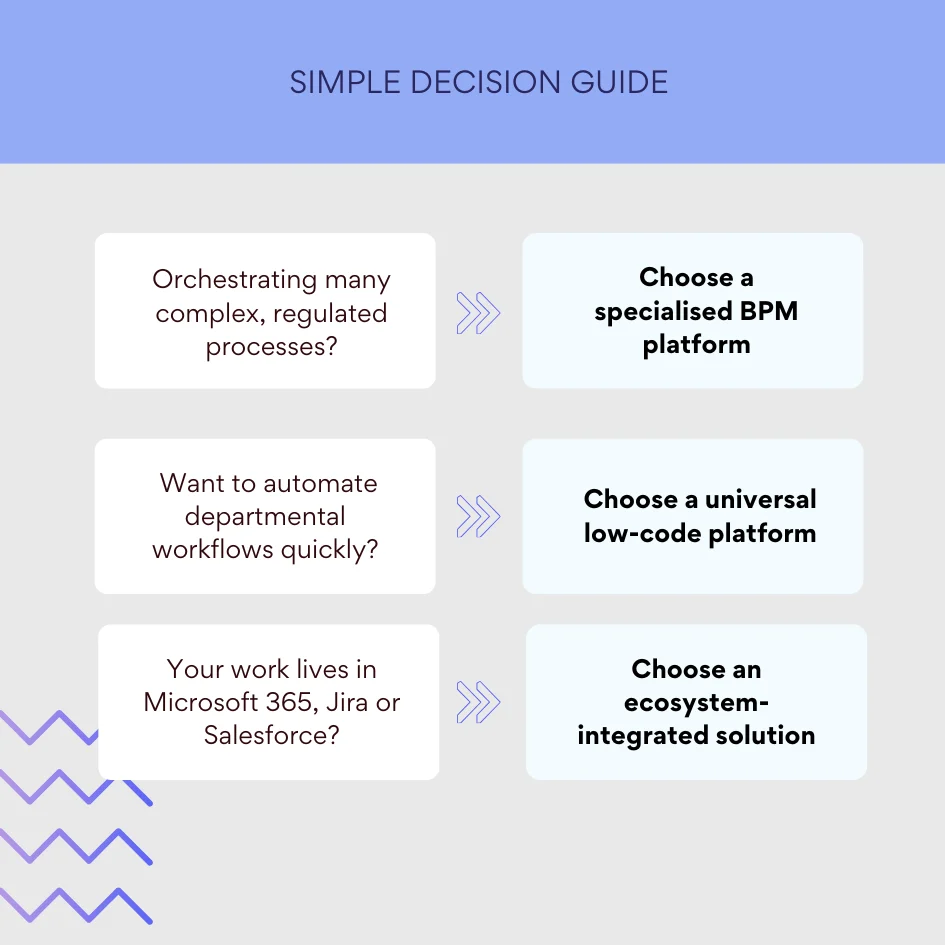
- If you are a very large enterprise with heavily regulated, mission-critical processes that span dozens of systems, a specialised BPM platform like Pega or Appian is often the right anchor.
- If you are mainly trying to automate departmental and cross-departmental workflows without building a huge platform team, low-code tools like Nintex and Power Automate are more pragmatic.
- If you are already all-in on Microsoft 365, Jira or Salesforce, the most efficient move is usually to lean on their ecosystem-integrated tools first (Power Automate in Microsoft 365, Jira automation in Atlassian, Salesforce Flow in Salesforce) and only look beyond them when you hit clear limits.
So instead of asking “what is the best workflow management tool?”, a better question for this section of the article is:
Given our processes, our existing stack and our internal skills, which combination of tools will give us reliable automation with the least friction?
Once you answer that, the choice between BPM platforms, universal low-code suites and ecosystem-integrated tools becomes much clearer.
Workflow Management Solutions in the Microsoft Ecosystem from Virtosoftware
When you look specifically at the Microsoft ecosystem, one question matters more than any feature checklist: how much of your work already lives in Microsoft 365? For most medium and large organisations, the answer is “almost everything”—documents, lists, project spaces and team communication are already in SharePoint and Teams. That makes it natural to treat Microsoft 365 not just as a collaboration stack, but as the backbone for workflow management too.
Before diving into VirtoSoftware’s tools, it’s worth spelling out why SharePoint itself is such a strong base for building and running business workflows.
Why SharePoint is a strong foundation for workflows
If your content, lists and team spaces already live in SharePoint, you are sitting on a solid base for workflow management. SharePoint gives you:
- A single home for data and documents – lists, libraries and metadata provide structured containers for almost any business process.
- Built-in identity and permissions – every workflow can reuse Microsoft 365 accounts, groups and security trimming instead of inventing its own user model.
- Tight links to Teams, Outlook and the wider suite – approvals, notifications and tasks can surface where people already work rather than in yet another portal.
- Cloud and on-premises options – SharePoint Online covers Microsoft 365 tenants, while SharePoint Server 2016/2019/SE continues to run in data centres for organisations that need strict control.
Microsoft retired SharePoint 2013 workflows in Microsoft 365 on 2 April 2026 and actively recommends moving to Power Automate or supported partner solutions. That makes SharePoint less of a standalone workflow engine, and more of a workflow hub: content and permissions live there, while orchestration comes from Power Automate and ecosystem tools such as VirtoSoftware’s apps.
For most medium and large organisations that already run Microsoft 365 or SharePoint, this is good news. You do not need to buy a separate, heavyweight BPM platform just to automate approvals on your lists. You can extend what you have with focused products that understand SharePoint and speak the same language as your users. VirtoSoftware sits squarely in that space.
VirtoSoftware in a Microsoft-first environment
VirtoSoftware builds apps specifically for Microsoft 365, SharePoint Online and SharePoint Server. That matters for workflow management because:
- You stay inside your existing ecosystem – Virto apps are installed into your tenant or farm, reuse your permissions, and appear alongside other SharePoint components.
- Admins and power users recognise the environment – they configure workflows in familiar SharePoint-centric UIs rather than learning an entirely new platform.
- Licensing and training are typically lighter than bringing in a separate BPM stack, especially when you only need to automate processes that begin and end in SharePoint.
In practical terms, VirtoSoftware’s workflow automation product is Virto Workflow Automation for SharePoint on-premises, which bundles Workflow Activities, Workflow Status Monitor and Workflow Scheduler into one control centre. It lets you create complex, customised approval cycles and automate routine tasks on the SharePoint Server farms your teams already use every day.
Power Automate for SharePoint Online & Microsoft 365
In SharePoint Online and Microsoft 365, the workflow engine is Microsoft’s Power Automate. With SharePoint 2013 workflows retired there on 2 April 2026, cloud processes are built as flows: they start from SharePoint list and library events, route approvals through the Approvals connector into Teams and Outlook, and reach external SaaS tools through connectors (see the Power Automate row in the comparison above).
Workflow Automation for SharePoint on-premises
Not every organisation can move entirely to the cloud. Insurance companies, financial institutions, public sector bodies and manufacturers often keep critical systems on-premises for regulatory or architectural reasons. Their SharePoint farms still host core applications and document repositories.
For those environments, Virto provides Workflow Automation for SharePoint on-premises—a bundle that turns three existing tools into a single, coherent automation hub:
- Virto SharePoint Workflow Activities (270+ no-code actions)
- Virto Workflow Status Monitor (central monitoring and control)
- Virto Workflow Scheduler (time-based workflow execution)
As of late 2025, these components are installed together as Virto Workflow Automation for SharePoint Server 2016, 2019 and Subscription Edition, with a refreshed interface and unified admin experience.
Secure workflows inside your corporate network: For organisations that cannot send certain data to the cloud, one of the biggest advantages is straightforward:
- All workflow logic, data and logs stay inside your SharePoint farm
- Execution uses your existing servers and security controls
- No external workflow engine needs access to internal lists, documents or line-of-business systems
This is particularly important where regulations or internal policies require full control over where information is stored and processed.
Advanced workflow actions as building blocks: The Virto SharePoint Workflow Activities component provides over 270 no-code actions that plug into classic SharePoint workflows, significantly expanding what you can do without custom code.
These actions cover:
- External data access – working with SQL databases, CSV imports and other external sources
- File and list operations – copying, moving, renaming, publishing and bulk updates across lists and libraries
- Permissions management – granting, adjusting and restoring permissions on sites, lists, items and folders
- Utility logic – date calculations, string handling, loops and conditions, so you can express real-world rules directly in workflows
Instead of writing custom workflow actions in Visual Studio, admins and power users assemble these building blocks in a visual designer to match the organisation’s policies.
Deep integration with internal systems: On-premises SharePoint often sits next to accounting, ERP and industry-specific systems that are not exposed to the internet. Virto Workflow Automation is designed to live in that same environment:
- Workflows can call internal web services, interact with databases and move data between SharePoint and line-of-business systems without sending it through the cloud.
- Because everything runs under your existing network and firewall rules, you maintain control over connectivity and logging.
This depth of integration is difficult to achieve with standard SharePoint workflows alone and is often impossible with purely cloud-based automation tools.
Support for complex routes and processes: Many on-premises workflows involve richer logic than a simple “submit–approve–complete” pattern. Examples include:
- Approval chains that change based on thresholds, cost centres or product types
- Multi-stage validations where technical checks, legal review and finance sign-off all happen in sequence, with branches for rework
- Escalations after fixed time periods and conditional notifications throughout
Virto Workflow Activities give you the actions to model these routes; Virto Workflow Status Monitor shows you how they behave in real time; and Virto Workflow Scheduler lets you run them on schedules or against sets of items that match certain criteria.
Together, they support both long-running, complex processes and high-volume transactional workflows.
Full customisation to business rules: The architecture of the Activities suite is intentionally modular. You can:
- Choose only the actions you need for a given workflow
- Combine them in different ways for different departments
- Request custom activities from Virto when you have unique requirements
This makes it realistic to tailor workflows to specific industries (for example, insurance claims, loan processing or engineering change control) without building an entirely bespoke system.
Compliance and regulatory alignment:
Because Virto Workflow Automation runs on your own SharePoint servers, you maintain:
- Full control over data location
- Direct access to logs and workflow histories for audit
- The ability to align workflows with internal retention, access and segregation-of-duty policies
For sectors where audits, evidence trails and local hosting are non-negotiable, that control can be as important as the automation itself.
Scalability from single processes to full systems: You can start small, automating a single approval process or maintenance job, and scale up over time:
- Use the Activities library to improve a handful of critical workflows
- Add Status Monitor when you need better visibility across high-volume processes
- Introduce Scheduler to handle recurring checks, clean-ups or reporting jobs
Because all three components are now delivered as a single Virto Workflow Automation package, administrators manage installation, upgrades and configuration in one place while still keeping individual workflows manageable.
For organisations that run SharePoint Server, Virto’s workflow tools provide a practical middle path: richer, SharePoint-aware automation than you get from standard templates alone, without the overhead of a full-blown BPM platform.
How to Successfully Implement Workflow Management Software: Recommendations and Best Practices
Good workflow tools help, but they don’t magically fix messy processes or unclear responsibilities. The way you introduce them matters just as much as the platform you choose. This section walks through a practical implementation path and a concrete “algorithm” for automating individual workflows, with examples that fit a Microsoft 365/SharePoint reality.
Implementing workflow management software
You can think of implementation as four phases. In practice they overlap a bit, but this structure keeps projects under control and avoids automating the wrong things.
Implementation checklist:
- Phase 1 – Analyse & tidy up: Map the real process, find bottlenecks, remove unnecessary steps.
- Phase 2 – Select tools: Match platforms to where your work lives, complexity, and who will build flows.
- Phase 3 – Pilot & train: Start with one or two processes, run a pilot, train users in the context of their daily work.
- Phase 4 – Monitor & improve: Track metrics, review logs, and refine workflows based on data and feedback.
Analyse and optimise current processes: Before you touch a workflow designer, you need to understand how work actually happens today. That means going beyond the official process diagram and looking at what people really do.
Focus on:
- Finding the real flow of work
- Identify triggers: what starts the process? An email? A form? A meeting?
- List every step from “request raised” to “done”. Include informal ones such as “send a reminder” or “ask finance to double-check”.
- Capture handoffs: which teams or roles are involved, and in what order?
- Spotting pain points
- Where do requests get lost or delayed?
- Which steps generate the most rework or errors?
- Where do people feel they are doing repetitive admin rather than adding value?
- Cleaning up before automation
- Remove redundant approvals or steps that no longer have a clear purpose.
- Clarify who is responsible at each stage; if this is fuzzy in the manual process, it will be worse once automated.
If you skip this phase, you risk “locking in” an inefficient way of working. Automation will only move the pain around, not remove it.
Select the right tool: Once you have a clear view of your processes, you can make a more grounded tool choice. Key questions:
- Where does your work live now?
- If most content and collaboration already happens in SharePoint, Teams and Outlook, it usually makes sense to stay within Microsoft 365 with tools like Power Automate, or, on SharePoint Server, SharePoint-focused apps such as Virto Workflow Automation.
- If your work is centred on Jira, Salesforce or another platform, their native automation tools may be a more natural fit.
- Who will build and maintain workflows?
- If business analysts or power users will be designing flows, prioritise low-code/no-code tools with strong visual designers and pre-built actions.
- If everything will go through a central development team, you can afford more technical platforms, but you will need to plan capacity carefully.
- How complex are the processes you are targeting?
- Simple approval chains and notifications can live entirely inside SharePoint/Power Automate/Virto.
- Cross-system, high-volume, regulated processes might justify a heavier BPM platform, or at least more structured governance around the tools you pick.
At this stage, it helps to build a short list and run a proof of concept on a real process rather than comparing feature lists in the abstract.
Phase implementation and train users: Trying to automate everything in one go is a common way to stall a project. Instead:
- Start with one or two well-chosen processes
- Pick something high-volume and annoying but not mission-critical (for example, simple approvals, access requests, or expense pre-approvals).
- Aim for a visible win within a few weeks rather than a perfect solution across the entire organisation.
- Create a small pilot group
- Include the team that owns the process and a handful of early adopters from other departments.
- Gather their feedback on usability: are forms clear, do notifications make sense, can they see status easily?
- Train people in context
- Instead of generic “workflow system training”, show users how the new process replaces their existing steps.
- For Microsoft 365-based workflows, show how tasks, notifications and approvals surface inside SharePoint, Teams and Outlook so they don’t feel like an extra system to check.
Once the pilot works and users are comfortable, you can extend the pattern to other teams and processes.
Monitor and continuously improve: Implementation does not end when the first workflow goes live. You need to treat automation as a living system.
- Define simple metrics for each process
- Average time from submission to completion
- Number of rejections or rework loops
- Where items most often get stuck
- Use your tools’ monitoring features
- Workflow history, dashboards and logs show where delays and errors occur.
- For VirtoSoftware’s on-prem solution, Status Monitor gives a central view of running workflows; in Microsoft 365, Power Automate and SharePoint views provide similar visibility.
- Iterate based on data, not hunches
- If approvals always sit with one role for days, consider escalation rules or changing the routing logic.
- If users keep bypassing the workflow (for example, emailing someone directly), find out why and adjust the design or training.
Think of each workflow as a product that evolves, not a one-time project that is “finished” forever.
Automating workflows
With the overall implementation approach in mind, you still need a clear, repeatable way to automate individual processes. The steps below form a practical “algorithm” you can apply each time.
A simple algorithm for process automation:
Identify processes that cause delay or consume time: Look for work that is:
- Repetitive (same steps over and over)
- High volume (many requests per week)
- Error-prone (frequent mistakes or missing information)
- Dependent on one person manually pushing things along
Classic examples are purchase requests, leave approvals, onboarding checklists and content approvals in SharePoint libraries.
Sketch a basic workflow: who does what, and in what order: Forget tools for a moment and write out:
- The starting point (e.g. “employee submits a SharePoint form”)
- The key stages (review, approval, validation, update, notification)
- The people or roles involved at each stage
A simple flow diagram or even a numbered list is enough. The goal is to know the main path from start to finish.
Identify bottlenecks and common error points: Ask the people doing the work:
- Where does this process usually slow down?
- What information is often missing or wrong?
- Where do they need to chase others or rework items?
These are the places where automation can add the most value, for example by enforcing required fields, sending reminders, or routing items to someone else when busy.
Choose a workflow tool with visual, no-code modeling: For most organisations:
- In Microsoft 365, that usually means Power Automate.
- On-prem, it might be classic SharePoint Designer workflows extended with Virto Workflow Automation Web Part, or another workflow engine supported in your environment.
The key is that non-developers can read and understand the flow. If only a developer can interpret the diagram, changes will be slow.
Configure a basic route in the tool: Translate your sketch into a working flow:
- Input data – map form fields or list columns to the workflow so they are available in conditions and notifications.
- Assignees – specify who approves or acts at each step (individuals, managers, groups, roles).
- Transition logic – define what happens on approve, reject, or when additional information is needed.
- Conditions – add rules such as “if amount > £5,000, add finance approval” or “if department = IT, route to IT queue”.
- Notifications – configure emails or Teams messages for new tasks, completed tasks, and timeouts.
At this stage, keep the logic as clear as possible. You can always add extra branches after testing.
Test with a small group of employees: Before you roll out widely:
- Run several test cases from end to end with real data (or realistic dummy data).
- Ask testers to deliberately enter incorrect information to see how validation behaves.
- Confirm that notifications are understandable and not overwhelming.
Encourage honest feedback. If people find the automated process confusing, adjust now rather than after full launch.
Gradually scale to other processes: Once the first workflow works reliably:
- Apply the pattern to similar processes, reusing components and naming standards where possible.
- Document what you learned and share that with other teams who want to automate their own flows.
Over time, you build a library of reusable patterns (for example, “multi-level approval”, “time-based reminder”, “escalation after X days”) that speeds up future automation projects.
What to automate first: To build momentum and confidence, start with scenarios that are both simple and noticeably painful today.
- Document and request approvals
- Approvals for policies, marketing assets, contracts, access requests or internal documents stored in SharePoint libraries.
- Automate the routing, tracking and status updates so people no longer chase approvals by email.
- Notifications about tasks, deadlines and changes
- Reminder emails or Teams messages when due dates approach.
- Alerts when a key status changes (for example, “approved”, “rejected”, “needs more information”).
- Simple data checks
- Validate required fields and basic rules (date ranges, numeric thresholds) before approving or moving items.
- This alone can drastically reduce rework.
- Automatic task creation using templates
- When a new request arrives, automatically create a set of standard tasks (for example, onboarding tasks for IT, HR and facilities).
- Routing requests to the right person
- Use department, cost centre, region or product type to route requests to the correct approver or queue.
These building blocks appear in many processes, so improvements here quickly compound.
Workflow automation best practices
A few principles will keep your automation programme healthy as it grows.
Start simple — Do not begin with your most complex, politically sensitive process. Choose a high-volume but straightforward workflow—such as office supplies requests or standard leave approvals—to get a quick win and build internal experience with the tools.
Do not automate chaos — If a process is unclear, riddled with exceptions, or constantly handled differently by each team, fix the underlying design first. Automation should support a stable, agreed flow, not freeze confusion in place.
Document the process before you build it — Write down each step and draw a simple diagram of the manual process. This forces alignment on what “good” looks like and exposes disagreements before you turn them into workflow logic.
Use visual modeling tools — Always keep a visual representation of the workflow, even if the tool also shows it as a list of steps. A diagram makes it easier to spot branches, loops and dead ends, and it helps new team members understand what is going on.
Create consistent naming standards — Agree how you will name:
- Workflows (e.g. “FIN-AP-01 Vendor invoice approval”)
- Stages (“Submitted”, “Under review – manager”, “Under review – finance”)
- Tasks and forms
This consistency improves navigation, searchability and comprehension across departments.
Involve users early and often — Include the people who will actually use the workflow in discussions, design sessions and testing. They will surface edge cases, terminology issues and usability problems that formal requirements miss. Involving them also reduces resistance to change because they feel ownership.
Make processes transparent to employees — Ensure that participants can easily see:
- The current status of their requests
- Who is responsible at each stage
- What will happen next
In a SharePoint/Microsoft 365 context, this usually means clear status columns, views, dashboards and meaningful notifications rather than cryptic system messages.
Monitor metrics and act on them — After go-live, track simple metrics such as throughput time, number of items in each status, and error or rejection rates. Review them regularly with process owners to identify where small tweaks could have a big effect.
Treat workflow management as a continuous cycle — Automation is not a one-off rollout. Over time:
- Regulations and internal policies will change
- Teams will restructure
- New tools will appear in your stack
Make it normal to revisit workflows periodically, review configuration, retire obsolete flows and optimise active ones based on data and user feedback.
If you follow these practices, workflow management software becomes a stable, evolving layer that quietly improves how work moves through the organisation, rather than a one-time project that fades once the initial excitement passes.
Conclusion on the Best Workflow Management Software
Workflow management software is ultimately about controlling how work moves from one step to the next. By capturing those steps in a clear, automated flow, you reduce manual effort, cut down on errors, and make it much easier for everyone to see what is happening and why. Processes become faster, more accurate and more transparent because they are no longer hidden in inboxes and ad-hoc spreadsheets.
Making that work in practice depends on picking the right kind of solution. The best tool for you is the one that matches your goals, your level of process complexity and the systems you already rely on. For many organisations, the deciding factor is how smoothly a workflow platform fits into existing infrastructure: identity, permissions, security, and the places where people already work every day.
If your organisation already uses Microsoft 365 or SharePoint, Power Automate (for SharePoint Online & Microsoft 365) and the Workflow Automation Web Part (for SharePoint on-premises) give you flexible, intuitive options that extend what you already have. They let you use SharePoint as a full-fledged process management system, with rich approval cycles, advanced routing and clear status monitoring, without forcing you to adopt a completely separate BPM stack.
The next step is straightforward: start analysing one or two key processes today. Map how they actually run, identify where things slow down, and decide where automation would help most.
From there, you can schedule a demo of VirtoSoftware’s workflow apps or install the free versions directly from our site and begin turning those mapped processes into working, automated workflows. That first move is what takes you from talking about process improvement to running genuinely automated business process management in your everyday tools.
Feel free to peruse additional resources:
Microsoft: What are Workflow Automation Tools and Software? | Microsoft Power Automate