



A practical comparison for SharePoint site owners, intranet managers, and Microsoft 365 admins — updated for 2026.
Introduction
There is no single-click way to display an Outlook calendar on a modern SharePoint Online page. The native Group Calendar web part shows exactly one Microsoft 365 Group calendar, in agenda view only. Personal mailboxes, shared Exchange calendars, and meeting-room calendars are not supported by any out-of-the-box web part. To put real Outlook events on a SharePoint page, you need either a workaround or a third-party app.
This guide compares the three methods that actually work in 2026: the native Group Calendar web part (simple but limited), a Power Automate sync to a SharePoint list (flexible but maintenance-heavy), and the Virto Calendar App (a full-featured SPFx web part that connects directly to Exchange). For each method you’ll find a step-by-step setup, a candid list of limitations, and a verdict on when to use it. The decision table at the end maps your scenario to the right approach in seconds.
Looking for the reverse direction? See How to Add a SharePoint Calendar to Outlook.
Quick Comparison: 3 Methods at a Glance
Skim the matrix below before diving in. Each row is a capability that intranet teams typically ask for; each column is one of the three working methods. Detailed walk-throughs follow.
| Method 1: Group Calendar Web Part | Method 2: Power Automate Sync | Method 3: Virto Calendar App | |
|---|---|---|---|
| Setup difficulty | Easy | Complex | Easy–Medium |
| Calendar types | M365 Group calendar only | Any Outlook calendar (via flow) | Exchange, Outlook, SharePoint, Planner, iCal |
| Monthly view | No (agenda only) | Yes (via SP list calendar view) | Yes (plus Day, Week, Year, Gantt) |
| Multiple calendars | No (one group) | Partial (one flow per calendar) | Yes (unlimited overlay) |
| Real-time sync | Yes | Delayed (depends on flow trigger) | Yes |
| Color-coding | No | Manual (JSON formatting) | Yes (multi-level) |
| Maintenance | None | High (flow monitoring) | Low |
| Cost | Free (built-in) | Free (M365 license) | 30-day free trial; paid licence per user (see pricing) |
| Best for | Single group calendar, agenda view | Technical teams, single-calendar sync | Enterprise multi-source overlay |
Method 1 — Group Calendar Web Part (Native)
What it does
- Displays events from one Microsoft 365 Group calendar (the Outlook group calendar) on a modern SharePoint page.
- Renders as an agenda/list of upcoming events only.
- Lets users click an event to see details and RSVP in Outlook.
Step-by-step setup
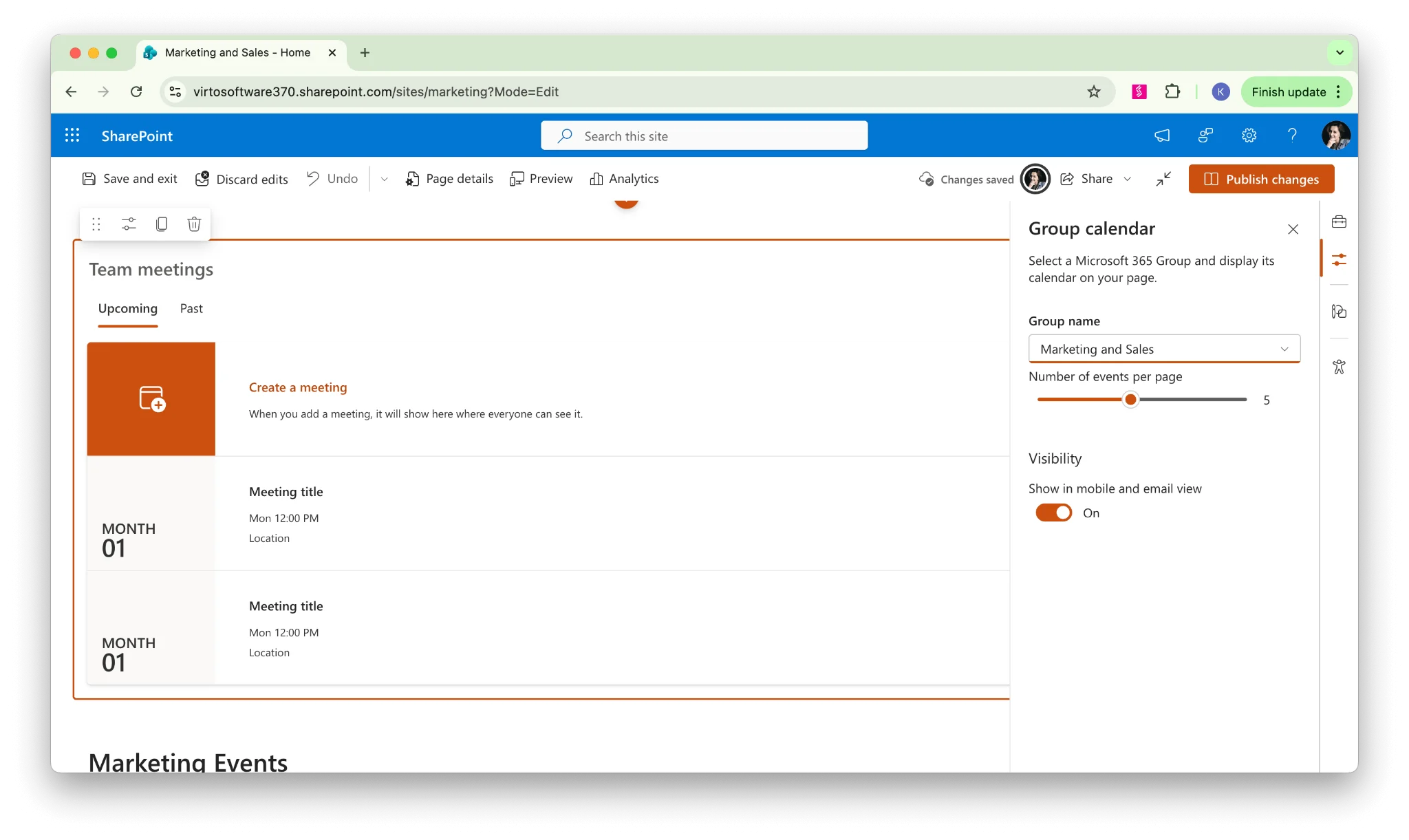
- Open the SharePoint page in edit mode and click the + icon to add a web part.
- Search for “Group Calendar” and insert the web part.
- In the property pane, choose the Microsoft 365 Group whose calendar you want to display.
- Set the number of events to show (1–10) and publish the page.
Limitations
- No monthly or weekly view — agenda format only.
- Only one group at a time; no overlay of multiple calendars in a single web part.
- The group must already exist. Creating a new calendar provisions a full M365 Group with its own SharePoint site, mailbox, and Planner — which can be heavyweight for simple use cases.
- Personal and shared Outlook calendars are not supported — only Group calendars.
- Calendars created via Teams are hidden in Outlook by default and require a PowerShell workaround to expose.
- No color-coding by category, owner, or source.
Verdict: best for simple cases where you need to show upcoming events from a single team group. Not suitable if you need a monthly calendar view or events from multiple sources.
Method 2 — Power Automate Sync to SharePoint List
What it does
- Uses a Power Automate flow to copy Outlook calendar events into a SharePoint list.
- The list is then displayed on the page using the List web part with a Calendar view, giving you a true monthly grid.
- Works with personal mailboxes, shared mailboxes, and most Exchange Online calendars.
Step-by-step setup
- Create a SharePoint list with columns: Title, Start Date, End Date, Category, and Location.
- Build a Power Automate flow with the trigger “When a new event is created (V4)” on the Outlook calendar you want to surface.
- Add a “Create item” action that maps Outlook fields (Subject, Start, End, Categories, Location) into the SharePoint list columns.
- Build a second flow for event updates and deletions so the list stays in sync — use “When an event is modified” and a “Delete item” path.
- Add the list to a SharePoint page via the List web part and switch the view to Calendar.
- Optionally apply JSON column formatting to color-code events by category.
Limitations
- One flow per calendar — syncing five calendars usually means five flows (or more if you split create/update/delete).
- Sync is not guaranteed real-time. New events arrive within seconds, but updates and deletions can lag.
- Maintenance burden is high. Flows fail silently after token expirations, throttling, or M365 connector updates.
- Only future events sync by default; backfilling history requires a one-off bulk import.
- No native overlay — each calendar lands in a separate list. The classic SharePoint calendar can overlay up to 10 calendars, but classic pages are deprecated.
- Requires a Power Automate license (included in most Microsoft 365 plans, but premium connectors may be needed for some scenarios).
- Cannot create Teams meetings from the calendar view — events are read-only display copies.
Verdict: technically possible and free for M365 customers, but complex to set up and maintain. Recommended only for technical teams comfortable owning Power Automate flows long-term, and ideally for a single calendar.
Method 3 — Virto Calendar App (Recommended)
What it does
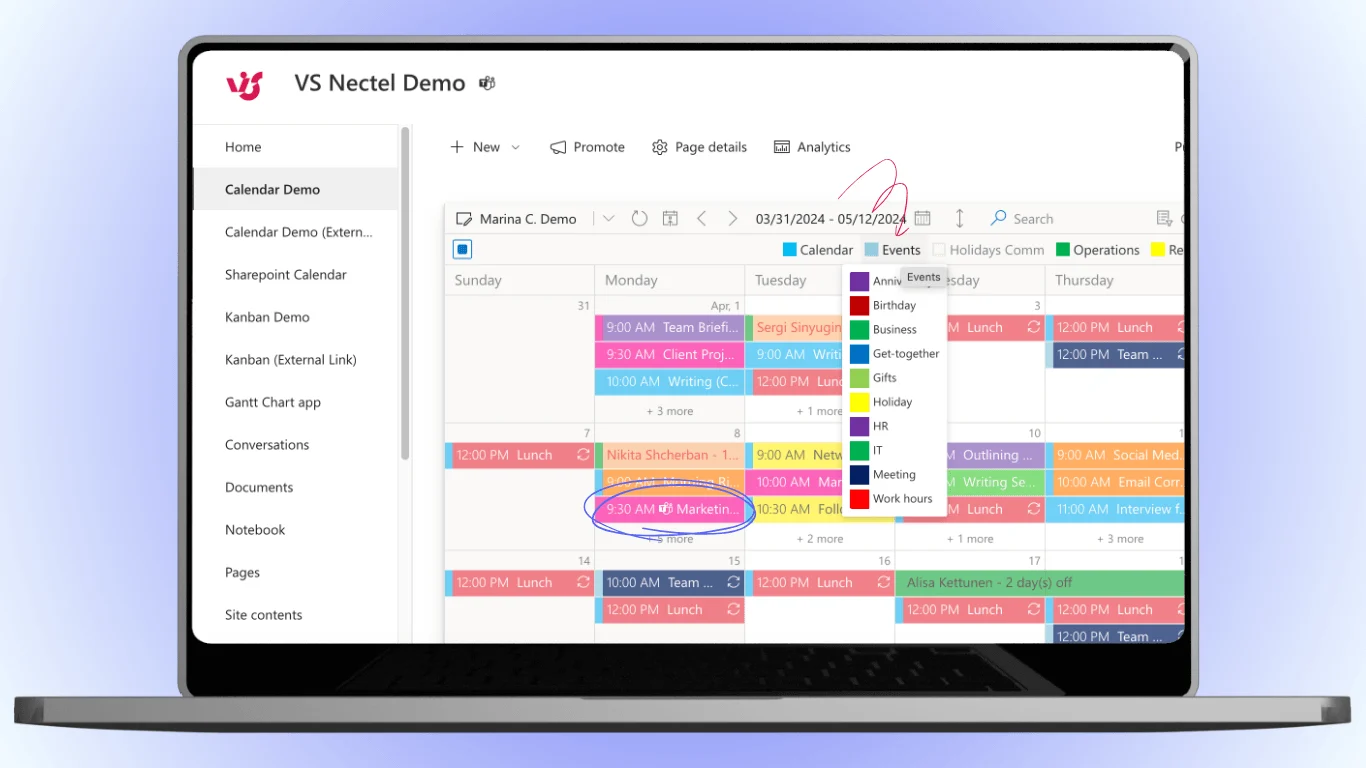
- Displays Exchange and Outlook calendars directly on a modern SharePoint page via an SPFx web part — no copy, no flow.
- Overlays SharePoint lists, Planner tasks, meeting-room calendars, iCal feeds, and Google Calendar in the same view.
- Provides Day, Week, Month, Year, Gantt, and Task views with full color-coding by source and category.
Step-by-step setup
- Install the Virto Calendar Overlay from Microsoft AppSource and approve it in the SharePoint App Catalog.
- Edit a modern SharePoint page and add the Virto Calendar web part.
- Add a data source → choose Exchange/Outlook → authenticate → select the calendar(s) you want to display. Read documentation »>
- Add additional sources as needed (SharePoint lists, Planner, iCal, Google) — they will overlay automatically.
- Configure color-coding rules and the default view (Month is the most-used), then publish.
Why it’s different
- Real-time sync with Exchange via Microsoft Graph — no replicated copies to drift out of date.
- Multiple Outlook calendars in a single overlay: personal, shared, room, and resource calendars together.
- Real monthly view on modern pages — the single biggest gap in the native experience.
- Mixes Outlook with non-Outlook sources, so a team page can show meetings, project milestones, and tasks side by side.
- Self-hosted Azure deployment is available for compliance-sensitive organizations that prefer to keep all data in their own tenant.
Limitations (being honest)
- Paid product after the 30-day trial — pricing on the product page.
- Requires Exchange Online for the Outlook source. On-premises Exchange is supported only via hybrid configuration.
- An admin needs to grant the initial Exchange permissions during data-source setup.
Verdict: the most complete solution for displaying Outlook calendars on a modern SharePoint page. Recommended for organizations that need monthly views, multiple calendar sources, or enterprise-grade calendar management without flow maintenance.
Which Method Should You Choose?
Match your scenario to a method using the table below. The two questions that decide it for almost every team are: do you need a true monthly view on a modern page, and do you need more than one calendar visible at once? If both answers are yes, native options will not get you there.
| If you need… | Use… |
|---|---|
| Simple agenda from one group calendar | Method 1: Group Calendar web part |
| Monthly view of one personal Outlook calendar (technical team) | Method 2: Power Automate sync |
| Monthly view with multiple Exchange calendars + other sources | Method 3: Virto Calendar App |
| Overlay Outlook + SharePoint + Planner in one view | Method 3: Virto Calendar App |
| Free solution, no third-party apps | Method 1 or 2 (with limitations) |
| Enterprise deployment with compliance needs | Method 3 (self-hosted Azure option) |
A useful rule of thumb: if your scope is ever likely to grow beyond a single calendar — for example, adding a second team’s schedule, room calendars, or Planner tasks — start with Virto. Migrating away from a Power Automate sync later is painful because flows, list schemas, and dependent views all need to be unwound.
Frequently Asked Questions
Can I display my personal Outlook calendar on a SharePoint page?
Not with native web parts. The Group Calendar web part only displays Microsoft 365 Group calendars, not personal Outlook mailboxes. To show a personal calendar, sync events to a SharePoint list with Power Automate, or use the Virto Calendar App, which connects to Exchange/Outlook calendars directly.
Why is there no monthly view for the Group Calendar web part?
The Group Calendar web part renders an agenda/list only. Microsoft has not added a monthly grid view in the modern web part, and the roadmap has been quiet on this for years. For a true monthly view of Outlook events on a SharePoint page, use a SharePoint list with Calendar view (via Power Automate sync) or the Virto Calendar App.
Can I show multiple Outlook calendars on one SharePoint page?
Not natively. The Group Calendar web part shows one group at a time. You can add multiple instances of the web part to the same page, but they will sit side by side rather than overlay. Virto Calendar App can overlay unlimited Exchange/Outlook calendars in a single color-coded view.
Does the Embed web part work for displaying Outlook calendars?
It used to. You could paste an outlook.office.com iframe URL into the Embed web part and get a basic embedded calendar. As of 2025, Microsoft blocks outlook.office.com from being framed inside SharePoint, so this returns a “refused to connect” error. Many older blog posts still recommend it — they are out of date.
Is Virto Calendar App free?
Virto Calendar App offers a 30-day trial with full functionality, which is sufficient for a proof of concept. After the trial it is a paid licence per user; current plans are listed on the product page.
Conclusion
The native options cover the basics. The Group Calendar web part is fine for a single team’s upcoming events, and a Power Automate sync can give a monthly view if you only have one Outlook calendar to surface and a tolerance for flow maintenance. Anything beyond that — multi-source overlay, monthly grid on a modern page, color-coded enterprise dashboards — is where a purpose-built calendar app earns its place.
Try Virto Calendar App free for one month — install it from Microsoft AppSource, or read more on the product page.