



A practical guide for IT admins, M365 migration project leads, and CIOs.
When organizations migrate from Google Workspace to Microsoft 365, email and files get the most attention. Migration runbooks, vendor checklists, and Microsoft’s own documentation are full of guidance on moving Gmail to Exchange Online and Drive content to OneDrive and SharePoint. Shared calendars, on the other hand, are often an afterthought — until project leads, executive assistants, and facilities teams discover that their team calendars, resource schedules, and external partner subscriptions did not come over cleanly.
The result is a familiar scene three weeks into the cutover: a project manager whose marketing calendar suddenly stops updating, an EA who can no longer see the CEO’s freelance partner schedule, a facilities coordinator double-booking conference rooms because the resource calendars were never recreated. None of these problems are catastrophic on their own. Together, they erode confidence in the migration and create a long tail of support tickets.
This guide is written for the IT admins and migration project leads who own that long tail. It covers what Microsoft’s migration tooling actually moves, what falls through the cracks, how to maintain calendar visibility during a phased migration when half your users are still on Google, and how to keep Google Calendar data accessible inside Microsoft 365 long-term using the Virto Calendar App. The goal is not to sell you a tool — it is to help you avoid the most common shared-calendar pitfalls before they reach your help desk.
What Microsoft’s Migration Tool Does (and Doesn’t) Migrate
Microsoft offers two primary paths for moving calendar data from Google Workspace to Exchange Online: the Migration Manager in the Microsoft 365 admin center, and the classic Exchange admin center batch migration via IMAP plus a Google service account for calendar and contacts. Both work well for the bulk of personal calendar data. Neither was designed with the realities of shared, resource, and subscribed calendars in mind.
Here is what you can reasonably expect.
What the migration tool handles cleanly. Personal calendar events on each user’s primary Gmail calendar transfer to that user’s Exchange Online mailbox. Single events, simple recurring meetings, attachments, and basic attendee lists usually arrive intact. Free/busy information regenerates correctly once the events land in Exchange.
What migrates with limitations. Complex recurring patterns — particularly Google’s “every other Tuesday except the third one of the quarter” style rules — sometimes break or flatten into individual occurrences. Attendee response statuses (accepted, tentative, declined) often reset to “no response” after the move. Reminders and notification settings are reapplied per Outlook defaults rather than carried over. Time zone metadata for events created across daylight saving boundaries occasionally needs verification.
What does not migrate cleanly. This is where most migration plans underestimate the work. Google shared calendars do not have a one-to-one equivalent in Exchange Online. The migration tool typically copies the owner’s view of a shared calendar into the owner’s mailbox, but the sharing relationships, permission grants, and group memberships do not come along. Resource calendars — meeting rooms, equipment, vehicles — require a CSV mapping exercise and manual recreation as Exchange room mailboxes. Calendar subscriptions from external iCal feeds (vendor schedules, holiday calendars, partner calendars) are not migrated at all. Color labels and Google’s calendar metadata partially translate to Outlook categories, and the mapping is rarely what users expect.
The table below is the cheat sheet most migration leads wish they had on day one.
Google Calendar Migration Matrix
| Calendar type | Migrated natively? | Post-migration action needed |
|---|---|---|
| Personal calendar | Yes | Verify recurring events and attendee statuses |
| Shared team calendars | Partial (owner’s copy only) | Re-share in Exchange or bridge with Virto iCal feed |
| Resource calendars (rooms, equipment) | No (manual CSV mapping) | Recreate as room mailboxes in Exchange |
| External iCal subscriptions | No | Re-subscribe in Outlook or aggregate in Virto |
| Calendar colors and labels | Partial | Remap to Outlook categories |
| Sharing permissions | No | Reassign in Exchange or SharePoint |
The pattern is clear: anything that lives “between” users — shared calendars, resources, subscriptions — needs a deliberate plan. Anything that lives inside a single mailbox usually moves on its own.
The Hybrid Period Problem: Seeing Both Calendars
Almost no organization moves from Google Workspace to Microsoft 365 in a single weekend. Phased migrations are the norm: a pilot group cuts over first, then a department, then the rest of the company over a period of weeks or months. Mergers and acquisitions create even longer hybrid periods, sometimes lasting a year or more, while licensing and identity questions get sorted out.
During this period, cross-platform calendar visibility becomes a daily operational issue. The marketing director on M365 needs to see her sales counterpart’s schedule, who is still on Google. The executive assistant scheduling a board meeting needs to see availability for three people on Exchange and two on Gmail. The facilities team needs a single source of truth for which rooms are booked, regardless of which system holds the booking.
Microsoft and Google offer free/busy federation, but it is brittle to set up, requires DNS and identity work on both sides, and only exposes coarse availability — not event titles, descriptions, or attendees. For most teams, the practical alternative is publishing Google Calendars as iCal feeds and subscribing to them in Outlook. This works, but it has three real limits. First, the sync interval is long: Outlook typically refreshes Internet Calendar Subscriptions every three hours, which is too slow when an event was just rescheduled. Second, the subscriptions are read-only and live inside each individual user’s mailbox, so there is no shared organizational view. Third, there is no overlay — each subscribed calendar shows up as its own column in Outlook, not as a unified view of the team’s schedule.
This is the gap the Virto Calendar App is designed to fill. By adding Google Calendar iCal feeds as data sources alongside Exchange and SharePoint calendars, you get a single overlaid view that lives on a SharePoint page or in a Microsoft Teams tab — visible to anyone with access, refreshed on a schedule you control, and styled so that Google events and Outlook events appear in the same calendar grid with distinct colors. During the hybrid period, that one view often becomes the closest thing the organization has to a unified schedule.
How to Keep Google Calendars Visible in Microsoft 365 with Virto
The setup below assumes you have the Virto Calendar App installed in your SharePoint or Microsoft 365 environment and have site-owner permissions on the page where you want the calendar to appear. The flow is the same whether the source is a personal Google Calendar, a Google shared calendar, or a Google resource calendar — they all expose iCal URLs.
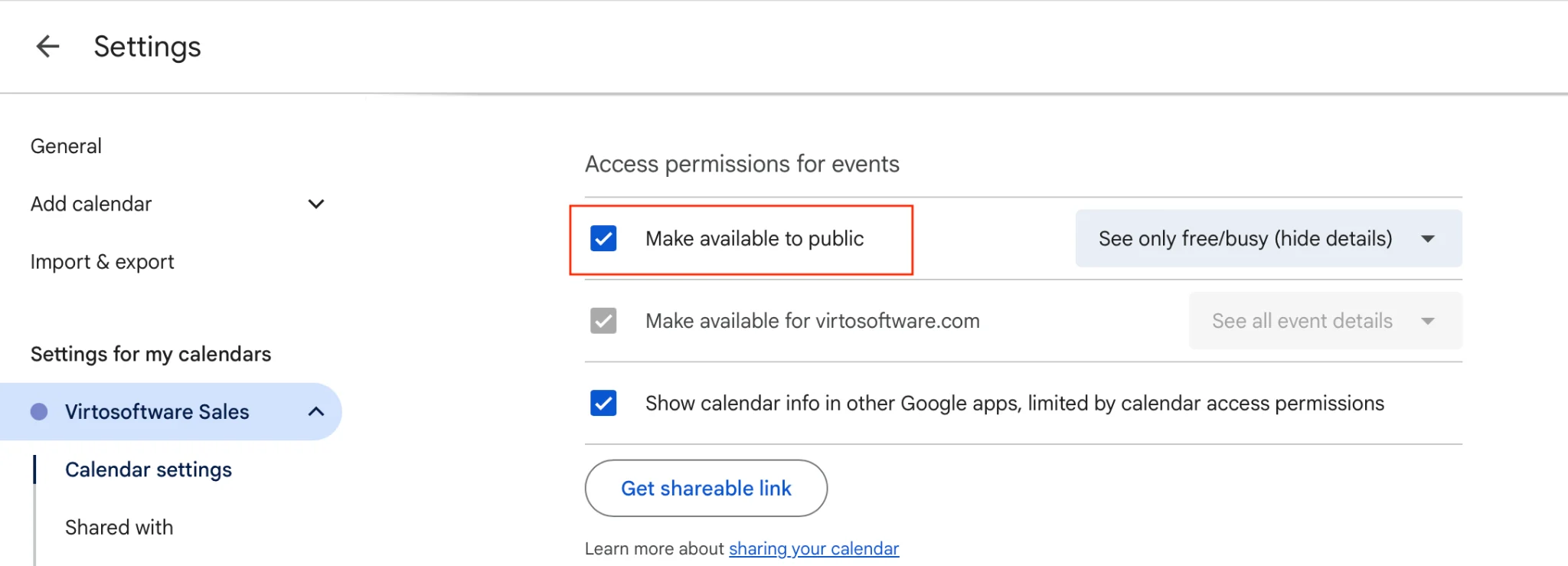
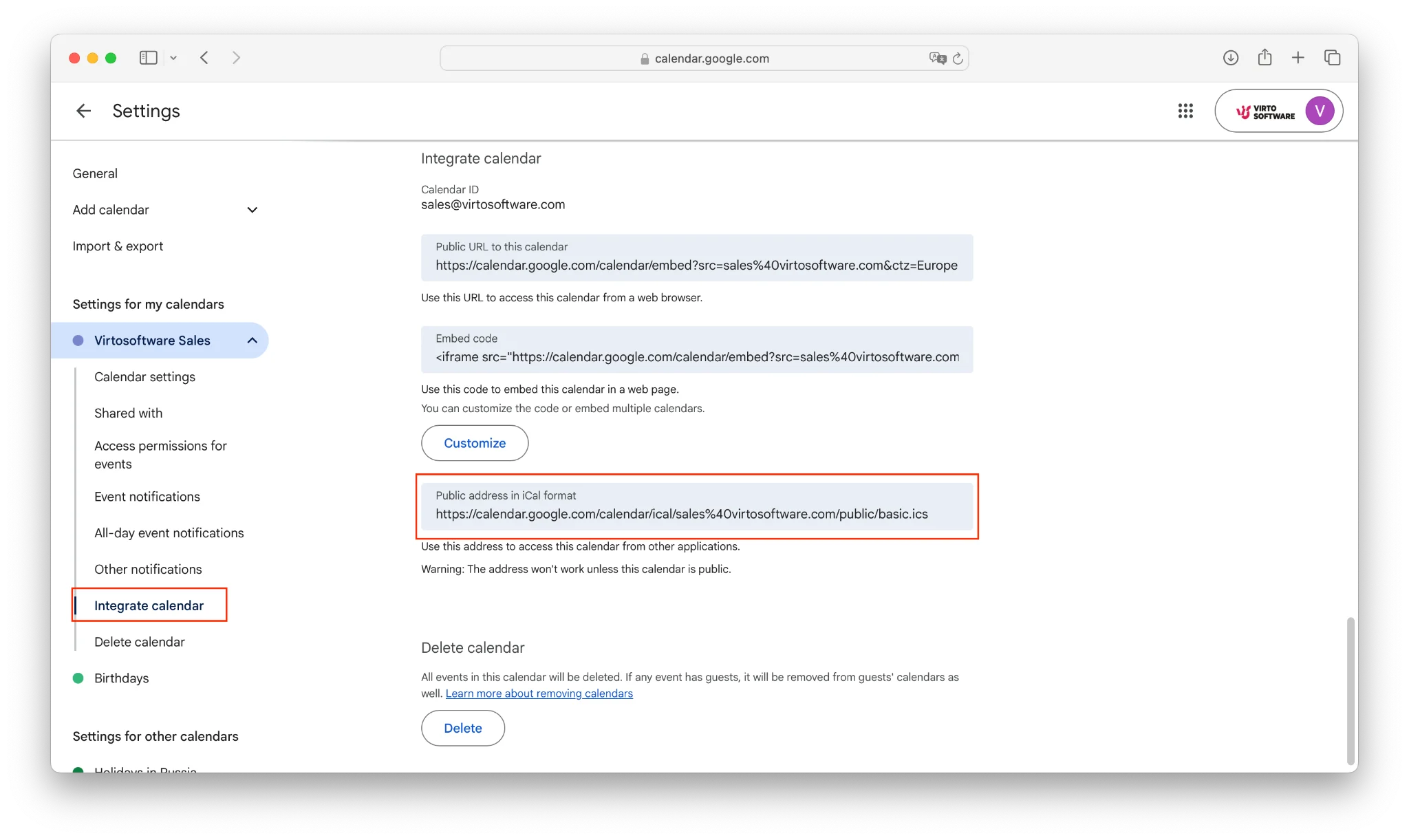
Step 1. Get the iCal URL from each Google Calendar. In Google Calendar, hover over the calendar in the left sidebar, click the three-dot menu, and choose Settings and sharing. Scroll to “Integrate calendar.” Make the calendar available to the public and copy the iCal URL.
Repeat for every Google calendar you want to surface in M365 — team calendars, partner schedules, project calendars.
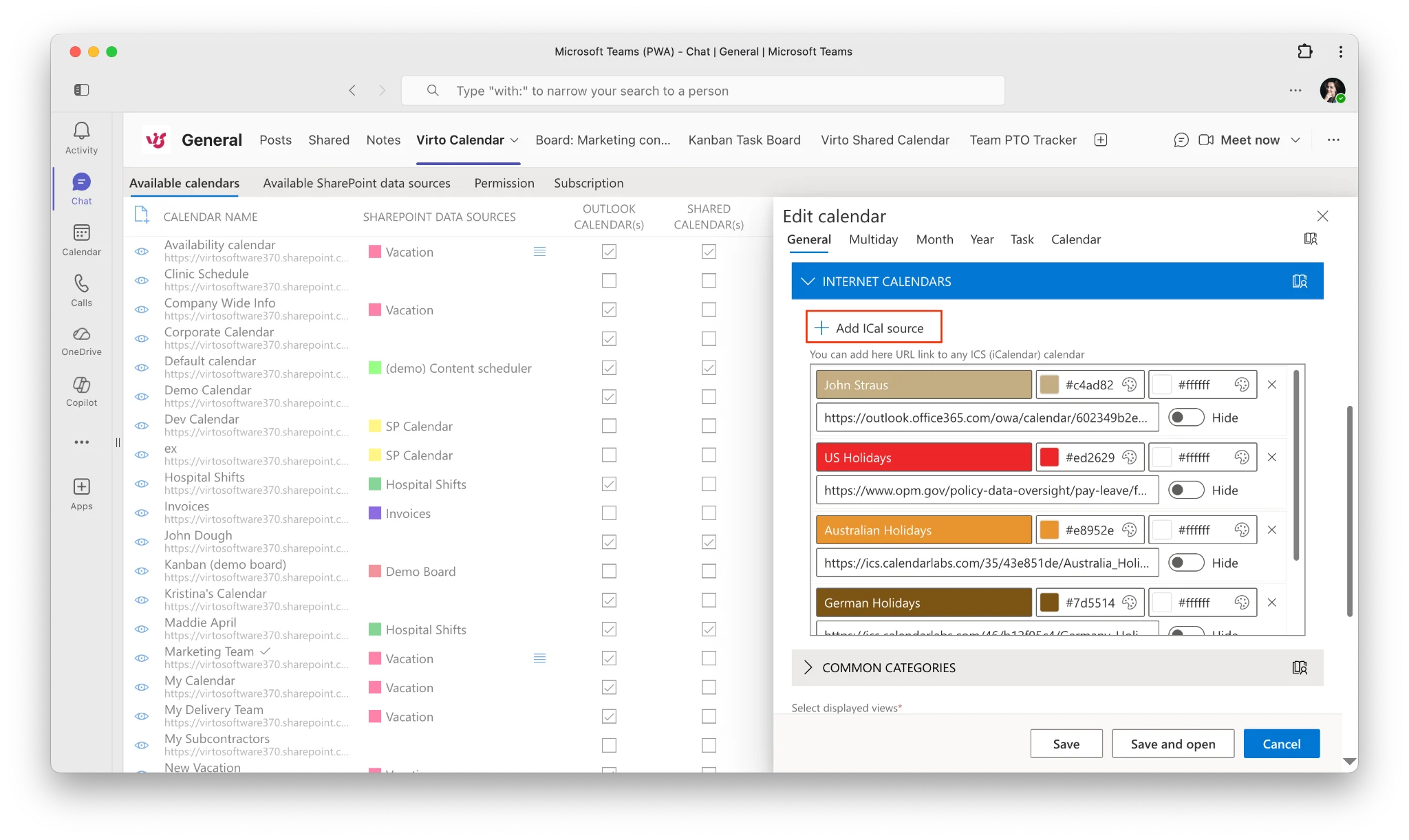
Step 2. Add the iCal feed as a data source in the Virto Calendar App. Open the SharePoint page or Teams tab where the Virto Calendar App is installed. Open the calendar’s settings, go to data sources, and choose “Add new source.” Select Internet Calendar (iCal) as the source type. Paste the Google Calendar iCal URL you copied in step 1. Give the source a clear display name — “Marketing (Google)” reads better than the auto-generated label.
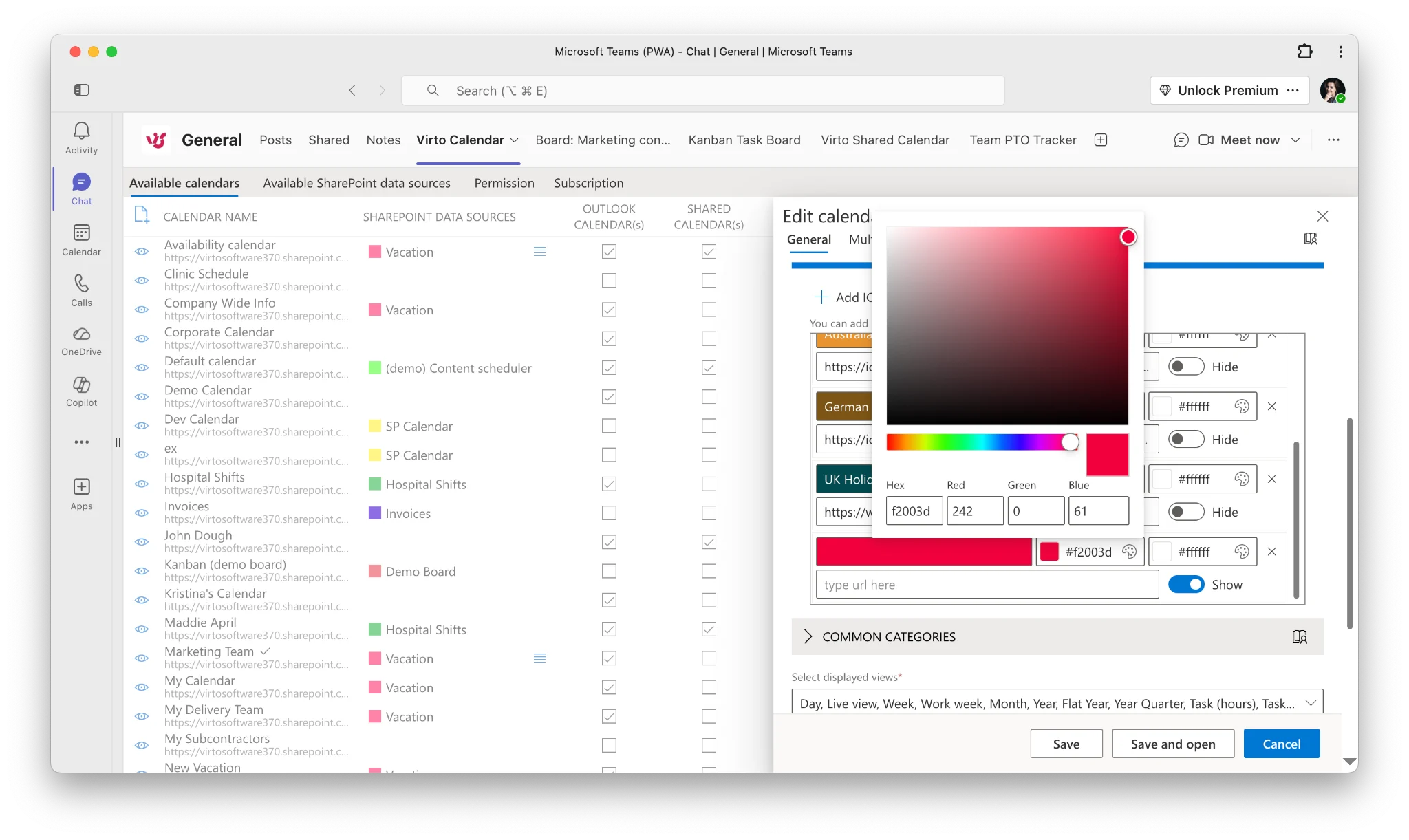
Step 3. Assign a color and refresh interval. Pick a color that makes Google-sourced events visually distinct from your Exchange events. A common convention during migration is to use Google’s brand colors for any source still living on Google Workspace, then swap to a Microsoft palette as each calendar finishes migrating. Set the refresh interval according to how time-sensitive the calendar is; faster refresh is better for active team calendars and less important for relatively static partner schedules.
Step 4. Add Exchange and SharePoint calendars as additional sources. In the same data sources panel, add your Exchange Online calendars (personal, shared mailbox, or room mailbox) and any SharePoint calendar lists you maintain. The Virto Calendar App treats each source identically once it is connected, so you can mix Google iCal, Exchange, SharePoint, and Microsoft Planner sources in a single view.
Step 5. Save and review the overlay. The result is a unified calendar that displays Google and Microsoft 365 events side by side on the same grid. Users can toggle individual sources on and off, filter by category, and export the combined view. For migration project leads, this view doubles as a progress dashboard: as each Google calendar gets retired, you remove its data source and the team loses nothing in the transition.
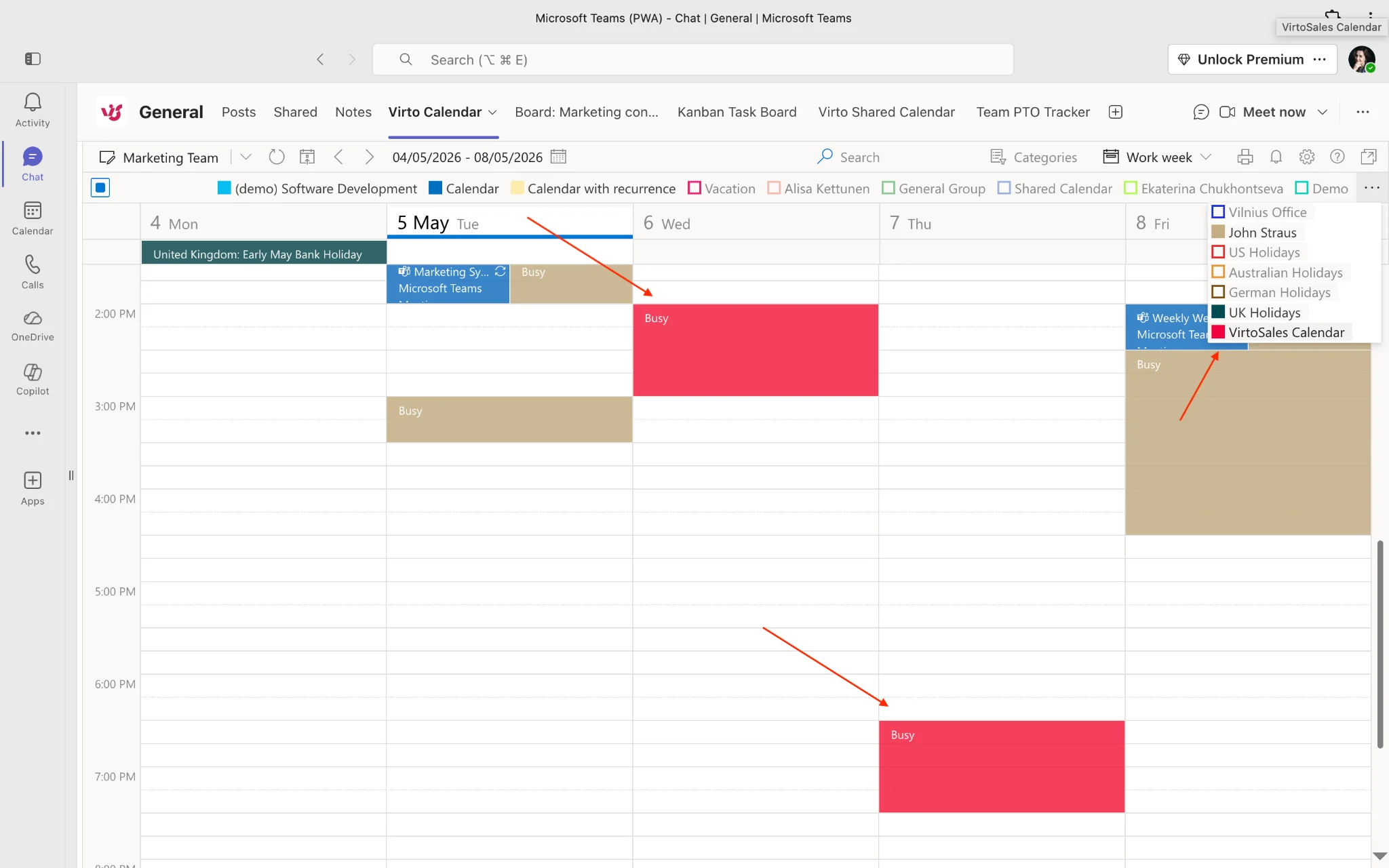
Note. This setup works for any iCal-compatible source, not just Google. Apple Calendar, Zoho Calendar, Calendly, sports schedules, and most SaaS tools that publish event data expose iCal feeds. The Virto Calendar App treats them all as first-class data sources.
A note on permissions: iCal subscription URLs grant read access to anyone who holds the URL, so treat them as secrets. Keep them in your password manager rather than email, and rotate them (Google lets you reset the secret iCal URL at any time) if a calendar is shared too widely.
Calendar Migration Checklist
Use the three-phase checklist below as a working document. The actions are deliberately scoped to shared and resource calendars — your broader migration runbook will cover mailboxes, files, identity, and devices.
Pre-migration
| Action | Owner | Done |
|---|---|---|
| Inventory all Google shared calendars (name, owner, members) | IT admin | ☐ |
| Inventory all Google resource calendars (rooms, equipment) | Facilities + IT | ☐ |
| Inventory all external iCal subscriptions in use | IT admin | ☐ |
| Document calendar color/label conventions for remapping | IT admin | ☐ |
| Identify executive and team calendars that cannot tolerate downtime | Project lead | ☐ |
| Decide which calendars stay shared vs. become group calendars in M365 | Project lead | ☐ |
During migration (hybrid period)
| Action | Owner | Done |
|---|---|---|
| Verify personal calendar migration for pilot users | IT admin | ☐ |
| Spot-check recurring events and attendee statuses | IT admin | ☐ |
| Publish iCal feeds for active Google shared calendars | Calendar owners | ☐ |
| Configure Virto Calendar App data sources for hybrid views | IT admin | ☐ |
| Communicate the hybrid view URL to affected teams | Project lead | ☐ |
| Schedule review checkpoints at 25%, 50%, 75% migrated | Project lead | ☐ |
Post-migration
| Action | Owner | Done |
|---|---|---|
| Recreate resource calendars as Exchange room mailboxes | IT admin | ☐ |
| Reassign sharing permissions on team calendars in Exchange | Calendar owners | ☐ |
| Remap categories from Google labels to Outlook categories | Calendar owners | ☐ |
| Re-subscribe to external iCal feeds in Outlook or Virto | End users / IT | ☐ |
| Remove Google iCal feeds from Virto once a calendar is fully migrated | IT admin | ☐ |
| Decommission Google Workspace calendar access for migrated users | IT admin | ☐ |
FAQ
Does Microsoft’s migration tool move Google shared calendars?
Partially. The migration tool copies the owner’s view of a shared calendar into the owner’s Exchange mailbox, but the sharing relationships, permissions, and group memberships do not transfer. Plan to either reshare the calendar in Exchange after migration or use an iCal bridge to keep the Google version visible during the hybrid period.
Can I see Google Calendar events in SharePoint after migrating to M365?
Yes. Publish each Google Calendar as an iCal feed and add the feed as a data source in the Virto Calendar App on a SharePoint page or Teams tab. The events appear in the same overlaid view as your Exchange and SharePoint calendars, with distinct colors and shared visibility for everyone with access to the page.
How do I subscribe to a Google Calendar from Outlook?
Copy the secret iCal URL from Google Calendar’s settings, then in Outlook on the web go to Add calendar → Subscribe from web and paste the URL. The calendar appears under “Other calendars” and refreshes roughly every three hours. For faster refresh and a true overlay across multiple calendars, use the Virto Calendar App on SharePoint or Teams instead.
What happens to Google Calendar resource rooms during migration?
Resource rooms do not migrate automatically. You will need to export the room list from Google Workspace, recreate each room as a room mailbox in Exchange Online, and update any meeting templates or booking workflows to use the new addresses. Until the rooms are recreated, you can publish their iCal feeds from Google and surface them in a Virto Calendar App view to keep facilities visibility intact.
Can the Virto Calendar App display both Google and Outlook calendars at the same time?
Yes. The Virto Calendar App treats Google iCal feeds, Exchange Online calendars, SharePoint calendar lists, and Microsoft Planner plans as data sources of equal standing. You can overlay any combination in a single view, color-code each source, and toggle sources on and off without leaving the calendar.
Don’t Let Shared Calendars Become Your Migration’s Blind Spot
Email migrations get rehearsed. File migrations get rehearsed. Calendar migrations rarely do — and shared calendars almost never do. The fix is to inventory early, plan for the hybrid period explicitly, and give your teams a single overlaid view that does not care which platform an event lives on.
If you want to try the overlay approach on your own migration, start a free trial of the Virto Calendar App — five users, no setup fee, and enough room to bridge your Google and Microsoft 365 calendars on a real SharePoint page or Teams tab before you commit.