



Marking time as out of office in Outlook does two jobs at once: it shows colleagues you’re unavailable when they try to schedule meetings, and — if you pair it with automatic replies — it tells anyone who emails you when to expect an answer. This 2026 guide covers both, across Outlook on the web, the new and classic desktop apps, Mac, and mobile, plus fixes for the most common problems and a look at tracking absences across a whole team.
Looking for Microsoft Teams instead? See our companion guide: How to Set Out of Office in Microsoft Teams.
Quick Answer: How to Set Out of Office in Outlook Calendar
- Open the Calendar view in Outlook (web, desktop, or mobile).
- Create a New event covering your absence dates.
- Set Show As → Out of Office in the event options.
- Turn on All day for full-day absences, then save.
- Optionally enable Automatic Replies for the same dates so email senders are notified too.
That’s it — your calendar now shows the purple Out of Office block to anyone with permission to view your availability.
Set Out of Office Step by Step (Web + Desktop + Mobile)
Outlook on the web (outlook.office.com)
- Go to outlook.office.com and open the Calendar from the left navigation.
- Click New event (or click a time slot directly).
- In the event pane, open the Show as dropdown and choose Out of Office.
- Set your start and end dates, tick All day for multi-day absences, and adjust time zones if you’re traveling.
- Add a clear title (e.g., “Annual Leave”) and, in the description, a delegate or emergency contact. Click Save.
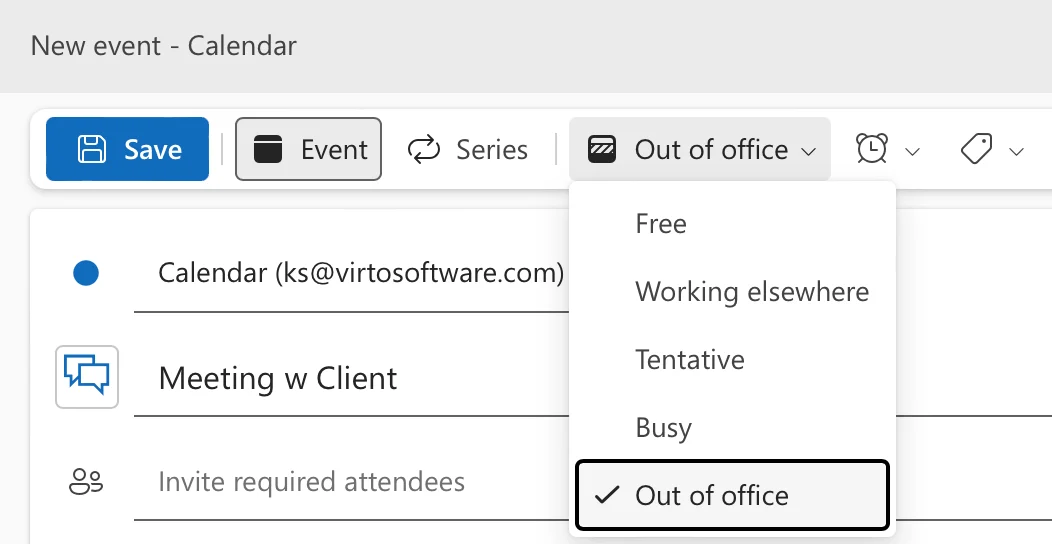
Pic. 1. Selecting “Show as → Out of Office” in a new event in Outlook on the web.
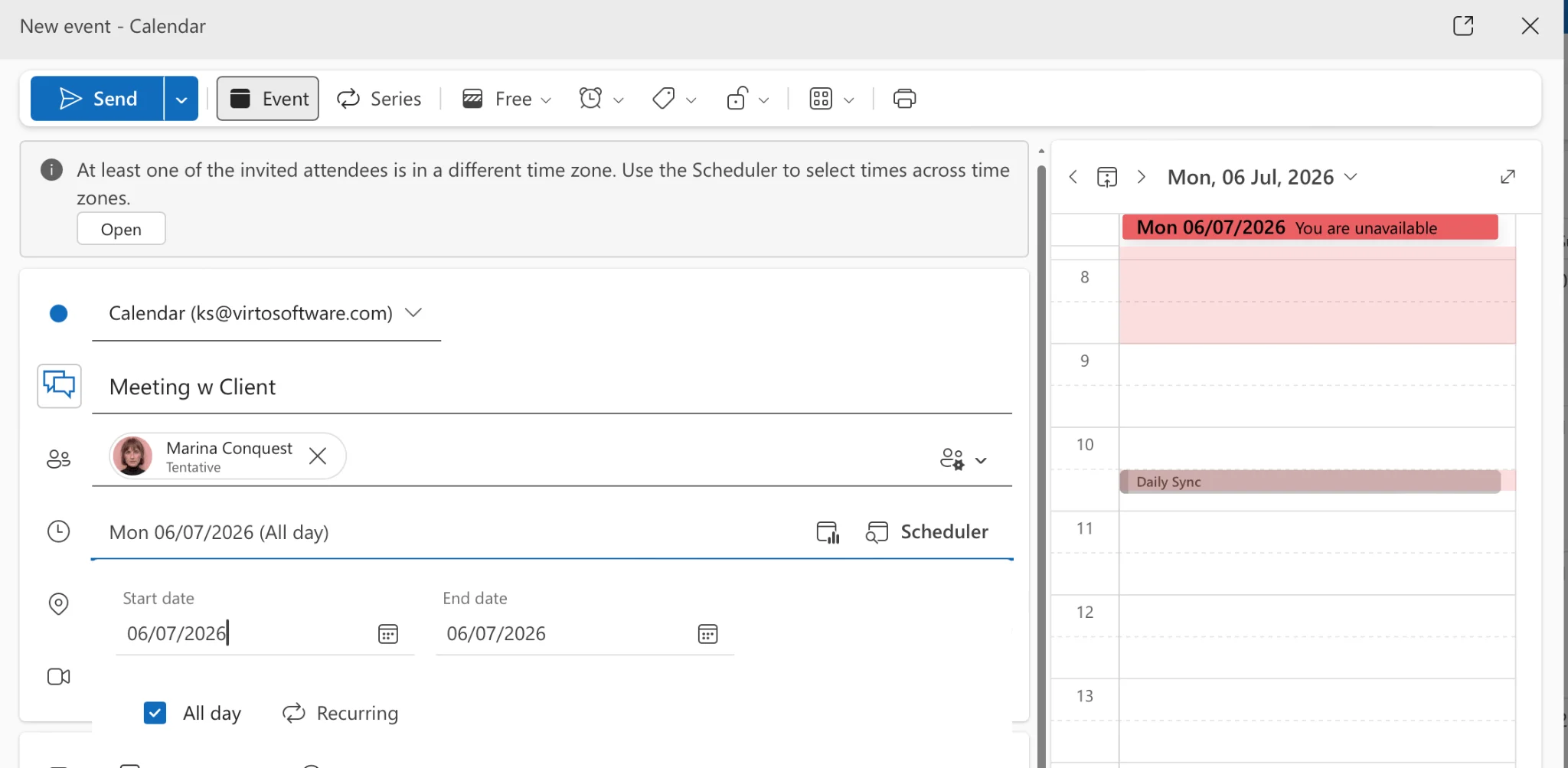
Pic. 2. Configuring dates, All day toggle, and event details in Outlook on the web.
New Outlook and classic Outlook for Windows
- Open the Calendar (icon in the navigation pane, or Ctrl + 2 in classic Outlook).
- Click New Appointment / New event (or Ctrl + N).
- In the ribbon or event options, set Show As → Out of Office.
- Configure dates and times; check All day event if applicable. Use Recurrence for regular patterns like a weekly remote day.
- Click Save & Close.
Outlook for Mac
- Open the Calendar and click New Event (or ⌘ + N).
- In the event details, open Show As and choose Out of Office — on newer versions this may sit under the Scheduling tab.
- Set the duration, tick All day if needed, add a title and notes, and Save.
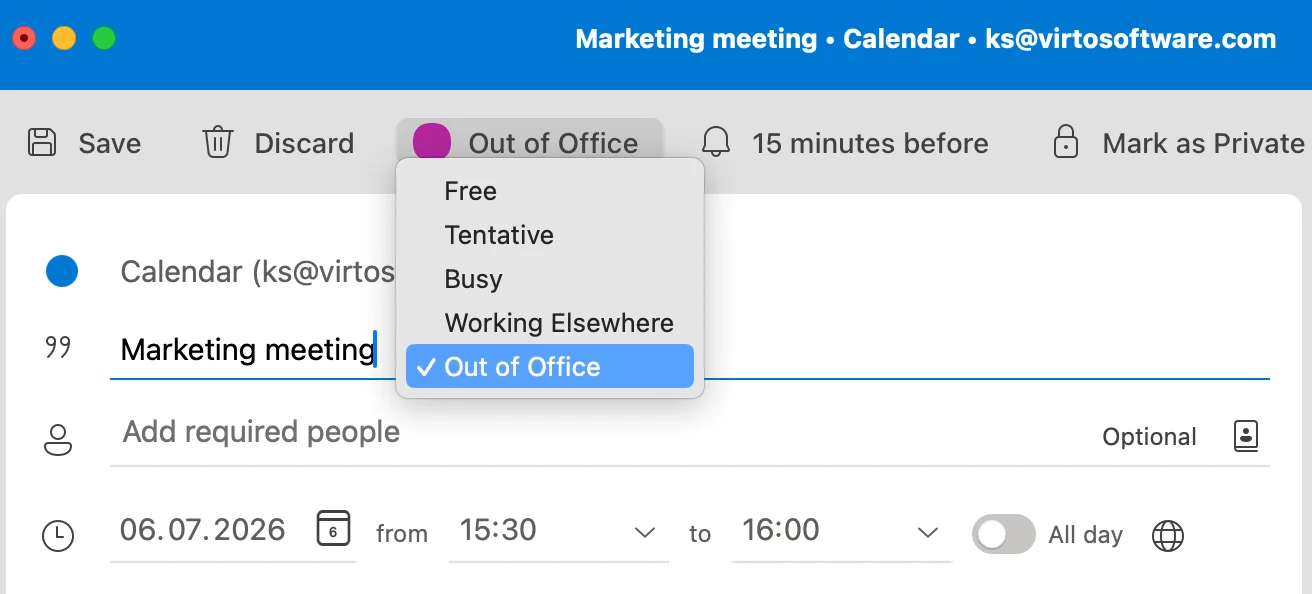
Pic. 3. Setting the Out of Office status when creating an event in Outlook for Mac.
Outlook mobile (iOS / Android)
- Tap the Calendar icon, then the + button to create an event.
- Tap Show As (or Availability) and select Out of Office.
- Set dates, toggle All-day if applicable, and save with the checkmark.
Make sure colleagues can actually see your status
An Out of Office block is only useful if the right people can see it. Two settings control that:
- Event privacy: if the event is marked Private, others see only that you’re busy. Keep it non-private if the absence itself should be visible.
- Calendar sharing permissions: colleagues need at least “Can view when I’m busy”. Check via right-click on your calendar → Sharing and permissions. For a full walkthrough, see how to share your Outlook calendar.
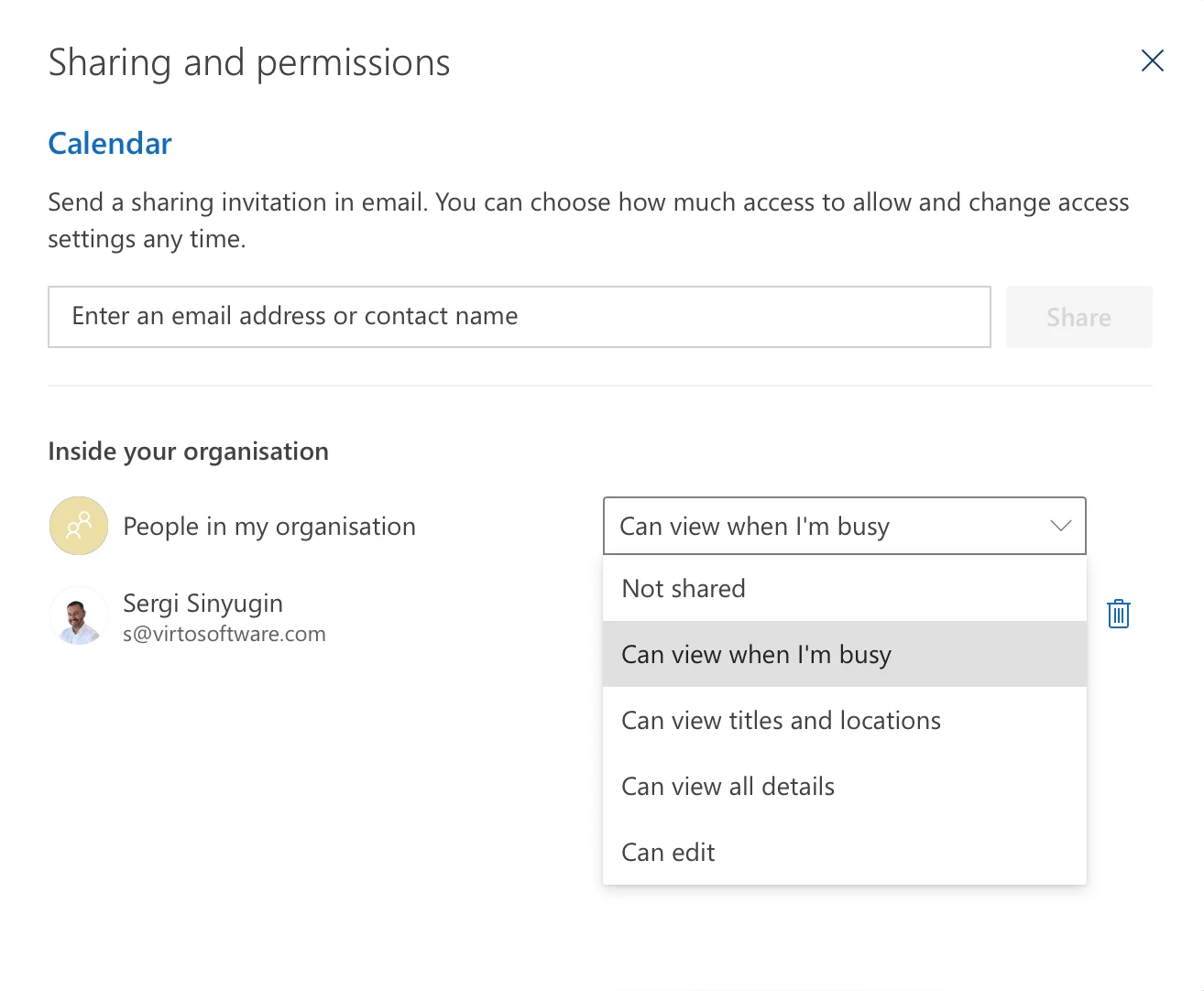
Pic. 4. Configuring sharing permissions for a colleague in Outlook on the web.
Out of Office Without an Automatic Reply (or Without Blocking Your Calendar)
Quick answer: create an all-day calendar event, set Show As → Out of Office (so your status is visible) but simply don’t enable Automatic Replies. To show your absence without blocking your calendar, set Show As → Free instead, with a clear title like “OOO — reachable on Teams.”
These two options cover the most common in-between situations:
- Visible OOO, no auto-reply: Show As → Out of Office, Automatic Replies off. Colleagues see the purple block; email flows normally. Ideal for conference days or travel where you’ll still answer mail.
- Informing others without blocking time: create an all-day event set to Free, click Invite attendees, add your team, and send. Their calendars show the notice at the top of the day without a blocked slot — the classic “OOO invite without blocking calendars” pattern.
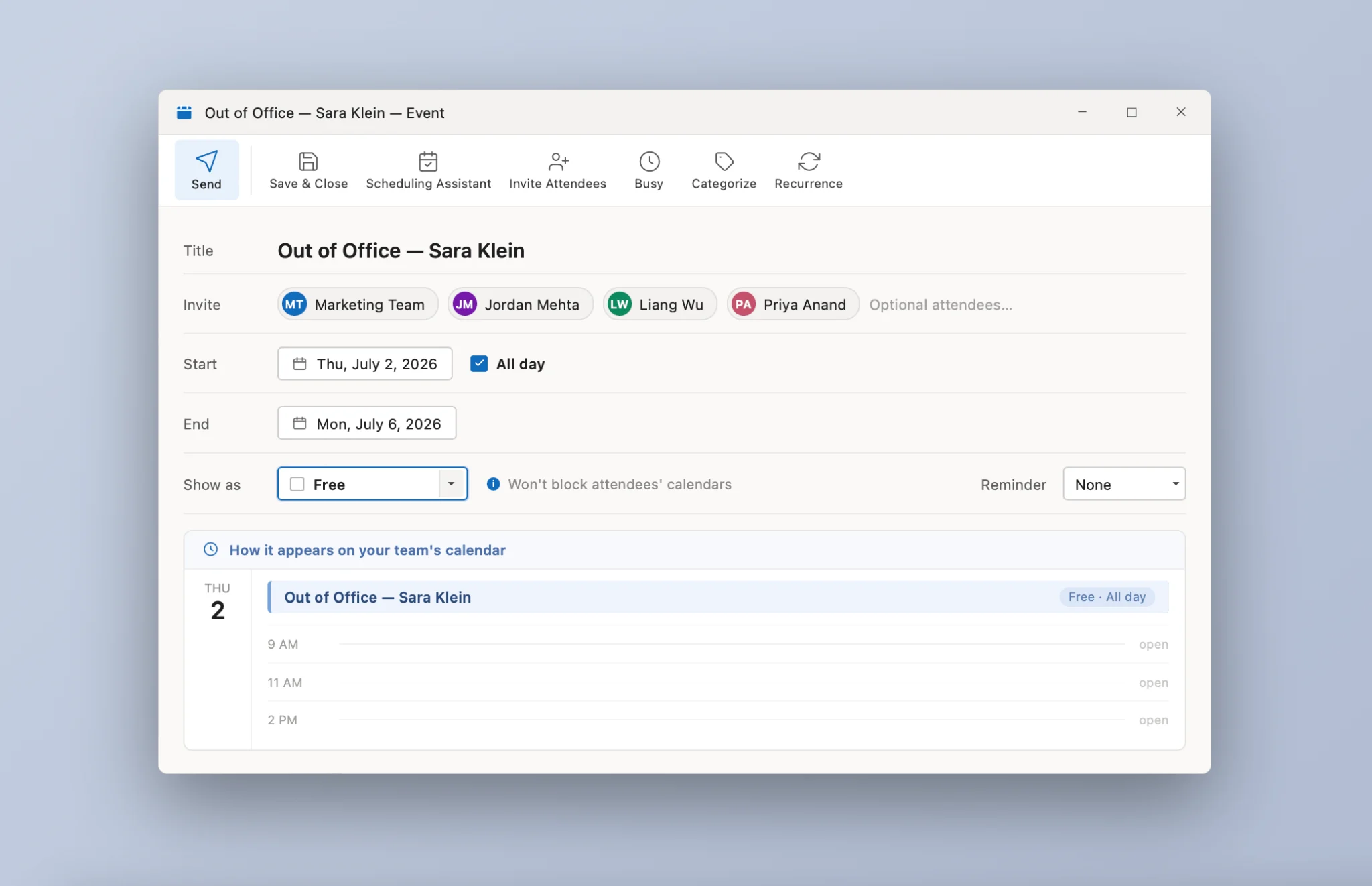
Pic. 5. An all-day event set to “Free” used as an OOO notification invite.
Automatic Replies: Set Them Up and Schedule Them
Quick answer: in Outlook on the web, go to Settings ⚙ → Mail → Automatic replies, toggle them on, set a time period, and write separate messages for people inside and outside your organization. In classic Outlook for Windows: File → Automatic Replies (Out of Office).
- Open Settings → Mail → Automatic replies (web/new Outlook) or File → Automatic Replies (classic Windows) or Tools → Out of Office (Mac).
- Turn automatic replies on and check Send replies only during a time period — set the end to the end of your first day back.
- In Outlook on the web you can also tick the companion options: Block my calendar for this period, Automatically decline new invitations, and Decline and cancel my meetings — this keeps your calendar and replies in sync in one step.
- Write your internal message; then enable and write the external one (to anyone, or contacts only).
- Save, and test by emailing yourself from another account.
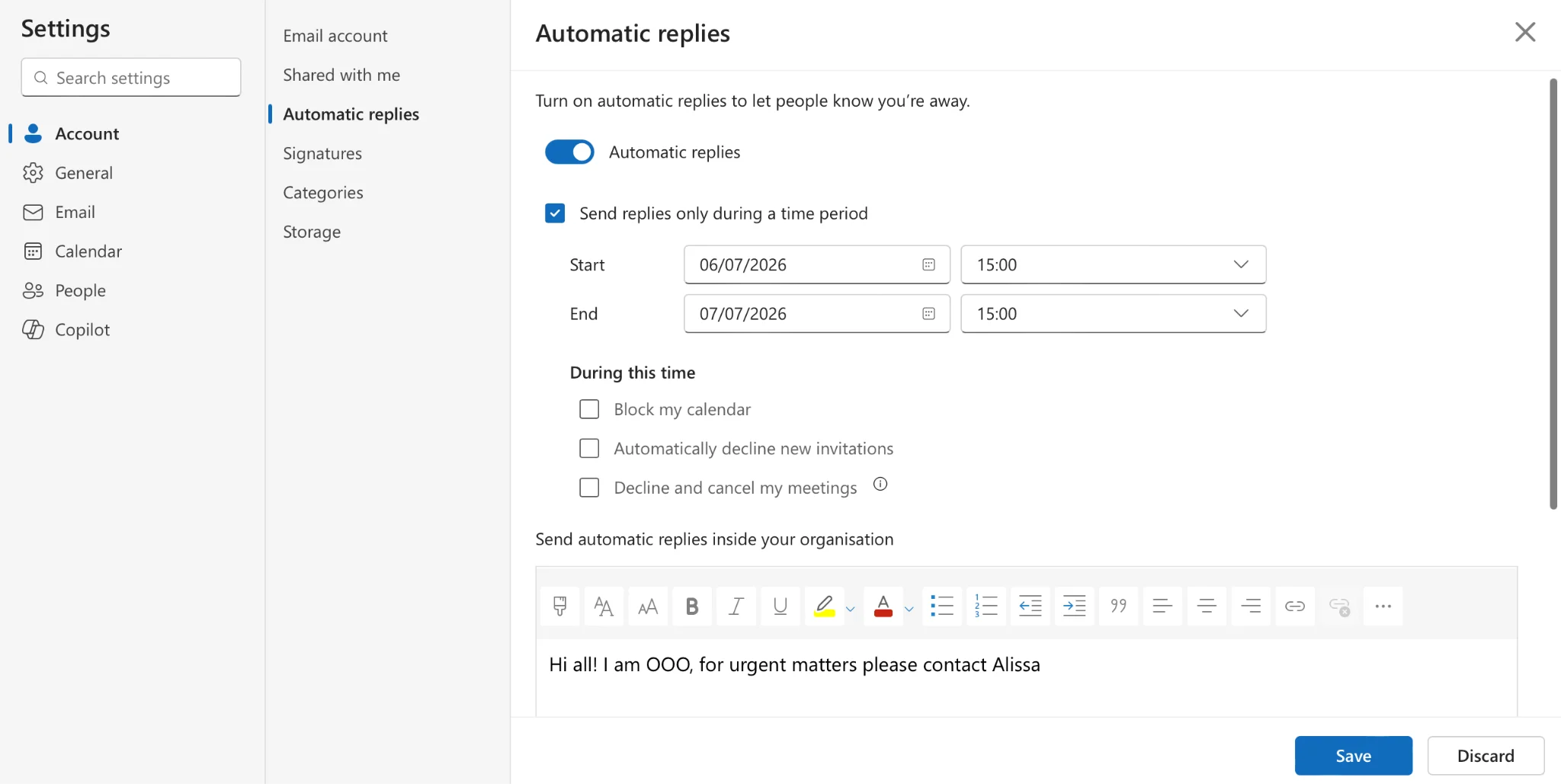
Pic. 6. Automatic replies settings in Outlook on the web, with the calendar-blocking options highlighted.
What to put in the message
- Exact absence dates and your return date.
- Who to contact for what (name, email, area of responsibility).
- Your email access level — none, limited, or periodic — plus time zone if relevant.
Keep external replies lighter on internal detail: a return date, one or two contact routes, and expected response time is enough.
Managing Absences and Working Hours in Outlook
Out of Office events work best on top of accurate availability settings:
- Working hours: set them under File → Options → Calendar (Windows), Preferences → Calendar (Mac), or Settings → Calendar → Work hours and locations (web), so cross-time-zone colleagues propose sensible slots.
- Recurring OOO: use the Recurrence option for predictable patterns — weekly remote days, monthly training — instead of recreating events by hand.
- A dedicated vacation calendar: right-click My Calendars → New calendar, share it with the team, and add OOO events there with color coding per absence type.
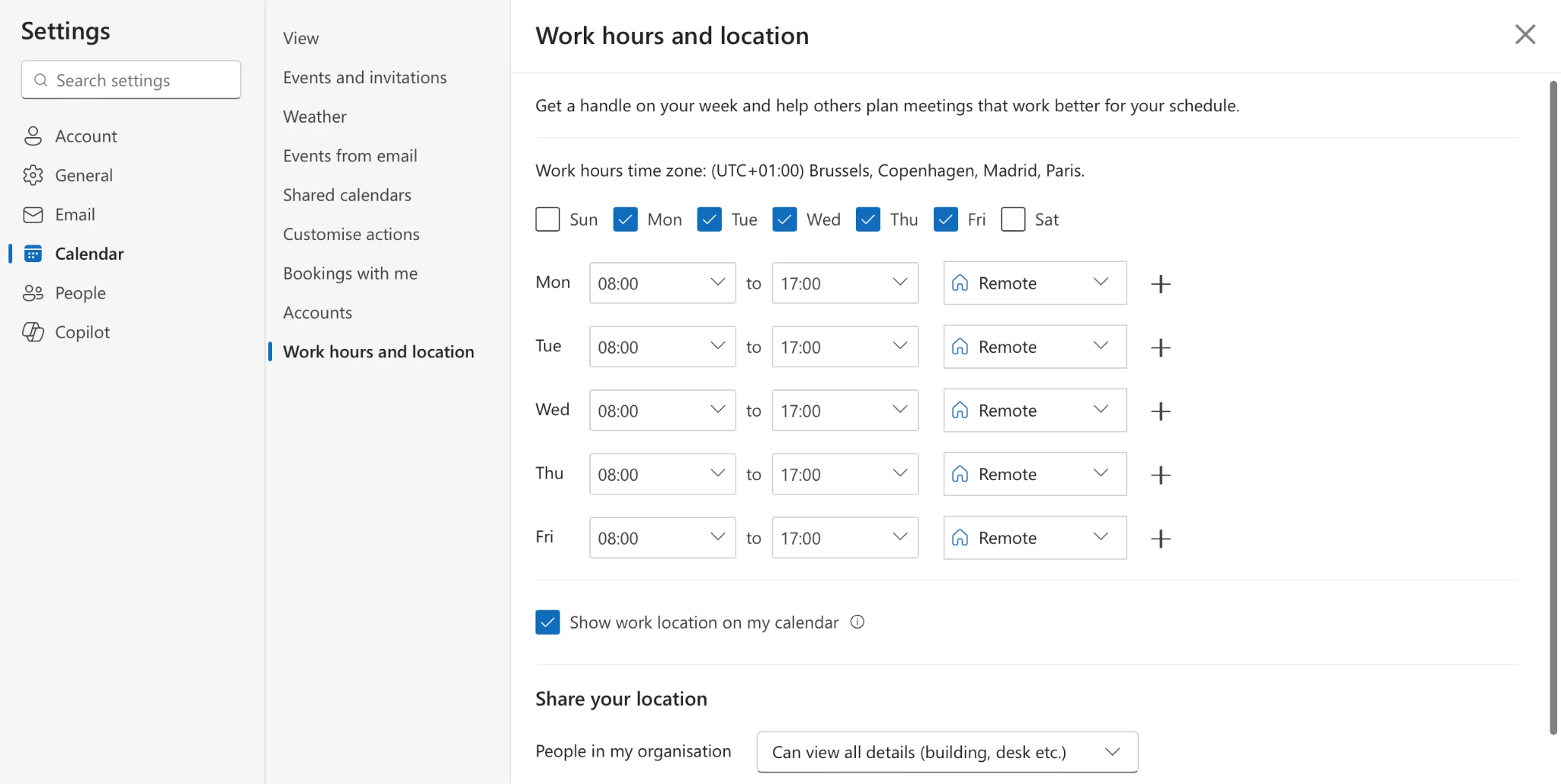
Pic. 7. Work hours and location settings in Outlook on the web.
How a manager can track team absences
For a manager, individual OOO blocks only help if they roll up into one view:
- In Calendar, choose Add calendar → Add from directory and add each team member.
- Use Split view to compare calendars side by side, or overlay them in a single color-coded view.
- Alternatively, maintain a shared team absence calendar that everyone books their leave into, with edit rights limited to managers.
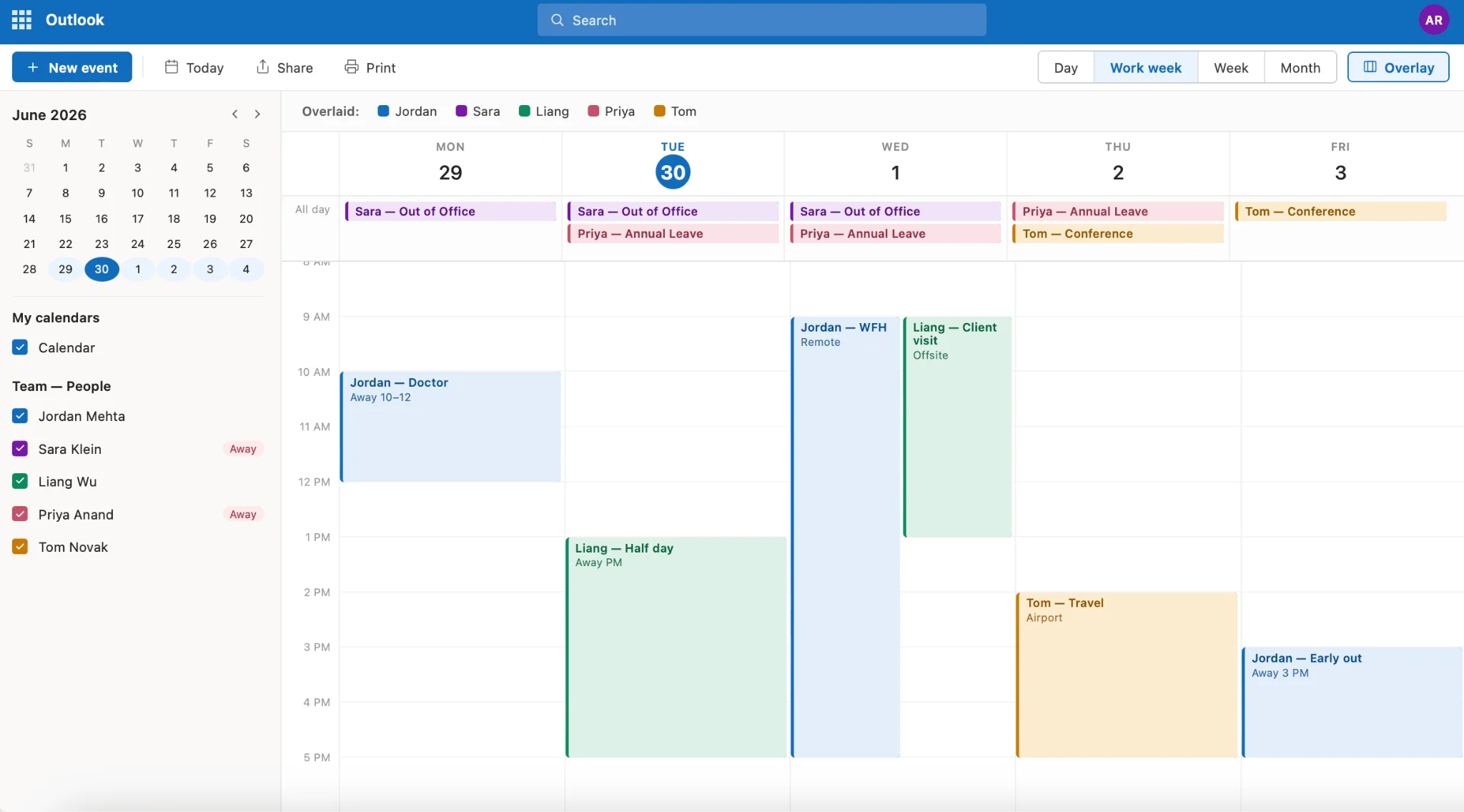
Pic. 8. Overlaid team calendars showing several members’ Out of Office events.
For a deeper setup — approval flows, color schemes, and Teams integration — see our complete guide to vacation calendars in Outlook and MS Teams. And if you juggle many calendars across Microsoft 365, this guide to managing multiple M365 calendars covers the wider picture.
Scaling up: team absence and vacation visibility with Virto Calendar
Native Outlook overlays get unwieldy past a handful of calendars, and they can’t mix in SharePoint lists or external sources. The Virto Calendar App for SharePoint Online & Microsoft 365 is built exactly for team absence and vacation visibility: it overlays unlimited Exchange, SharePoint, Microsoft Planner, and iCal sources in a single color-coded view, so a manager sees the whole team’s leave, remote days, and bookings at a glance — with granular permissions and data that stays inside your Microsoft 365 tenant.
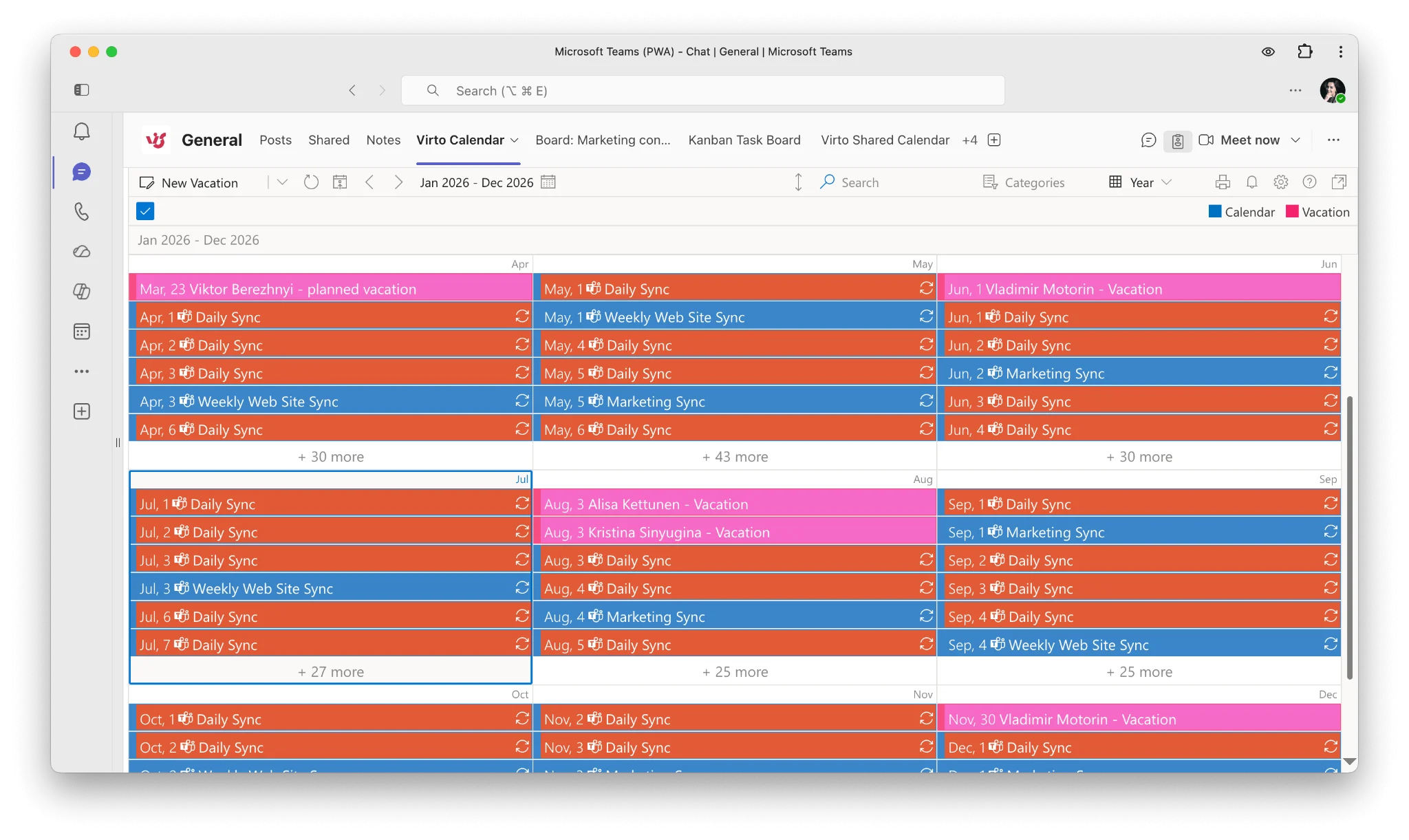
Pic. 9. Virto Calendar overlaid view with team members’ vacation
Common Problems and Fixes
“We were not able to schedule out of office”
This error usually points to a connection or licensing hiccup between the app and Exchange. Try: setting OOO from Outlook on the web instead (it writes directly to Exchange); checking that your Microsoft 365 sign-in is healthy; clearing the app cache or updating the app; and confirming with IT that your mailbox policy allows automatic replies. If the error appears in Teams, note that Teams reads the same Exchange setting — fixing it in Outlook on the web typically resolves both.
Your OOO status isn’t visible to others
- The event is set to Private → others only see “busy.” Remove the privacy flag if the absence should be visible.
- Show As is set to Busy or Free rather than Out of Office.
- Colleagues lack sharing permissions — grant at least “Can view when I’m busy.”
- Sync delay — send a calendar update or ask colleagues to refresh; if it persists, see our Outlook calendar sync troubleshooting guide.
Automatic replies aren’t sending
- Check the start/end dates and time zone of the reply schedule.
- Confirm replies to external senders are enabled if outsiders aren’t getting them.
- Organizational policy can block external auto-replies entirely — verify with IT.
Recurring OOO behaving oddly
- Edit the series, not a single occurrence, when the whole pattern must change.
- Add exceptions for holidays rather than deleting and recreating the series.
FAQ: Out of Office in Outlook Calendar
How do I set out of office in my Outlook calendar?
Create a calendar event for your dates, set “Show As → Out of Office”, mark it all-day, and save; optionally turn on Automatic Replies for the same dates.
How do I set out of office without an automatic reply?
Just create the calendar event with Show As → Out of Office and skip the Automatic Replies settings. Your availability shows as OOO, but email is answered normally.
How do I show out of office without blocking my calendar?
Use an all-day event set to “Free” with a clear OOO title (and, if you like, “Show As → Out of Office” visibility for the label), and skip enabling Automatic Replies. Your day stays open for booking.
How do I send an out of office invite in Outlook without blocking others’ time?
Create an all-day event, set Show As → Free, invite your colleagues, and send. It appears as a banner at the top of their day rather than a blocked slot.
Does setting OOO in Outlook change my Teams status?
Yes — Teams reads the same Exchange data, so an Outlook OOO block with automatic replies typically flips your Teams status too. For the Teams-side setup and its quirks, see how to set out of office in Microsoft Teams.
Conclusion
Setting out of office in Outlook comes down to one calendar event with the right “Show As” status, plus automatic replies when email senders need to know too. Get the visibility settings right, use recurrence for regular patterns, and roll individual absences up into a shared view so the whole team can plan around them.
When native overlays stop scaling, the Virto Calendar App for SharePoint Online & Microsoft 365 brings team absence and vacation visibility into one place. You can book a quick demo or start a free trial from Microsoft Marketplace to see it on your own team’s calendars.