



SharePoint Online’s built-in calendar overlay feature only works on classic pages and is limited to 10 calendars from the same site collection. In the modern experience, this feature is simply not available. If you’ve recently switched to modern SharePoint pages and noticed your calendar overlays have disappeared, you’re not alone — it’s one of the most common frustrations among SharePoint admins and power users.
Consolidated calendar views matter. Teams depend on them for scheduling across departments, managing shared resources like meeting rooms and equipment, and maintaining visibility into project timelines. When you’re coordinating work across multiple teams — each with their own SharePoint calendar, Outlook schedules, and possibly external partners on Google Calendar — losing the ability to see everything in one place creates real workflow gaps. People resort to manually checking multiple calendars, which inevitably leads to scheduling conflicts and missed deadlines.
This article breaks down exactly what happened to calendar overlay in modern SharePoint, why Microsoft’s newer web parts don’t fill the gap, and how you can restore full overlay functionality on modern pages using the Virto Calendar App — a third-party solution built specifically for this purpose. We’ll walk through the complete setup step by step, from installation to a fully configured multi-source calendar view.
What Happened to Calendar Overlay in Modern SharePoint?
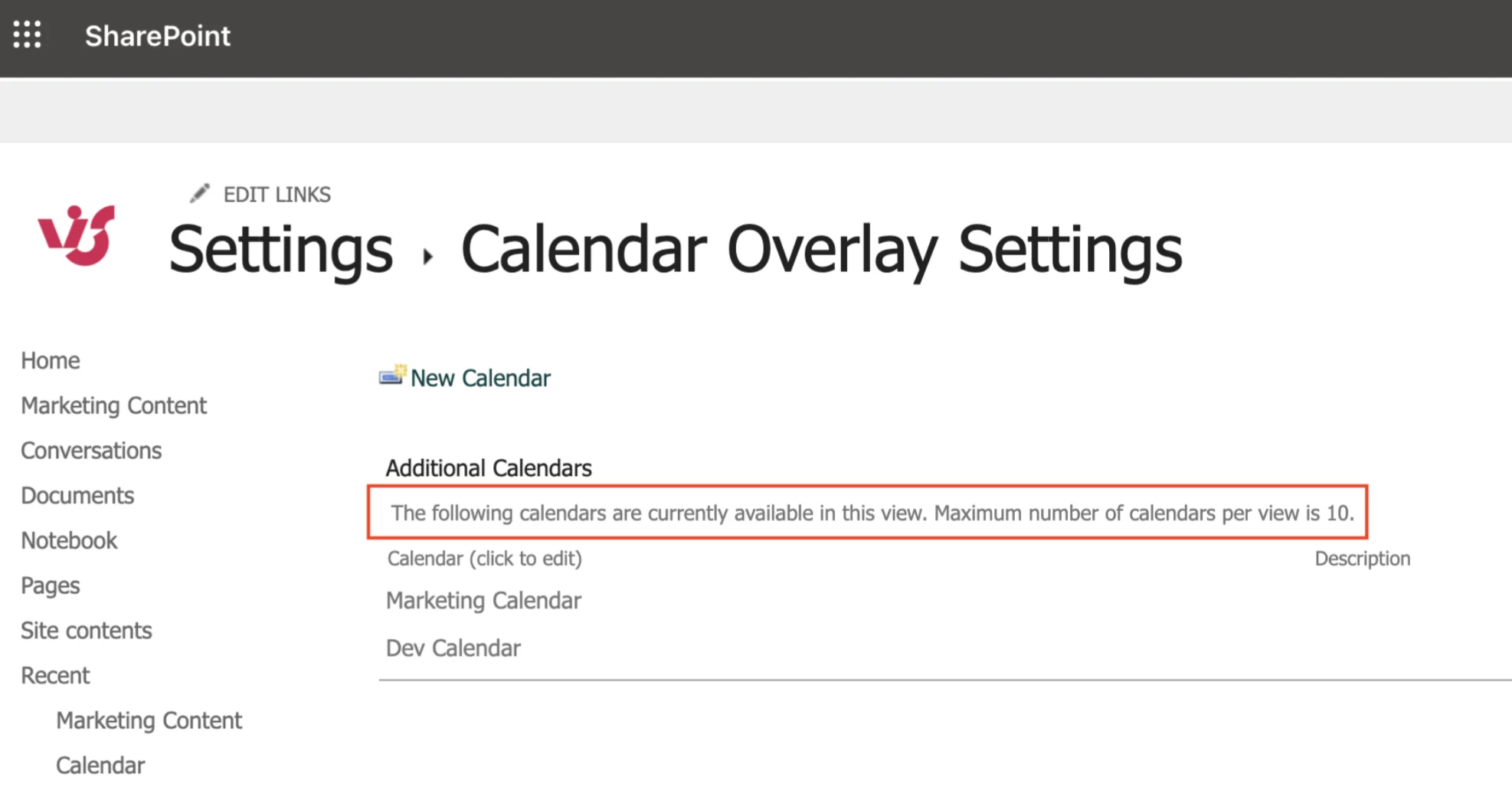
Calendar overlay was one of those quiet, reliable features in classic SharePoint. You could open a SharePoint calendar list, navigate to the Calendar Overlay settings, and stack up to 10 calendars on top of each other in a single color-coded view. It was straightforward, and it worked.
The key word there is “was.”
When Microsoft began rolling out the modern experience for SharePoint Online, the underlying architecture changed significantly. The classic calendar web part — the one that powered overlays — was tied to the legacy list rendering engine. Microsoft’s modernization effort replaced this with two new components: the Events web part and the Group Calendar web part. Neither of these supports overlaying multiple calendars.
This wasn’t an accidental omission. Microsoft redesigned the calendar experience around a simpler, card-based event display rather than the full-featured calendar grid that classic SharePoint offered. The overlay settings page that admins relied on doesn’t exist in the modern framework.
As of 2026, there is no native calendar overlay feature in modern SharePoint Online pages. Microsoft has not announced plans to reintroduce it.
It’s also worth revisiting the limitations of the classic overlay, because even when it was available, it had significant constraints:
- Maximum of 10 calendars. No way to exceed this limit, regardless of need.
- Same site collection only. You couldn’t pull in calendars from other site collections within the same tenant, let alone from Exchange or external sources.
- Classic pages only. The overlay settings page is inaccessible from modern pages.
- No Exchange or Outlook integration. Overlays were restricted to SharePoint list calendars.
For organizations that have fully migrated to modern SharePoint — or are required to by IT policy — the classic overlay is effectively off the table.
Why the Events Web Part Is Not a Replacement
When admins go looking for a calendar solution on modern pages, the Events web part is usually the first thing they find. It’s built into SharePoint, it shows events, and it feels like it should be the answer. It isn’t.
The Events web part was designed as a lightweight agenda display, not a full calendar tool. Here’s what’s missing:
- No monthly or weekly grid view. The Events web part only shows a compact agenda-style list. There’s no way to see a traditional calendar grid layout.
- No overlay capability. It connects to a single source. You cannot layer multiple calendars on top of each other.
- No color-coding by source or category. All events appear in the same style regardless of where they come from.
- No recurring event creation. Microsoft has acknowledged this as a limitation of the modern Events experience.
- No Exchange or Outlook calendar display. The web part only reads from SharePoint event lists — it can’t pull in mailbox calendars.
For a clearer picture, here’s how the three options compare:
| Feature | Events Web Part | Classic Calendar Overlay | Virto Calendar App |
|---|---|---|---|
| Works on modern pages | ✓ | ✗ | ✓ |
| Monthly/weekly grid view | ✗ | ✓ | ✓ |
| Overlay multiple calendars | ✗ | ✓ (up to 10) | ✓ (unlimited) |
| Cross-site-collection sources | ✗ | ✗ | ✓ |
| Exchange/Outlook calendars | ✗ | ✗ | ✓ |
| iCal / Google Calendar feeds | ✗ | ✗ | ✓ |
| Color-coding by source | ✗ | ✓ | ✓ |
| Drag-and-drop rescheduling | ✗ | ✗ | ✓ |
| Recurring event support | ✗ | ✓ | ✓ |
| Free tier available | N/A (built-in) | N/A (built-in) | N/A |
The Events web part is fine for showing a quick snapshot of upcoming team events. It’s not a replacement for calendar overlay.
How to Overlay Calendars in Modern SharePoint with Virto Calendar
Since no native option exists for modern pages, the most direct path to restoring calendar overlay is through a third-party app. Virto Calendar App is an SPFx web part — meaning it installs and runs natively within modern SharePoint pages, not as an iframe or external embed.
Here’s how to set it up from scratch.
Step 1: Install from Microsoft AppSource
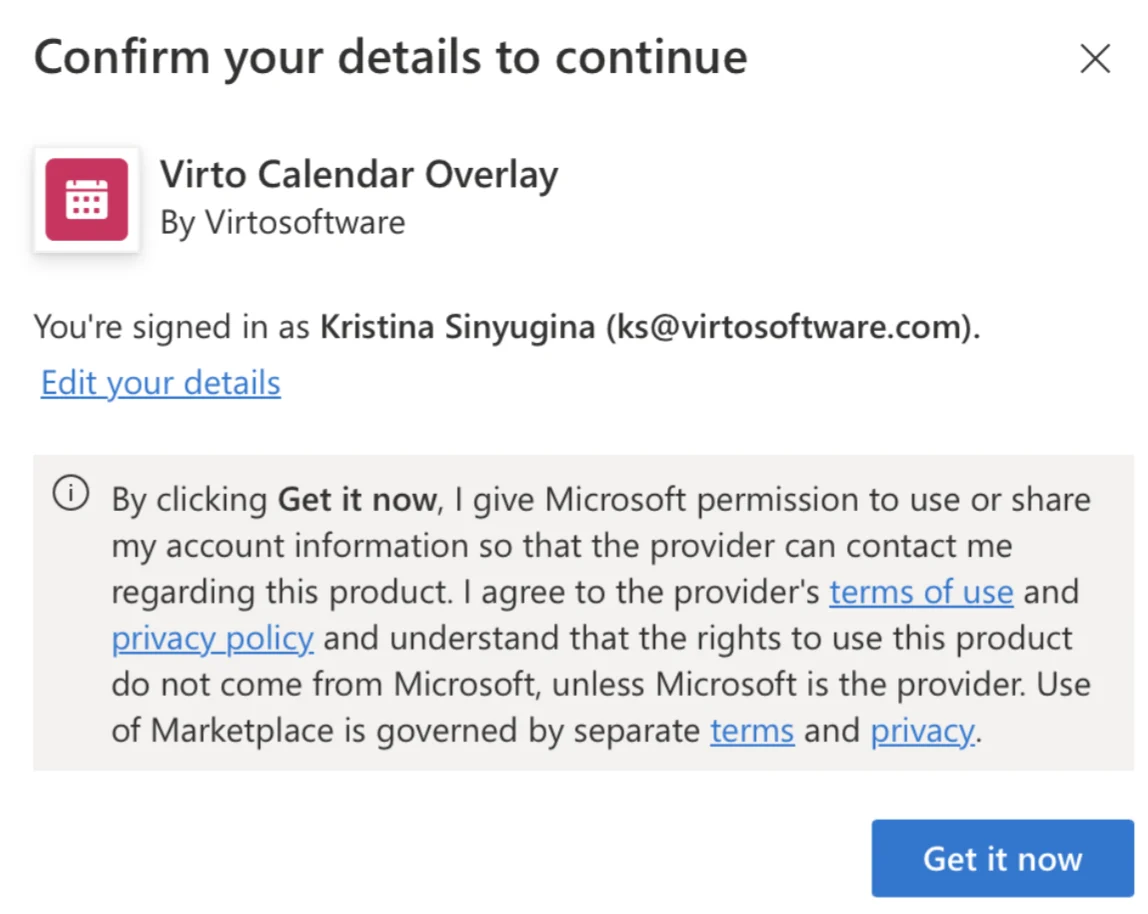
Go to Microsoft AppSource and search for “Virto Calendar Overlay.” Click Get it now and follow the prompts to add it to your SharePoint Online tenant. You’ll need SharePoint admin permissions to approve the app for your organization.
The installation deploys the app to your tenant’s app catalog, making it available as a web part across all site collections.
Step 2: Add the Web Part to a Modern Page
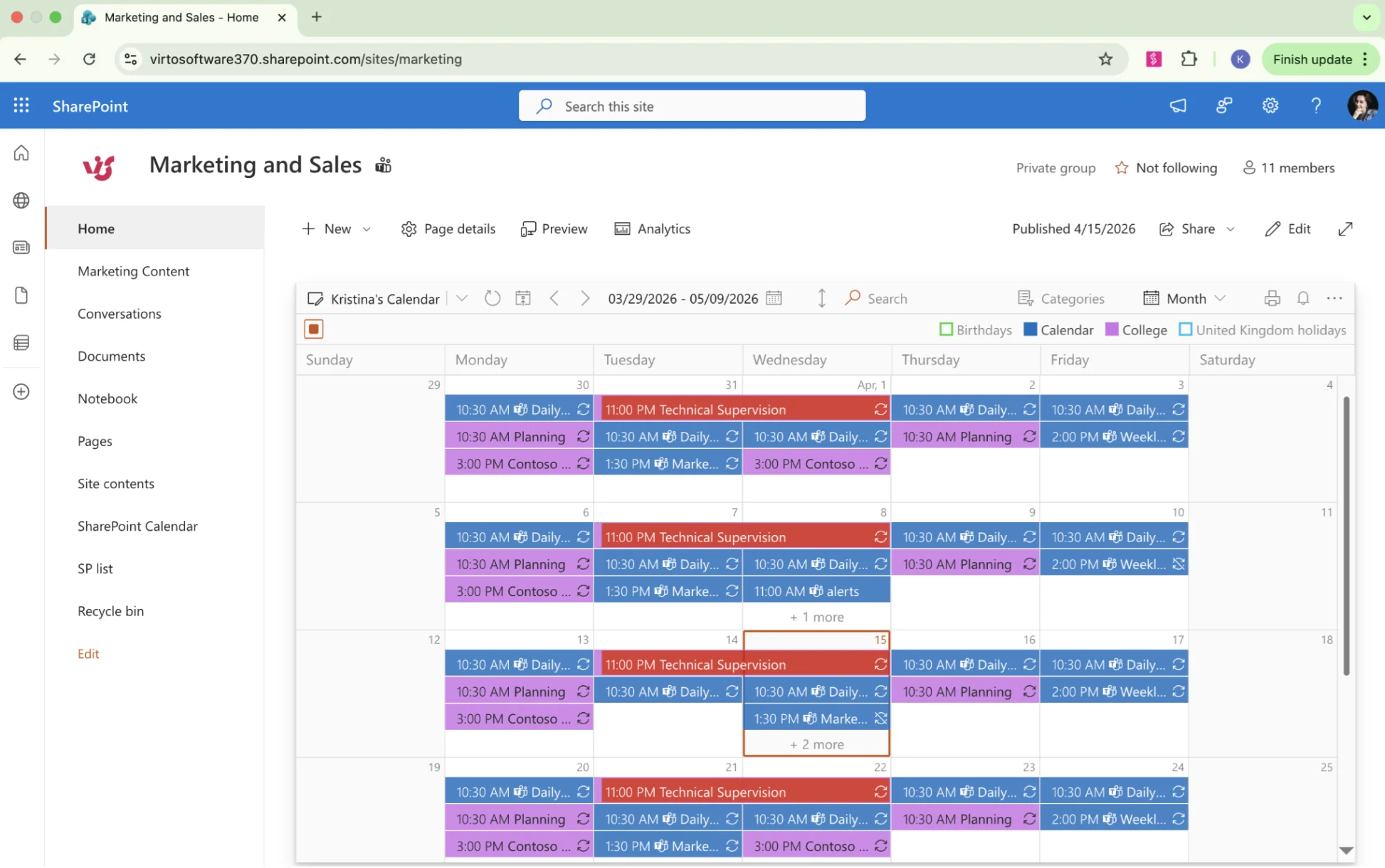
Navigate to the SharePoint page where you want the calendar overlay. Edit the page, click the + button to add a new web part, and search for “Virto Calendar.” Select it, and the web part will appear on your page with an empty calendar grid.
At this point you’ll see the default month view with no events — that’s expected. You need to connect data sources.
Step 3: Connect Your First Data Source — SharePoint List
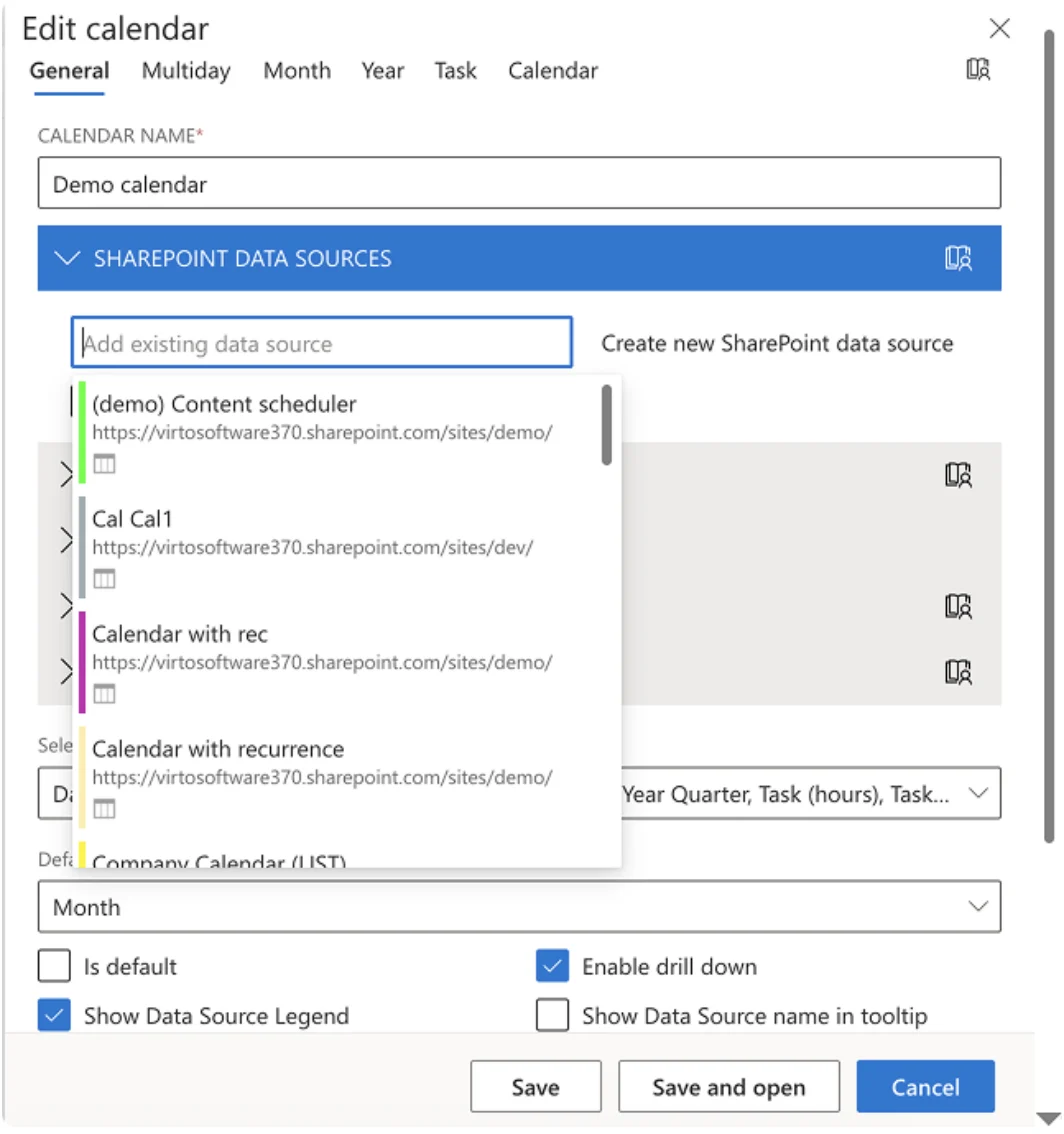
Open the web part’s settings panel by clicking the edit (pencil) icon. Select Add Data Source, then choose SharePoint List as the source type.
You’ll be prompted to select a site and a list. Here’s where Virto diverges from the native overlay: you can select lists from any site collection in your tenant, not just the current one. Pick the SharePoint calendar list you want to display and save.
Events from that list will immediately populate the calendar grid.
Step 4: Add an Exchange/Outlook Calendar
Click Add Data Source again, and this time choose Exchange Calendar. The app will request permissions to read calendar data from Microsoft 365 mailboxes. Your Microsoft 365 admin may need to grant consent for the app to access Exchange calendar data — this is a one-time approval that applies tenant-wide.
Once authorized, select the mailbox or shared calendar you want to overlay. This is particularly useful for displaying meeting room availability, manager schedules, or team-wide Outlook calendars alongside SharePoint event lists. Many organizations use this to give project managers a single view that combines project milestone lists (from SharePoint) with team availability (from Exchange).
Step 5: Add an iCal or Google Calendar Feed
For external calendars — such as a Google Calendar, an Apple Calendar, or any service that provides an iCal URL — add another data source and select iCal Feed. Paste the calendar’s public or authenticated iCal URL.
This is how teams commonly bring in public holiday calendars, academic schedules, client-shared calendars, or Google Workspace calendars from partner organizations.
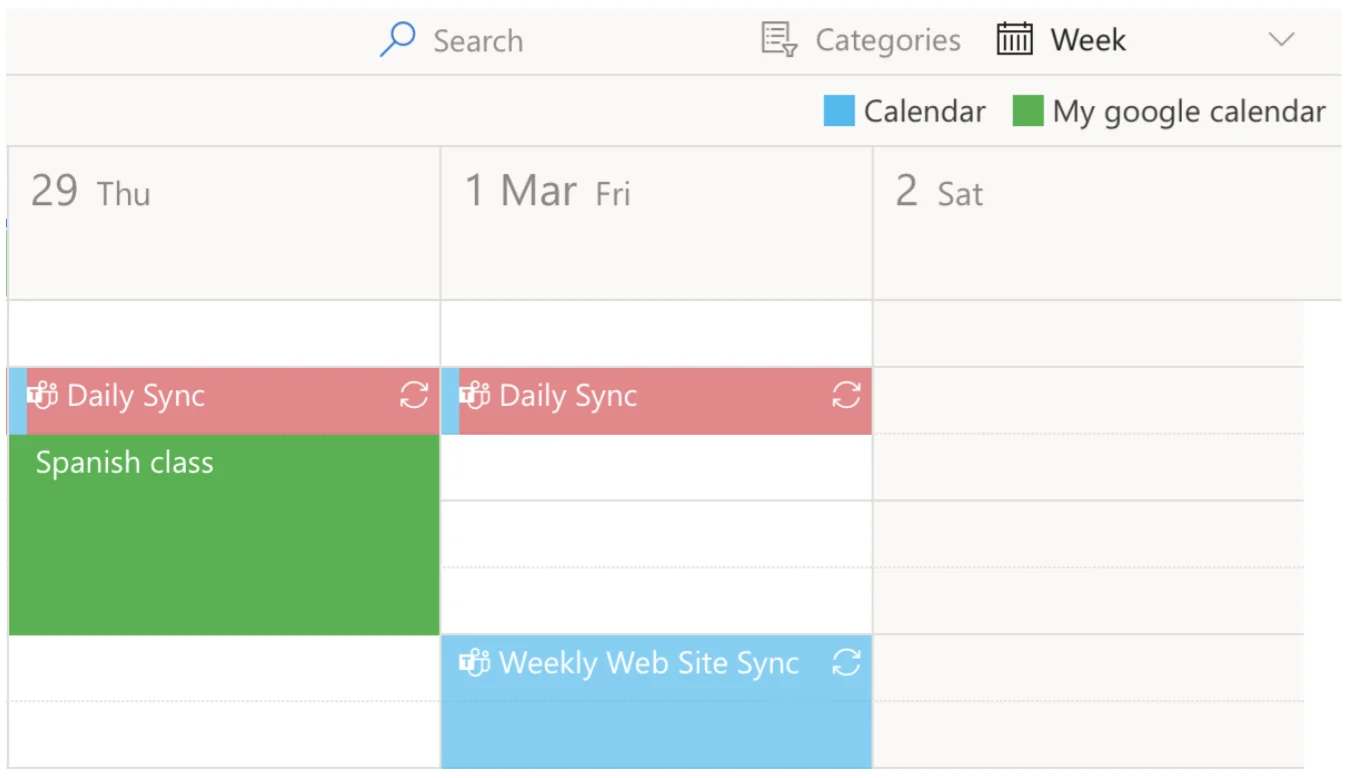
Step 6: Configure Color-Coding Per Source
Each data source can be assigned a distinct color. In the data source settings, click the color swatch next to each source and pick a color. This makes it immediately obvious which events belong to which calendar when they’re all displayed together.
Color-coding is one of the most-requested features that the modern Events web part lacks entirely.
Step 7: Choose Your View
Virto Calendar offers multiple view modes: Day, Week, Month, Year, Agenda, Timeline, Tasks, and Gantt. Switch between them using the view selector at the top of the web part.
Month view with color-coding is the most popular for general-purpose calendar overlays. Gantt and Timeline views are useful for project management scenarios where tasks span multiple days or weeks.
Test the full functionality before committing to a paid plan.
Supported Data Sources in Virto Calendar
One of the practical advantages of Virto Calendar App is the breadth of sources it can pull into a single view. Unlike the classic overlay, which was limited to SharePoint list calendars within the same site collection, Virto connects to multiple source types across your tenant and beyond.
| Data Source | Description | Common Use Case |
|---|---|---|
| SharePoint Lists | Any calendar or event list from any site collection in the tenant | Team events, project milestones, departmental schedules |
| Exchange / Outlook | Personal or shared mailbox calendars from Microsoft 365 | Manager availability, team schedules, shared department calendars |
| Meeting Rooms | Exchange room mailbox calendars | Room booking visibility, facility management |
| Microsoft Planner | Tasks from Planner plans displayed as calendar items | Project deadlines, sprint planning |
| iCal Feeds | Any external iCal URL (Google Calendar, Apple Calendar, etc.) | Public holidays, academic calendars, partner organization events |
| Google Calendar | Direct integration via iCal feed URL | Cross-platform teams using both M365 and Google Workspace |
Cross-site-collection support is worth highlighting specifically. In many organizations, different departments maintain their own site collections. The classic overlay had no way to aggregate across those boundaries. Virto Calendar pulls from any site in the tenant, making it possible to build a true organization-wide calendar view — something that was previously impossible without custom development.
Native SharePoint Calendar Overlay vs Virto Calendar
For a direct comparison between what SharePoint offers natively and what Virto adds, here’s the full breakdown:
| Feature | Native SharePoint (Classic) | Virto Calendar App |
|---|---|---|
| Works on modern pages | ✗ | ✓ |
| Maximum calendars | 10 | Unlimited |
| Cross-site-collection sources | ✗ | ✓ |
| Exchange/Outlook overlay | ✗ | ✓ |
| iCal / Google Calendar | ✗ | ✓ |
| Microsoft Planner integration | ✗ | ✓ |
| Meeting room calendars | ✗ | ✓ |
| Color-coding by source | ✓ | ✓ |
| Monthly/weekly/daily views | Monthly, daily | Day, week, month, year, agenda, timeline, tasks, Gantt |
| Drag-and-drop rescheduling | ✗ | ✓ |
| Create meetings from calendar | ✗ | ✓ |
| Free tier | N/A (built-in, classic only) | N/A |
| Azure self-hosted deployment | N/A | ✓ (for compliance requirements) |
The native overlay served its purpose in classic SharePoint, but it was always constrained. Virto Calendar was designed for the modern experience from the ground up, which is why it runs as a native SPFx web part rather than relying on iframes or external redirects. For organizations with compliance or data residency requirements, the self-hosted Azure deployment option means calendar data never leaves your controlled infrastructure.
That said, if your organization still uses classic pages and only needs to overlay a few SharePoint list calendars from the same site collection, the built-in feature may be sufficient. The case for Virto becomes clear when you need modern page support, cross-source overlays, or more than 10 calendars.
It’s also worth noting the practical impact of drag-and-drop rescheduling. In the classic overlay, you could view events from multiple calendars, but you couldn’t move them. Virto lets users drag events to new dates or times directly on the calendar grid — a small feature that saves a surprising amount of time for people who manage schedules daily. The ability to create meetings directly from the calendar view is similarly useful: click an empty time slot, fill in the details, and the event is created in the appropriate source calendar without navigating away from the page.
Frequently Asked Questions
Is there a calendar overlay feature in modern SharePoint Online?
No. SharePoint Online’s native calendar overlay only works on classic pages using the classic calendar web part. The modern Events web part and Group Calendar web part do not support overlay functionality. Third-party apps like Virto Calendar App provide overlay capabilities on modern pages.
How many calendars can you overlay in SharePoint?
The native SharePoint calendar overlay supports a maximum of 10 calendars, all of which must come from the same site collection. Virto Calendar App removes this limit entirely, supporting unlimited calendars from any site collection, Exchange mailboxes, and external iCal sources.
Can you overlay Exchange and SharePoint calendars in one view?
Not natively on modern pages. The classic overlay only supported SharePoint list calendars. Virto Calendar App supports overlaying Exchange and Outlook calendars alongside SharePoint lists, Planner tasks, meeting room schedules, and iCal feeds — all in a single consolidated view.
Does the SharePoint Events web part support calendar overlay?
No. The Events web part displays events from a single source in a compact agenda layout. It does not support overlaying multiple calendars, does not offer a monthly grid view, and does not provide color-coding by source.
What is the best calendar overlay app for SharePoint Online?
Virto Calendar App is the most comprehensive option available, supporting over five data source types, color-coded overlays, eight view modes including Gantt and Timeline, and full deployment on modern SharePoint pages.
Is Virto Calendar App free?
No, but you can try it for free for one month. Paid plans are $2,412 per 100 users per year with a 3-year agreement (100 users and up), with discounts for education and nonprofit organizations.
Get Started
The native calendar overlay served SharePoint well in the classic era, but it hasn’t made the jump to modern pages — and Microsoft has given no indication that it will. If your organization has moved to modern SharePoint and needs consolidated calendar views, Virto Calendar App fills that gap directly.
Need to roll it out across a larger team or have compliance requirements? Book a demo to discuss enterprise deployment options at virtosoftware.com/demo.