Unveil the latest updates to Virto Calendar, featuring easier access to settings, enhanced SharePoint data management, and seamless meeting integrations. Dive into the details now.
Welcome to the guide on Virto Calendar’s latest update. This massive makeover simplifies your calendar management, allows for direct tweaks to SharePoint sources, and introduces new features to boost your efficiency. Get ready to discover how setting workdays, color-coding events, and integrating your favorite meeting platforms can transform your calendar time management with the Virto Calendar.
Print out your calendar
Quick start with templates
Easy access to calendar settings
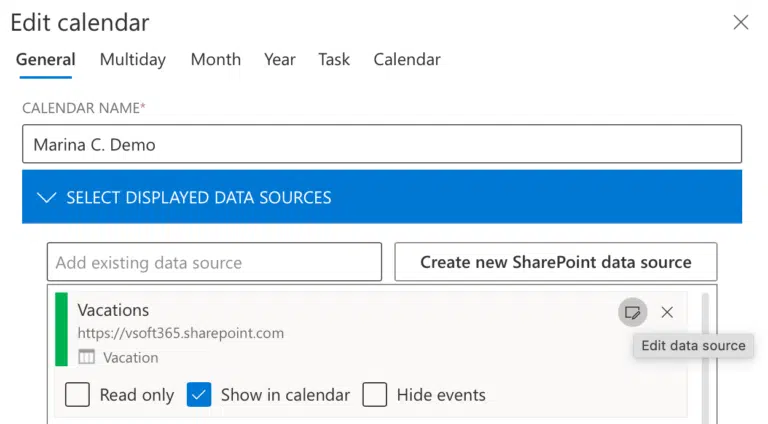
Quick access to data source settings
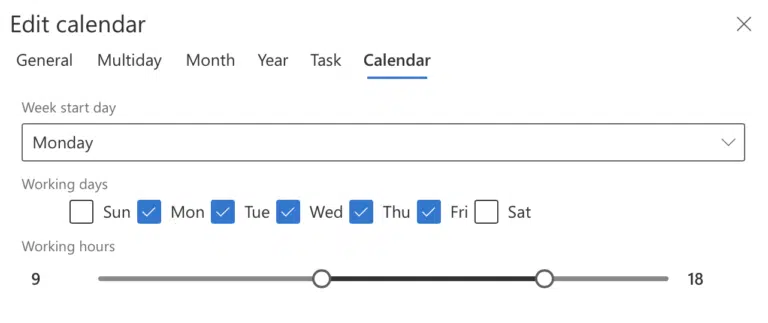
New workweek and workday settings
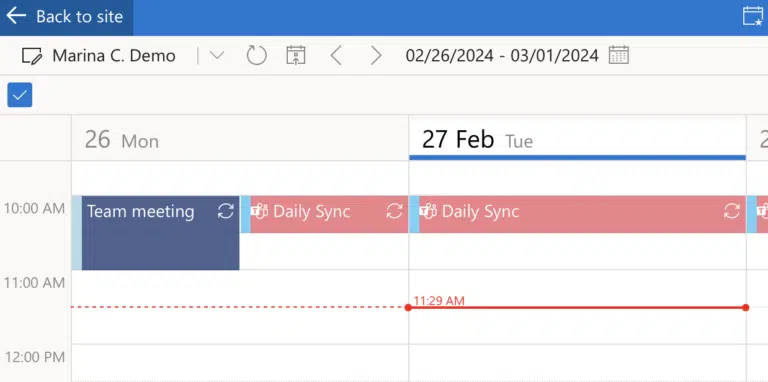
Current time indicator
Improved source visibility
Color coding data sources and their categories
Custom categories for Outlook calendar
Join Teams, Zoom and Google meetings
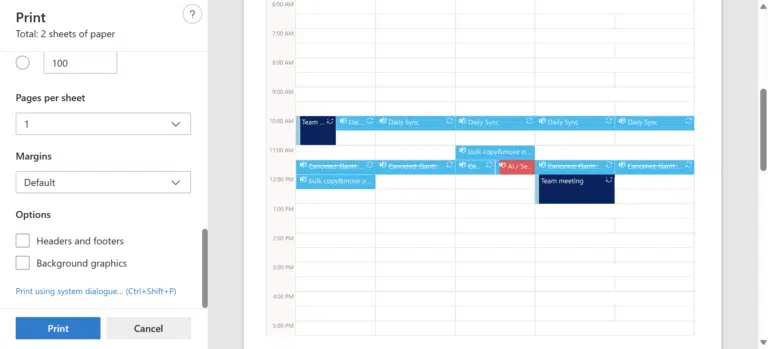
1. Now, you can print your calendar in any view you prefer.
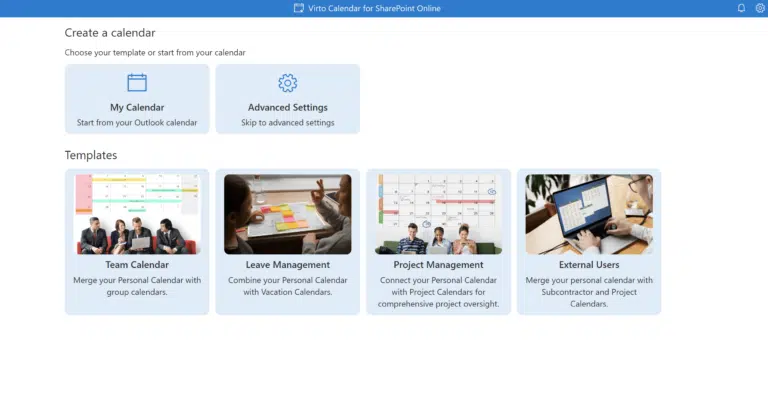
2. Enjoy our meticulously crafted templates to start your new calendar in seconds. More templates are on the way!
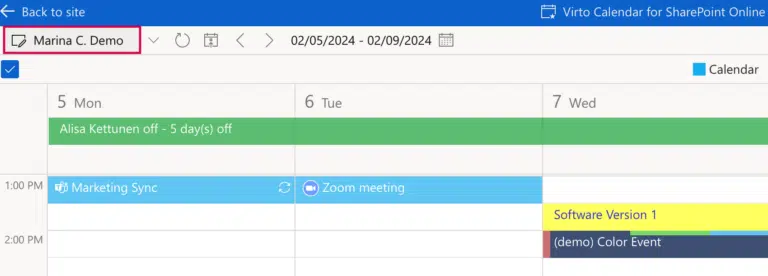
3. Now, you can access calendar settings without leaving the calendar view. Simply click the calendar name at the top left, and the settings window will open.
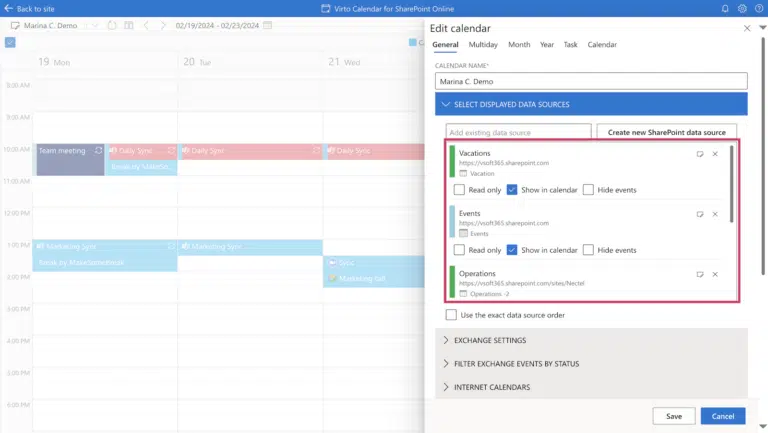
4. In the new version of Virto Calendar, you can add and modify displayed SharePoint data sources directly from this convenient interface. The tooltip for each data source displays information such as the calendar color, source link, name of the list, and options for toggling the visibility of the list’s events.
5. The new tab for calendar settings allows you to set working days, select the day the week starts on, and set the duration of the workday.
6. The red line in the calendar view indicates the current time, helping you navigate the current schedule more easily.
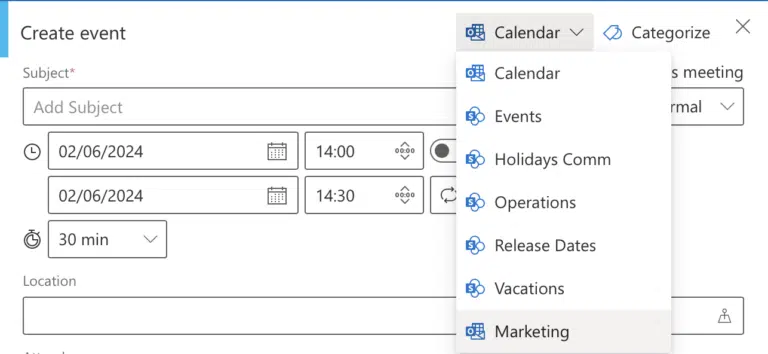
7. Each Exchange calendar now features its own source icon, allowing you to easily identify whether the calendar you wish to create an event in is Outlook or SharePoint.
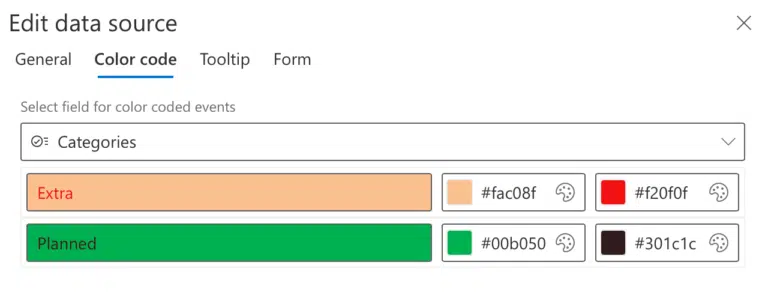
8. When adding or editing a SharePoint source as a calendar, you can assign colors to categories for SharePoint list events. To do this, click “Edit data source” and then navigate to the “Color code” tab.
Select the background and font colors for categories by clicking on the palette.
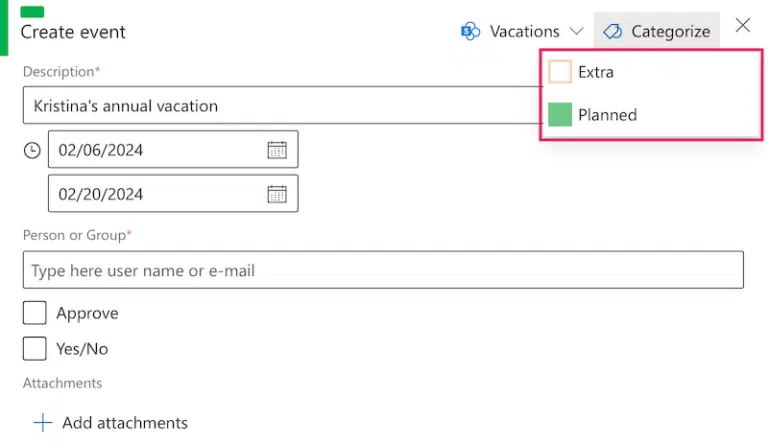
You will see these categories under the “Categorize” tab when creating an event in a calendar that has categories.
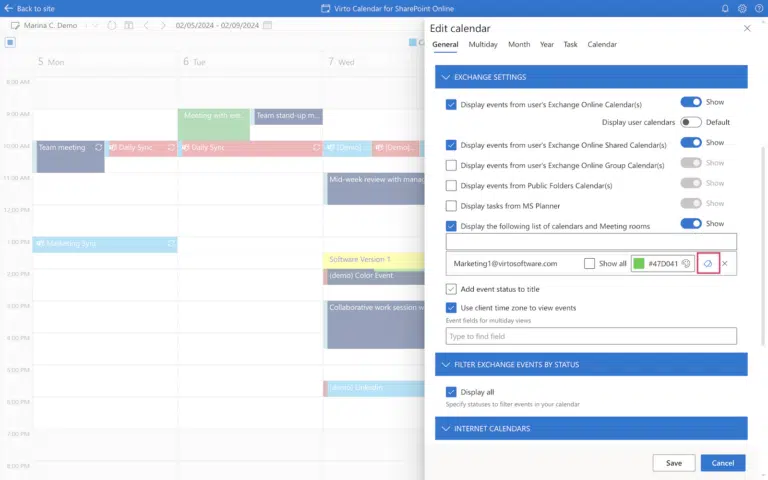
9. You can now create categories for Outlook calendars. First, add them in the “Exchange settings” tab. Then, click the category icon next to the added calendar.
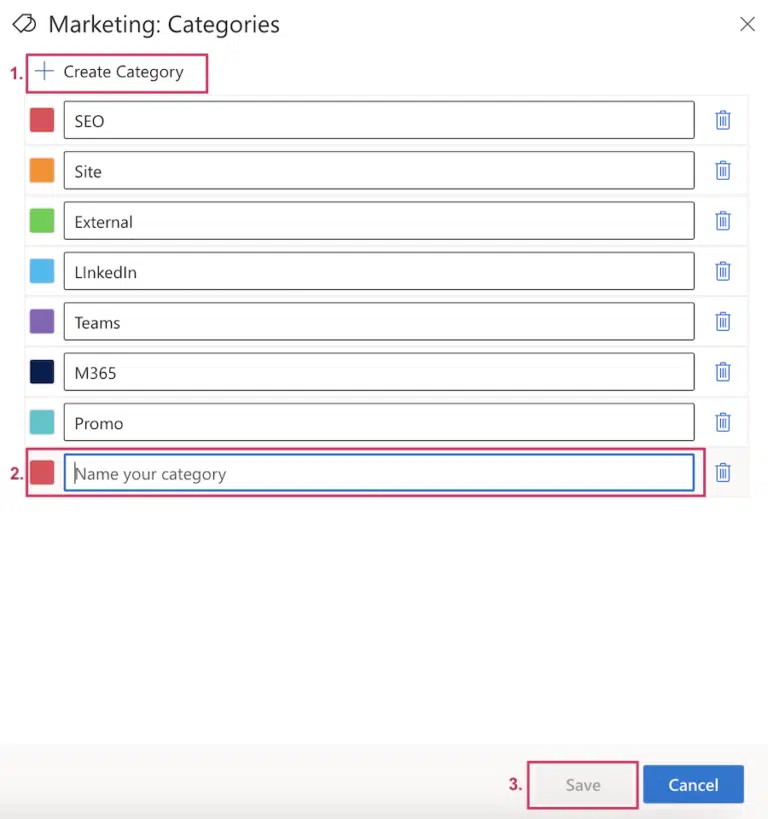
In the window that opens, you can edit categories and their colors according to your preferences. Don’t forget to save your choice.
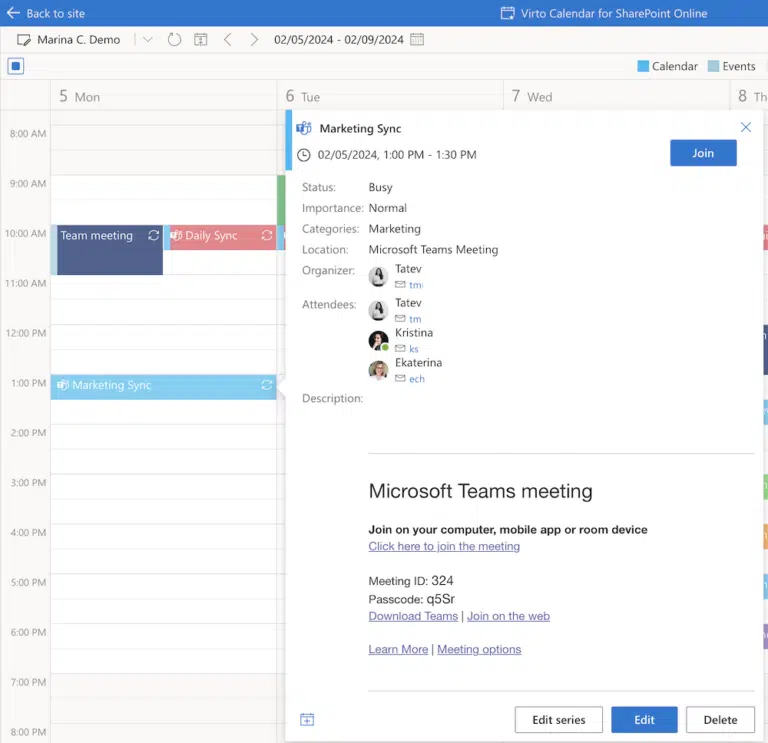
10. Previously, Virto Calendar users could join Teams meetings directly from the calendar.
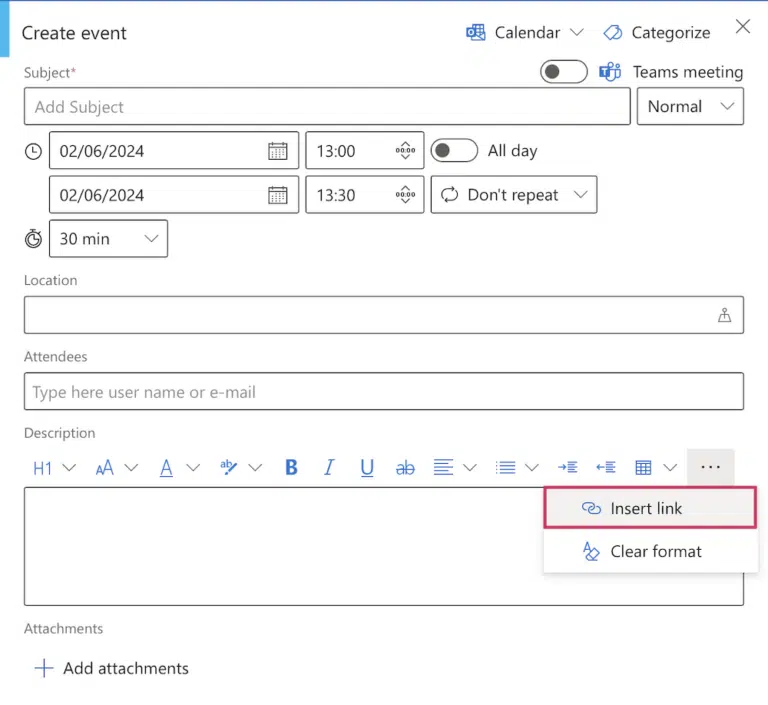
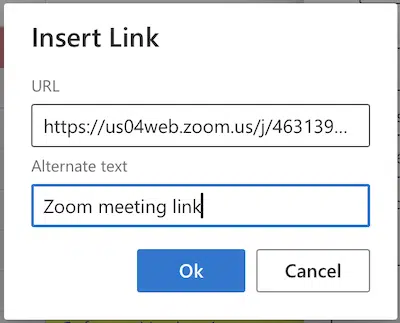
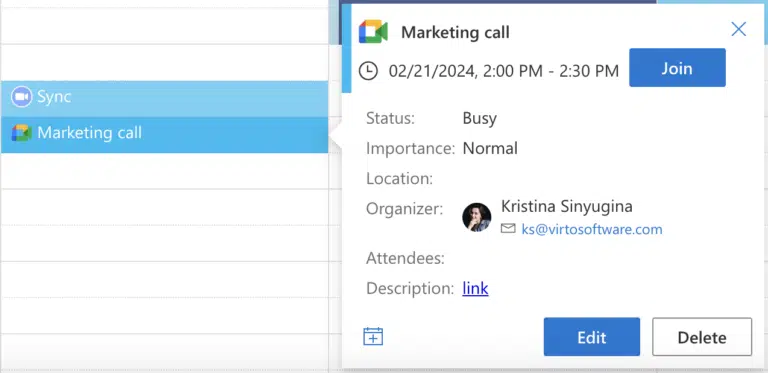
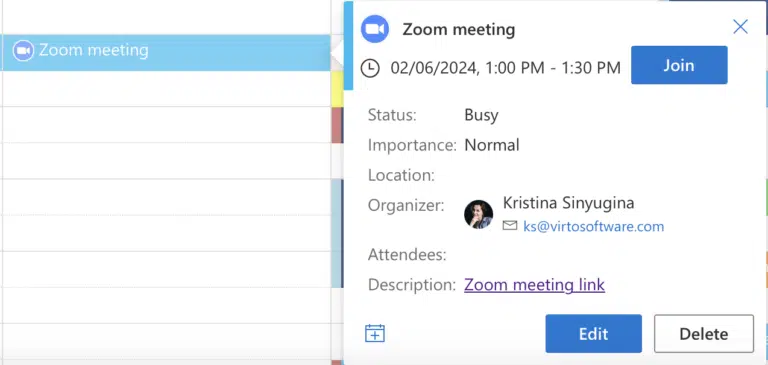
Now, users can also join Zoom and Google meetings. Virto Calendar will automatically assign a corresponding icon to your event. To do this, click “Insert link” when creating a Zoom or Google meeting.
Your event will then feature a “Join” button and an icon of the meeting platform next to the event name.
As we wrap up this exciting sneak peek into the Virto Calendar’s latest features, we hope you’re as thrilled as we are about the upcoming release. These updates are designed not just to simplify your scheduling but to add a layer of joy and efficiency to your daily planning.
Stay tuned for the official release date and get ready to experience a calendar view like never before. We’re committed to making your calendar time management seamless and enjoyable, so follow VirtoSoftware LinkedIn for more updates and tips on leveraging the new Virto Calendar to its fullest!
[{"cat":"News","date":"July 29, 2026","image":"/images/uploads/2026/07/virto-calendar-app-teams-outlook-microsoft-365-cover.webp","title":"Virto Calendar App now opens right inside Teams, Outlook, and Microsoft 365","url":"/news/virto-calendar-app-teams-outlook-microsoft-365/"},{"cat":"News","date":"June 8, 2026","image":"/images/uploads/2026/06/deploy-virtosoftware-in-own-azure-tenant-cover.webp","title":"How to Deploy VirtoSoftware Apps in Your Own Azure Tenant","url":"/news/deploy-virtosoftware-in-own-azure-tenant/"},{"cat":"News","date":"June 1, 2026","image":"/images/uploads/2026/06/ai-schedule-virto-calendar-color-coding-cover.webp","title":"Build Any Schedule with AI — and See It Color-Coded in Virto Calendar","url":"/news/ai-schedule-virto-calendar-color-coding/"},{"cat":"News","date":"April 28, 2026","image":"/images/uploads/2026/04/zero-trust-microsoft-365-deployment-cover.webp","title":"Compliance Without Compromise: Why a Zero-Trust Deployment Model Beats the SaaS Audit Trap","url":"/news/zero-trust-microsoft-365-deployment/"},{"cat":"News","date":"March 11, 2026","image":"/images/uploads/2026/03/SharePoint-Online-Add-Ins-die-April-2-2026.-2-2.png","title":"SharePoint Online Add-Ins Retired April 2, 2026 — VirtoSoftware Apps Remain Unaffected","url":"/news/sharepoint-online-add-ins-retirement-virto-apps-unaffected/"},{"cat":"News","date":"March 10, 2026","image":"/images/uploads/2026/03/virto-ad-user-manager-2.png","title":"Virto Active Directory User \u0026 Password Manager: Now 5 Tools in One Powerful Solution","url":"/news/virto-ad-user-password-manager/"},{"cat":"News","date":"March 6, 2026","image":"/images/uploads/2026/03/linkedin-post-aws-4-2.png","title":"IT Sovereignty in 2026: Why On-Premise SharePoint Beats Cloud During Geopolitical Crises","url":"/news/it-sovereignty-on-premise-sharepoint-vs-cloud/"},{"cat":"News","date":"February 23, 2026","image":"/images/uploads/2026/02/Multiple-operations-2.png","title":"Virto Multiple Operations for SharePoint Online \u0026 M365 – Now Available!","url":"/news/virto-multiple-operations-m365-launch/"},{"cat":"News","date":"February 12, 2026","image":"/images/uploads/2026/02/virto-alerts-news-3.png","title":"Virto Alerts \u0026 Reminders Gets a Major Update — New Price and Powerful Admin Feature!","url":"/news/virto-alerts-new-price-admin-updates/"},{"cat":"News","date":"February 12, 2026","image":"/images/uploads/2026/02/Multiple-File-Op-web-part-2.png","title":"Virto Multiple File Operations: Now 73% More Affordable!","url":"/news/virto-multiple-file-operations-price-drop/"},{"cat":"News","date":"February 3, 2026","image":"/images/uploads/2026/02/Virto-Shared-Calendar-permissions-3-2.png","title":"New Update: Permissions Now Available in Virto Shared Calendar","url":"/news/new-permissions-virto-shared-calendar/"},{"cat":"News","date":"January 23, 2026","image":"/images/uploads/2026/01/Virto-Calendar-App-4.png","title":"Virto Calendar App Update: Persistent Category Filters Save Your Preferences","url":"/news/virto-calendar-persistent-category-filters/"},{"cat":"News","date":"January 15, 2026","image":"/images/uploads/2026/01/Alerts-new-3-2.png","title":"SharePoint Alerts Retirement: Your Complete Migration Guide for 2026","url":"/news/sharepoint-alerts-retirement-migration-guide/"},{"cat":"News","date":"December 22, 2025","image":"/images/uploads/2025/12/2025-wrap-2.png","title":"VirtoSoftware's 2025: A Year of Game-Changing Launches and Updates in M365 and SharePoint On-Premise","url":"/news/2025-year-in-review/"},{"cat":"News","date":"December 15, 2025","image":"/images/uploads/2025/12/secure-deployment-2.jpg","title":"When Security Comes First: Deploy VirtoSoftware Apps in Your Own Microsoft 365 Environment","url":"/news/deploy-virto-in-your-m365-environment/"},{"cat":"News","date":"November 26, 2025","image":"/images/uploads/2025/11/Product-Overview-Virto-Workflow-Automation-2.png","title":"Product Overview: Virto Workflow Automation","url":"/news/virto-workflow-automation-sharepoint-onpremises/"},{"cat":"News","date":"September 22, 2025","image":"/images/uploads/2025/09/sharepoint-classic-alerts-retirement-virto-alternatives.jpeg","title":"Classic SharePoint Alerts Are Retiring—Virto Alerts Has You Covered","url":"/news/sharepoint-classic-alerts-retirement-virto-alternatives/"},{"cat":"News","date":"September 15, 2025","image":"/images/uploads/2025/09/virto-multiple-file-operations-cross-site.jpeg","title":"Virto Multiple File Operations: Copy \u0026 Move Across Site Collections","url":"/news/virto-multiple-file-operations-cross-site/"},{"cat":"News","date":"September 7, 2025","image":"/images/uploads/2025/09/Image-12.jpeg","title":"Virto Calendar: Smoother Mobile Editing Experience","url":"/news/virto-calendar-mobile-editing-update/"},{"cat":"News","date":"August 27, 2025","image":"/images/uploads/2025/09/virto-shared-calendar-ics-support.jpeg","title":"Virto Shared Calendar Update: Full .ICS \u0026 iCalendar Feed Support!","url":"/news/virto-shared-calendar-ics-support/"},{"cat":"News","date":"May 21, 2025","image":"/images/uploads/2025/05/Virto-Shared-Calendar-2.png","title":"Introducing Virto Shared Calendar: Effortless Scheduling for Teams, Clients, and Beyond","url":"/news/virto-shared-calendar-launch/"},{"cat":"News","date":"May 6, 2025","image":"/images/uploads/2025/05/News-4.jpg","title":"Welcome Skype Users to Microsoft Teams: Tips \u0026 Tools to Get You Started","url":"/news/welcome-skype-users-to-teams/"},{"cat":"News","date":"April 21, 2025","image":"/images/uploads/2025/04/News-alerts-2.jpg","title":"Virto Alerts \u0026 Reminder App Is Back and Fully Functional — Get Notified Seamlessly!","url":"/news/virto-alerts-reminder-app-is-back-and-fully-functional/"},{"cat":"News","date":"March 20, 2025","image":"/images/uploads/2025/03/News-3-2.jpg","title":"Supercharge Your SharePoint On-Premises: Introducing Virto Multiple File Operations","url":"/news/multiple-file-operations-sharepoint-on-premise/"},{"cat":"News","date":"February 14, 2025","image":"/images/uploads/2025/02/Microsoft-Teams-update-2.jpg","title":"Teams Update Causes Virto Calendar App Issues: Here's How to Fix It","url":"/news/virto-calendar-workaround-teams/"},{"cat":"News","date":"February 7, 2025","image":"/images/uploads/2025/02/News-2.jpg","title":"What's New in Virto Calendar? Optional Attendees, Agenda Printing, and More!","url":"/news/virto-calendar-forms-slideshow-updates/"},{"cat":"News","date":"January 27, 2025","image":"/images/uploads/2025/01/Virto-Cal-News-4-2.jpg","title":"What’s New in Virto Calendar? Approvals, Planner Management, and More! ","url":"/news/virto-calendar-news-approvals-ms-planner/"},{"cat":"News","date":"November 7, 2024","image":"/images/uploads/2024/11/updates.webp","title":"Virto Calendar Update: iCal Flexibility, Multisource View, Dark Mode \u0026 More!","url":"/news/virto-calendar-updates-nov-2024/"},{"cat":"News","date":"September 20, 2024","image":"/images/uploads/2024/09/new-virto-calendar-features-2.jpg","title":"Virto Calendar Just Got Smarter: Explore New Permissions and Views","url":"/news/new-views-in-virto-calendar/"},{"cat":"News","date":"July 10, 2024","image":"/images/uploads/2024/07/New-Website-1920x1080-1.png","title":"VirtoSoftware's Website Makeover: Sleek Design \u0026 Performance","url":"/news/virtosoftware-website-makeover/"},{"cat":"News","date":"May 17, 2024","image":"/images/uploads/2024/06/Virto-Calendar-App-Update_-Enhanced-Note-Functionality.jpg","title":"Virto Calendar App Update: Enhanced Note Functionality","url":"/news/enhanced-note-functionality/"},{"cat":"News","date":"April 18, 2024","image":"/images/uploads/2024/06/New-Virto-Calendar-is-out.jpg","title":"New Virto Calendar is out!","url":"/news/new-virto-calendar-is-out/"},{"cat":"News","date":"March 14, 2023","image":"/images/uploads/2024/06/Kanban-Board-Pro_-New-Notification-System.jpg","title":"Kanban Board Pro: New Notification System","url":"/news/new-notification-system-in-kanban-board-pro/"},{"cat":"News","date":"December 31, 2022","image":"/images/uploads/2024/06/Explore-VirtoSoftwares-2022-Archive-of-News-and-Product-Updates.jpg","title":"Explore VirtoSoftware’s 2022 Archive of News and Product Updates","url":"/news/2022/"},{"cat":"News","date":"September 21, 2022","image":"/images/uploads/2022/09/Kanban-Board-Pro-by-Virto_-New-Authorization-Process.jpg","title":"Kanban Board Pro by Virto: New Authorization Process","url":"/news/kanban-app-new-authorization-process/"},{"cat":"News","date":"August 24, 2022","image":"/images/uploads/2024/06/Calendar-Overlay-Pro-Update_-New-Authorization-Process.jpg","title":"Calendar Overlay Pro Update: New Authorization Process","url":"/news/calendar-app-new-authorization-process/"},{"cat":"News","date":"August 19, 2022","image":"/images/uploads/2024/06/New-Authorization-Process-for-Calendar-App.jpg","title":"New Authorization Process for Calendar App","url":"/news/new-authorization-process-for-calendar-app/"},{"cat":"News","date":"June 7, 2022","image":"/images/uploads/2024/03/20-Off-for-All-Virto-One-Bundles.jpg","title":"20% Off for All Virto One Bundles","url":"/news/20-discount-virtoone-june/"},{"cat":"News","date":"December 31, 2021","image":"/images/uploads/2024/06/Explore-VirtoSoftwares-2021-Archive-of-News-and-Product-Updates.jpg","title":"Explore VirtoSoftware’s 2021 Archive of News and Product Updates","url":"/news/2021/"},{"cat":"News","date":"April 7, 2021","image":"/images/uploads/2024/06/Bulk-File-Copy-Move_-April-Update.jpg","title":"Bulk File Copy Move: April Update","url":"/news/bulk-file-copy-move-april-update/"},{"cat":"News","date":"March 17, 2021","image":"/images/uploads/2024/06/Calendar-Overlay-Pro-Update_-New-Views-Navigational-Options.jpg","title":"Bulk File Downloader Update","url":"/news/bulk-file-downloader-update-mar21/"},{"cat":"News","date":"December 31, 2020","image":"/images/uploads/2024/06/Explore-VirtoSoftwares-2022-Archive-of-News-and-Product-Updates.jpg","title":"Explore VirtoSoftware’s 2020 Archive of News and Product Updates","url":"/news/2020/"},{"cat":"News","date":"December 31, 2019","image":"/images/uploads/2024/06/Explore-VirtoSoftwares-2022-Archive-of-News-and-Product-Updates.jpg","title":"Explore VirtoSoftware’s 2019-2012 Archive of News and Product Updates","url":"/news/2019-2012/"},{"cat":"News","date":"March 26, 2018","image":"/images/uploads/2024/06/Office-365-Forms-Designer-has-a-new-management-feature.jpg","title":"Office 365 Forms Designer has a new management feature","url":"/news/office-365-forms-designer-has-a-new-management-feature/"}]