


Choosing a task-management tool usually comes down to one question: do you want a board that lives inside Microsoft 365, or a standalone board you can bend to any workflow? Microsoft Planner and Trello answer that question in opposite ways. This 2026 comparison breaks down their features, pricing, integrations, and free tiers so you can pick the one that fits your team — and points you to a Microsoft-native alternative that blends the strengths of both.
Quick answer: Planner or Trello?
Microsoft Planner vs Trello — which should you choose?
Choose Microsoft Planner if your team already runs on Microsoft 365 and you want task boards that live natively inside Teams, Outlook, and SharePoint at no extra cost. Choose Trello if you want a standalone, highly flexible Kanban tool with a generous free tier and a huge Power-Up integration ecosystem. In short: Planner wins on Microsoft integration and price-for-M365-users; Trello wins on flexibility, ease of use, and third-party integrations.
If you’d like the best of both — Trello-style visual boards that keep all your data inside Microsoft 365 — skip to the Virto Kanban Board section below.
A closer look: Microsoft Planner vs Trello
Microsoft Planner is the task-board app built into the Microsoft 365 ecosystem, so it’s a natural fit for teams already using Teams, Outlook, or SharePoint. It offers a clean, Kanban-style interface where you create tasks, sort them into buckets, assign owners, set due dates, and track progress — all inside the familiar Microsoft environment. Planner also connects to the wider suite, enabling things like task tracking in Microsoft To Do and surfacing tasks directly on a Teams tab. As of 2026, Planner, To Do, and Project for the web have been unified under a single Planner experience, with a free Planner Basic tier included in Microsoft 365 and paid Planner Premium plans adding project-management features. If you want a deeper dive, see our detailed guide to Microsoft Planner.
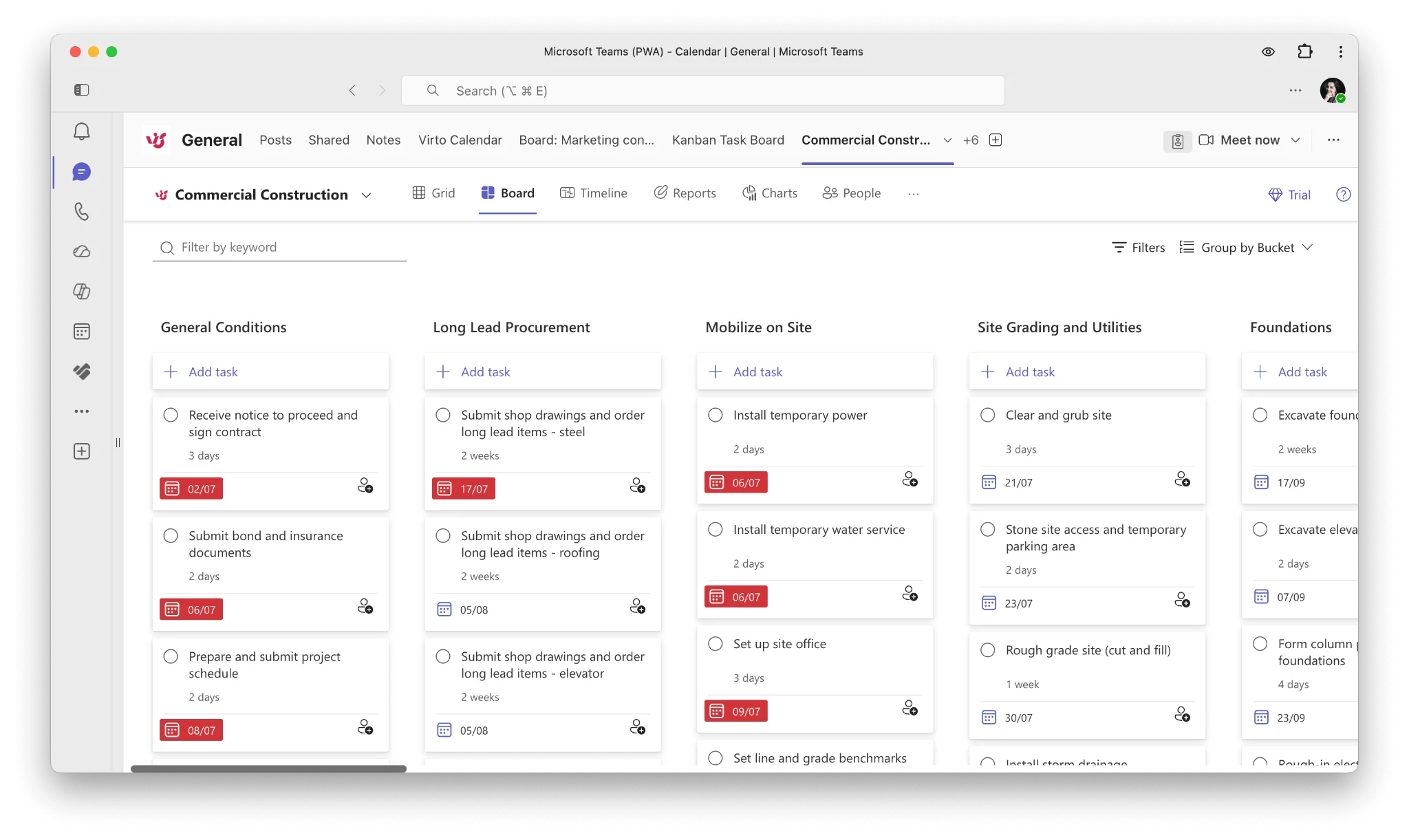
Pic. 1. Microsoft Planner.
Trello, by contrast, is all about flexibility and visual organization. This standalone, cloud-based tool (owned by Atlassian) uses customizable Kanban boards to map out any workflow, simple or complex. Tasks are cards that can hold checklists, attachments, labels, due dates, and comments, and you move them across lists as work progresses. Trello’s real strength is its integration ecosystem: Power-Ups connect it to Slack, Google Drive, Jira, and hundreds of other services, and its Butler automation handles repetitive steps. Whether you’re running a project or planning your day, Trello’s intuitive design keeps things moving.
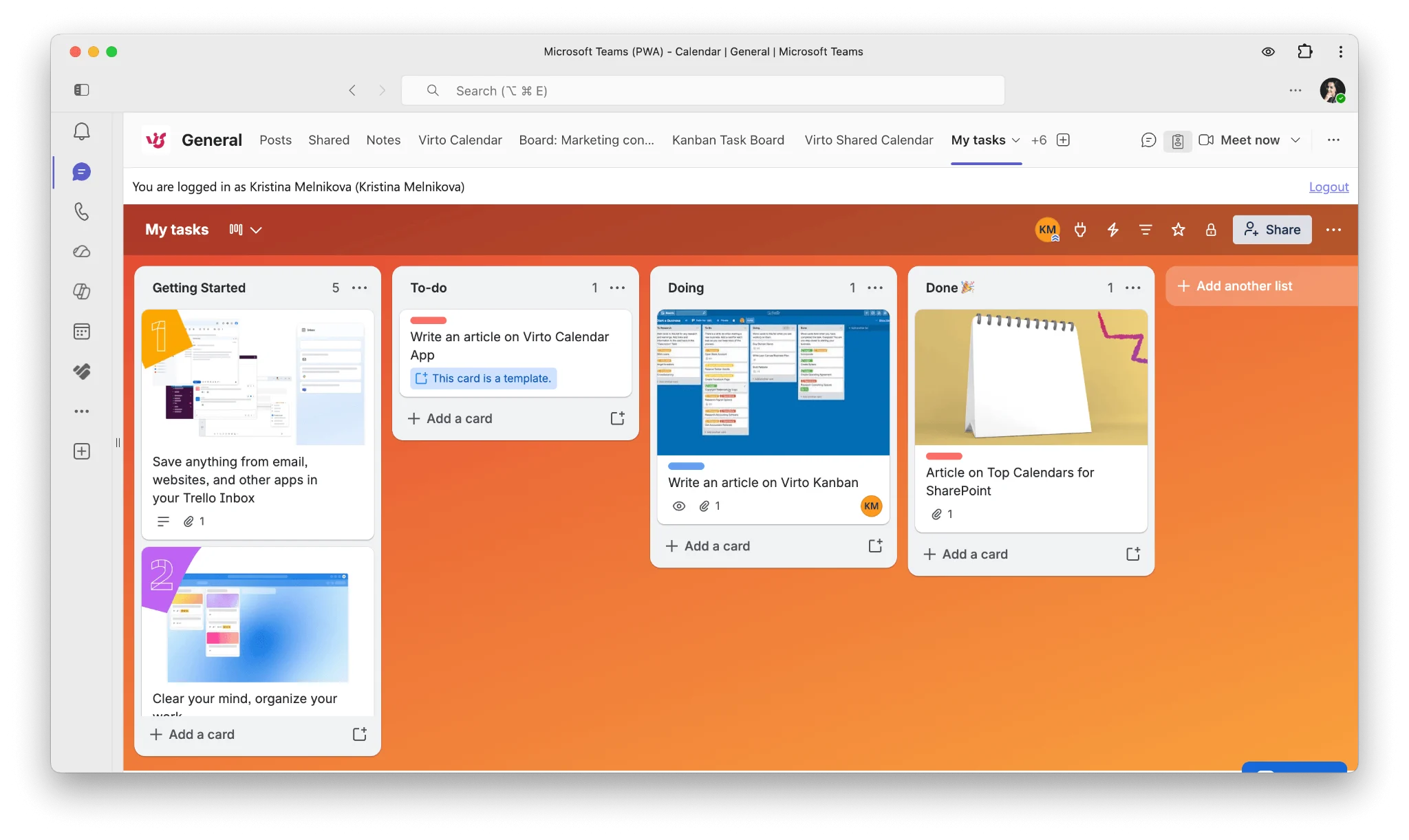
Pic. 2. Trello.
Both tools cover the basics well — creating tasks, assigning owners, setting deadlines, and tracking progress — and both offer board, list, and calendar views. But their philosophies diverge: Microsoft Planner leans into structured collaboration inside a unified ecosystem, while Trello prioritizes visual flexibility and cross-platform adaptability.
Key differences: Trello vs Microsoft Planner
Here’s a side-by-side comparison of how the two tools stack up across the criteria that matter most in 2026, including pricing and free tiers:
| Criteria | Microsoft Planner | Trello |
|---|---|---|
| Best for | Teams already inside Microsoft 365 who want native task boards. | Teams of any stack wanting a flexible, standalone visual board. |
| Interface | Structured buckets, board, grid, schedule & chart views. | Boards with drag-and-drop cards; board, calendar, timeline & table views (view range depends on plan). |
| Pricing (2026) | Planner Basic included in Microsoft 365 (from ~$6/user/mo for Business Basic). Planner Premium (Plan 1) from $10/user/mo; Plan 3 $30; Plan 5 $55. | Free plan available. Standard $5/user/mo, Premium $10/user/mo, Enterprise $17.50/user/mo (billed annually). |
| Free tier | No standalone free version — Planner Basic requires a paid Microsoft 365 subscription. | Yes — genuinely useful free plan (unlimited cards, up to 10 boards per Workspace, 10 collaborators). |
| Integrations | Deep native ties to Teams, Outlook, SharePoint, To Do & the rest of Microsoft 365. | Hundreds of Power-Ups: Slack, Google Drive, Jira, Confluence, GitHub and more. |
| Automation | Basic; extend via Power Automate. | Built-in Butler automation plus AI features on paid tiers. |
| Customization | Limited — focused on standard team collaboration. | Highly customizable via labels, Power-Ups & templates. |
| Access & security | Governed by Microsoft 365 / Entra ID org security. | Per-board permissions; 2FA on all tiers, SSO on Enterprise. |
| Mobile apps | iOS & Android. | iOS & Android. |
| Target audience | Microsoft-centric organizations & larger teams. | Startups, freelancers, small teams & cross-tool workflows. |
Fig. 1. Trello vs Microsoft Planner: key differences (2026).
Note on pricing: Planner Basic has no separate price — it ships with Microsoft 365, so its cost is effectively bundled into your existing subscription. Trello prices are per user, billed annually; monthly billing is a little higher ($6 Standard, $12.50 Premium). Always re-check both vendors’ pricing pages before budgeting, as tiers change.
Additional insights
- Automation: Trello’s built-in Butler makes rule-based automation approachable for non-technical users. Planner leans on Power Automate for anything beyond the basics — more powerful, but a steeper setup.
- Visual management: Trello’s card-and-list metaphor is hard to beat for at-a-glance workflow tracking. Planner’s board view is clean but more rigid.
- Project depth: Planner Premium now folds in the old Project for the web features — Gantt/timeline views, dependencies, and portfolio reporting — which pushes it ahead of Trello for structured project management, at a price.
Want to see how Planner compares against Microsoft’s dedicated project tool, or against other alternatives? See Microsoft Planner vs Microsoft Project and our Microsoft Planner alternatives roundup.
Advantages and disadvantages: Trello vs Planner
Microsoft Planner
| Pros | Cons |
|---|---|
| Seamless native integration with Teams, Outlook, SharePoint & OneDrive. | Limited interface customization. |
| No extra cost for Microsoft 365 subscribers (Planner Basic). | Fewer built-in third-party integrations. |
| Familiar to anyone already using Microsoft apps. | Advanced project features require paid Planner Premium plans. |
| Strong for coordinating tasks across large, Microsoft-centric teams. | Automation is basic without Power Automate. |
| Premium tiers now add Gantt, dependencies & portfolio views. | No standalone free version outside Microsoft 365. |
Fig. 2. Advantages and disadvantages of Microsoft Planner.
Trello
| Pros | Cons |
|---|---|
| Highly flexible, customizable boards for any workflow. | Free version limits boards and advanced views. |
| Simple, visually appealing interface that’s easy to learn. | Fewer built-in tools for complex, structured project management. |
| Huge Power-Up ecosystem for third-party integrations. | No native Microsoft 365 integration (a drawback for Microsoft shops). |
| Built-in Butler automation, plus 2026 AI features on paid tiers. | Per-user costs add up quickly for larger teams. |
| Genuinely usable free plan for individuals & small teams. | Advanced views (timeline, dashboard) gated behind Premium. |
Fig. 3. Advantages and disadvantages of Trello.
Which to choose: scenarios for Planner and Trello
When to use Microsoft Planner
- Microsoft 365 teams: you already live in Teams, Outlook, and SharePoint and want task boards without adding another vendor.
- Larger organizations: you need governance and security managed centrally through Entra ID.
- Structured collaboration: your projects benefit from consistent, standardized task structures.
- Cost-conscious M365 shops: Planner Basic is already paid for in your subscription.
Example: A marketing team inside a Microsoft 365 enterprise uses Planner to run campaign tasks alongside Outlook and Teams, so deadlines and assignments live where they already work.
When to use Trello
- Flexibility & customization: startups, small teams, and individuals who want to shape boards around their own workflow.
- Cross-tool workflows: you rely on Slack, Google Drive, Jira, or other non-Microsoft services.
- Visual task management: you want a fast, drag-and-drop board that anyone can pick up in minutes.
- A free start: you want to organize work at no cost before committing to a paid plan.
Example: A small startup runs its agile development on Trello, wiring in GitHub and Slack Power-Ups to keep everything visible on one board.
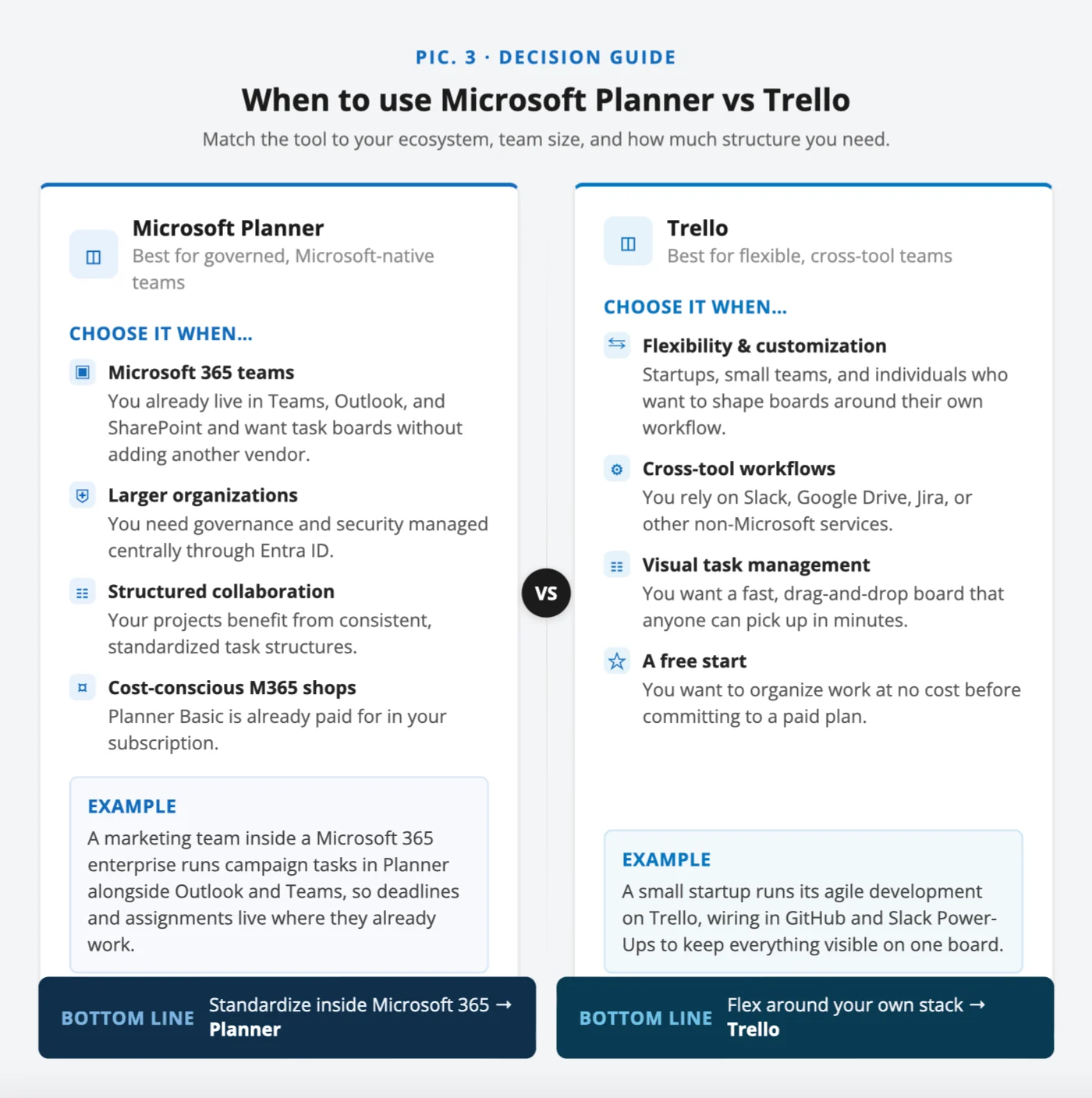
Pic. 3. When to use Microsoft Planner & Trello.
Comparison across project types
| Project type | Microsoft Planner | Trello |
|---|---|---|
| Software development | Good for structured phases and Microsoft-tool integration; Premium adds sprints & dependencies. | Ideal for agile boards with GitHub/Jira Power-Ups. |
| Marketing | Effective for campaign planning inside the Microsoft ecosystem. | Great for visualizing campaign workflows with external marketing tools. |
| Event management | Handles structured event tasks within Microsoft tools. | Flexible boards for logistics plus external-service integrations. |
Fig. 4. Trello vs Microsoft Planner across project types.
A Microsoft-native alternative: Virto Kanban Board App
If you want Trello’s visual flexibility and Planner’s Microsoft integration, the Virto Kanban Board App is built for exactly that middle ground. It delivers advanced, drag-and-drop Kanban boards that run right inside Microsoft Teams and SharePoint, while all your data stays in your Microsoft 365 tenant.
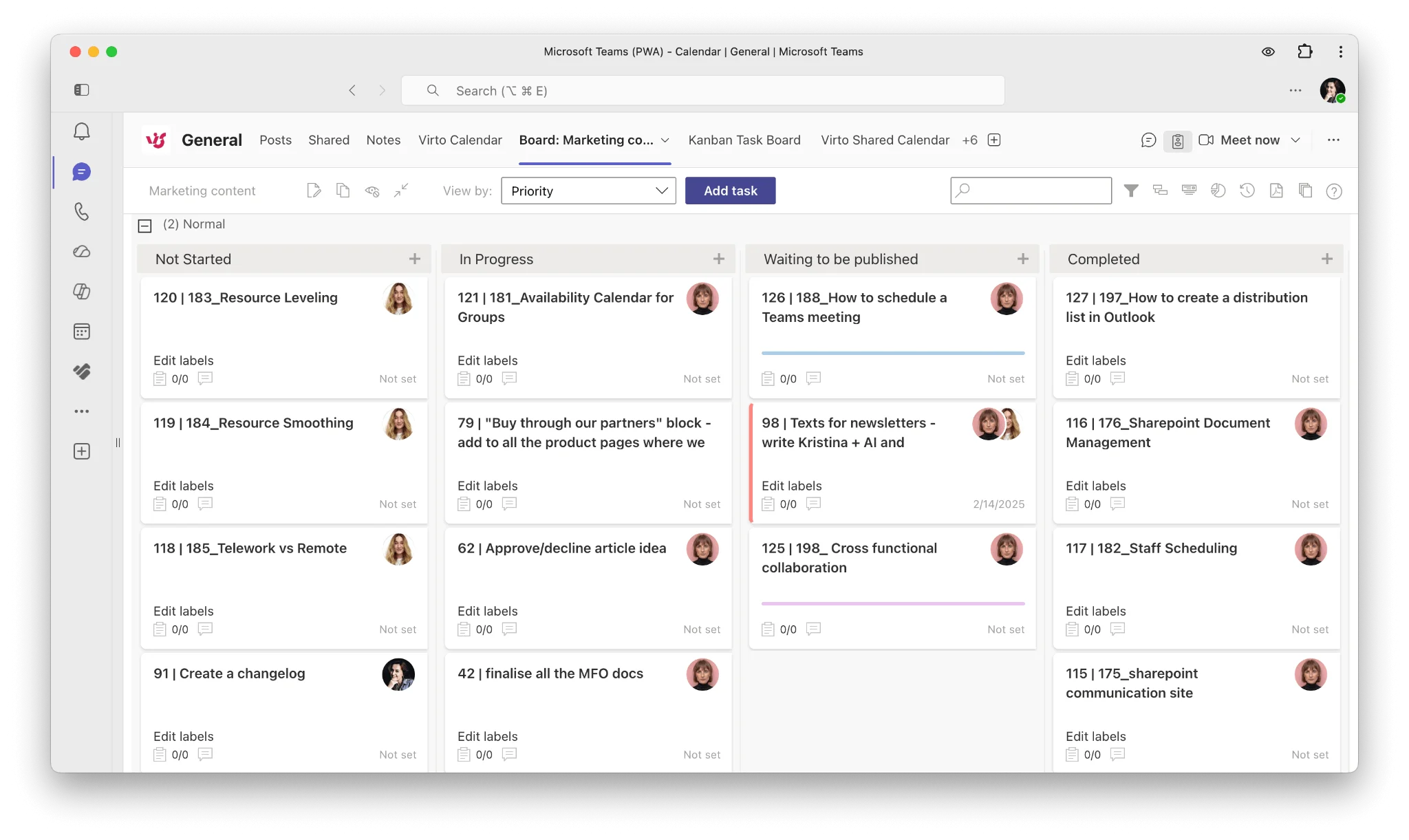
Pic. 4. Virto Kanban Board.
Key features and benefits
- Native Microsoft 365 integration: manage boards directly in Teams and SharePoint — no context switching, no data leaving your tenant.
- Advanced Kanban: swimlanes, categorization, color-coding, sub-tasks, and WIP limits for detailed, organized workflows.
- Customization & reporting: tailor the board interface and use built-in charts and dashboards to analyze progress.
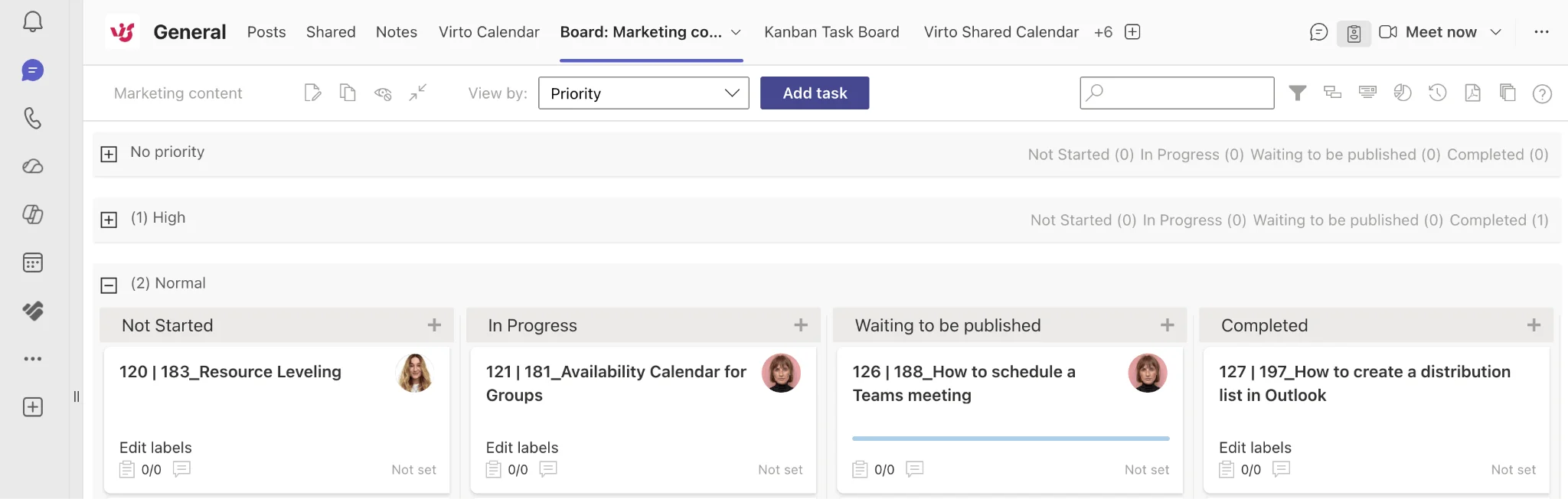
Pic. 5. Example swimlanes in the Virto Kanban Board App organizing work by priority.
- Automation & multi-list boards: pull multiple SharePoint lists into a single board and automate routine task updates.
- Cross-platform: works across Teams web, desktop, and mobile.
Why choose Virto Kanban Board
Virto Kanban Board App combines the strengths of both tools: Trello’s flexibility and visual richness with Planner’s Microsoft 365 integration. For teams already invested in Microsoft — but frustrated by Planner’s limited customization — it’s a natural upgrade path that keeps everything governed inside your own environment. See how it stacks up in our roundup of the best Kanban boards for teams.
Pricing and getting started
Virto Kanban Board is available for both Microsoft 365 / SharePoint and Microsoft Teams. Pricing starts at $2/user/month (Starter, up to 30 users) and $3/user/month (Pro, 31–200 users), with Enterprise pricing on request. Every plan comes with a 30-day free trial, so you can test it against your real workflow before committing.
To get started:
- Add the Virto Kanban Board App from the Microsoft Teams or SharePoint app store.
- Pin it as a tab in your Teams channel or SharePoint site.
- Use a ready-made template to spin up your first board in under a minute.
Final thoughts
Microsoft Planner and Trello solve the same problem from opposite directions. Planner is the right call for teams embedded in Microsoft 365 that value structured collaboration and want boards at no extra cost. Trello is the better fit for teams that prize flexibility, a gentle learning curve, and a deep third-party integration ecosystem — and it’s easy to start free.
If neither extreme fits — you want Trello-style boards but need your data to stay inside Microsoft 365 — the Virto Kanban Board App bridges the gap, with a 30-day free trial to prove it out.
FAQ
What’s the difference between Microsoft Planner and Trello?
Planner is the task board built into Microsoft 365 — best if you already use Teams and Outlook — while Trello is a standalone, highly flexible Kanban tool with a large integration ecosystem and a generous free tier.
Is Microsoft Planner free?
There’s no standalone free version. Planner Basic is included with most paid Microsoft 365 business subscriptions at no extra cost, and paid Planner Premium plans (from $10/user/month) add advanced project-management features.
How much does Trello cost?
Trello has a free plan. Paid tiers (billed annually) are Standard at $5/user/month, Premium at $10/user/month, and Enterprise at $17.50/user/month.
Does Microsoft have a Trello equivalent?
Yes — Microsoft Planner is the closest native match, offering board-based task management inside Microsoft 365. For more advanced, Trello-like boards that still stay inside Microsoft 365, the Virto Kanban Board App is a strong option.
Can I use Trello as a daily planner?
Yes. Create a board with lists like “To-Do,” “In Progress,” and “Done,” add tasks as cards with due dates and checklists, and use Power-Ups like Calendar view or sync with Outlook/Google Calendar to plan your day.
Keep reading: Microsoft Planner alternatives · Best Kanban boards for teams · Microsoft Planner vs Microsoft Project