


If you’re an HR lead or a SharePoint site owner, you’ve probably been asked some version of the same question: “Can we just have one place where everyone logs their time off?” The instinct is usually to look at the org’s existing tooling first. Microsoft 365 already includes SharePoint, Outlook, and Teams, so why pay for a dedicated PTO platform when those tools can carry the load?
The good news is that SharePoint Lists plus a Calendar View can absolutely act as a native, no-cost PTO tracker. The bad news is that the out-of-the-box experience leaves a few sharp edges: it doesn’t color-code by leave type, it doesn’t overlay with team meeting calendars, and item-level permissions take some careful configuration to keep PTO data appropriately private.
This guide walks through three approaches you can mix and match. First, how to build the native SharePoint List PTO tracker step by step. Second, how to enhance it with the Virto Calendar App so managers see meetings and absences in one view. Third, a lightweight alternative using Virto Shared Calendar for small teams that don’t want to spin up a SharePoint site at all. If you’re working primarily inside Outlook or Teams rather than SharePoint, our vacation calendar in Outlook and Microsoft Teams guide covers that path.
Build a PTO Tracker Using SharePoint Lists (Step-by-Step)
The native approach uses one SharePoint List configured with a Calendar View. It takes about thirty minutes to set up and costs nothing beyond your existing Microsoft 365 licensing. Here’s how to do it.
Step 1: Create a new SharePoint List for PTO requests
In your HR or People Ops SharePoint site, click New > List > Blank list. Name it something clear like “Team PTO Tracker” or “Vacation Requests 2026”.
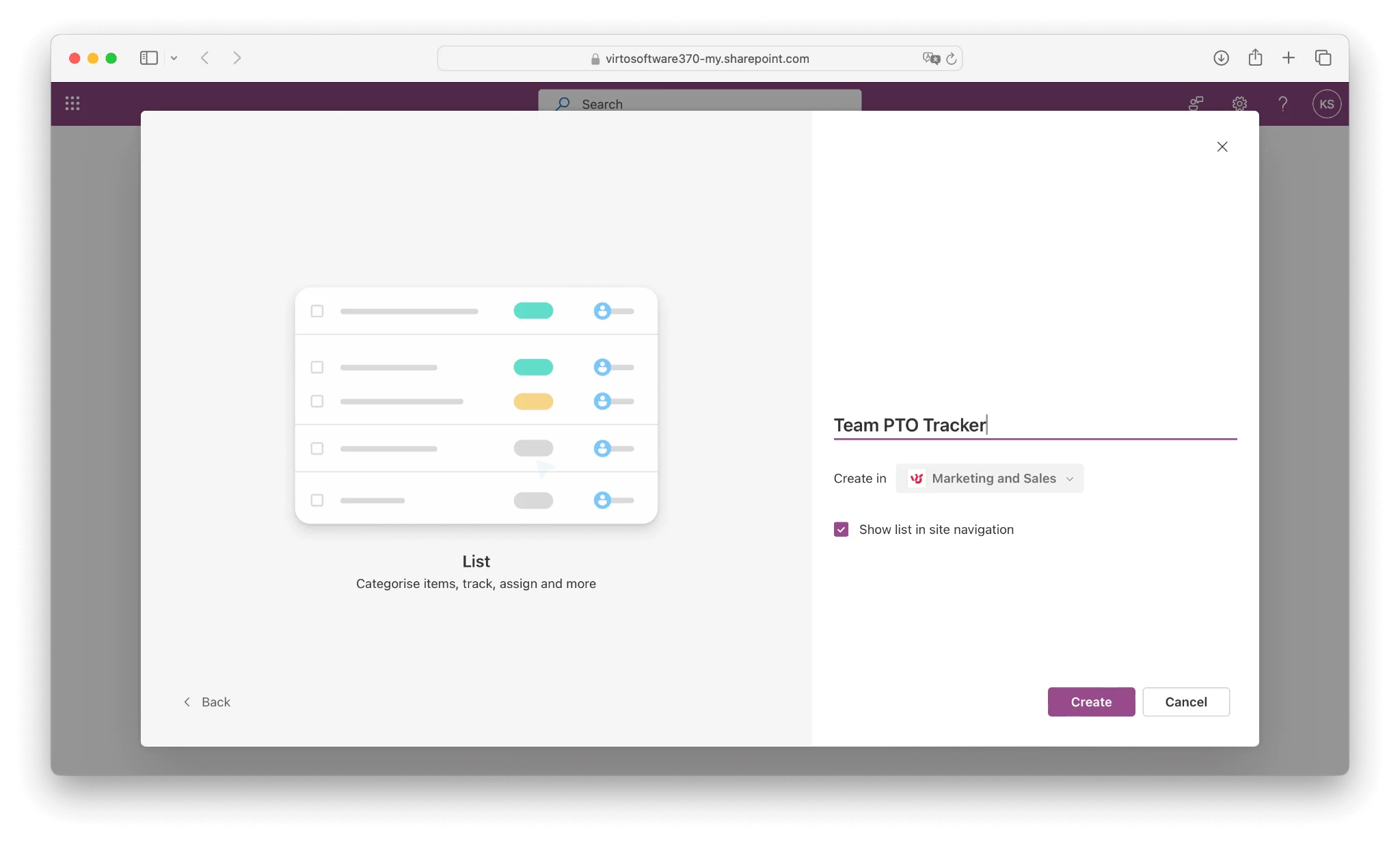
Add the following columns:
- Employee Name (Person or Group field, single selection) — auto-populates with the requester
- Leave Type (Choice field) — options like Vacation, Sick Leave, Personal Day, Bereavement, Jury Duty, Remote Work, Conference / Training
- Start Date (Date and Time, date only)
- End Date (Date and Time, date only)
- Status (Choice field) — Pending, Approved, Denied, Cancelled
- Manager (Person or Group field, single selection) — the approver
- Notes (Multiple lines of text, optional) — for handover details or coverage arrangements
Keep the column count tight. Every extra column is one more thing employees have to fill out, and one more thing that breaks your Calendar View formatting later.
Step 2: Add a Calendar View mapped to Start and End dates
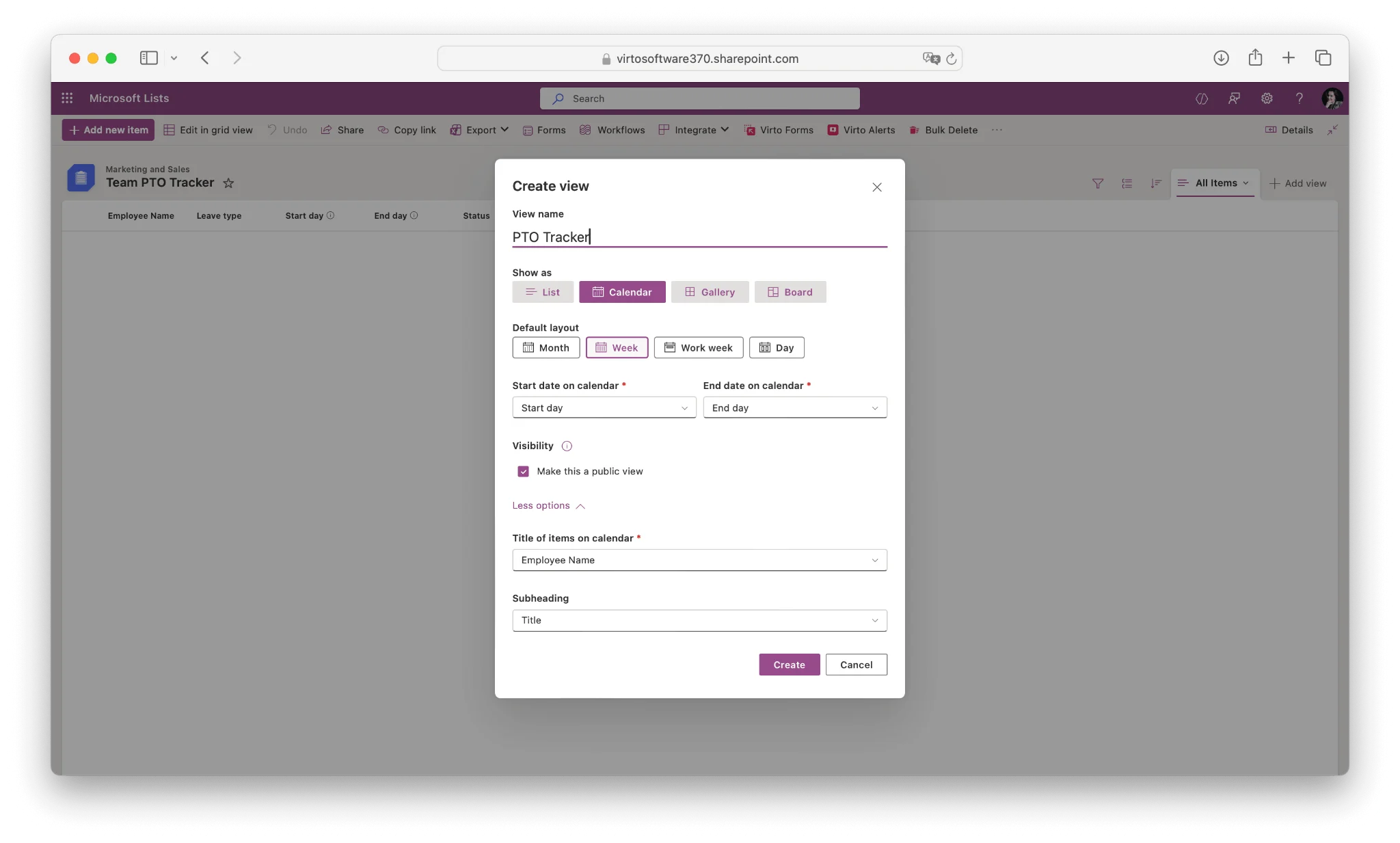
From the list view, click the view selector in the top right and choose Add view.

Pick Calendar as the view type. In the configuration panel, map Start Date to the calendar’s start field and End Date to the end field. For the title field, use Employee Name so each entry on the calendar shows whose PTO it is at a glance.
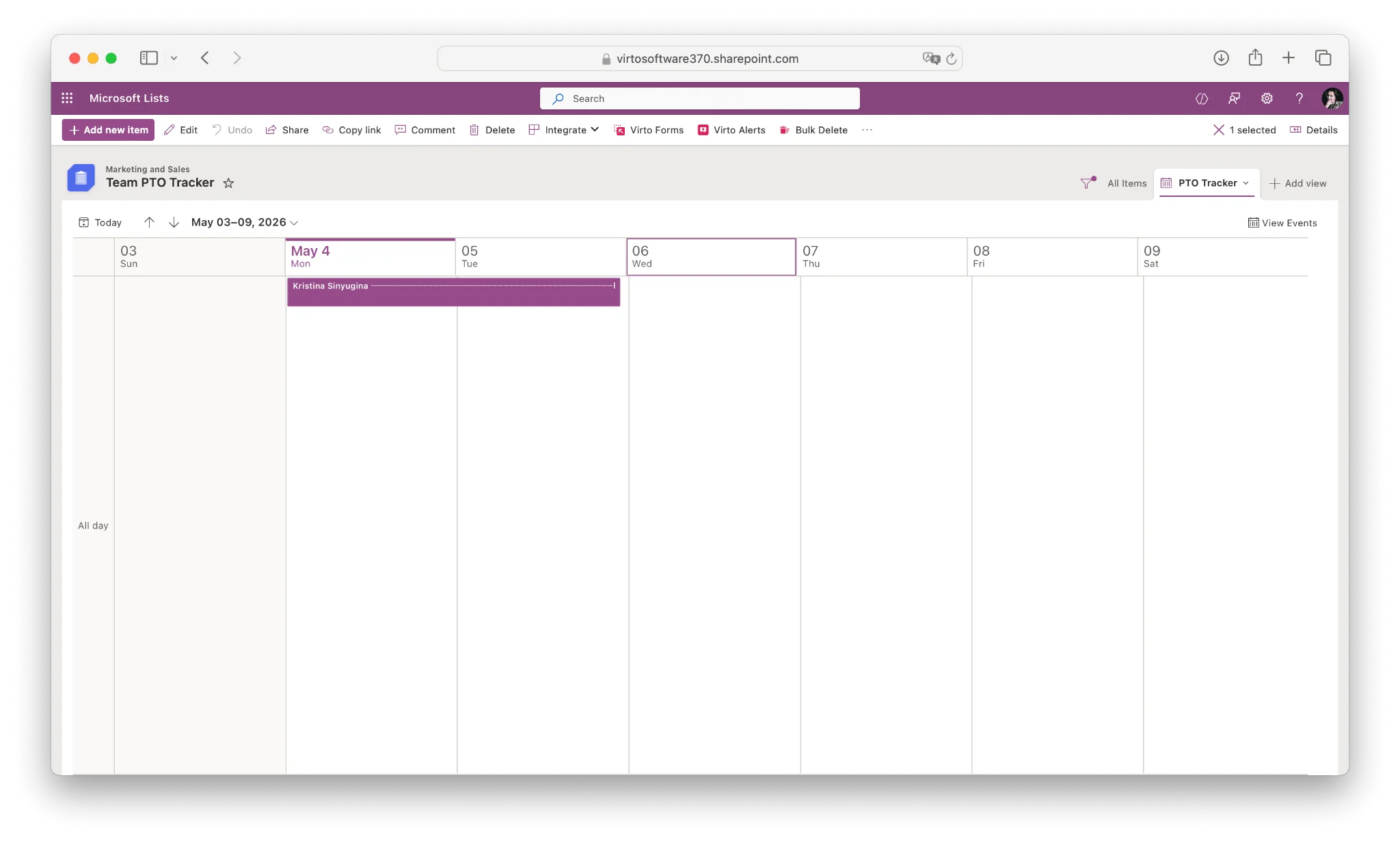
Save the view, and you’ll see a month-grid calendar with each PTO request rendered as a bar across its date range. Set this as the default view if it’s going to be the primary way the team interacts with the list.
Step 3: Apply JSON conditional formatting for color-coding by leave type
This is where SharePoint’s native capabilities require a bit of effort. SharePoint Lists support JSON-based formatting that lets you color rows or fields based on column values. To color-code your calendar entries by leave type, head to the Leave Type column header, click Column settings > Format this column, and switch to advanced mode.
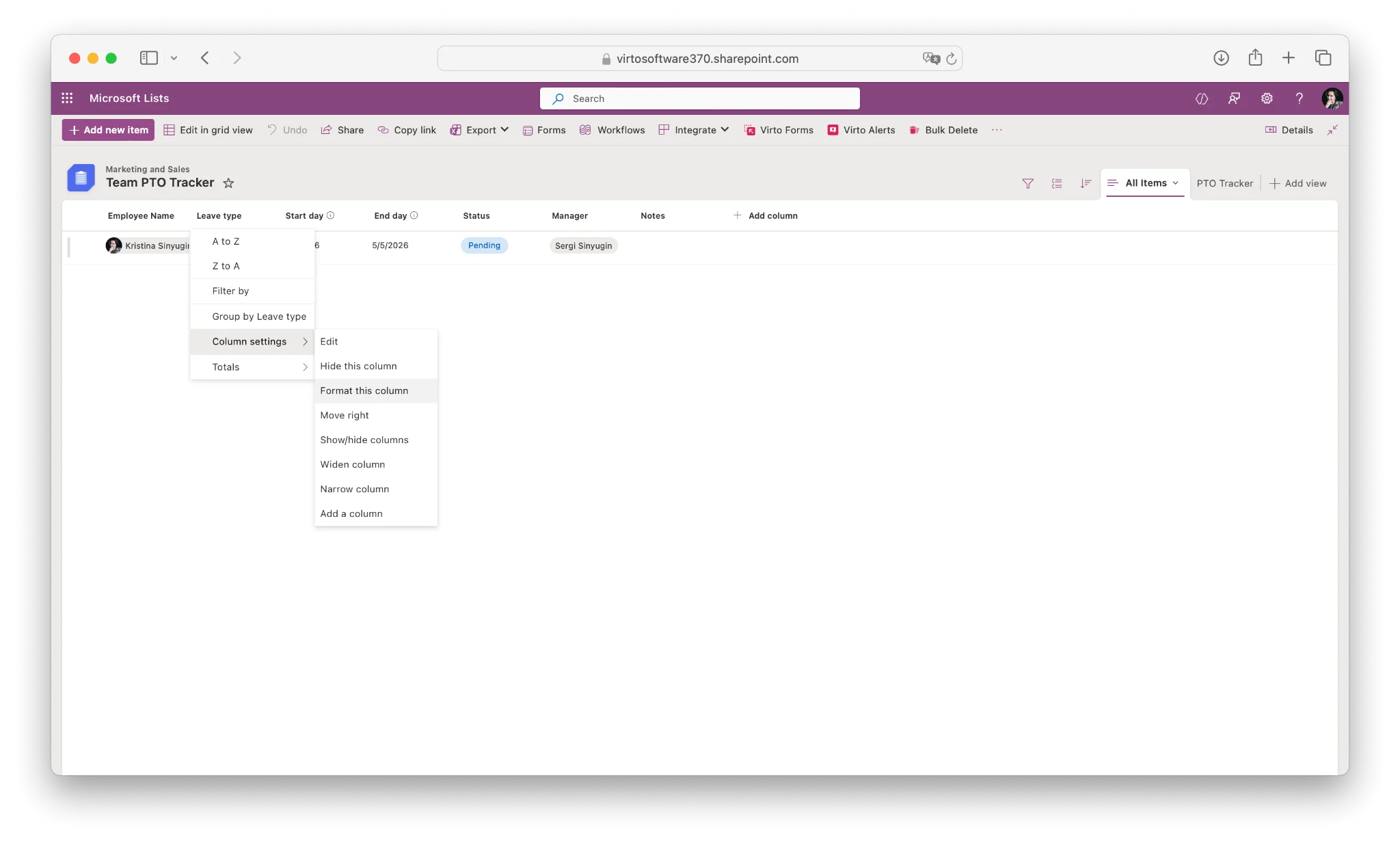
Paste in JSON along these lines:
{
  "$schema": "https://developer.microsoft.com/json-schemas/sp/v2/column-formatting.schema.json",
  "elmType": "div",
  "style": {
    "background-color": "=if(@currentField == 'Vacation', '#3B82F6', if(@currentField == 'Sick Leave', '#EF4444', if(@currentField == 'Remote Work', '#10B981', if(@currentField == 'Personal Day', '#F59E0B', '#6B7280'))))",
    "color": "white",
    "padding": "4px 8px",
    "border-radius": "4px"
  },
  "txtContent": "@currentField"
}
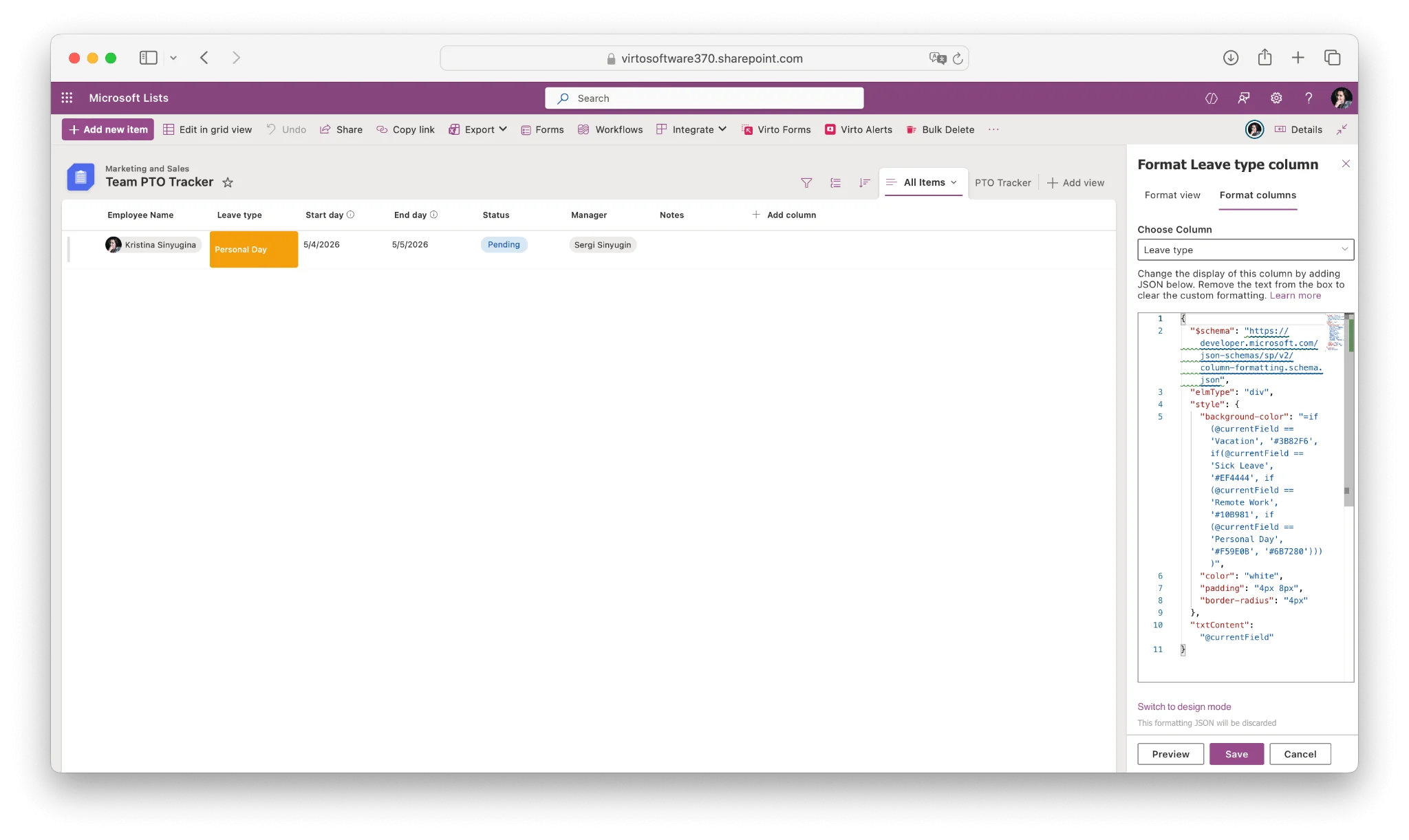
This colors the Leave Type column in the list view: blue for vacation, red for sick leave, green for remote work, amber for personal days, and grey for everything else.
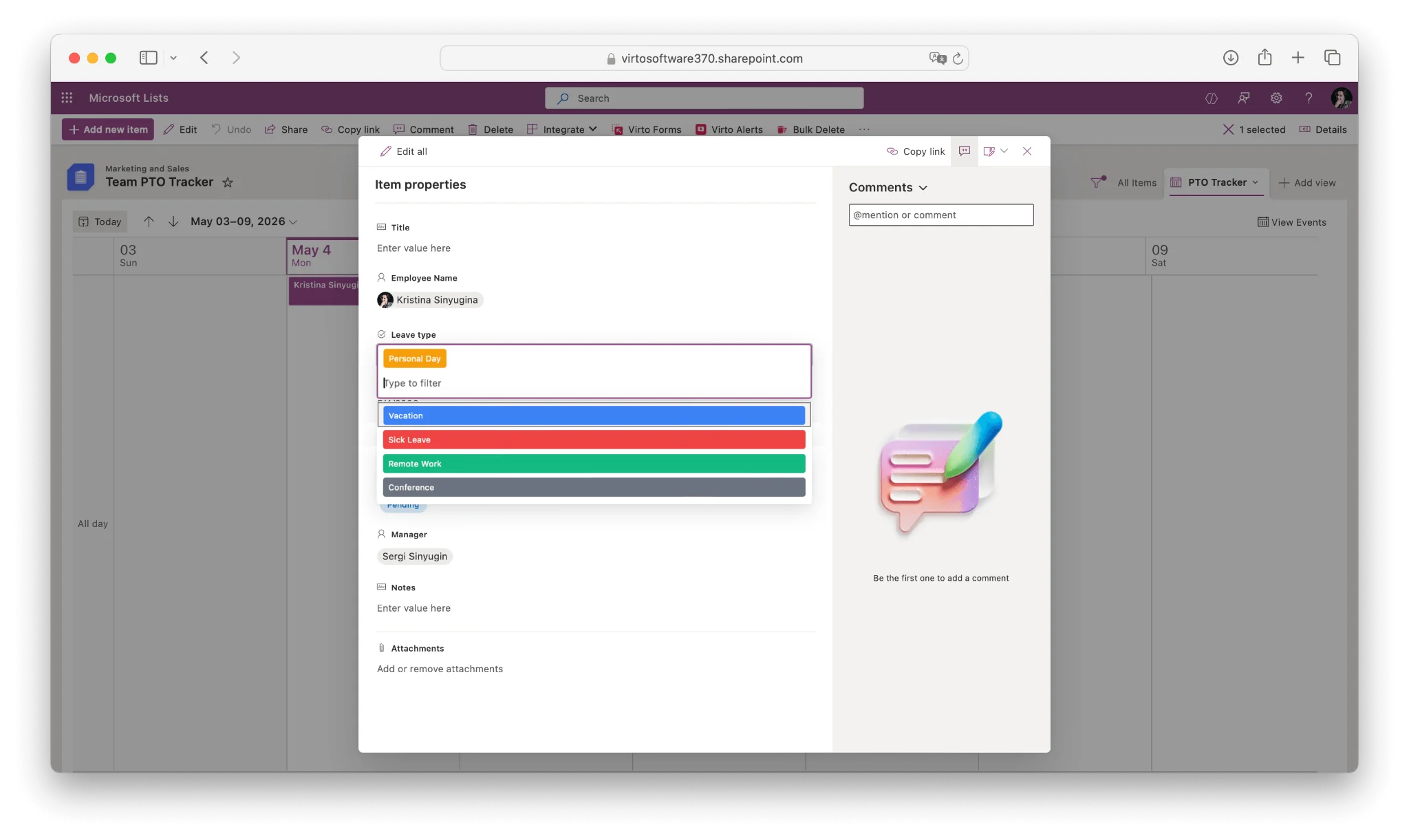
Note an important limitation: this formatting applies in the list view, but the Calendar view in modern SharePoint does not fully honor JSON column formatting on the bars themselves. You can sometimes work around this by maintaining a “color” reference column or by using SharePoint’s classic calendar overlay feature, but both approaches are fragile and feel like workarounds. This is the single biggest reason teams eventually look at an overlay tool — we’ll get to that in the next section.
Step 4: Set up item-level permissions
By default, anyone with access to the list can see every PTO request. That’s fine for some teams, but for most HR setups you’ll want employees to see only their own requests, and managers to see their direct reports’ requests.
Go to Settings (gear icon) > List settings > Advanced settings. Under Item-level Permissions, set Read access to “Read items that were created by the user” and Create and Edit access to “Create items and edit items that were created by the user”. This handles the employee side.
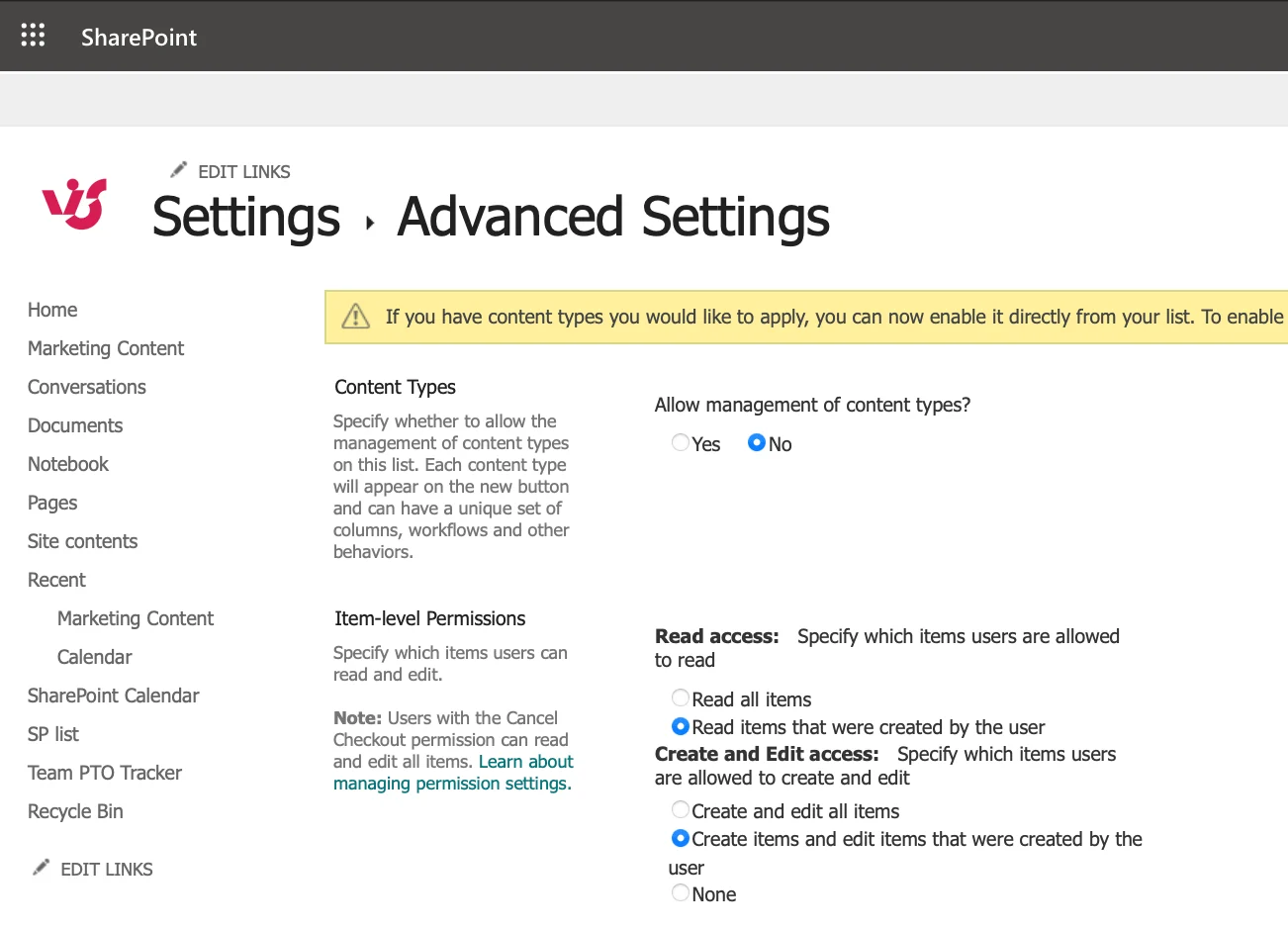
For managers, you’ll need a separate approach because SharePoint’s item-level permissions don’t natively support a “see only my team” rule. The two common patterns are: (1) put managers in a SharePoint group that has full Read access on the list and rely on filtered views to show their team only, or (2) use a Power Automate flow that runs when an item is created and explicitly grants the named manager Read permission on that specific item. Pattern two is more secure but adds a maintenance burden. Pick based on how strict your privacy requirements are.
Step 5: Embed on a SharePoint page or add as a Teams tab
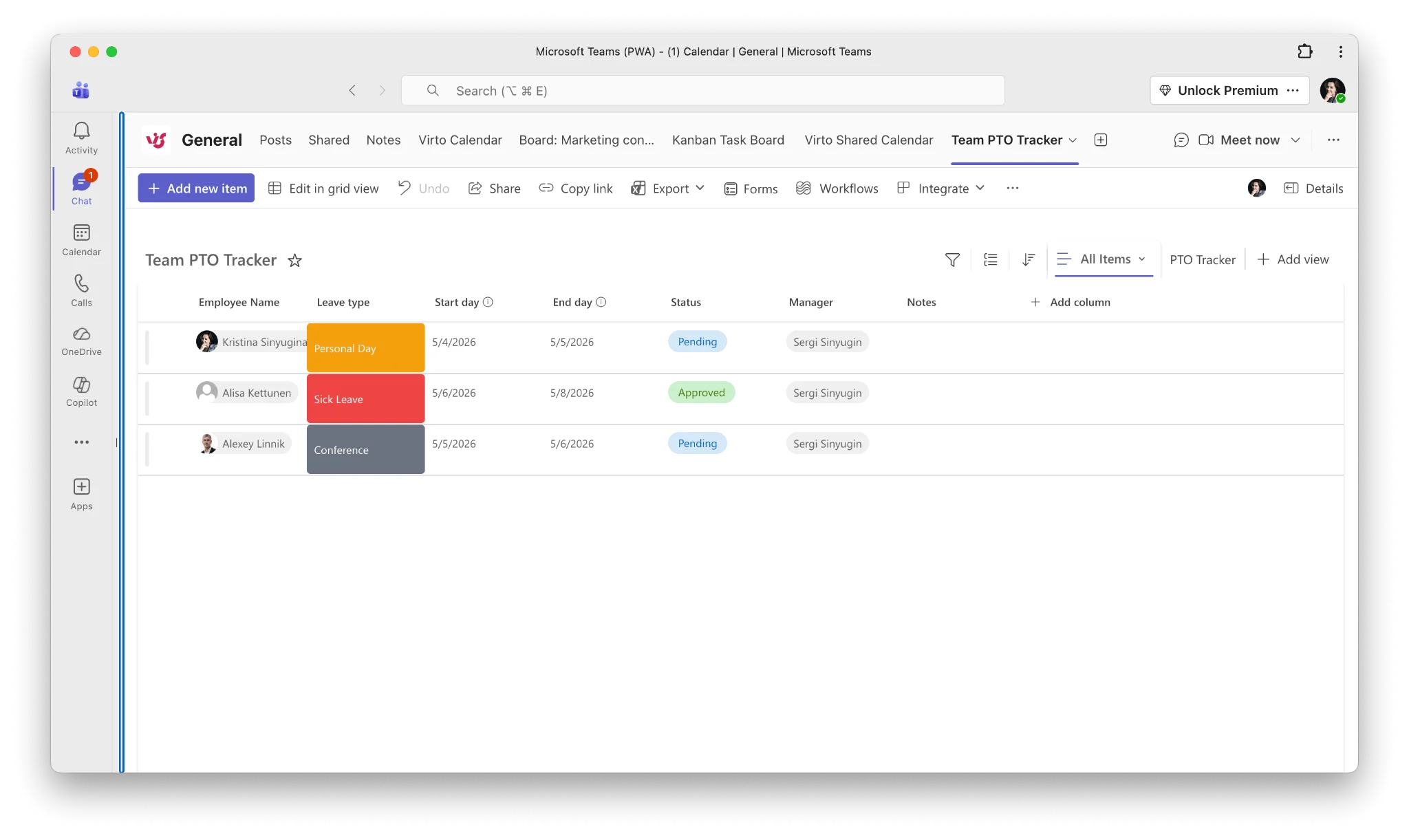
Edit your HR landing page in SharePoint, click the plus icon to add a web part, choose List, and select your PTO list. You can configure it to show the Calendar view by default. To surface the same calendar in Microsoft Teams, open the relevant team or channel, click the plus tab, choose SharePoint or Lists, and pin the list. Now your team can request and check PTO without leaving Teams.
Honest limitations of the native SharePoint approach
Before moving on, it’s worth being upfront about what this setup does and doesn’t do. The native SP List PTO tracker gives you a single source of truth for time-off requests, basic approval workflow (especially when paired with a Power Automate approval flow), and a calendar view filterable by employee or leave type. What it does not give you out of the box is reliable color-coding on the calendar view itself, overlay with Outlook or team Exchange calendars, recurring PTO entries, or a clean way to see meeting conflicts when planning coverage. JSON column formatting helps in the list view but is fragile and breaks easily when SharePoint changes its rendering. For small teams with simple needs, none of this matters. For HR teams managing 50+ employees across departments, these gaps add up fast.
Explore Our Use Cases for Leave and Holiday Tracking

Employee Vacation Tracker
Virto Calendar App shows approved leave next to the public holidays of every country your team works in — who is away, and which offices are closed.
Learn more about Employee Vacation Tracker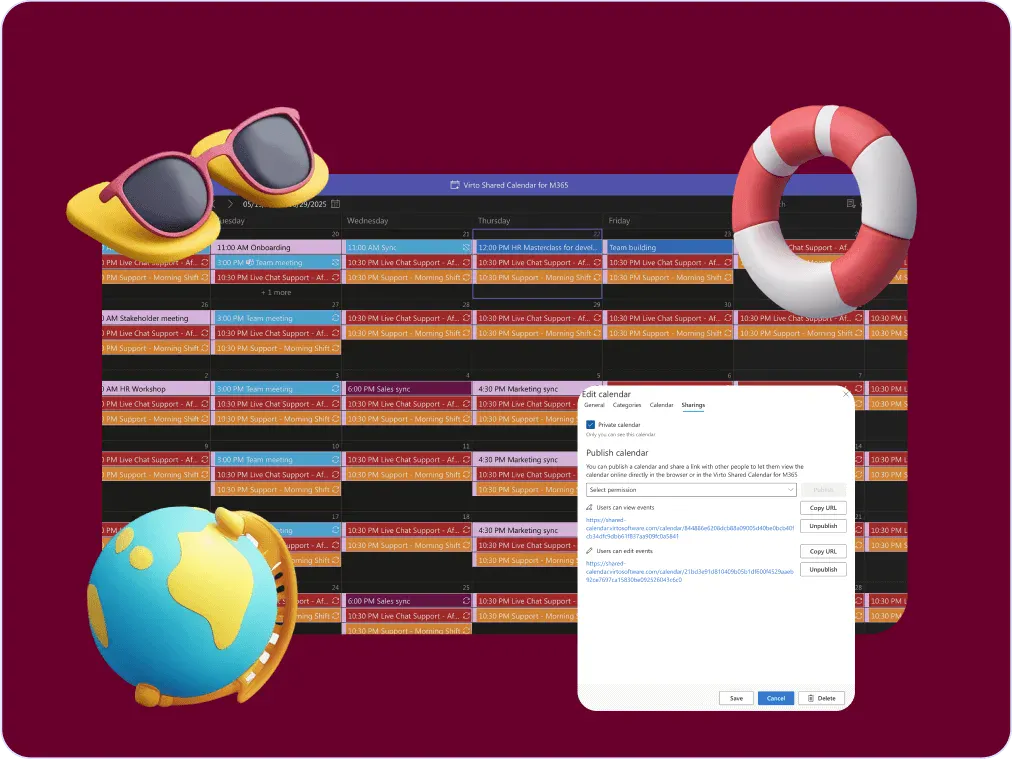
Company Holiday Calendar
One company holiday calendar for a small team: public holidays from an iCal feed, office closures and time off, shared with employees, contractors and vendors by link. Opens in a browser or Teams.
Learn more about Company Holiday Calendar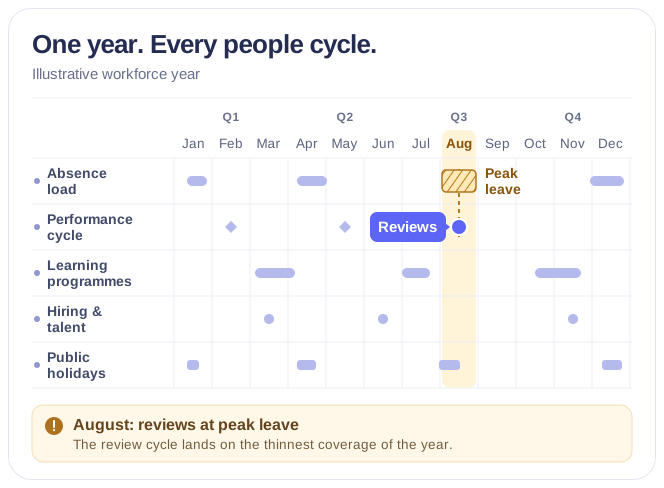
CHRO Workforce Cycle & Capacity Calendar
Overlay team-level absence load, learning and talent programmes, closures and country holidays in one Microsoft 365 year view, so the CHRO plans reviews around thin coverage without opening anyone's record.
Learn more about CHRO Workforce Cycle & Capacity CalendarEnhance Your PTO Tracker With Virto Calendar App
Once the gaps in the native experience start to bite, the question becomes: do you migrate to a different system, or do you layer something on top of what you’ve already built? Layering is usually the better answer, because the SharePoint List remains your system of record, your permissions stay intact, and your Power Automate flows keep working.
The Virto Calendar App is built for exactly this scenario. It takes any combination of SharePoint Lists, Exchange and Outlook calendars, iCal feeds, Google calendars, and SQL data sources, and renders them as a single overlaid calendar inside SharePoint or Teams. For PTO tracking, that translates into a few concrete capabilities the native experience can’t offer.
First, you connect your PTO SharePoint List as a data source inside Virto Calendar. The Leave Type column becomes the source for color-coding, so vacation, sick leave, remote work, and personal days each get their own color on the calendar bars themselves — not just in the list view. You configure the colors once in Virto’s settings panel, and the rules apply across every view.
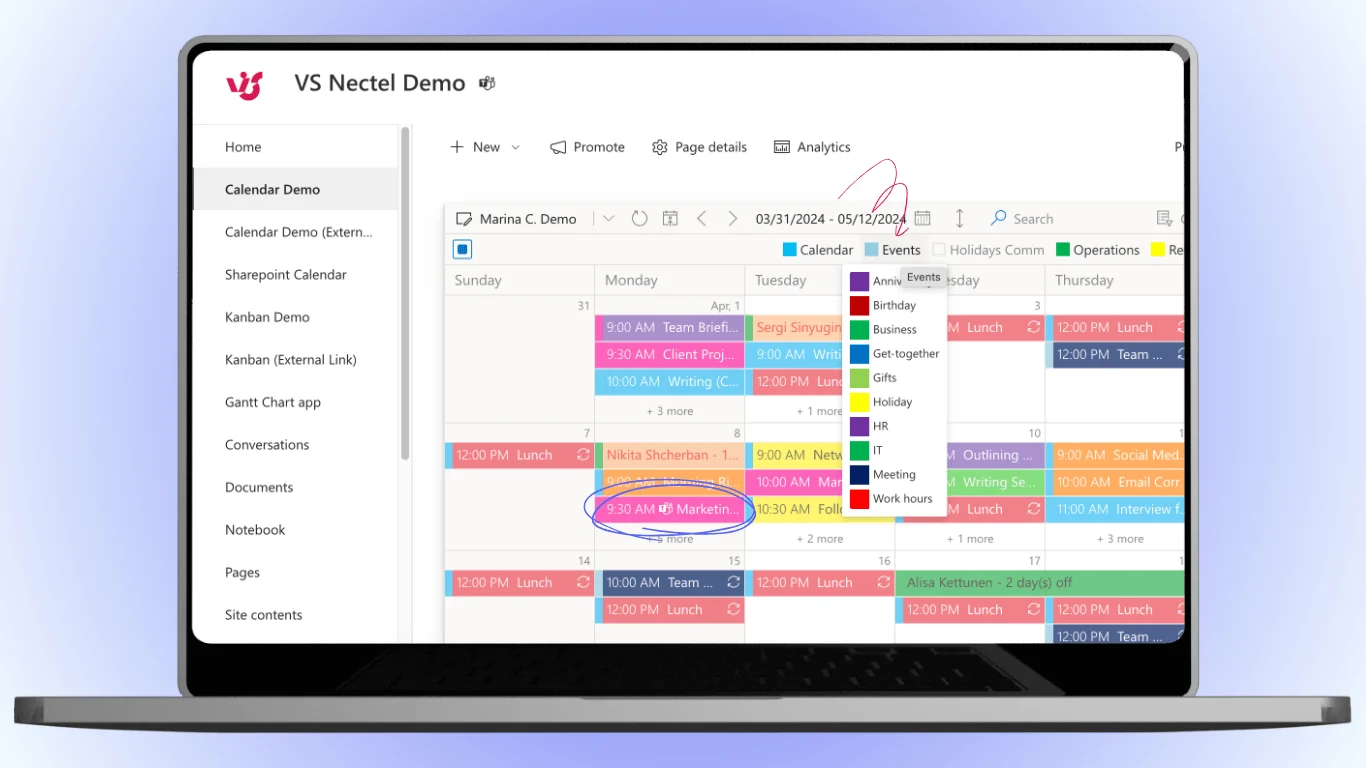
Second, you add team Exchange or Outlook calendars alongside the PTO data source. This is the unlock most managers care about. When you’re trying to figure out whether to schedule a launch review for next Thursday, you want to see at a glance who’s out, who’s in a recurring meeting, and who has open availability. Native SharePoint can’t show meetings and PTO together. Virto can.
Third, you can add a separate company holidays SharePoint list or pull from an iCal feed (Microsoft’s public holiday feeds work, as do regional government calendars) and overlay those as a third layer. The result is one calendar that answers three questions at once: who’s off for personal time, who’s in meetings, and which days are company-wide holidays.
Fourth, multi-level color-coding lets you express more than just leave type. Common configurations include department (engineering = teal, sales = purple, support = orange), region (each office gets a tint to show coverage gaps in time zones), or status (approved PTO is solid, pending requests are striped). You set the rules in Virto’s color configuration UI, and they apply automatically as new entries flow into the underlying SharePoint list.
The setup keeps the native SP List as the authoritative store. PTO requests still go through the same form, the same approval workflow, the same permission rules. Virto reads from that list and renders it differently — it doesn’t replace the data layer.
Lightweight Alternative — Virto Shared Calendar for Small Teams
Not every team needs a SharePoint list at all. For startups, client-facing pods, or a single department inside a larger org, spinning up an HR-grade SharePoint site for PTO tracking is overkill. If you have fewer than 20 people and you mostly just need everyone to know who’s out next week, a shared calendar is enough.
Virto Shared Calendar covers this use case with no SharePoint infrastructure required. You create a shared PTO calendar, send team members a link, and they add their own time off directly. Color-coded tags handle the categorization — vacation, sick day, working from home, conference, parental leave, whatever your team needs. There’s no admin setup, no JSON formatting, and no permissions configuration to debug.
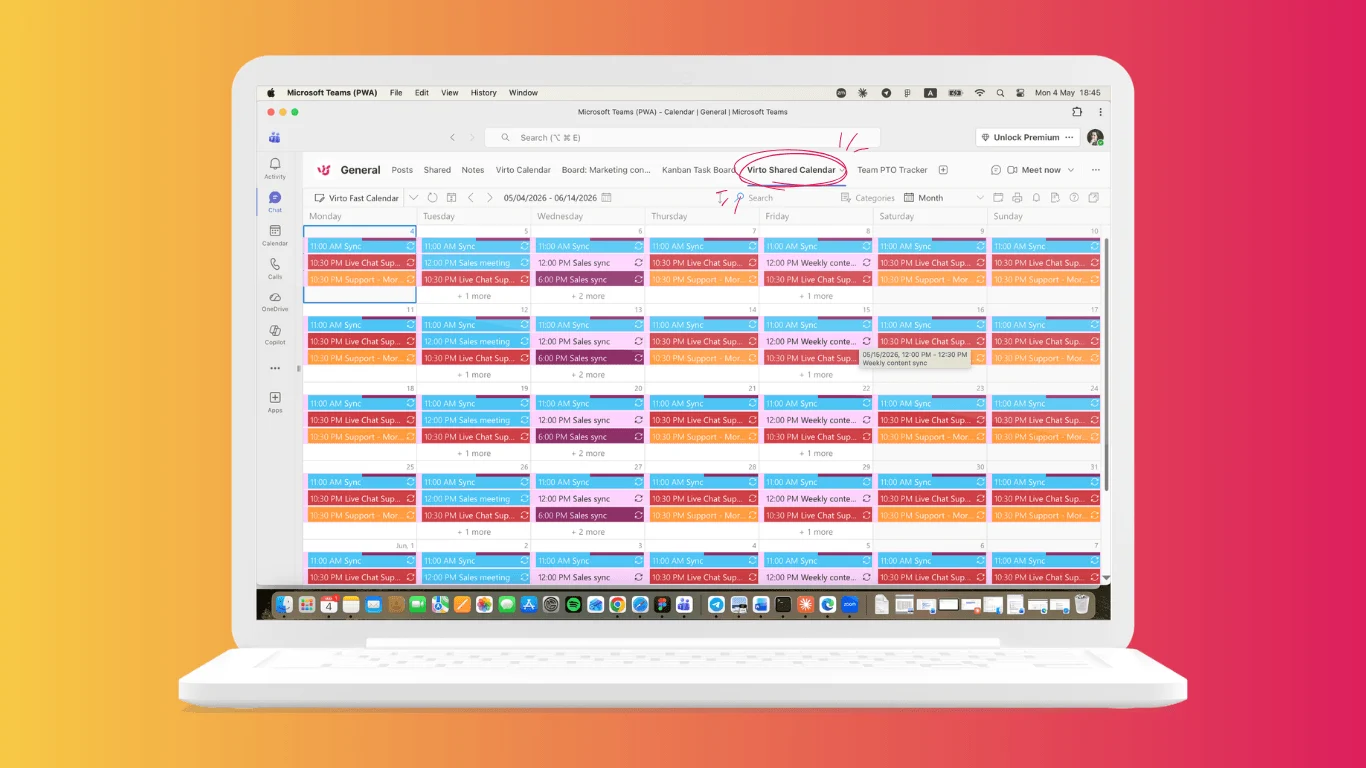
The free tier supports up to 15 entries, which is enough for a small team to try the workflow before committing. Beyond that, paid plans scale up without requiring an IT ticket. The product fits best for startups that don’t have a dedicated SharePoint admin, client-facing teams that need a quick and shareable view of who’s available, and individual departments inside a larger organization that want to track their own time off without waiting for central HR to provision something.
The trade-off versus the SharePoint approach is that you lose the structured request-and-approval workflow. There’s no manager approval step, no audit trail of who approved what, no integration with the rest of your HR data. For teams where PTO is mostly self-service and trust-based, that’s a feature, not a bug. For teams where every absence has to be formally approved and logged, you’ll outgrow it.
PTO Tracker Comparison: Native SP vs Virto Calendar App vs Shared Calendar
| Feature | Native SharePoint List | Virto Calendar App | Virto Shared Calendar |
|---|---|---|---|
| Setup time | 30 min + JSON tweaking | 1 hour (on top of SP list) | 5 minutes |
| Cost | Included in M365 | Paid app with free trial | Free for 15 entries |
| Color-coding on calendar | Fragile, list view only | Yes, robust and configurable | Yes, tag-based |
| Overlay with Outlook / Exchange | No | Yes | Limited |
| Permissions and approval workflow | Yes (with Power Automate) | Inherits SP list permissions | No formal approval |
| Best for | Mid-to-large HR teams comfortable with SP | Same teams that need a manager-friendly view | Small teams under 20 people |
| Audit trail | Yes | Yes | No |
| Recurring entries | No | Yes | Yes |
The right choice depends less on team size than on whether you need formal approval workflow. If you do, start with the native SP list and add Virto Calendar App when the calendar experience starts limiting you. If you don’t, jump straight to Shared Calendar.
Improve Your PTO Tracking with Virto Apps


FAQ
Can I track PTO in SharePoint without third-party apps?
Yes. A SharePoint List with columns for employee, leave type, start and end dates, and status, combined with a Calendar View, gives you a functional PTO tracker without any add-ons. You can layer on Power Automate for an approval flow and JSON column formatting for color-coding in the list view. The main native limitations are color-coding on the calendar view itself (which is fragile) and overlay with other calendars (which isn’t supported).
How do I color-code a PTO calendar in SharePoint?
For the list view, use JSON column formatting on your Leave Type column. Open Column settings, choose Format this column, switch to advanced mode, and paste a JSON snippet that maps each leave type to a background color. For the calendar view, native color-coding is unreliable. The robust option is to use an overlay tool like Virto Calendar that reads your SharePoint list and applies color rules to the calendar bars directly.
Can managers see only their team’s PTO?
Yes, but it takes work in native SharePoint. The cleanest pattern is a Power Automate flow that fires when a PTO request is created, looks up the employee’s manager, and grants that manager Read permission on the new item. The simpler pattern is to keep the list readable by everyone and rely on filtered views — less private, but much easier to maintain.
Is there a free PTO tracker for Microsoft 365?
Yes, several. The native SharePoint List approach is free if you already have Microsoft 365. Virto Shared Calendar is free for up to 15 entries, which works for small teams. Virto Calendar App offers a free trial if you want to pilot before rolling it out across departments.
How do I overlay PTO with team meeting calendars?
Native SharePoint can’t combine a PTO list with Outlook or Exchange calendars in a single view. You need an overlay tool. Virto Calendar App connects to your PTO SharePoint list, your team’s Exchange calendars, company holiday feeds, and renders them all as one stacked calendar inside SharePoint or Teams. This is what most managers actually want when they ask “can we see meetings and PTO together?”
Wrap-up
The native SharePoint List approach is a perfectly reasonable starting point — and for plenty of teams it’s the finishing point too. Build it, document it, and see how far it takes you. When the gaps start showing up (color-coding on the calendar, overlay with team meetings, multi-source views for HR), you have two clean paths forward.
The Virto Calendar App layers on top of your existing SharePoint list and offers a free 30-day trial if you want to pilot before rolling out across departments. For smaller teams that don’t need the full SharePoint setup, Virto Shared Calendar is free for up to 15 entries and takes about five minutes to spin up.
If you’d like a head start on the native build, we maintain a downloadable SharePoint List PTO template with the columns, JSON formatting, and a sample Power Automate approval flow pre-configured. And if your team works primarily out of Outlook and Teams rather than SharePoint, our vacation calendar in Outlook and Microsoft Teams guide walks through that path instead.