


Quick Answer: How to make a shift schedule with AI
To create a shift schedule with AI in under an hour:
- Choose a free AI tool — ChatGPT, Claude, Microsoft Copilot, or Gemini.
- Write a prompt with your shift constraints (number of staff, shift patterns like 8h or 12h, coverage requirements, fairness rules, certifications, PTO).
- Iterate — feed conflicts back to the AI until the schedule is clean.
- Export the result as an .xlsx file (ask the AI to use real Excel datetime values, not text).
- Import the .xlsx into Microsoft 365 via a SharePoint list and visualize it in the Virto Calendar App (free 30-day trial).
Operations managers, HR leads, and shift planners are quietly replacing wall charts and spreadsheets with AI prompts. This guide shows you exactly how — with four copy-paste prompts for manufacturing, retail, hospitality, and self-scheduling, a comparison of the four mainstream AI tools, and a 7-vendor shortlist of dedicated shift scheduling software for 2026. It ends with the workflow for landing your AI-generated schedule inside Microsoft 365.
How to Make a Shift Schedule with AI (Step-by-Step)
Building a shift schedule with AI works for virtually any industry — manufacturing, retail, healthcare, hospitality. The framework is the same: pick a tool, write a prompt with your constraints, iterate, export. Below is the four-step workflow followed by four ready-to-use prompts.
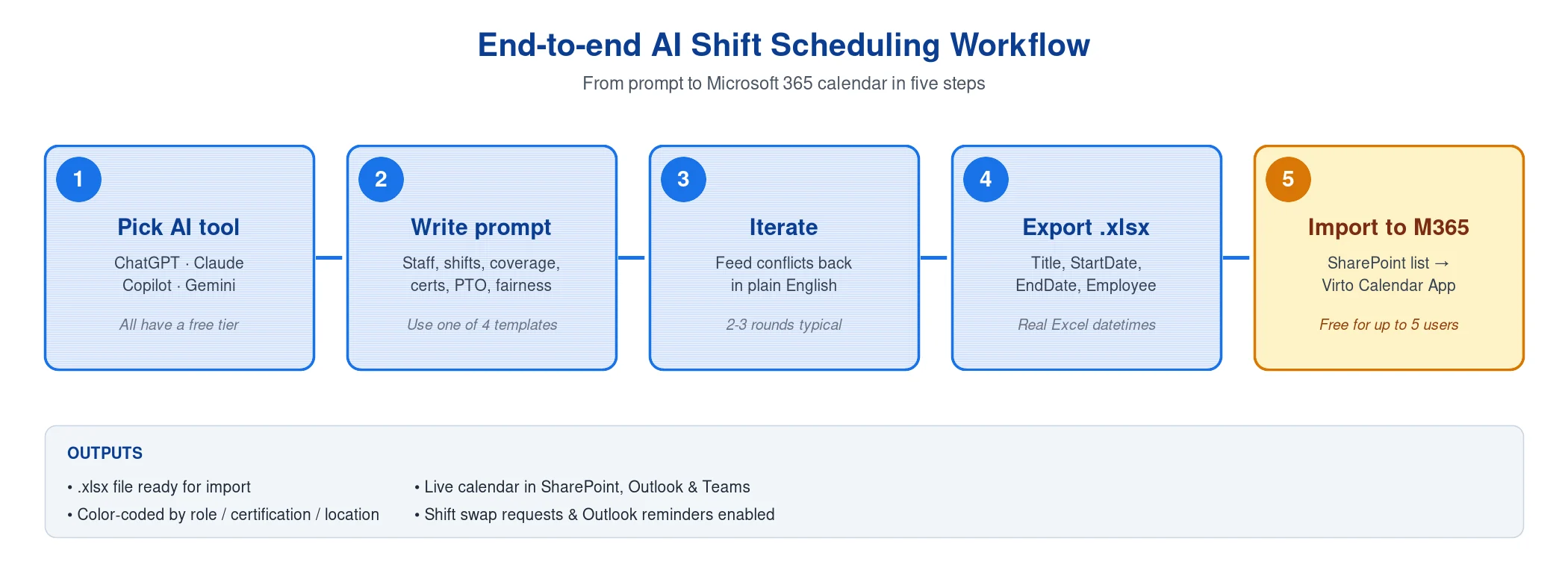
Pic. 1. End-to-end AI shift scheduling workflow
Step 1. List your constraints
AI tools generate fair, conflict-free schedules only when you give them complete inputs. Before opening ChatGPT or Claude, write down:
- Number of staff and their names (or anonymous IDs).
- Shift patterns — 8h, 10h, 12h, or split shifts.
- Coverage requirements per hour, per day, per role.
- Hard rules — max consecutive shifts, mandatory rest, no double-booking.
- Soft rules — weekend fairness, seniority order, preferred days off.
- Certifications, licenses, and skills required per shift (e.g., forklift, RN, food handler).
- PTO, vacations, and known unavailability for the scheduling period.
- Union or contract rules — minimum hours, overtime thresholds, on-call rates.
Step 2. Write the prompt
Paste your constraints into one of the four prompts below. Treat the prompt as a brief: the more specific you are about role, scenario, and output format, the cleaner the schedule.
Step 3. Iterate on conflicts
AI will not get a 30-person multi-week roster perfect on the first try. Common fixes you can ask for in plain English:
- “Ana is scheduled for 6 days in a row in week 2 — please cap at 5 consecutive shifts.”
- “Weekend coverage is uneven — Maya works both Saturdays, Tom none. Rotate.”
- “No certified forklift driver is on the Tuesday night shift in week 3. Reassign.”
- “Total overtime exceeds 8 hours — redistribute so no one exceeds 4.”
Run two or three iterations until the schedule passes your hard rules.
Step 4. Export as Excel (.xlsx)
Once the schedule passes your hard rules, ask the AI for the final output as a downloadable .xlsx file. The exact instruction that works for ChatGPT and Claude:
Export this schedule as an .xlsx file with columns:
Title, StartDate, EndDate, Employee, Role, Cert.

StartDate and EndDate must be real Excel datetime values, not text.
Title = a short event label (e.g., "Day shift — Maria S.").
All four mainstream tools handle this directly: ChatGPT (Advanced Data Analysis), Microsoft Copilot in M365, Claude (file artifacts), and Gemini all return a downloadable .xlsx with proper datetime cells. In the rare case your tool only renders text inline, copy the table into Excel, format the StartDate / EndDate columns as Date & Time, and save the workbook as .xlsx before uploading to SharePoint — the end-state must always be .xlsx, not CSV.
With the .xlsx in hand, jump to the section below on importing it into Microsoft 365 via the Virto Calendar App.
Prompt 1 — Manufacturing (rotating 12-hour shifts, certifications)
Best for: production lines, warehouses, energy, industrial maintenance.
You are an experienced shift planner. Build a 4-week rotating shift
schedule for a manufacturing plant with the following constraints:

- 24 production operators, 4 team leads, 2 maintenance techs.
- 12-hour shifts: Day 06:00–18:00, Night 18:00–06:00.
- 24/7 coverage. Minimum per shift: 6 operators, 1 team lead.
- Each maintenance tech must cover at least 2 night shifts per week.
- Forklift certification required for at least 2 operators per shift.
- Hard rules: no more than 3 consecutive 12h shifts; minimum 24h rest
  between rotations; max 48h per week per worker.
- Rotation pattern: 3 days on, 3 days off, then switch day/night.
- Known PTO: [paste names + dates].

Output as a downloadable .xlsx file with columns:
Title, StartDate, EndDate, Employee, Role, Cert.
StartDate and EndDate must be real Excel datetime values (not text).
Title = a short label such as "Day shift — Maria S."
Prompt 2 — Retail (variable demand, part-time mix)
Best for: stores, e-commerce fulfillment, quick-service retail.
Build a 1-week schedule for a retail store with the following inputs:

- Opening hours: Mon–Sat 09:00–21:00, Sun 11:00–19:00.
- Staff: 4 full-time (32–40h), 8 part-time (10–20h), 2 supervisors.
- Coverage target by hour: 2 staff 09:00–11:00, 4 staff 11:00–19:00
  (peak), 3 staff 19:00–21:00, supervisor present at all times.
- Shift lengths: 4h, 6h, or 8h. Maximum 5 days per worker.
- Respect employee availability: [paste list].
- Distribute weekends fairly across all staff over the month.
- Avoid back-to-back close/open shifts ("clopens") for any worker.

Output as a downloadable .xlsx file with columns:
Title, StartDate, EndDate, Employee, Role.
StartDate and EndDate must be real Excel datetime values (not text).
Title = a short label such as "Mid shift — Jordan T."
Prompt 3 — Hospitality (split shifts, peak service hours)
Best for: restaurants, hotels, bars, event venues.
Build a 1-week schedule for a 60-seat restaurant.

- Staff: 1 GM, 2 shift managers, 6 servers, 4 cooks, 2 dishwashers.
- Service windows: Lunch 11:30–15:00, Dinner 17:30–23:00.
- Split shifts allowed for servers; full shifts only for kitchen.
- Minimum per service: 1 manager, 3 servers, 2 cooks, 1 dishwasher.
- Fri/Sat dinner: add 2 servers and 1 cook.
- Hard rules: 10h minimum rest between shifts; max 6 days per week.
- Known PTO and availability: [paste list].

Output as a downloadable .xlsx file with columns:
Title, StartDate, EndDate, Service, Employee, Role.
StartDate and EndDate must be real Excel datetime values (not text).
Title = a short label such as "Dinner service — Server (Ana)".
Prompt 4 — Self-scheduling (employees pick from open shifts)
Best for: healthcare, contact centers, gig-style workforces, multi-location retail.
Generate a list of OPEN shifts (not pre-assigned) for the next 2 weeks
that employees can pick from.

- Operation runs 24/7.
- Required coverage per shift: 4 nurses, 1 charge nurse, 1 aide.
- Shift options: 8h (07–15, 15–23, 23–07) and 12h (07–19, 19–07).
- Total open shifts must cover all hours with the right skill mix.
- Tag each open shift with: required certification, location, pay tier
  (regular / weekend / night differential).
- Apply hard rule: a worker cannot pick more than 3 consecutive 12h
  shifts or more than 5 shifts per week.

Output as a downloadable .xlsx file with columns:
Shift ID, Title, StartDate, EndDate, Required Role, Cert, Location, Pay Tier.
StartDate and EndDate must be real Excel datetime values (not text).
Title = a short label such as "Open shift — Nurse (Day)".
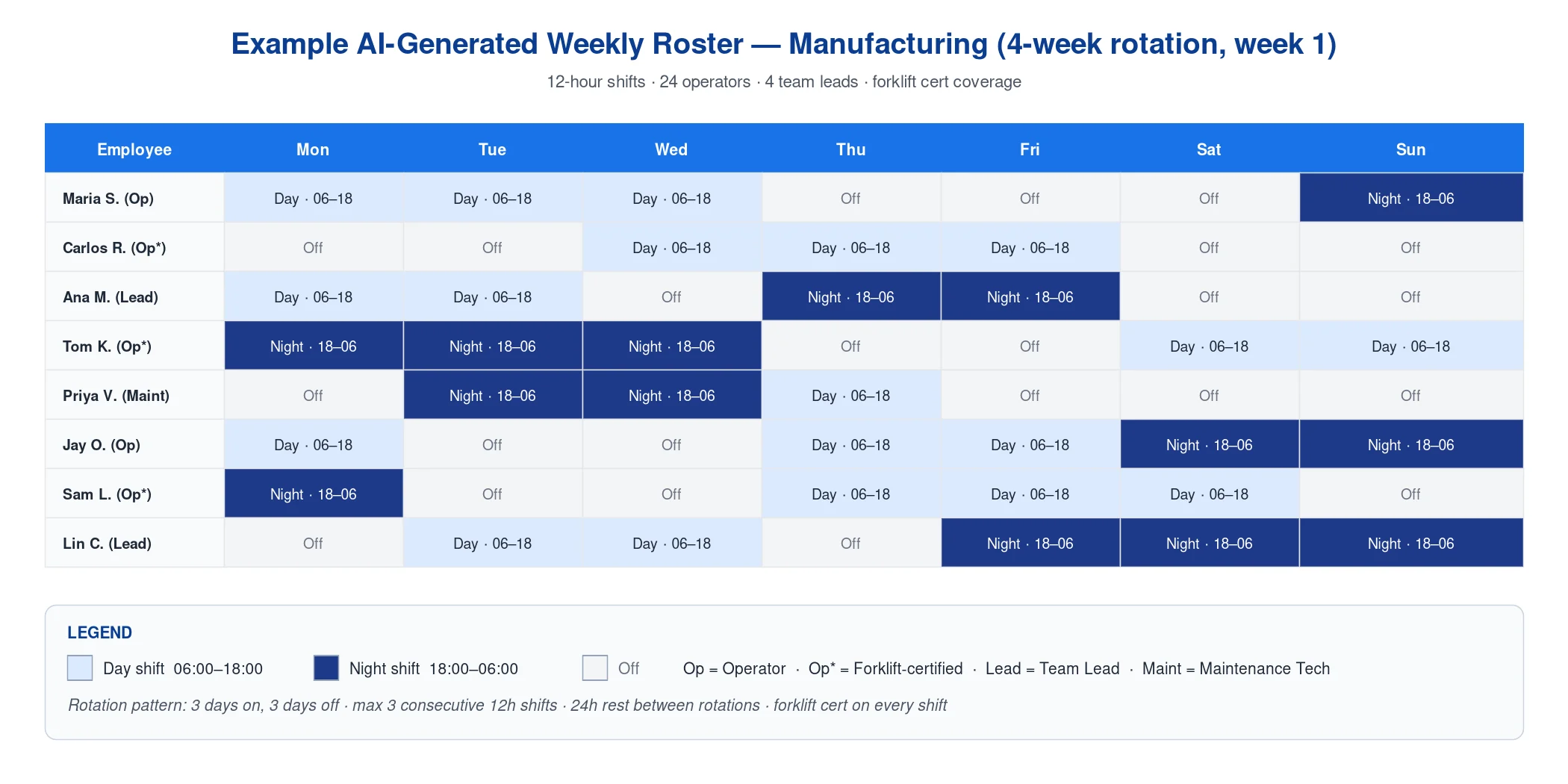
Pic. 2. Example AI-generated weekly roster (manufacturing prompt output)
Best AI Tools for Shift Schedule Making (2026)
Four mainstream AI assistants can build a shift schedule from a prompt. For most organizations on Microsoft 365, Copilot is the obvious choice because the output can flow directly into SharePoint and Outlook. For complex multi-week rotations with many constraints, Claude’s long context handles 30+ workers without forgetting the rules. ChatGPT is the safest default for ad-hoc use. Gemini is best for teams already on Google Workspace.
| Tool | Best for | Free tier | Strength | Weakness |
|---|---|---|---|---|
| ChatGPT | General use, ad-hoc rosters | Yes | Familiar UI, fast turnaround | Free tier has session caps |
| Claude | Complex 30+ worker schedules, long rules | Yes | Long context handles multi-week rosters | Smaller adoption inside enterprises |
| Microsoft Copilot | Organizations on Microsoft 365 | Free in M365 | Direct SharePoint, Outlook & Teams tie-in | Less nuanced with creative prompts |
| Gemini | Google Workspace teams | Yes | Native Google Calendar integration | Less Outlook-friendly for export |
How to Import an AI-Generated Shift Schedule into Microsoft 365
Once your AI-generated .xlsx is ready, the next step is making it accessible to your workforce. For organizations on Microsoft 365, the smoothest path is: .xlsx → SharePoint list → Virto Calendar App. The schedule becomes visible in SharePoint, Outlook, and Microsoft Teams — wherever your team already works.
Step 1 — Import the File as a SharePoint List
- Open your team’s SharePoint site.
- Click + New → List → From Excel.
- Upload the .xlsx file — the StartDate and EndDate cells carry their datetime formatting from Excel into SharePoint.
- On the preview/mapping screen, set column types directly: Title → Single line of text; StartDate / EndDate → Date and Time; Role → Choice (Operator / Team Lead / Maint); Employee, Cert → Single line of text. Setting Role to Choice here is what enables color-coding in the Virto Calendar App later — leave it as text and every event renders in one colour.
- Name the list (e.g., “Shift Schedule — July 2026”) and create it.
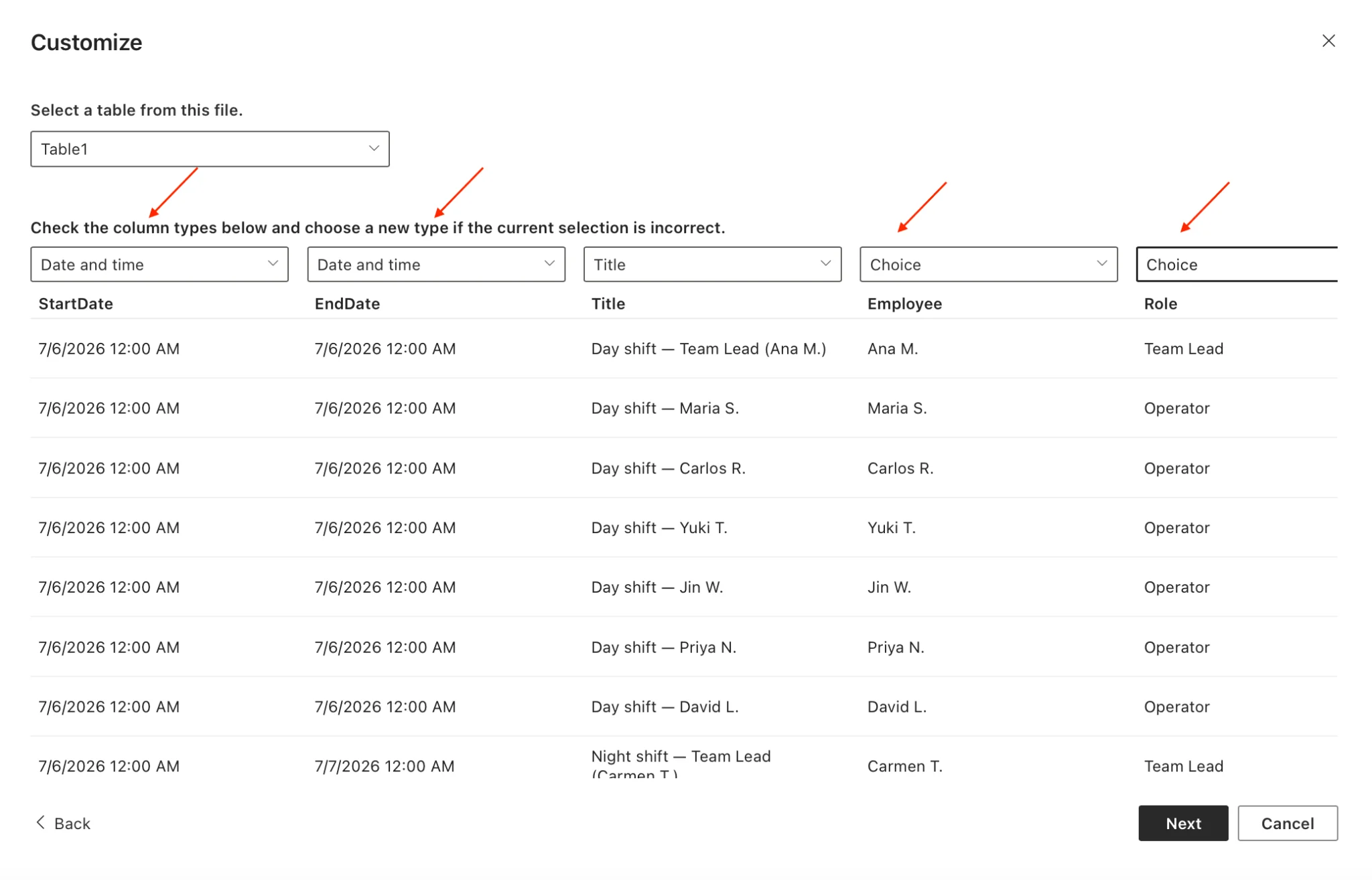
Pic. 3. Choosing column types during import — Role / Employee as Choice unlocks color-coding
Why .xlsx and not CSV?
SharePoint’s “From Excel” import reads column types from the workbook. In an .xlsx the StartDate and EndDate cells are real datetime values, so SharePoint creates them as Date & Time columns automatically. In a CSV every value is plain text — dates arrive as text and the Virto Calendar App can’t place the shifts on the calendar. If your AI tool returns CSV, take five seconds before uploading: open it in Excel and use File → Save As → Excel Workbook (.xlsx).
Step 2 — Add the List to the Virto Calendar App
- In the Virto Calendar App, click the Create new Calendar icon.
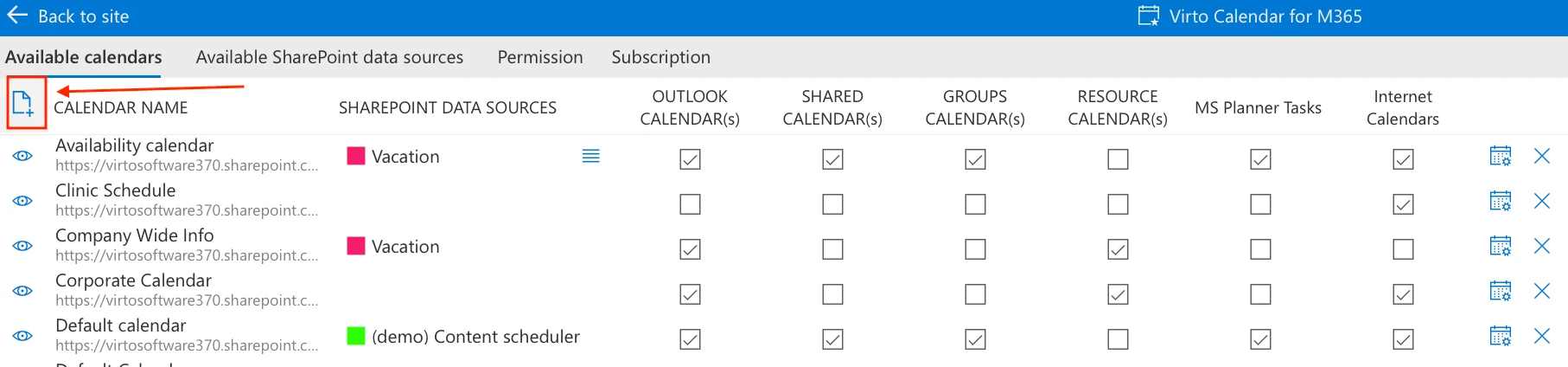
Pic. 4. Creating a new calendar in the Virto Calendar App.
- Choose “Create New SharePoint Data Source.”
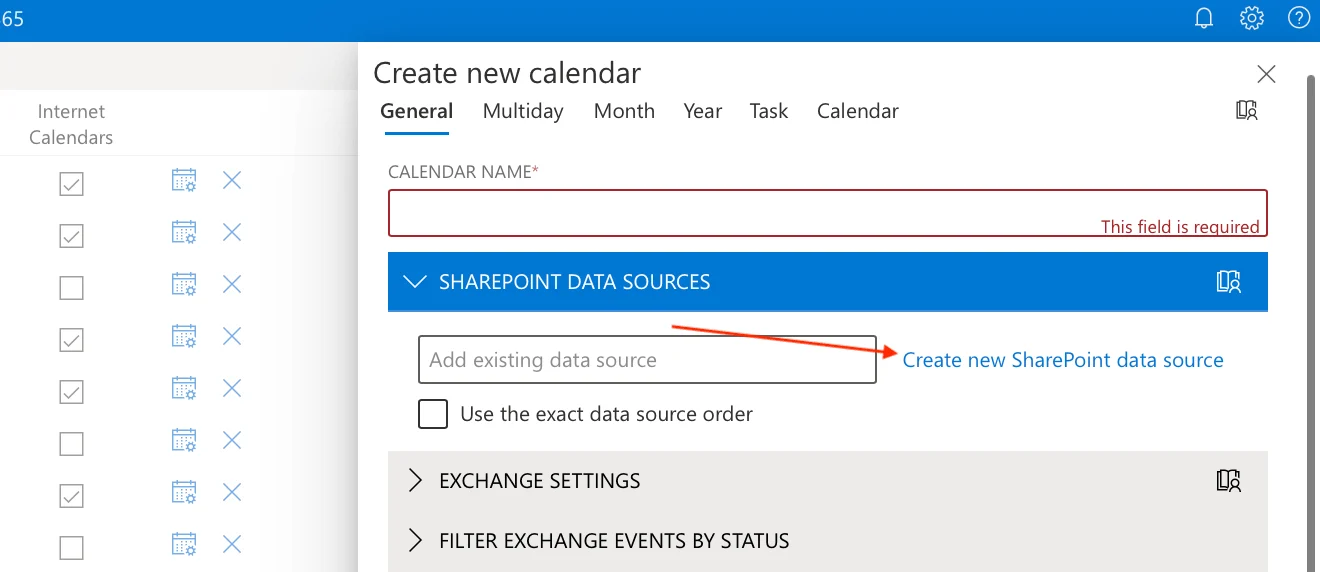
Pic. 5. Creating a new SharePoint data source in the Virto Calendar App.
- Give your data source a name and select your imported list.
- Map fields: Title → Title, Start → StartDate, End → EndDate.
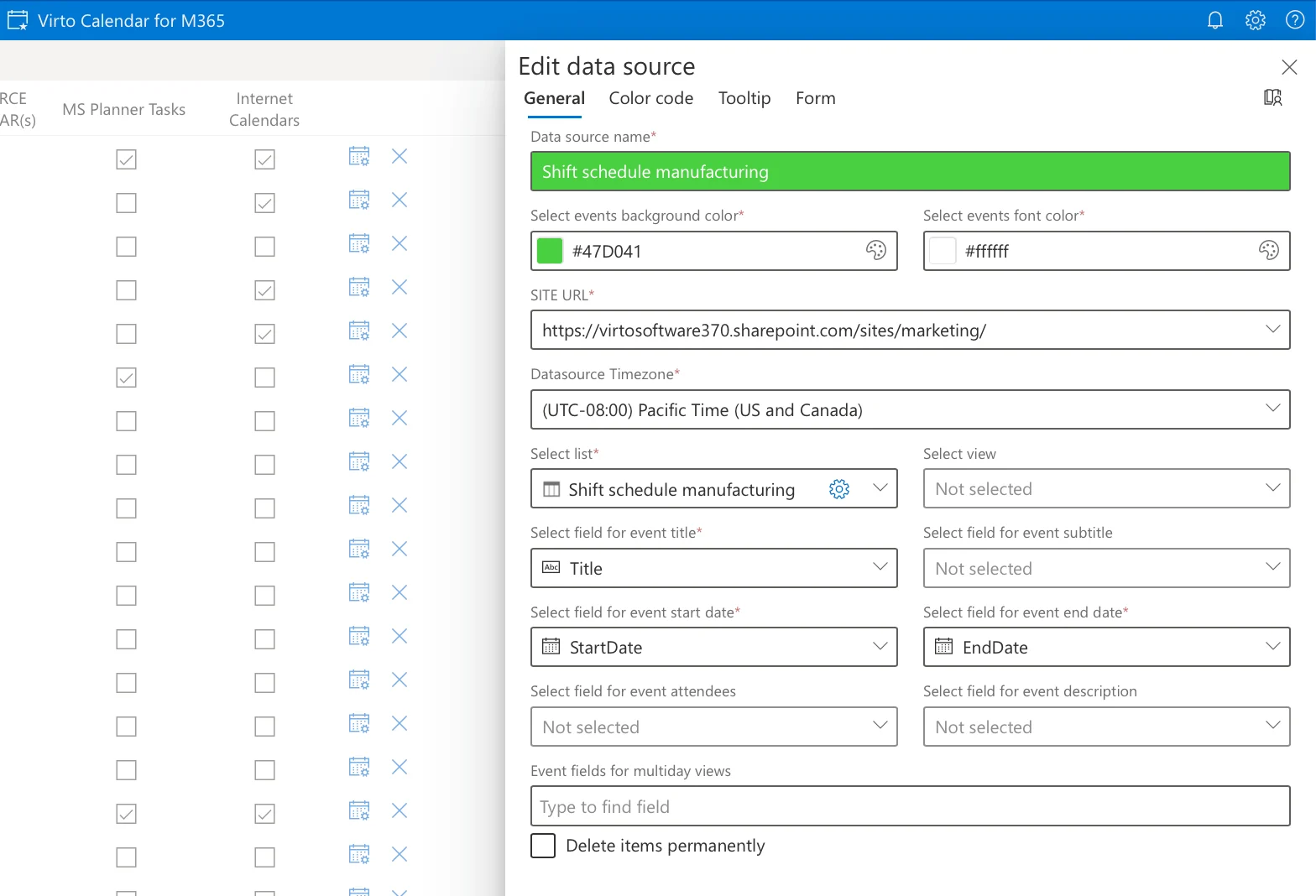
Pic. 6. Mapping fields and color-coding in the Virto Calendar App
- Open the Color-Coding settings and pick the Choice column to drive colors — Employee gives different colors to different employees.
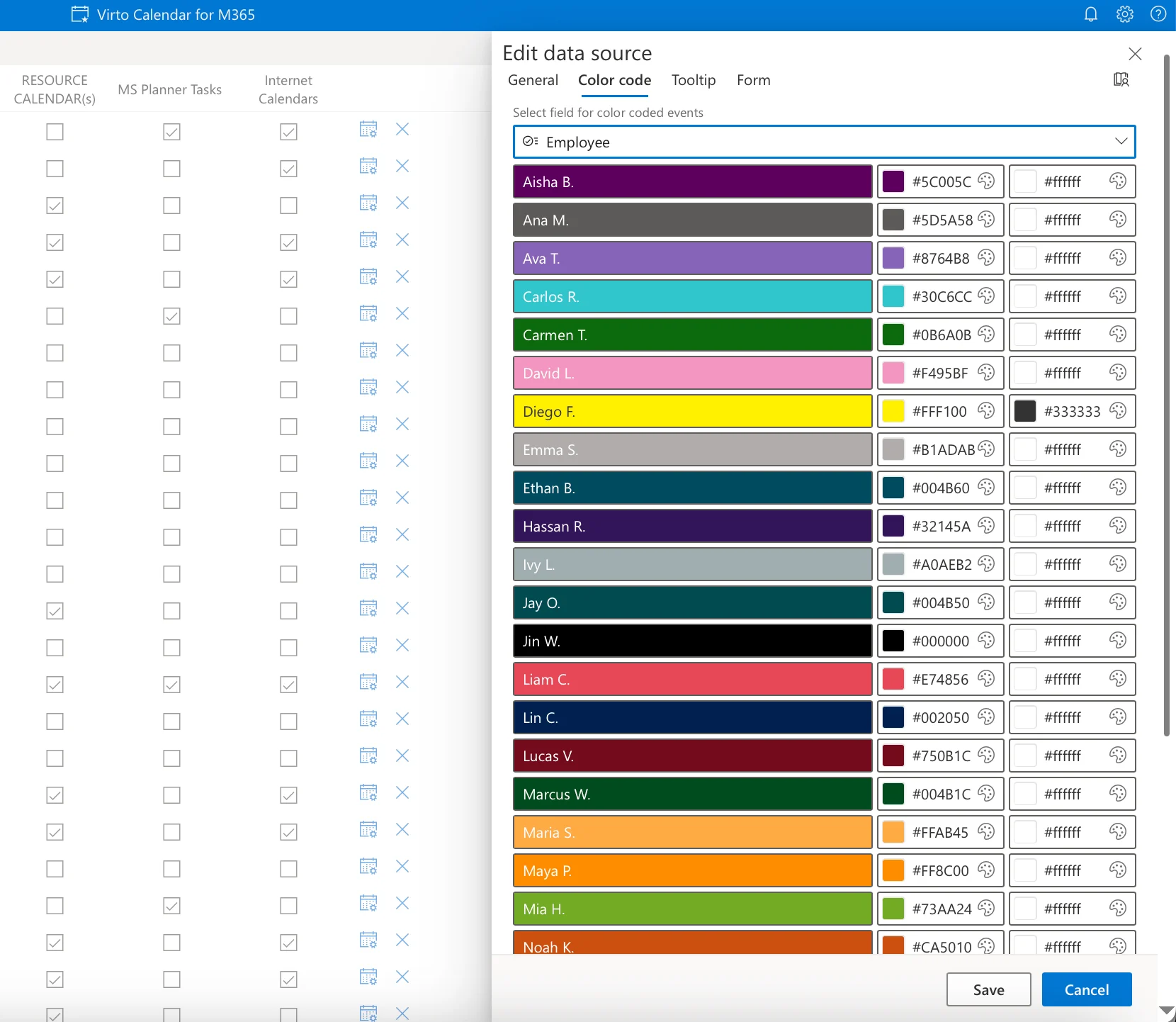
Pic. 7. Color-coding in the Virto Calendar App
- Save.
Step 3 — Share with Your Team
- Embed the calendar as a SharePoint page widget for desktop access.
- Add it as a Teams tab in your team’s channel via the Virto Calendar App for Teams so floor managers see the schedule without leaving Teams.
- When color-coded by Role, the calendar reads at a glance — Operators in one color, Team Leads in another, Maintenance techs in a third.
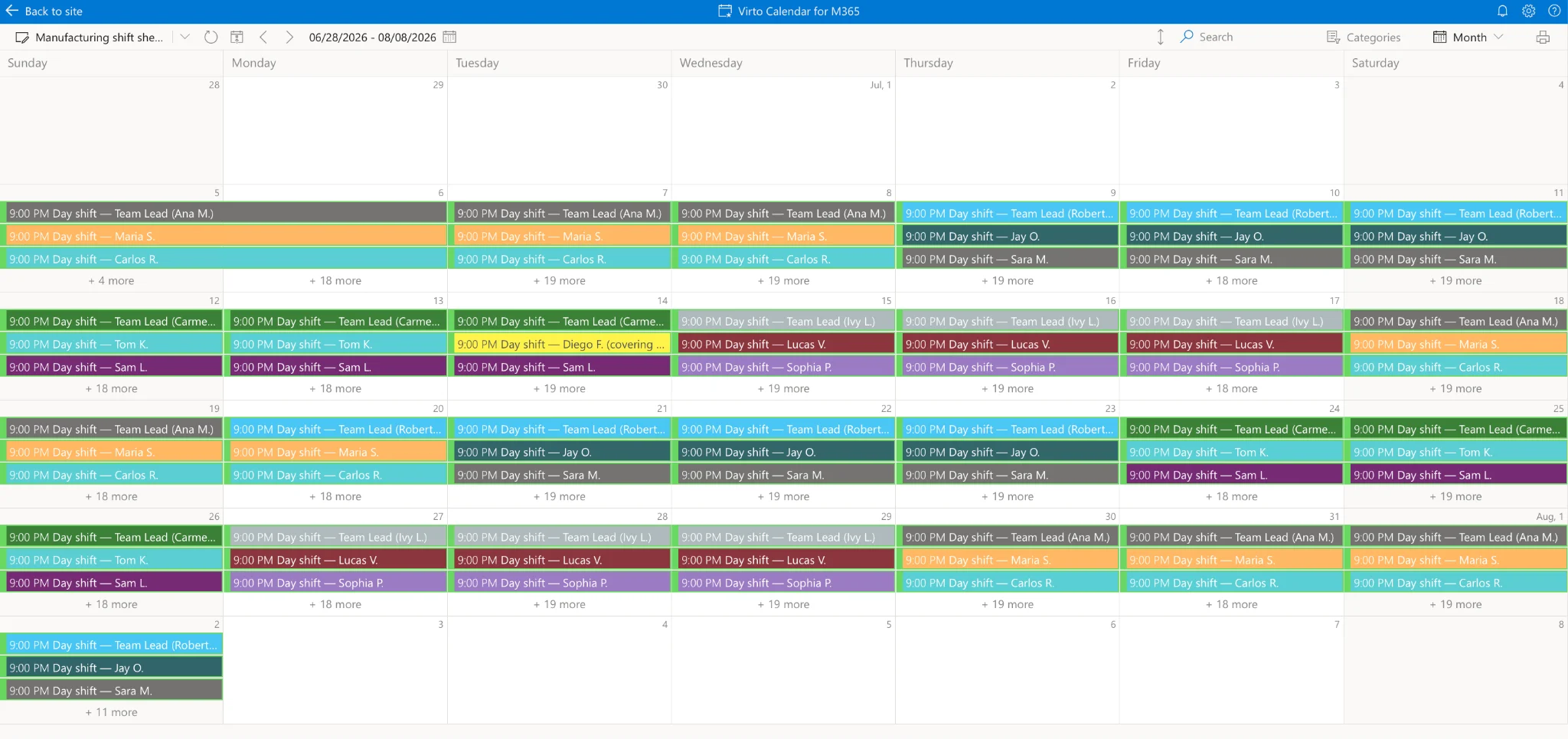
Pic. 8. Color-coded shift calendar
Step 4 — Set Automated Reminders
Pair the Virto Calendar App with the Virto Alerts & Reminders App to send automatic shift reminders 24 hours and 2 hours before each shift — reducing no-shows. Employees can request swaps and time off directly from the calendar.
⚡ The Virto Calendar App offers a 30-day trial — enough to pilot the full workflow before rolling out to your whole team. Start the free trial →
Best Shift Scheduling Software (2026): 7 Compared
Dedicated shift scheduling apps make sense once a team outgrows AI prompts and one-off .xlsx exports — typically around 25–50 employees, multi-location operations, or strict labor-law jurisdictions. Below are the seven we’d shortlist in 2026, with the Virto Calendar App included as the native Microsoft 365 alternative.
| Vendor | Best for | AI scheduling? | M365 integration? | Starting price |
|---|---|---|---|---|
| Virto Calendar App | Microsoft 365 / SharePoint / Teams shops | Via Copilot / .xlsx import | Native (SharePoint, Outlook, Teams) | Free for 30 days |
| Connecteam | Deskless workforces, field teams | Auto-scheduling (rule-based) | No | Free up to 10 users |
| When I Work | SMB, mobile-first ops | Auto-scheduling | Limited (Outlook export) | Free up to 75 users (small business) |
| Homebase | Small business, hourly + payroll | Auto-scheduling | No | Free 1 location / up to 20 employees |
| Deputy | Mid-market, healthcare, hospitality | AI-powered auto-scheduling | Limited (Outlook calendar feed) | From $4.50/user/month |
| Shiftboard | Enterprise, mission-critical (energy, mfg, corrections) | Optimization engine | Via APIs | Quote-based |
| 7shifts | Restaurants, hospitality | Auto-scheduling + AI forecasts | No | Free Comp plan |
Virto Calendar App
The Virto Calendar App is the only solution in this list with native Microsoft 365 integration. It turns a SharePoint list into a fully interactive calendar that opens inside SharePoint pages, Outlook, and Microsoft Teams. Operations managers use it to layer multiple shift sources (employees, locations, certifications) on one screen with color-coded categories, drag-and-drop edits, and Outlook reminders. It is the natural home for AI-generated .xlsx schedules: import once and the calendar updates everywhere. Free for one month; offers Teams integration, multi-source overlays, and Virto Alerts & Reminders. Best for any team already on Microsoft 365 that wants shift scheduling without a separate vendor login.
Connecteam
Connecteam is an all-in-one app for deskless teams — field service, construction, cleaning, retail. Its scheduler offers auto-scheduling based on availability, skills, and fairness, plus templates, conflict detection, and one-click distribution to employees on their phones. Built-in chat, task management, and time tracking sit alongside scheduling, so managers run the whole shift lifecycle from one app. Strongest for businesses with no desktop workforce. Free for up to 10 users.
When I Work
When I Work is a mobile-first shift app aimed at SMBs in retail, food, and services. The scheduler covers auto-scheduling, drag-and-drop edits, open shifts, shift swaps, time-off requests, and labor-cost forecasting. Time clock and payroll integrations make it a near-complete workforce platform for smaller teams. Free for up to 75 users on the small-business tier; paid plans unlock advanced reporting and integrations.
Homebase
Homebase targets small businesses with hourly staff — cafes, salons, retail outlets. Its scheduler combines auto-scheduling, POS-driven sales forecasts, real-time labor-cost tracking, and a free tier that covers 1 location and up to 20 employees. Mobile-first, with team chat and onboarding tools built in. The clear pick for owner-operators who want scheduling, time tracking, and payroll under one login.
Deputy
Deputy is a mid-market workforce platform with AI-powered auto-scheduling, skills-based matching, break and fatigue management, and a wide integration ecosystem (Xero, Vend, iPayroll, and POS systems). It scales from single-site retailers to multi-location healthcare and hospitality groups. Strong on compliance and labor-cost control; pricing starts around $4.50/user/month.
Shiftboard
Shiftboard is built for mission-critical operations — manufacturing, energy, healthcare, corrections. Its differentiator is configurable automation: rules can mirror union contracts, certifications, and emergency response patterns. The optimization engine reshuffles shifts to plug coverage gaps with the lowest overtime cost. Enterprise pricing only; expect a sales conversation rather than a self-serve signup.
7shifts
7shifts is purpose-built for restaurants. Drag-and-drop scheduling, POS-integrated sales forecasts, AI labor projections, shift swaps, tip pooling, and team chat all live in one app. Free “Comp” plan covers basic scheduling; paid tiers add budgeting, compliance, and advanced reporting. The default choice for independent restaurants and multi-unit hospitality groups.
How to Choose Shift Scheduling Software (Quick Guide)
Use this short decision tree instead of a checklist of 40 features:
- If you live in Microsoft 365 → start with the Virto Calendar App. No extra logins, no data duplication.
- If your workforce is deskless and phone-only → Connecteam or When I Work.
- If you’re a small business that needs payroll + scheduling in one → Homebase.
- If you’re mid-market with compliance and POS needs → Deputy.
- If you’re enterprise with union contracts or 24/7 critical coverage → Shiftboard.
- If you’re a restaurant → 7shifts.
Then layer on the non-negotiables: AI auto-scheduling, mobile access, time tracking, integrations with your HRIS/payroll, and a free or low-cost tier so you can pilot before you buy.
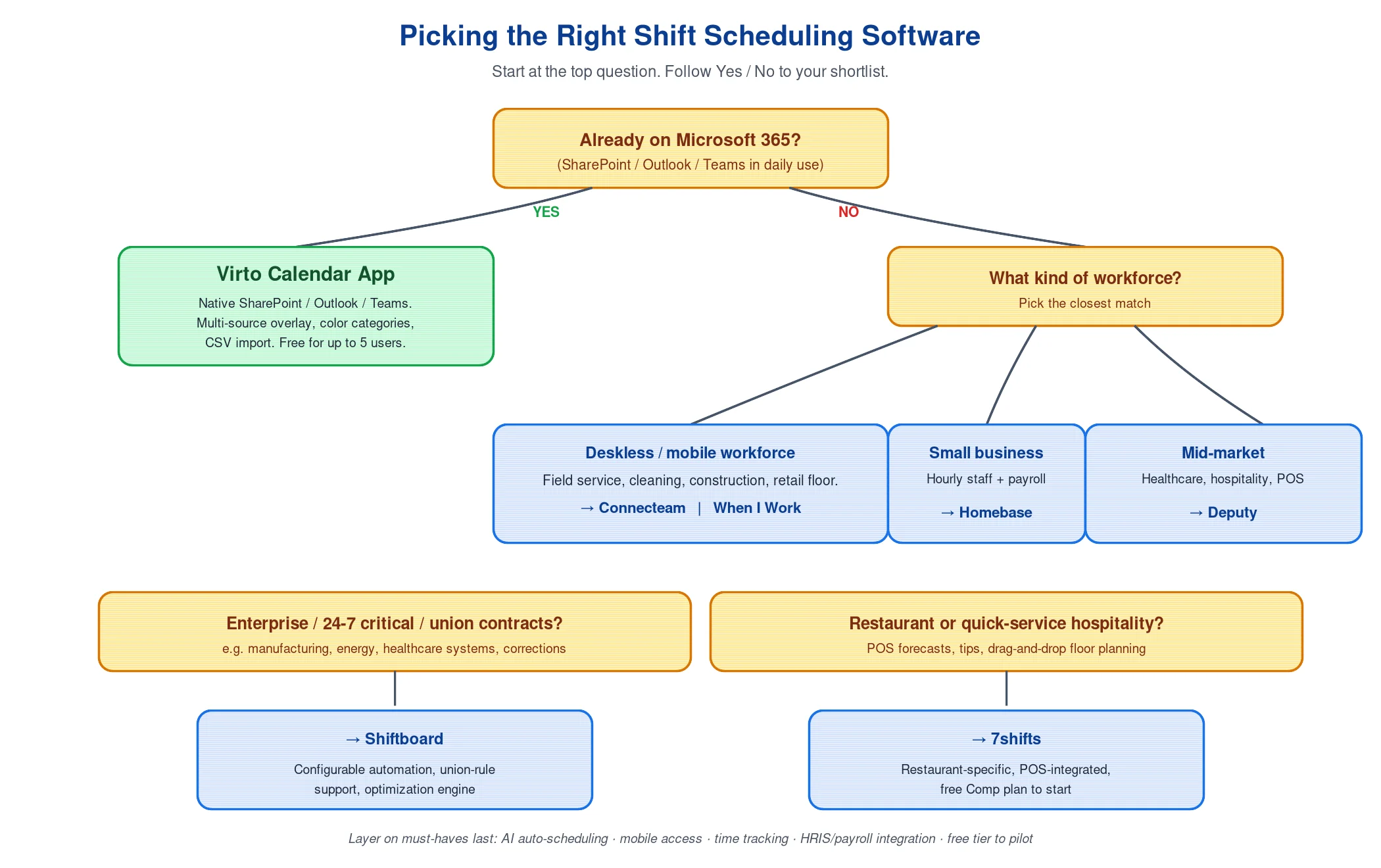
Pic. 9. Decision tree — picking the right shift scheduling software
Industries That Need Shift Scheduling Software
Healthcare. Hospitals and clinics need 24/7 coverage with nurse-to-patient ratios, certifications, and union rules — the core demands that healthcare staff scheduling software is built to handle. See our nurse scheduling software guide for the deeper workflow.
Hospitality. Restaurants, hotels, and venues juggle variable demand, split shifts, and seasonal hires. Tools like 7shifts and the Virto Calendar App keep schedule changes visible to staff on the floor.
Manufacturing & construction. Continuous operations require rotating 12-hour shifts, certifications per shift, and union compliance. See construction employee scheduling and multi-location employee scheduling.
Retail. Aligning staff with hourly footfall, managing part-time pools, and handling promotions across locations. The staff scheduling guide walks through the playbook.
Government & public sector. Compliance-heavy schedules with strict audit trails. See shift scheduling for government.
Why the Virto Calendar App Beats Microsoft Shifts for Complex Scheduling
Microsoft Shifts (inside Teams) is fine for the basics: create a shift, request a swap, request time off. It struggles the moment you need multi-source overlays, color-coded categories, certifications per shift, integration with SharePoint lists, or a single calendar that lives in SharePoint, Outlook, and Teams.
The Virto Calendar App is the M365-native alternative for ops managers who outgrow Shifts. It layers calendars from any SharePoint list, Exchange/Outlook calendar, or external feed into one view; color-codes by role, certification, or location; and stays inside the Microsoft 365 permission model. Add Virto Alerts & Reminders and shift workers get Outlook reminders without an extra app. Cross-link: see also our availability calendar for shift planning and shift swap policies and forms.
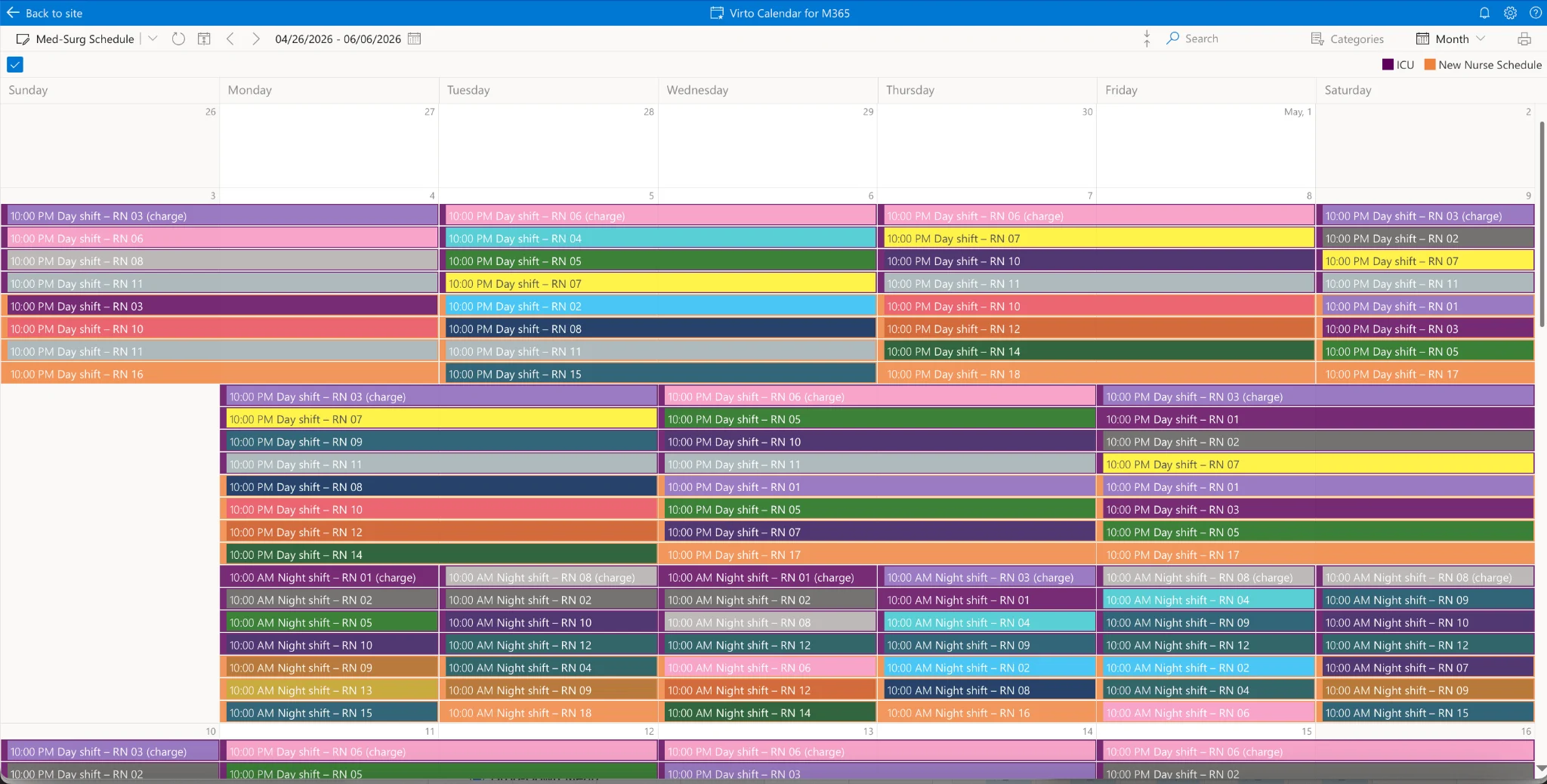
Pic. 10. Multi-source overlay in the Virto Calendar App for SharePoint
Audience-segmented CTAs:
- Manufacturing / industrial → Virto Calendar App for SharePoint (compliance, multi-shift overlay).
- Retail / hospitality → Virto Calendar App for Teams (mobile-first, in-Teams).
- Small business → Virto Shared Calendar (free for small teams).
Related Guides in the Shift Scheduling Cluster
- Shift swap policies and request forms
- Staff scheduling guide
- Availability calendar for shift planning
- Multi-location employee scheduling
- Construction employee scheduling software
- SharePoint PTO & vacation tracker
- Employee scheduling software
- Employee roster guide
- Nurse scheduling software
- AI Scheduling Assistant hub
Frequently Asked Questions
How do I make a shift schedule with AI?
Pick a free AI tool (ChatGPT, Claude, Microsoft Copilot, or Gemini), write a prompt with your shift constraints — number of staff, shift patterns, coverage needs, certifications, PTO — let the AI generate the schedule, iterate to fix any conflicts, and ask the AI to export the result as an .xlsx file with real Excel datetime values in the StartDate and EndDate columns. Then import that .xlsx into Microsoft 365 via a SharePoint list and the Virto Calendar App. The full step-by-step is in the AI workflow section above.
What is the best shift scheduling software?
It depends on industry and size. For deskless workforces: Connecteam. For mid-size businesses needing flexibility: When I Work. For small businesses with payroll integration: Homebase. For enterprise complexity: Deputy or Shiftboard. For restaurants: 7shifts. For organizations on Microsoft 365 that want a native SharePoint/Teams calendar: the Virto Calendar App.
Can AI create a fair shift schedule with rotation rules?
Yes. AI tools handle complex rotation rules when given clear constraints — weekend fairness, max consecutive shifts, seniority order, union contract requirements, certification coverage. Best practice: feed the AI a list of all workers, shift patterns, hard constraints (no double-booking, max hours per week), and soft preferences. Then run two or three iterations to refine.
Does Microsoft 365 have shift scheduling software?
Yes. Microsoft Shifts is Microsoft’s native shift scheduling tool, available inside Microsoft Teams. It handles basic shift creation, swaps, and time-off requests. For more complex scheduling — multi-source overlay, custom categories, integration with SharePoint lists, color-coded shift types — the Virto Calendar App is the M365-native alternative.
Is there a free shift scheduling app?
Yes, multiple. ChatGPT, Claude, Microsoft Copilot (free in M365), and Gemini generate schedules for free. Among dedicated apps with free tiers: 7shifts (free Comp plan), Homebase (free for up to 20 employees at 1 location), When I Work (75 employees free for small businesses), and the Virto Calendar App (free 30-day trial).
How do I import an AI-generated schedule into Microsoft 365?
Ask the AI to export the schedule as a downloadable .xlsx file with columns Title, StartDate, EndDate, Employee, Role (StartDate and EndDate as real Excel datetime values, not text). In SharePoint, use New → List → From Excel and upload the file — set StartDate and EndDate to Date and Time, set Role to Choice for color coding, and everything else to Single line of text. Then add the list as a data source in the Virto Calendar App, map Title → Title, Start → StartDate, End → EndDate, and pick Role for color coding. The schedule renders as a visual calendar accessible in SharePoint pages, Outlook, and Microsoft Teams. Full step-by-step is in the “How to Import an AI-Generated Shift Schedule into Microsoft 365” section above.