



A SharePoint intranet is a company portal built on SharePoint Online — usually a set of communication sites connected by hub sites — that gives employees a single place for news, policies, resources, and organization-wide search. It turns the Microsoft 365 tools you already pay for into a structured digital workplace, without a separate platform or heavy custom development.
This is a practical 2026 guide. We’ll cover what a SharePoint intranet actually is, how its architecture fits together, how to plan and build one step by step, real intranet patterns you can copy, the honest pros and cons, and how to keep it healthy after launch with governance and rollout. Along the way you’ll see where Virto SharePoint web parts and Microsoft 365 apps add calendars, boards, and alerts that native SharePoint doesn’t offer out of the box.
New to the platform? Start with our overview of what SharePoint is and the difference between modern and classic SharePoint, then come back here to build.
What Is a SharePoint Intranet?
Think of a SharePoint intranet as your company’s digital headquarters — a central hub where teams connect, find information, and stay aligned. It’s more than a place to store documents. It’s the connective tissue of internal communication, making sure everyone from senior leadership to a new hire on day one is looking at the same news, the same policies, and the same resources.
Because it’s part of Microsoft 365, a SharePoint intranet doesn’t sit apart from the tools people already use. It reads from the same identity, permissions, and files as Teams, Outlook, OneDrive, and Viva, so a policy you publish once is instantly searchable, governed, and accessible on the web or a phone. Employees stop hunting through email threads and shared drives; the information comes to them.
A well-built intranet also reaches beyond internal teams. With controlled external sharing, you can extend specific sites to partners, vendors, or clients without exposing everything else. The result is a workplace that’s more connected, more efficient, and far less dependent on “who has that file?” messages.
It’s worth being precise about what “intranet” means here, because the word gets used loosely. An intranet is the private, internal counterpart to the public internet: a network of pages and resources that only your organization can reach, secured behind your identity provider. On SharePoint, that network is assembled from sites rather than hand-coded pages, which is what makes it fast to build and easy to change. You’re not commissioning a bespoke web application; you’re arranging first-class building blocks — sites, pages, libraries, lists, and web parts — into a structure that fits your company.
This distinction matters when you compare SharePoint to a dedicated intranet product. Purpose-built intranet platforms often ship with a polished homepage and social features out of the box, but they live outside your Microsoft 365 tenant, which means a second identity system, a second place for files, and a second security boundary to govern. SharePoint’s advantage is that it’s already inside the tenant: the same account signs in, the same permissions apply, the same compliance and retention policies cover the content, and the same search index reaches everything. For an organization standardized on Microsoft 365, that integration usually outweighs the head start a standalone product offers.
Finally, a modern SharePoint intranet is not the classic, publishing-portal SharePoint many people remember. Modern communication and hub sites are responsive by default, work on mobile without extra effort, and are designed to be edited by ordinary content owners rather than developers. If your mental model of SharePoint is heavy master pages and site collections that only IT could touch, it’s worth resetting — the modern experience is closer to assembling a page in a friendly editor than configuring a server.
Can SharePoint be used as an intranet? Absolutely. SharePoint Online is one of the most capable platforms for building a company intranet — it ships with the sites, search, permissions, and web parts you need to create an organized, interactive, and secure hub, and it’s already included in most Microsoft 365 plans.
Key features of a Microsoft SharePoint intranet
- Document management — store, organize, and co-author files with version history so everyone works from the latest copy.
- Custom workspaces — dedicated sites for departments, projects, or teams, each with its own resources and permissions.
- Microsoft 365 integration — native connections to Teams, Viva, OneDrive, Planner, and Outlook for one unified experience.
- Information portals — publish news, announcements, and campaigns in a structured, on-brand way.
- Enterprise search — find people, files, and pages across every connected site from a single search box.
- Flexible customization — adapt branding, navigation, and workflows to how your organization actually works.
- Collaboration tools — discussion boards, shared calendars, and task tracking to keep teams moving.
SharePoint Intranet Architecture: Hubs and Communication Sites
Before you build anything, it helps to understand the three site types that make up almost every modern SharePoint intranet. Getting the architecture right early saves painful restructuring later.
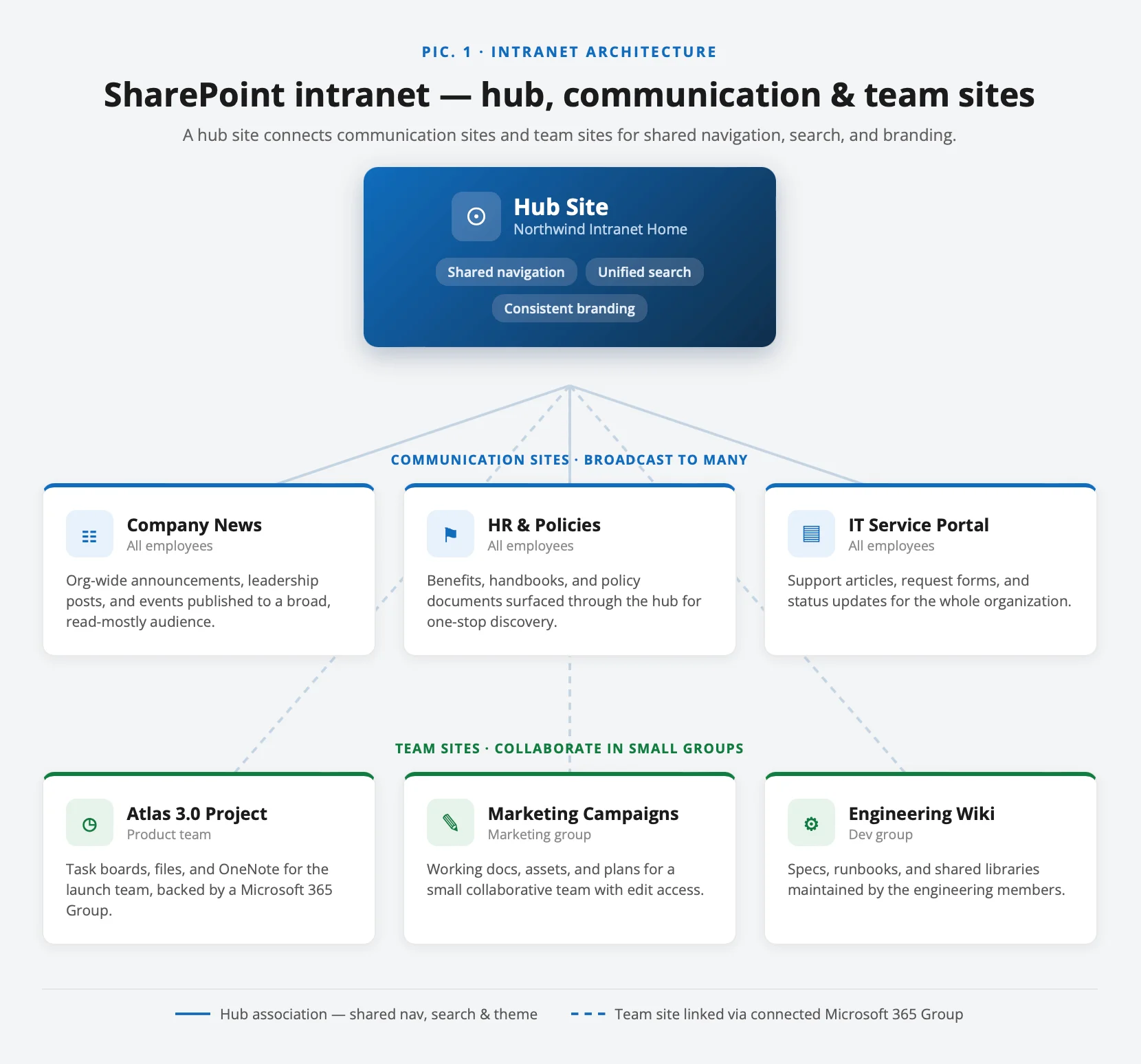
Pic. 1. SharePoint intranet architecture — communication sites and team sites connected by a hub site.
Communication sites — the pages people read
A communication site is designed for broadcasting: news, policies, an HR portal, a company homepage. A small group of authors publishes, and a wide audience reads. Most of the “front-facing” pages of your intranet — the homepage, the news hub, the benefits center — are communication sites.
Team sites — the workspaces people collaborate in
A team site is the opposite: a smaller group co-authoring documents, tracking tasks, and holding discussions. Each Microsoft 365 group and Teams team gets one. Team sites usually live behind the intranet — a department’s working files — rather than on the public homepage. For a side-by-side breakdown, see our guide on team sites vs. communication sites.
Hub sites — the glue that connects everything
A hub site ties related sites together: shared navigation, a common theme, and rolled-up news and search across every associated site. This is what turns a scattered collection of sites into a single, coherent intranet. A typical design uses one hub for the whole organization (or one per major division), with communication and team sites associated beneath it.
Rule of thumb: broadcast to many → communication site. Collaborate with a few → team site. Connect and navigate across sites → hub site. For the full decision tree, read types of SharePoint sites.
How to Plan a SharePoint Intranet
A successful intranet isn’t about switching on a site and hoping people show up. It starts with a plan grounded in what your business actually needs. Skip this and you’ll end up with a polished site nobody uses.
Step 1: Identify your business goals
Before touching design or features, answer one question: what problem are we solving? An intranet can do a lot, but it only succeeds when it’s aligned to specific goals. Common drivers include:
- Better communication — a single home for company news, announcements, and leadership updates.
- Efficient project work — teams collaborate in real time, track tasks, and keep documents in one place.
- Easier access to information — structured, searchable content instead of endless email hunts.
- Reliable document management — a single source of truth for policies, guidelines, and shared files.
A useful exercise here is to write each goal as a sentence you could measure later: “reduce the time it takes a new hire to find the leave policy,” or “cut the number of ‘where is X?’ emails to IT.” Vague ambitions like “improve communication” are impossible to design for and impossible to prove. Concrete, measurable goals tell you which sections to build first, what to put on the homepage, and how you’ll know six months from now whether the intranet worked. They also protect you from the most common failure mode: building every feature at once because no one could agree on what mattered most.
It also pays to talk to the people who’ll actually use the intranet before you design it. Ask a handful of employees across roles what they struggle to find today and where they currently go for answers. The patterns that emerge — everyone hunts for the same three documents, nobody knows where HR forms live — become your first, highest-value pages. An intranet designed from real friction gets used; one designed from an org chart usually doesn’t.
Define your key features
Once goals are clear, map the must-have features to match how your teams work. A few to prioritize:
- Company newsfeed — updates, wins, and upcoming events that keep people engaged.
- Knowledge base — a well-organized home for FAQs, guides, and internal documentation.
- Document library — secure, searchable storage from contracts to training materials.
- HR portal — a go-to hub for benefits, policies, and onboarding resources.
Step 2: Lay the groundwork
Build a clear information structure
Think of your intranet like a city. If the streets are confusing and nothing sits where people expect, they get frustrated and stop showing up. Before building, map the structure:
- What top-level sections do you need? (News, HR, IT, Documents, Departments…)
- Who needs access to what? Not everyone should see everything.
- How will content be organized and labeled so it’s easy to find?
The most reliable way to get this right is a quick card-sorting exercise. List every major piece of content the intranet will hold — each policy area, tool, department, and resource — and group them the way employees naturally think about them, not the way your org chart is drawn. People look for “how do I book time off,” not “Human Resources / Policies / Leave / Annual.” The labels on your navigation should match the words employees actually use. When your structure mirrors how people think, they find things on the first try; when it mirrors your internal hierarchy, they give up and email someone.
Keep the top level shallow and stable. A handful of clear top-level destinations that rarely change beats a deep tree that shifts every reorganization. Depth can live inside each section; the global navigation should stay simple enough that anyone can hold it in their head.
Assign content owners
An intranet is only as good as the content inside it. Without owners, it drifts into a digital graveyard within months. Name specific people responsible for keeping news, documents, and department pages current — ideally a mix of HR, IT, and department leads, each accountable for their own corner.
Templates vs. custom solutions
You have two broad routes when setting things up:
- Templates — SharePoint’s built-in look book and Microsoft’s provisioning templates deploy fast and cover most needs with little customization.
- Custom solutions — when you need something highly tailored, custom site designs, scripts, and third-party web parts give you more control over layout, features, and workflow.
The bottom line: plan first, build smart, and make sure the result solves real problems — not just another tool people ignore.
How to Build a SharePoint Intranet: Step by Step
With the plan in hand, here’s how to bring the intranet to life. This is the core build sequence — follow it in order and you’ll avoid the most common rework.
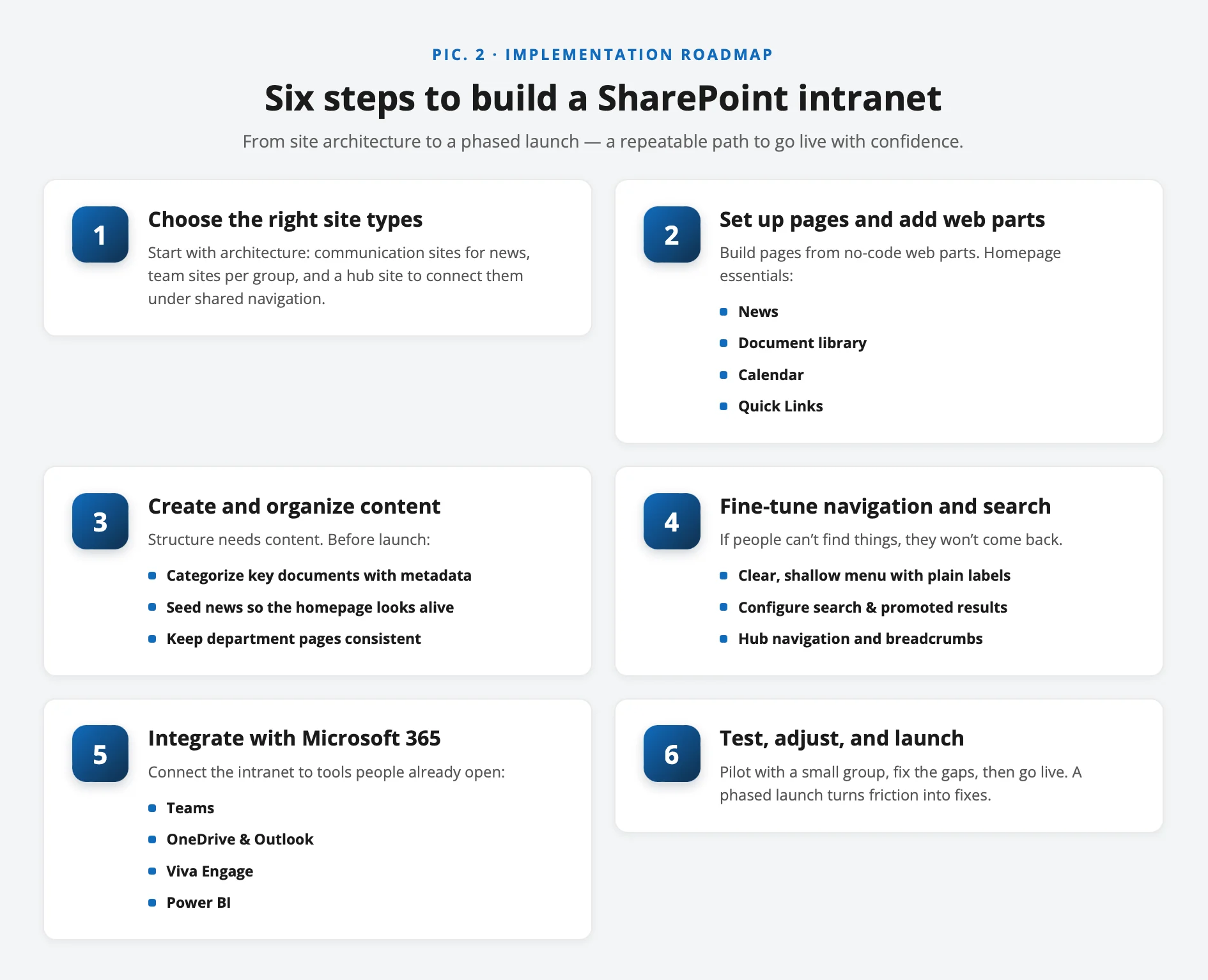
Pic. 2. Six steps to build a SharePoint intranet.
1. Choose the right site types
Start with architecture. Create a communication site for your homepage and news, team sites for each collaborating group, and a hub site to connect them under shared navigation. Most intranets mix all three, so pick per section rather than committing to one type everywhere.
2. Set up pages and add web parts
With sites in place, build out the pages. SharePoint uses web parts — modular blocks you drop onto a page without code. Essentials for an intranet homepage include:
- News — surface company announcements and rolled-up news from across the hub.
- Document library — a central place to store and reach key files.
- Calendar — share events, deadlines, holidays, and shifts. Native calendars are limited to one source, which is exactly where a tool like the Virto Calendar App helps — more on that below.
- Quick Links — one-click access to the resources people use every day.
3. Create and organize content
Structure means nothing without content. Before launch, make sure:
- Key documents (policies, guidelines, templates) are uploaded and categorized with metadata, not just dumped in folders.
- News and announcements are seeded so the homepage looks alive on day one.
- Department pages follow a consistent layout so people don’t relearn navigation on every click.
4. Fine-tune navigation and search
Navigation makes or breaks adoption. If people can’t find things, they won’t come back.
- Use a clear, shallow menu — group related sections logically and keep labels plain (“Documents,” not “Resource Repository”).
- Configure search — SharePoint search is powerful; add promoted results and metadata so the right answers surface first.
- Set up hub navigation and breadcrumbs — so users move between associated sites without getting lost.
5. Integrate with the rest of Microsoft 365
Your intranet shouldn’t live in isolation. Connect it to the tools people already open:
- Teams — pin intranet pages as tabs so employees don’t switch apps.
- OneDrive & Outlook — sync files and calendars for seamless access.
- Viva Engage (Yammer) — add social and community features to boost engagement.
- Power BI — embed live dashboards for real-time reporting on the homepage.
6. Test, adjust, and launch
Don’t roll out to the whole company on day one. Pilot with a small, representative group, watch how real people use it, fix confusing layouts and gaps, then go live. A phased launch turns early friction into fixes instead of first impressions.
Technical setup that keeps it running
Security and access control
Not everyone needs access to everything. Use role-based permissions so each team sees what’s relevant, restrict confidential libraries at the document level, and require multi-factor authentication for sensitive areas. For a full walkthrough, see our guide to managing SharePoint permissions. Security isn’t about locking things down — it’s about the right people getting the right access without roadblocks.
User training
Even a great intranet is useless if people don’t know how to use it. Run short hands-on workshops, publish bite-sized video tutorials for common tasks, and keep a help/FAQ page with a clear way to ask for support. The goal is for the intranet to feel intuitive from day one.
Ongoing support and maintenance
An intranet is never “set and forget.” Assign admins to keep content fresh and fix issues, schedule regular check-ins to gather feedback, and use automated workflows and alerts to streamline approvals and reminders. A maintained intranet stays relevant; a neglected one quietly dies.
SharePoint Intranet Examples and Patterns
The fastest way to design a good intranet is to start from proven patterns rather than a blank page. Here are the intranet layouts organizations reach for most often — mix and match the ones that fit your goals.
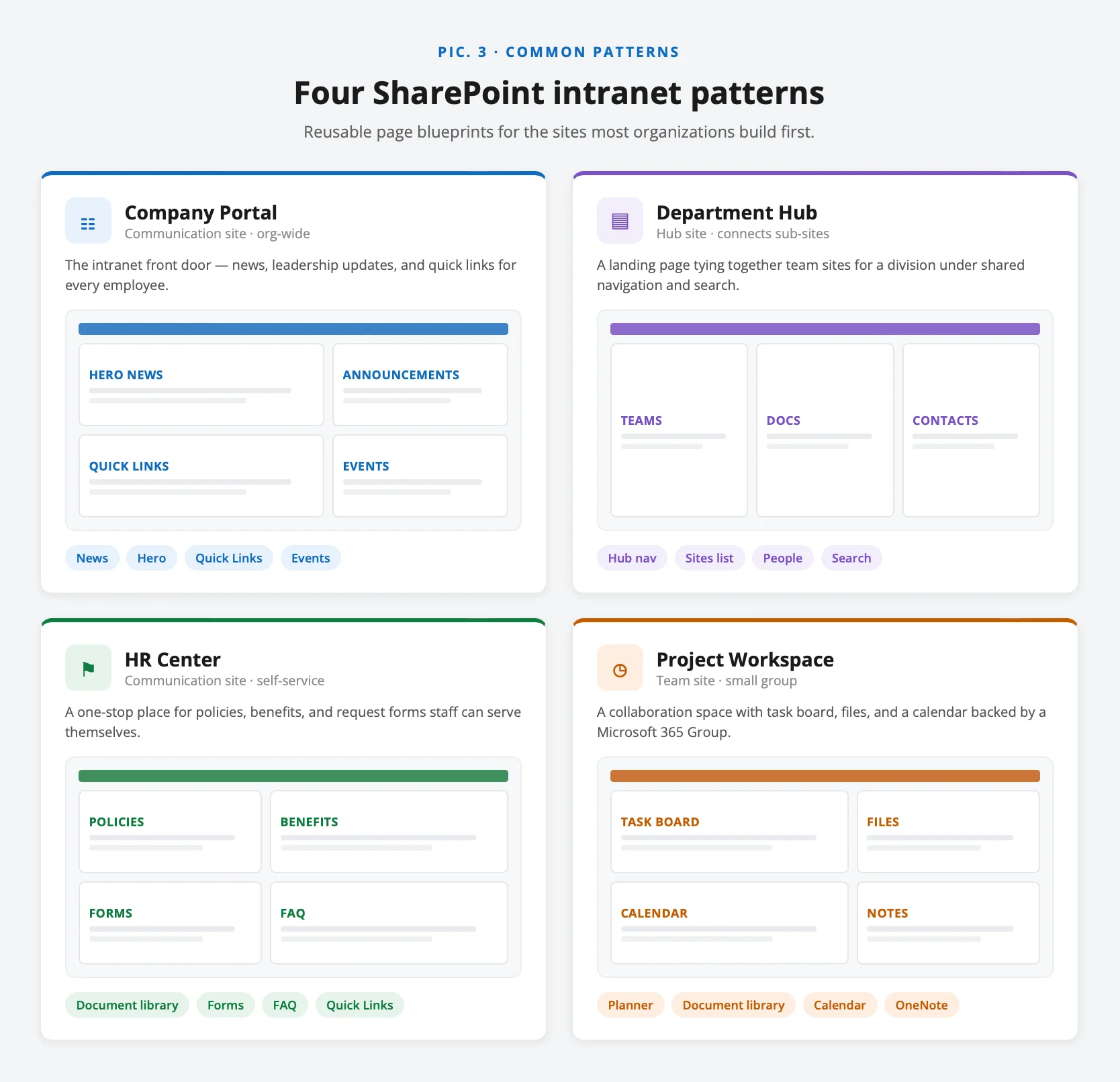
Pic. 3. Common SharePoint intranet patterns — company portal, department hub, HR center, and project workspace.
1. Company portal (the homepage)
A single landing page with the company logo and news at the top, quick links to the tools people use daily, an events calendar, and a search box front and center. Built as a communication site at the top of your main hub, it’s the “front door” everyone sees at sign-in. Pattern: hero news web part + Quick Links + calendar + highlighted content rolled up from across the hub.
2. Department hubs
Each major function — HR, IT, Finance, Marketing — gets its own communication site associated to the main hub, with a consistent template: a landing page of key resources, a document library, a contacts list, and department news. Consistency is the trick: when every department page looks and behaves the same, employees navigate any of them instantly.
3. HR and onboarding center
An HR portal that hosts policies, benefits, time-off requests, and — critically — a structured onboarding path. New hires get a checklist, links to first-week tasks, and a knowledge base of “how we do things,” so they aren’t chasing individuals for basic answers. This is one of the highest-ROI patterns because it directly cuts repetitive HR requests.
4. Project and team workspaces
Behind the public pages, each project runs on a team site: shared files, a task board, campaign calendars, and approval workflows. A marketing team, for example, keeps campaign assets, deadlines, and sign-offs in one place. This is where a visual Kanban board and a multi-source calendar earn their keep, turning a document library into an actual working system.
5. Knowledge base and policy center
A searchable library of guides, FAQs, and standard operating procedures with clear metadata and categories. Paired with promoted search results, it becomes the answer to “where do I find…?” and steadily reduces repeated questions across every department.
6. Social and community intranet
Culture, not just work: recognition programs, discussion boards, and Viva Engage communities woven into the homepage. Employees share wins, celebrate milestones, and connect across departments — the difference between an intranet people have to use and one they want to.
Real-world scenarios
Larger organizations show what these patterns look like at scale. An oil-and-gas service company built a SharePoint-based intranet that unified management across roughly 30 dispersed offices and integrated HR and accounting for over 5,000 employees. The University of Leeds used Microsoft 365 to transform its digital workplace, improving communication for more than 9,000 staff and 39,000 students. And retailer Furniture Village overhauled internal communications on a modern SharePoint intranet, lifting information flow and employee engagement across its stores. The common thread: architecture first (hubs plus communication sites), then integration, then a phased rollout.
What’s instructive about these examples isn’t the size of the organizations — it’s that none of them tried to build everything at once. Each started with a clear, painful problem (dispersed offices that couldn’t share a single source of truth, a fragmented staff-and-student communication channel, an outdated internal comms process) and solved that first. The intranet grew outward from a working core rather than launching as a finished, all-encompassing portal. That’s the pattern to copy regardless of headcount: pick the one intranet layout above that maps to your biggest current frustration, build it well, get it adopted, and expand from there. A small intranet people actually use beats a comprehensive one they ignore.
Design Tips to Make Your Intranet Actually Get Used
Building an intranet is one thing; getting people to use it is another. A cluttered, confusing, or lifeless intranet gets abandoned faster than an old company newsletter. A few design principles make the difference between a tool people rely on and one they route around.
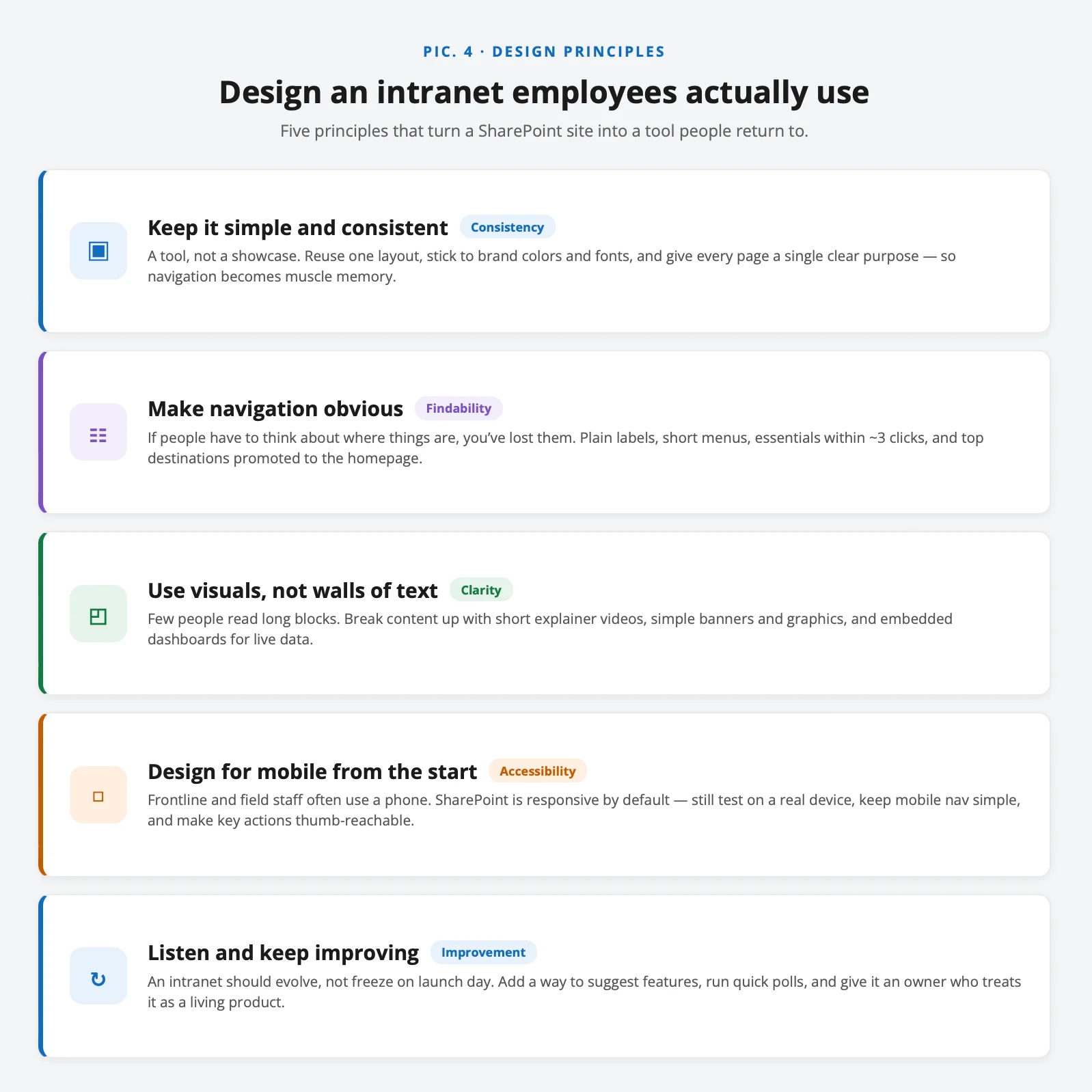
Pic. 4. Design principles for an intranet employees actually use.
Keep the design simple and consistent
Your intranet is a tool, not a showcase. Use a consistent layout across pages so employees never have to “relearn” a screen, stick to a standard set of colors and fonts drawn from your brand, and give every page one clear purpose. When pages look and behave the same, navigation becomes muscle memory. When every page is a snowflake, people slow down and lose trust in the whole thing.
Make navigation obvious
If someone has to think about where to find something, the intranet has already failed them. Use plain labels, keep menus short and logical, and lean on search for everything else. A good rule: if it takes more than about three clicks to reach essential information, the structure needs rethinking. Promote your most-used destinations to the homepage so the 20% of content that gets 80% of the traffic is never more than a click away.
Use visuals, not walls of text
Few people read long blocks of text on an intranet. Break content up with short explainer videos instead of lengthy manuals, banners and simple graphics to orient the eye, and embedded dashboards for live data. A page that looks approachable gets read; a page that looks like a legal document gets skipped.
Design for mobile from the start
Plenty of employees — frontline staff, field teams, anyone away from a desk — will reach the intranet on a phone. Modern SharePoint sites are responsive by default, but you should still test key pages on a real device before launch, keep mobile navigation simple, and make sure the most important actions are reachable with a thumb. An intranet that only works at a desk excludes the people who often need it most.
Listen to your users and keep improving
An intranet should evolve with the company, not freeze on launch day. Add a lightweight way to suggest features or flag problems, run quick polls to learn what’s working, and have an owner who acts on the feedback. Treating the intranet as a living product — with a backlog and regular small improvements — is what keeps it relevant year after year.
Pros and Cons of Using SharePoint as an Intranet
Like any platform, SharePoint has real strengths and real trade-offs. Here’s an honest breakdown to help you decide if it fits.
| Pros | Cons |
|---|---|
| Centralized data — files, documents, and communications live in one governed place. | Learning curve — the flexibility that makes SharePoint powerful can overwhelm newcomers. |
| Strong security and access control — granular permissions protect sensitive data while enabling collaboration. | Cost beyond the basics — SharePoint Online is included in Microsoft 365, but complex or custom builds add cost. |
| Seamless Microsoft 365 integration — works natively with Teams, OneDrive, Outlook, and Power BI. | Ongoing admin required — advanced customization and upkeep need IT involvement. |
| Scalability — serves 10 or 10,000 employees on the same platform. | Training needed — employees need onboarding to use all features effectively. |
| Customization and automation — tailor workflows and automate approvals with Power Automate. | Can feel cluttered — without governance, too many sites and features create sprawl. |
| Mobile-friendly — modern sites are responsive across devices. | Native gaps — some scenarios (advanced calendars, boards) need third-party web parts. |
Fig. 1. Pros and cons of using SharePoint as an intranet.
Is SharePoint a good intranet solution? For organizations already on Microsoft 365, yes — it centralizes documents, news, and resources with strong security and deep integration, and it scales to any size. It does require proper setup, training, and ongoing management, and a few scenarios benefit from add-ons, but the long-term payoff in efficiency and collaboration makes it a sound choice.
Governance and Rollout: Keeping the Intranet Healthy
Most intranets don’t fail at launch — they fail six months later, when nobody owns the content and site sprawl sets in. Governance and a deliberate rollout are what separate a living intranet from a digital ghost town.
Pic. 5. Intranet governance model — ownership, provisioning, lifecycle, and measurement.
Governance: decide the rules before you scale
- Ownership — every site has a named owner accountable for its content and permissions. No owner, no site.
- Provisioning — control how new sites get created. Uncontrolled self-service is the number-one cause of sprawl; use request-and-approve or templated provisioning.
- Naming and structure — consistent site names, URLs, and hub associations so the architecture stays legible as it grows.
- Permissions model — standardize on Microsoft 365 groups and documented access tiers; audit sensitive libraries regularly. See our permissions guide.
- Lifecycle — define when sites are archived or deleted, so stale content doesn’t pile up and pollute search.
Rollout: launch in phases, not all at once
- Pilot — start with one department or a cross-functional group; fix issues while the audience is small.
- Champions — recruit enthusiastic early users in each team to model good behavior and answer questions locally.
- Communicate — announce the launch, explain the “why,” and show people what’s in it for them.
- Train and support — pair the launch with short training and a visible help channel.
- Measure and iterate — track adoption (active users, popular pages, search terms with no results) and improve based on real usage, not assumptions.
For Microsoft’s own guidance, see Plan an intelligent SharePoint intranet and the intelligent intranet overview.
Take Your SharePoint Intranet Further with Virto Web Parts
A SharePoint intranet is powerful on its own, but out of the box it can feel rigid in a few areas — calendars, visual task tracking, and proactive alerts especially. That’s where Virto SharePoint on-premise web parts and Virto Microsoft 365 & SharePoint Online apps come in, turning a standard intranet into a high-performance digital workspace your employees actually enjoy using.
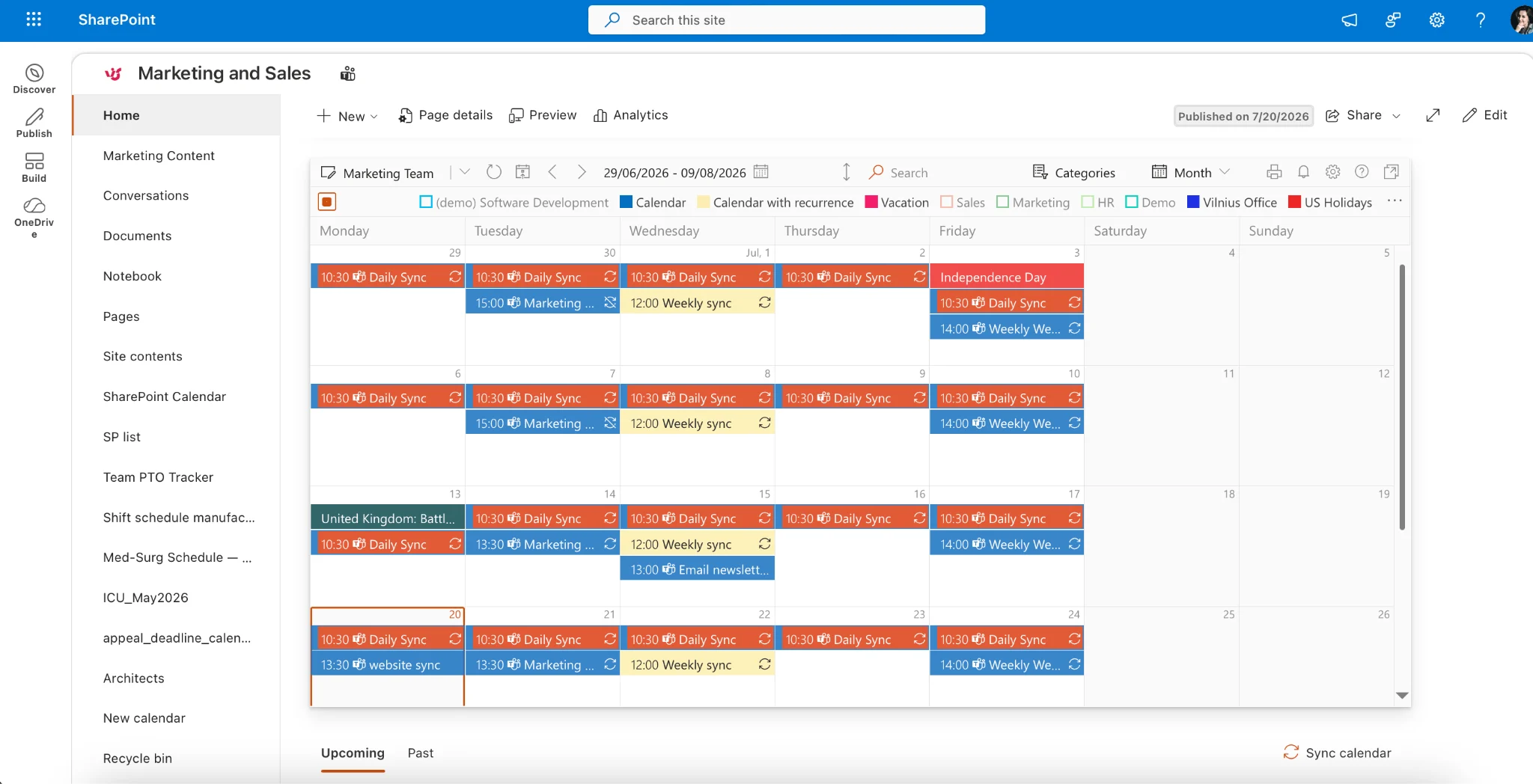
Virto Calendar App — one calendar for the whole intranet
Native SharePoint calendars show a single source at a time. The Virto Calendar App overlays multiple SharePoint, Outlook, Microsoft 365, Teams, and even Google or iCloud calendars into one color-coded view — perfect for a company events calendar, team schedules, or a shared holiday planner right on the homepage. It runs inside your own Microsoft 365 environment for full data control, and you can try it free for 30 days.
Pic. 6. Virto Calendar App overlaying multiple calendars on a SharePoint intranet homepage.
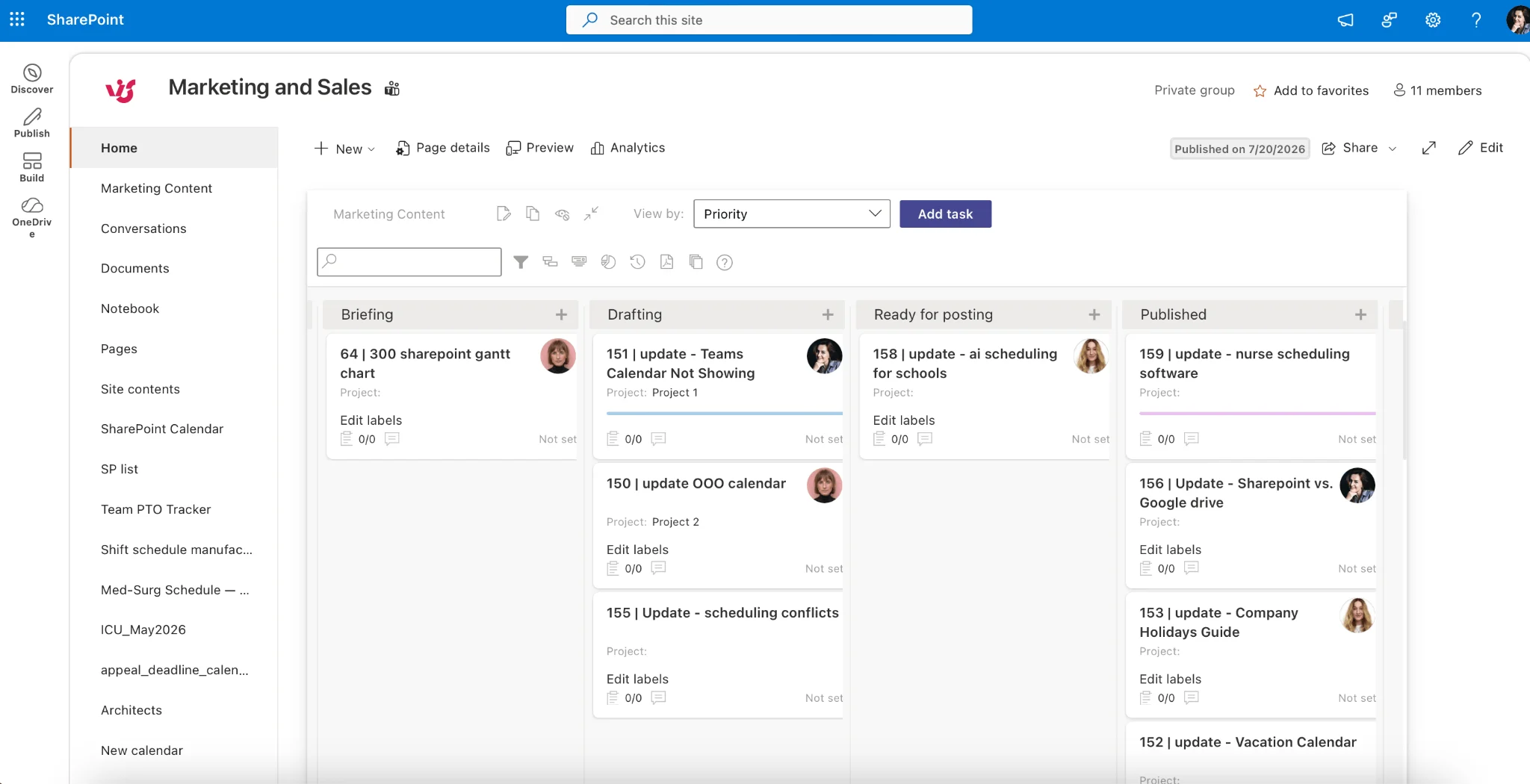
Virto Kanban Board — visual task management on your team sites
Turn a plain task list into an agile board. The Virto Kanban Board App adds swimlanes, prioritization, and real-time updates to SharePoint and Teams, so project workspaces become genuinely usable. Also available with a 30-day free trial.
Pic. 7. Virto Kanban Board.
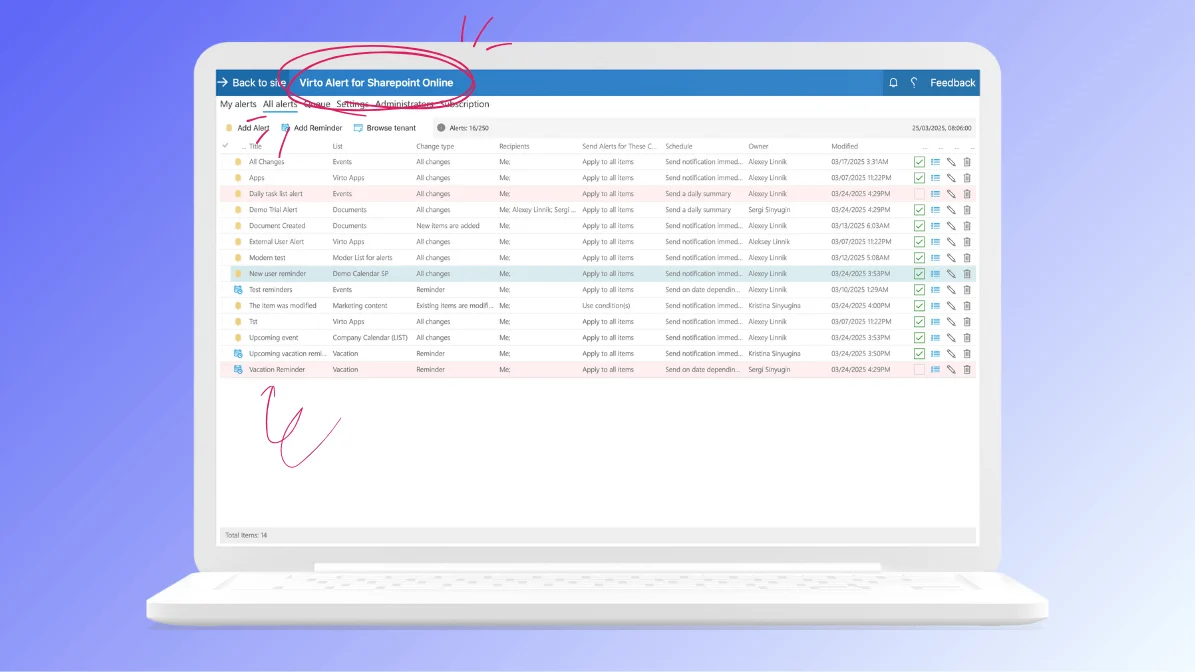
Virto Alerts & Reminders — keep people informed automatically
Intranet content is only useful if people see it. The Virto Alerts and Reminders App sends automated email and Teams notifications when documents change, deadlines approach, or approvals are needed — no manual chasing. Free to try for 30 days.
Virto Forms Designer — richer intranet forms
Collect requests, feedback, and structured data with the Virto Forms Designer, which brings drag-and-drop form building and advanced customization to SharePoint — ideal for HR requests, IT tickets, and “suggest a feature” boxes on your intranet.
Best of all, these are plug-and-play: they integrate directly into SharePoint with no complex coding or long development cycles. Explore how teams put them to work in Virto use cases.
SharePoint Online vs. On-Premises for Your Intranet
Most new intranets today are built on SharePoint Online, the cloud service inside Microsoft 365. But plenty of organizations still run SharePoint Server on-premises, and the choice shapes how you build and maintain your intranet.
SharePoint Online is the default for good reason: Microsoft hosts and updates it, modern communication and hub sites are available immediately, and it connects natively to Teams, OneDrive, Viva, and the rest of Microsoft 365. You get continuous feature improvements without managing servers, and scaling is Microsoft’s problem rather than yours. For the large majority of companies, this is the right foundation for an intranet.
On-premises SharePoint Server still makes sense in specific situations: strict data-residency or regulatory requirements that mandate keeping content in your own datacenter, deep customizations tied to server-side code, or environments that simply aren’t cloud-connected. The trade-off is that you own the infrastructure, the patching, and the upgrades — and some modern intranet features arrive later or not at all. Organizations in this position often run a hybrid setup, keeping certain workloads on-premises while using the cloud for collaboration and search.
Whichever you run, Virto offers matching tooling: SharePoint on-premise web parts for Server environments and Microsoft 365 apps for SharePoint Online, so calendars, boards, and alerts work the same way regardless of where your intranet lives. If you’re weighing the two, our guide to modern vs. classic SharePoint is a useful companion read.
Common SharePoint Intranet Mistakes to Avoid
A few predictable missteps sink more intranets than any technical limitation. Knowing them in advance is the cheapest insurance you can buy.
- Building structure before goals — designing an elaborate site hierarchy before you’ve defined what problem it solves. The result is a tidy structure nobody needs.
- Migrating everything — dragging years of stale documents into the new intranet “just in case.” Old clutter pollutes search and buries the content people actually want. Migrate deliberately; archive the rest.
- No content owners — launching without naming who keeps each area current. Unowned content goes stale within months and drags the whole intranet’s credibility down with it.
- Uncontrolled site sprawl — letting anyone spin up sites with no naming, provisioning, or lifecycle rules. Within a year you have hundreds of half-used sites and no one can find anything.
- Big-bang launch — rolling out to the entire company on day one with no pilot. First impressions are hard to reverse; a phased launch lets you fix problems while the audience is small.
- Ignoring mobile and search — treating both as afterthoughts, when they’re often how people actually reach content. Test both before launch, not after complaints.
- Set-and-forget — treating the intranet as a project that ends at launch rather than a product that needs ongoing care. The ones that thrive have an owner and a steady stream of small improvements.
Frequently Asked Questions
What is a SharePoint intranet?
A SharePoint intranet is a company intranet built on SharePoint Online — typically communication sites connected by hub sites — used for news, policies, resources, and organization-wide search across the business. It runs on the Microsoft 365 you already have, using the same identity, permissions, and files as Teams, Outlook, and OneDrive.
Can SharePoint be used as an intranet?
Yes. SharePoint is one of the most widely used intranet platforms. It provides the site types, search, permissions, and web parts needed to build a secure, organized hub, and it’s included in most Microsoft 365 subscriptions, so many organizations already own everything they need to start.
How long does it take to build a SharePoint intranet?
A template-based intranet with a homepage, a few department sites, and a hub can be stood up in days. A larger, custom rollout with governance, migration, and training typically runs several weeks to a few months, largely depending on how much existing content you migrate and how many departments you onboard.
What’s the difference between a communication site, a team site, and a hub site?
Communication sites broadcast to a wide audience (news, policies). Team sites are collaborative workspaces for smaller groups. Hub sites connect related sites with shared navigation and rolled-up news and search. See our types of SharePoint sites guide for the full comparison.
Does a SharePoint intranet cost extra?
SharePoint Online is included in most Microsoft 365 business and enterprise plans, so the core platform usually adds no extra license cost. Expenses come from custom development, migration, design, and optional third-party web parts — most of which offer free trials, including Virto’s 30-day free trials.
How do I improve calendars and task tracking on my intranet?
Native SharePoint calendars and lists are limited. Add the Virto Calendar App for multi-source overlay calendars and the Virto Kanban Board for visual task management — both free to try for 30 days.
Wrapping It Up
A SharePoint intranet is more than a company portal — it’s a platform that centralizes communication, boosts collaboration, and makes information easy to find. With secure document management, native Microsoft 365 integration, and flexible customization, it keeps organizations organized and efficient. Get the architecture right (hubs plus communication sites), plan around real goals, build in phases, and back it with governance, and your intranet becomes something teams rely on rather than avoid.
To get even more from it, layer in Virto SharePoint web parts and Microsoft 365 apps — calendars, boards, alerts, and forms that close the gaps native SharePoint leaves open. If you’re planning or upgrading an intranet, there’s no better time to start. Map your structure today and make your workplace smarter, more connected, and more efficient.
Ready to go deeper? Explore Virto use cases or start a free 30-day trial of the Virto Calendar App to see the difference on your own intranet.