



Quick answer: A SharePoint subsite is a site nested underneath another site — you create one via Site contents → New → Subsite. Note that Microsoft now recommends hub sites instead of nested subsites for most modern SharePoint architectures.
SharePoint is a powerhouse for collaboration, but all that power can sometimes feel a little chaotic. One way to bring order to it is through subsites — think of them as folders within folders, but for websites.
Subsites give you a way to structure information, create hierarchies, and keep things organized. Used well, they make managing content easier and help your team find what they need, when they need it.
In this guide we cover what subsites are and why they’re useful, a step-by-step guide to creating them, their pros and cons, and the modern alternatives — like hub sites — that may be a better fit for your organization.
👉 Before exploring subsites, you may want more context on how SharePoint works. See also: What is SharePoint, SharePoint best practices, Guide to SharePoint Online, and SharePoint vs OneDrive.
What Is a SharePoint Subsite?
Think of subsites as child sites created within a main, or parent, site. They’re designed to help you divide content and manage access rights more effectively. Technically, a subsite is still a SharePoint site — it just exists within a larger site or site collection. In fact, any site you create under another site in your hierarchy is a subsite; the only true, non-subsite site is the top-level site of the site collection.
Subsites aren’t just folders. They can have their own settings, document libraries, lists, and unique permissions, so you can tailor each one to a specific purpose while keeping a connection to the parent site.
👉 What is a subsite in SharePoint? A subsite is a site within a larger site collection, used to organize content for specific departments, teams, or projects while staying under a unified structure. It can inherit permissions, navigation, and settings from its parent site, or use its own. Subsites support document libraries, lists, pages, and web parts. That said, with modern SharePoint, Microsoft recommends hub sites instead of subsites for better scalability and content management.
As a follow-up, see: Modern vs. Classic SharePoint and SharePoint hub sites for simplified collaboration.
Why use SharePoint subsites?
Subsites are useful for a few key reasons:
- Project management: create a subsite per project to keep related documents, tasks, and communication in one place.
- Data storage: organize data by department or function, separating different types of information.
- Access control: restrict access to sensitive information by granting permissions to specific subsites.
SharePoint subsite vs. page: what’s the difference?
A page is primarily for displaying content and organizing information on a site — a way to present information to users.
A subsite, on the other hand, is a distinct area within a larger site, with its own settings and content. Subsites offer a greater level of management and are used for larger-scale organization than individual pages.
Inheritance & organization
Subsites can inherit the structure, permissions, and design of the main site, making it easier to keep things consistent across an organization. A new subsite can automatically mirror the navigation, security settings, and theme of its parent, so access, branding, and functionality stay aligned without manual setup each time. When needed, subsites can also use unique permissions, custom layouts, and independent settings — flexibility while still connected to the parent site’s structure.
Examples of subsite use
- Project management: a main site for all projects, with a subsite per project holding plans, documents, and team communication.
- Departmental document storage: a main intranet site, with a subsite per department (Marketing, HR, IT) — each with its own libraries and information.
The Pros and Cons of Using Subsites
Subsites can be useful, but they aren’t always the perfect solution. Before building a complex subsite structure, weigh the advantages and disadvantages to see whether they truly fit your needs.
| The upsides | The downsides |
|---|---|
| Easy, intuitive organization: subsites give a clear, hierarchical structure that helps users navigate and find what they need — like a well-organized file cabinet for your SharePoint environment. | Limited flexibility: once a complex subsite structure is built, it is hard to change later. A rigid initial structure can hinder your ability to adapt as you grow. |
| Simplified management: you can configure unique permissions per subsite, or let subsites inherit permissions and structure from the parent site to save time. | A legacy approach: Microsoft increasingly recommends hub sites as the modern way to organize SharePoint. Subsites aren’t disappearing, but they are not the future. |
| Centralized control: even with per-subsite customization, the parent site remains a central point for overall management and governance. | Scalability issues: in large organizations a deep subsite hierarchy becomes hard to manage and can affect performance and findability. |
| Good for localization: subsites suit content tied to a specific project, department, or region, letting you tailor information to each group. | Migration headaches: moving subsites to another site or platform is complex and time-consuming — worth planning for if a future migration is likely. |
| Confusing navigation: as more subsites are created, navigation can become confusing and make content harder to locate. |
Fig. 1. The pros and cons of using SharePoint subsites.
A widely shared community view echoes this — a Reddit thread on why subsites aren’t recommended offers a useful practitioner perspective:
Sub-sites can’t be easily moved. If you have an HR site and a benefits sub-site, you’d have to recreate that benefits site to move it. Microsoft seems to be shifting to hub sites, which link sites together and can be changed in the admin center. Sub-sites can still be viable if you’re okay with the restrictions.
The verdict? Subsites can be a valuable tool, but it’s important to understand their limits. The sections below cover the alternatives that may fit better.
How to Create a Subsite in SharePoint
Creating a subsite is straightforward, but you’ll need the right permissions — you must be a site owner or have administrator privileges within the existing SharePoint site. Before you start, plan the subsite: its purpose, the content it will hold, and who needs access. That makes choosing the right template and settings much easier.
Step 1: Access Site contents
From your SharePoint home page, click the Settings gear icon in the top-right corner, then select Site contents from the drop-down menu.
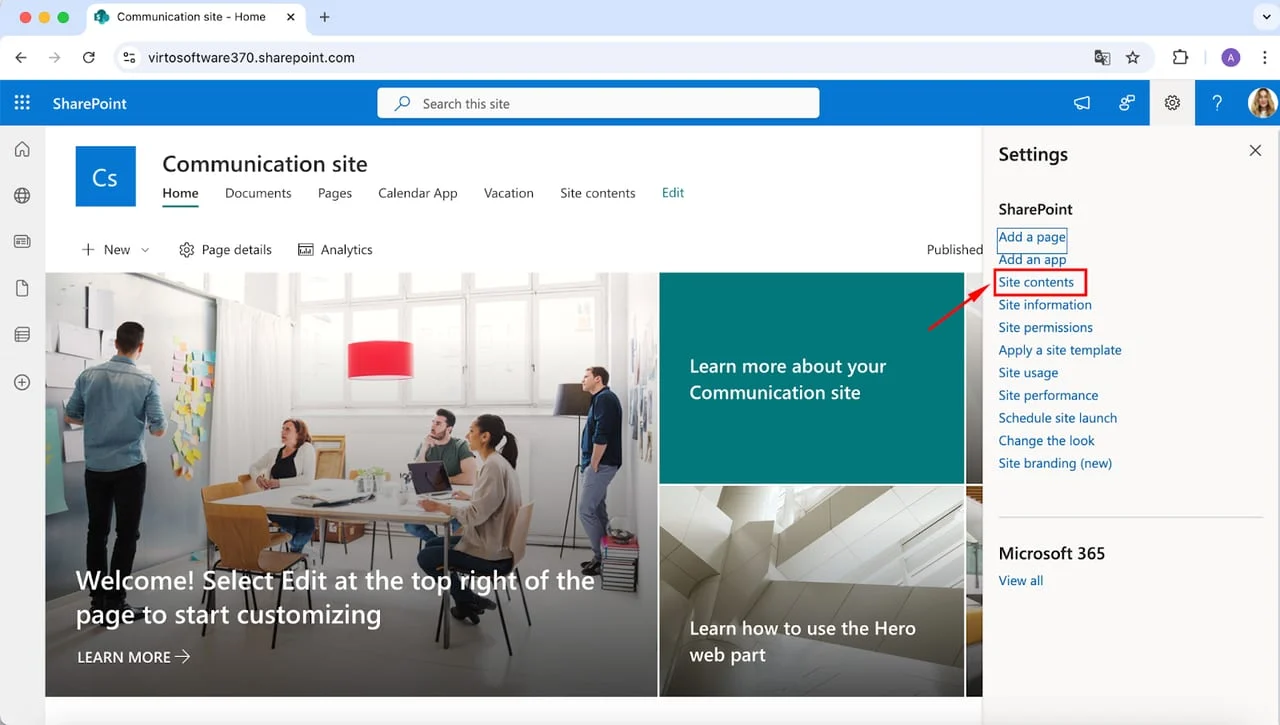
Pic.1. Accessing ‘Site contents’.
Step 2: Add a new subsite
On the Site contents page, click the + New button and select Subsite. If you don’t see this option, your organization’s SharePoint administrator or policies may have disabled it.
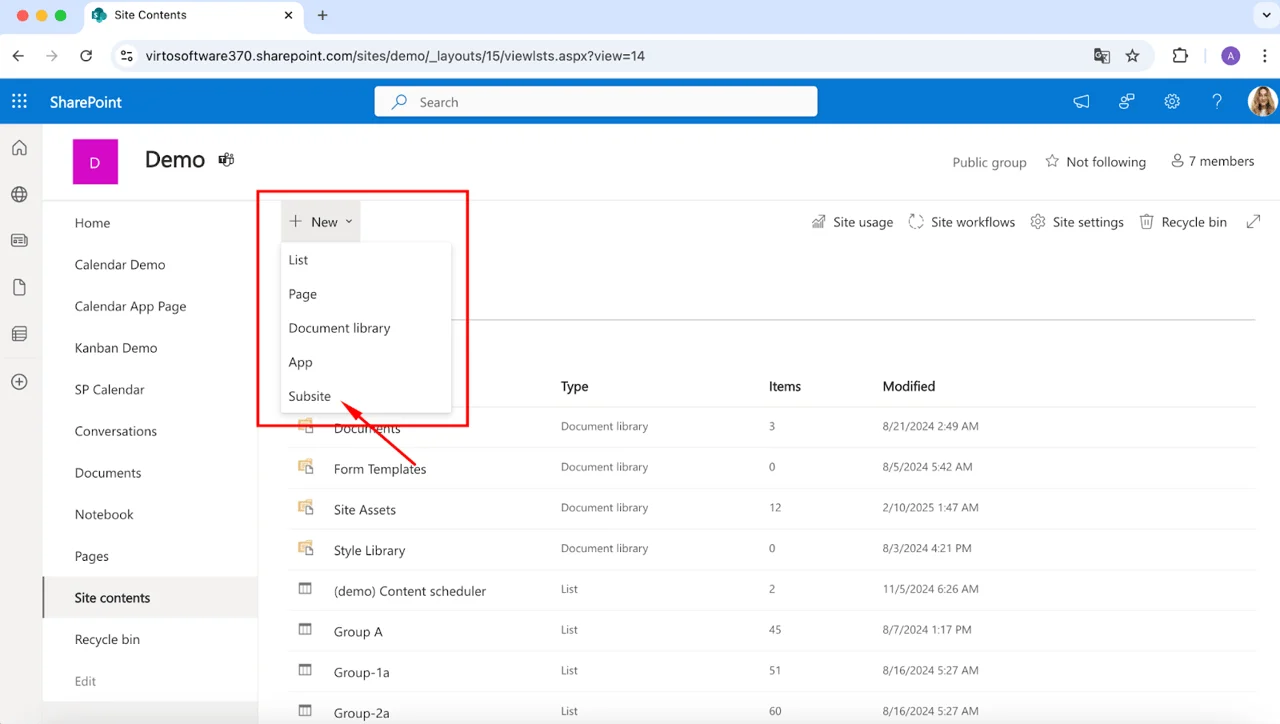
Pic.2. Selecting ‘Subsite’ in the dropdown menu.
Step 3: Enter subsite details
Now configure the subsite. Enter a title and, optionally, a description so users understand its purpose. Specify the URL segment for the subsite — this is appended to the parent site’s URL to form the complete address of the new subsite. This is also where you select a template and adjust inheritance settings.
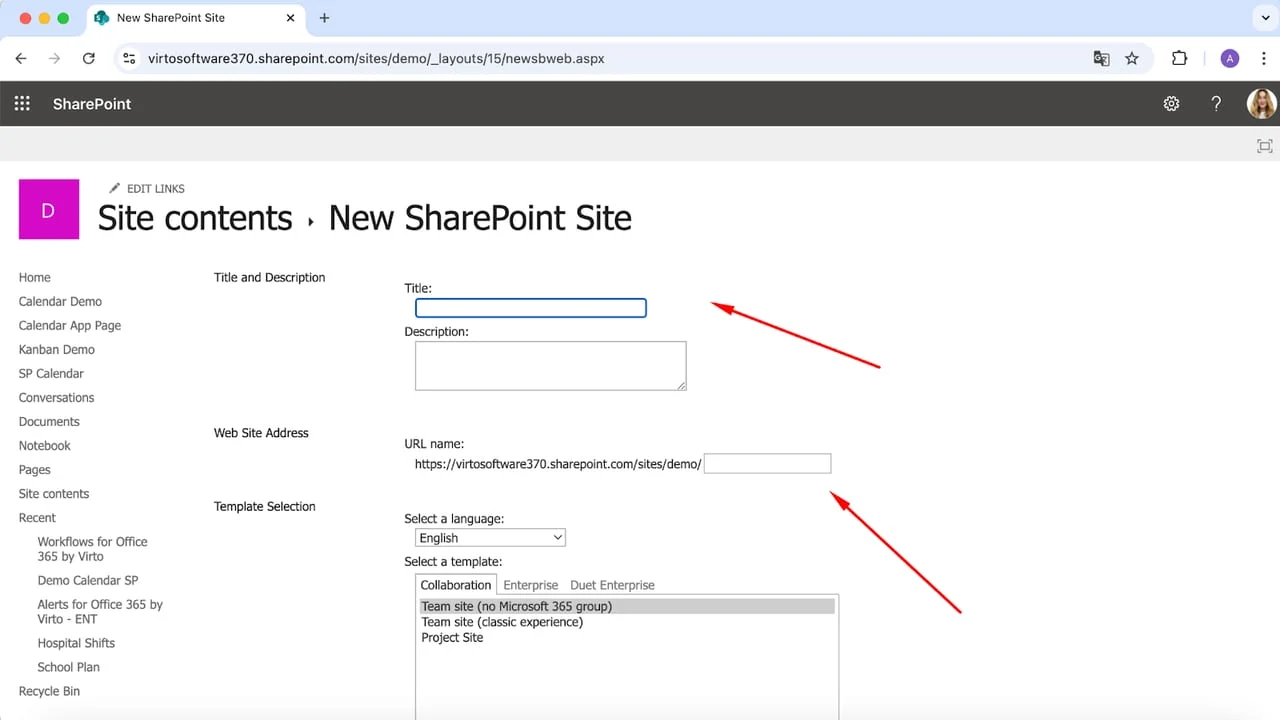
Pic.3. Configuring the new subsite.
Step 4: Choose a template
Choose a template that matches the subsite’s purpose. SharePoint offers templates such as Team Site and Communication Site, along with others tailored to specific uses, to help you start with a suitable design.
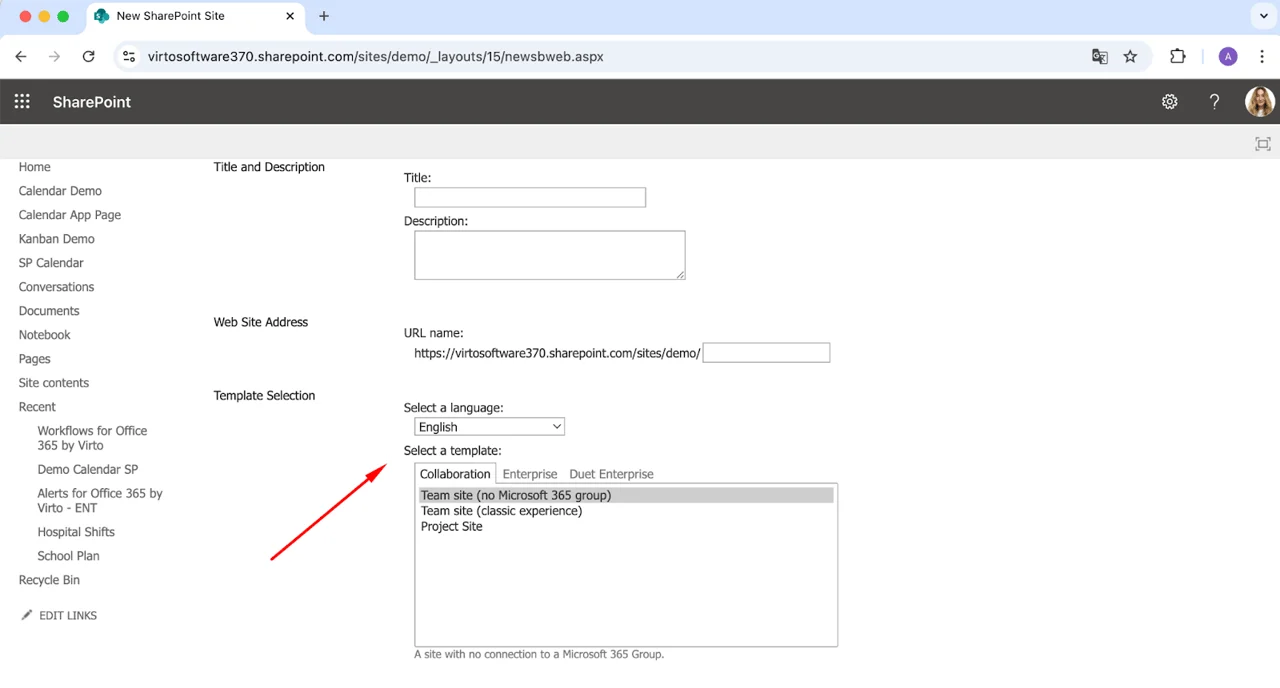
Pic.4. Choosing a template.
Step 5: Set permissions
Decide whether the subsite inherits permissions from the parent site or uses unique permissions. With unique permissions, you’ll set up groups and permissions after creation. You can also choose whether the subsite appears in the top link bar of the parent site and whether it uses the parent’s top link bar. If Use unique permissions is selected, the People and Groups — Set Up Groups screen appears after you click Create.
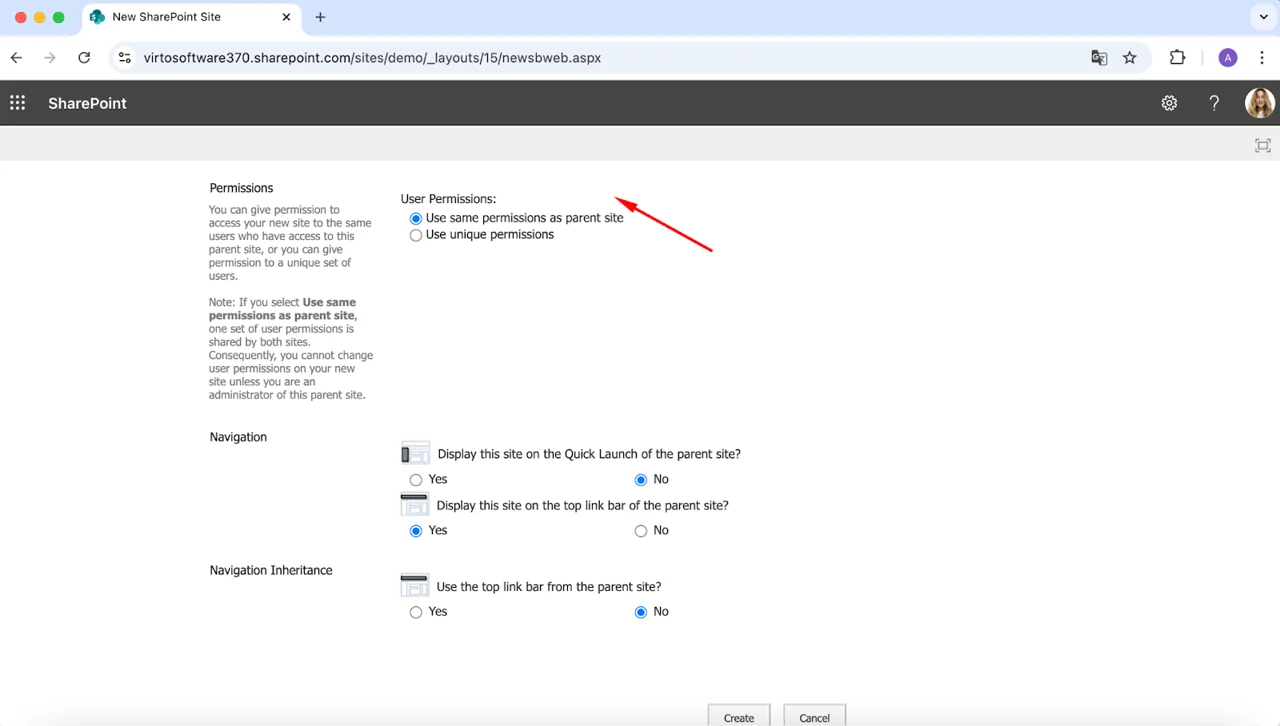
Pic.5. Adjusting permissions.
Step 6: Create the subsite
Once everything is filled in, click Create at the bottom of the page. SharePoint builds the subsite based on your specifications.
Step 7: Customize your subsite
After creation, customize the subsite by adding lists, libraries, and pages, and by configuring its settings and layout to meet your needs.
👉 How to create a SharePoint subsite? Navigate to the parent site, click the gear icon (Settings), and select Site contents. Choose New Subsite, then fill in the title, description, web address (URL), template, and permissions. Set whether it appears in the parent site’s navigation, then click Create. Once created, you can add document libraries, lists, and web parts, and fine-tune permissions.
Tips for configuration:
- Use intuitive names so users immediately understand each subsite’s purpose.
- Select the right template for the job — for example, a Team Site for collaboration.
- Customize templates as needed: add or remove web parts, change the layout, and adjust navigation.
Alternatives to Subsites in SharePoint
Subsites have traditionally been a way to organize SharePoint, but there are now more modern and flexible alternatives to consider.
Hub sites: the modern approach
Hub sites offer a more flexible, scalable way to organize your SharePoint intranet. Unlike subsites, which create a hierarchical structure, hub sites connect multiple sites in a flat network. Advantages include:
- Improved navigation: a centralized navigation experience across different sites.
- Better scalability: easily add or remove sites from the hub as your organization evolves.
- Increased independence: connected sites keep their own permissions and branding.
- Content roll-up: surface and discover content across multiple sites in the organization.
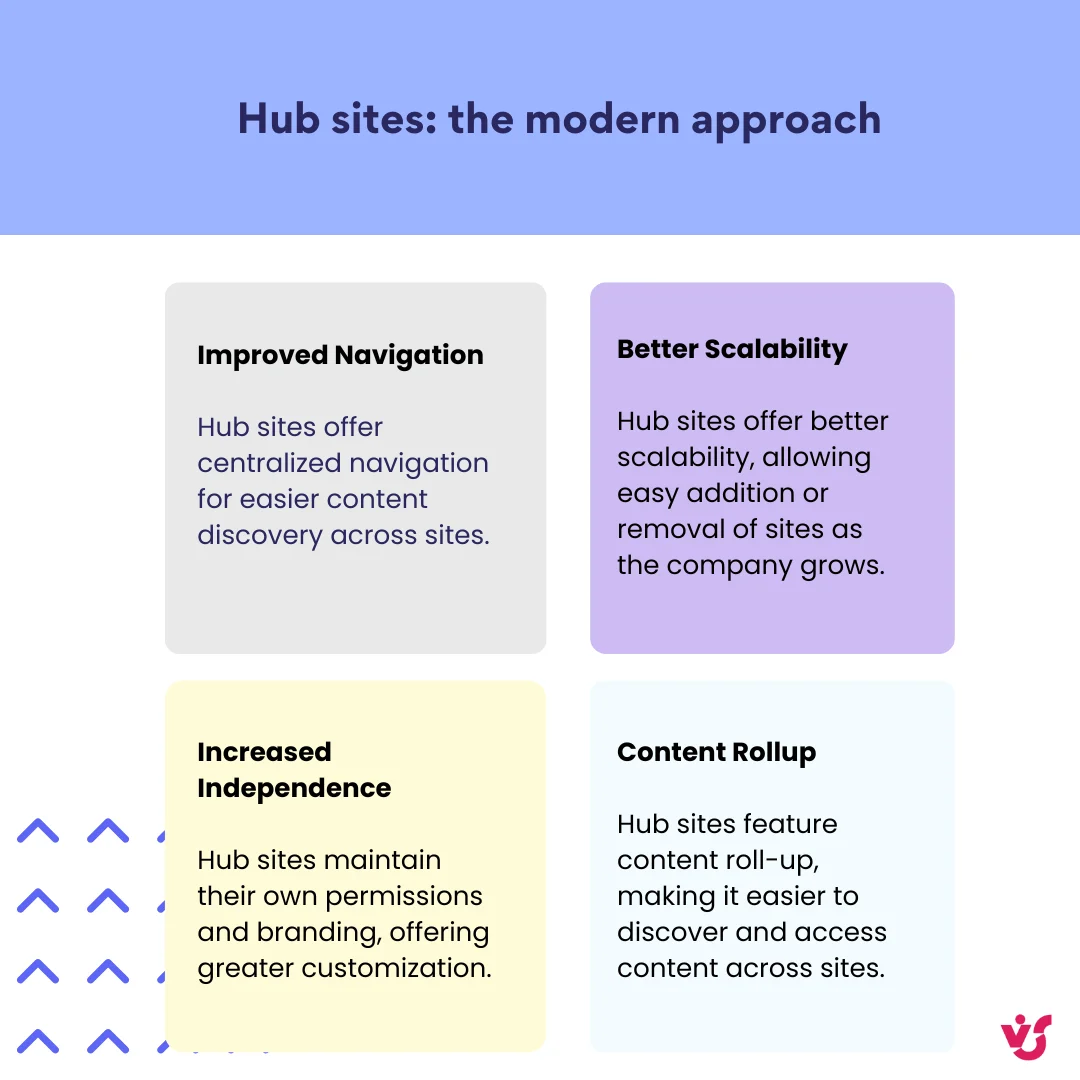
Pic.6. Benefits of a SharePoint hub site.
Combining subsites and hub sites: you can mix the two — for example, use a hub site to connect departmental sites, and subsites within each department to organize project content. For a deeper look, see our guide to SharePoint hub sites.
Flat architecture: simplicity and scalability
A flat architecture organizes data into separate, independent sites instead of nested subsites. Each site is managed separately, which simplifies management and scaling — typically a site per department, with pages for content and lists or libraries for that department’s needs.
Modern pages and libraries: replacing subsite functions
Modern pages and libraries offer enhanced features for organizing and displaying content, and can replace some functions traditionally handled by subsites.
Recommendations for choosing the right approach
Use subsites when: you have a small, simple organization with limited content, you need a strict hierarchical structure with inherited permissions, or you’re working in classic SharePoint.
Use hub sites when: you have a large, complex organization, you need a flexible and scalable solution, you want centralized navigation across sites, or you need independent sites with unique permissions and branding.
Use a flat architecture when: you want to simplify management and scaling with independent, low-dependency sites.
Use modern pages and libraries when: you want to improve organization and display of content within a site, replacing some subsite functions.
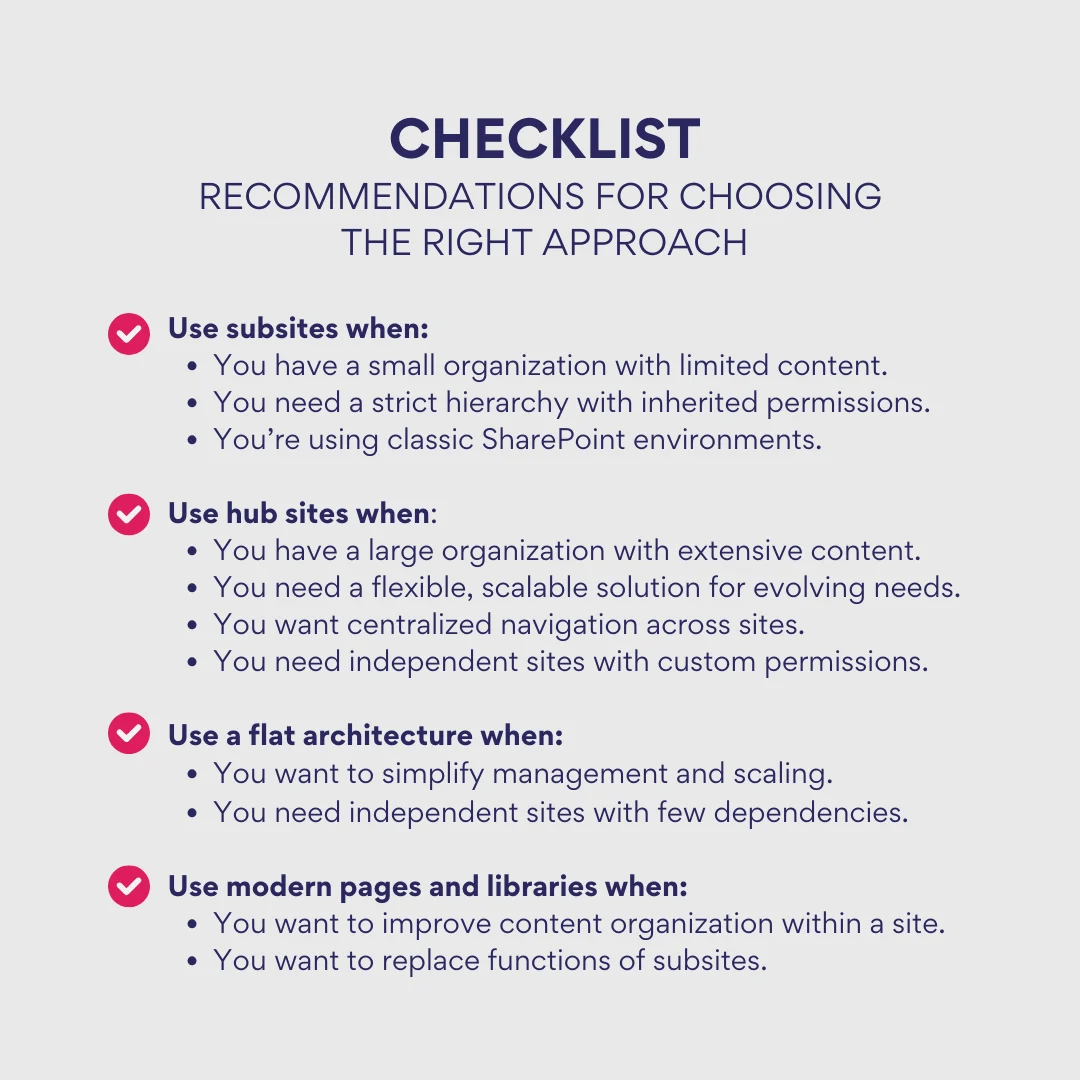
Pic.7. Checklist — how to choose a SharePoint site type.
Not sure which site type you need? Our overview of the types of SharePoint sites walks through each option and when to use it.
Subsites vs. hub sites: a quick comparison
| Characteristic | Subsites | Hub sites |
|---|---|---|
| Hierarchy | Strict hierarchy | More flexible, flat structure |
| Inheritance | Inherit settings from the parent site | Do not inherit settings, but sites can be associated with the hub |
| Management | More centralized | More decentralized |
| Scalability | Can be limited in large organizations | Better scalability |
| Navigation | Less flexible, can become hard to maintain | More flexible and easily customizable |
Fig. 2. The key differences between subsites and hub sites.
Managing Subsites
Once your subsites exist, managing them well keeps them useful and efficient. Here are the key considerations.
Organizing subsites
- Logical hierarchy is key: plan carefully, group related content, and use clear, descriptive names.
- Keep it simple: avoid overly deep or complex hierarchies that make navigation hard.
- Consider automation: for larger deployments, use PowerShell or other scripting to streamline creating, configuring, and managing subsites.
Managing permissions
- Unique permissions when needed: inheriting from the parent simplifies management, but sensitive content may call for unique permissions.
- Leverage user groups: manage permissions at the group level rather than per individual user.
- Regular access reviews: review permissions periodically and remove access that’s no longer needed.
Tips for content maintenance and updates
- Content audits: regularly check relevance; remove or update outdated information.
- Performance optimization: minimize large files, optimize images, and use efficient web parts.
- Archiving and deletion: archive or delete obsolete subsites — and back up important data first.
- Analytics for insights: track page views, unique visitors, and popular content to find areas to improve.
- Reminders for content owners: set reminders — or custom workflows — so owners keep content current.
Wrapping Up
Subsites in SharePoint offer a way to structure content within a hierarchical framework, and they’re particularly useful for smaller, well-defined projects, departments, or teams — providing a clear separation of content and permissions. Their rigid structure and scalability limits make them less ideal for larger, more complex organizations, which is why Microsoft is shifting toward hub sites as the modern solution.
Careful planning and ongoing maintenance are essential to keep subsites from becoming unwieldy. Consider your organization’s long-term needs before committing to a subsite-heavy structure; if you anticipate significant growth or need more flexibility, hub sites or a flat architecture are worth exploring.
To further enhance your SharePoint experience, consider tools like Virto SharePoint On-Premise Web Parts and Virto Microsoft 365 & SharePoint Online Apps. Apps such as the Virto Calendar Overlay App surface and roll up content across multiple sites and subsites — helping with navigation, workflow automation, and data visualization. All Virto products come with a free 30-day trial.
👉 Keep reading: Copilot for SharePoint, SharePoint site types explained, How to create and optimize a SharePoint page, and SharePoint intranet.
FAQ
What is a SharePoint subsite?
A site created underneath an existing site, inheriting its navigation and (optionally) its permissions. Microsoft now recommends flat architectures with hub sites instead of nested subsites.
How do I create a subsite in SharePoint?
Go to Settings → Site contents on the parent site, click + New, and select Subsite. Enter a title, description, and URL, choose a template, set permissions and navigation, then click Create.
What is the difference between a page and a subsite?
A page displays content within a site (text, images, web parts). A subsite is a separate site within a larger site collection, with its own permissions, navigation, libraries, lists, and workflows.
What is the difference between a hub site and a subsite?
A subsite is part of a site collection and follows a hierarchical structure, inheriting from its parent. A hub site connects multiple independent sites into a unified experience with centralized navigation and content roll-up — offering greater flexibility and scalability.
Are subsites still supported?
Yes, subsites still work, but Microsoft recommends hub sites and flat architectures for new deployments. Subsites remain viable for small or classic environments where a strict hierarchy is acceptable.