



Explore how different SharePoint site types can empower your organization to collaborate seamlessly, manage content effectively, and achieve your business goals.
Quick answer: What are the types of SharePoint sites?
The main types of SharePoint sites are team sites, communication sites and hub sites. Team sites are built for collaboration inside a group; communication sites broadcast information to a wide audience; and hub sites connect related sites together under shared navigation, branding and search. Classic subsites, Document Center and Publishing sites still exist but are legacy options. Choose a team site to work together, a communication site to publish, and a hub to tie a family of sites into one intranet.
SharePoint, Microsoft’s content management and collaboration platform, offers several site types built for different organizational needs. Understanding these SharePoint site types is the first step to organizing work, managing projects and getting the most out of the platform.
Choosing the right site type shapes how well your team communicates, shares content and gets work done. The best choice depends on your goals, the nature of the work and the scope of the project — a small team on a short project needs something different from a department running ongoing operations. This guide walks through each type, its pros and cons, and a simple way to decide, then links to a dedicated deep-dive for every individual site type.
What Is a SharePoint Site?
A SharePoint site is the primary organizing structure for your data, files and teamwork inside SharePoint — a central hub, container or workspace where related information and activities live. It is far more than file storage; it provides a structured environment for several core functions. For the full picture, see our guide to what SharePoint is.
- Content management: create, store, organize and manage documents, spreadsheets, images, videos and custom lists, with version control, metadata and search.
- Collaboration: co-author documents and coordinate through shared calendars, task lists and discussion boards, regardless of location.
- Document access and control: store documents securely and set permissions so sensitive content stays with authorized people; check-in/check-out prevents conflicting edits.
- Workflow creation: automate approvals, task tracking and other business processes to standardize work and improve productivity.
In short, SharePoint sites are dynamic workspaces for managing content, collaborating, controlling access and automating workflows in a secure, structured environment. Picking the right type is how you unlock those benefits.
SharePoint Site Types
Modern SharePoint has two primary site types: Communication Sites and Team Sites. Both ship with templates pre-configured with pages, web parts and content you can customize. A site template applies a consistent set of libraries, lists, content types and views so your site is functional from the start.
How many types of SharePoint sites are there?
Modern SharePoint has two primary templates — Team Sites and Communication Sites — plus specialized options such as Hub Sites and older, classic-based types like Document Center and Publishing sites. Think of team and communication sites as the two starting points, with the others available for specific needs.
Team sites
Team Sites are built for collaboration — the right choice for groups working on projects, departmental initiatives or company-wide tasks. They act as a centralized hub for project management, document sharing and team interaction.
Key features of Team Sites
- Microsoft Teams integration: connect a Team Site to a Microsoft Team for chat, meetings and file sharing in one place.
- Shared workspaces: dedicated spaces with centralized information, structured folders and libraries, controlled access and customizable views.
- Collaboration tools: co-authoring, version history, task assignments, shared calendars and discussion boards.
- Large, controlled file libraries: secure storage with granular permissions, metadata/tagging and version control.
- Enterprise process support: workflow automation, integration with other systems and custom forms.
- Web parts: add lists, libraries, calendars, news feeds and custom web parts to build interactive pages.
Common use cases for Team Sites
Project workspaces, department collaboration, task management, large file storage and inter-department coordination — anywhere a defined group needs a shared, structured place to work.
Examples of Team Site templates
You choose a template during site creation, which pre-populates the site with relevant content and features. Common examples include Standard Team, Project Management, Crisis Communication Team, Employee Onboarding Team, Event Planning, IT Help Desk, Retail/Store Collaboration, and Training templates; some specialized templates (e.g. Accounts Payable and Contracts Management, powered by Microsoft Syntex) may require specific licensing. Your organization can also publish custom templates under a separate “From your organization” tab.
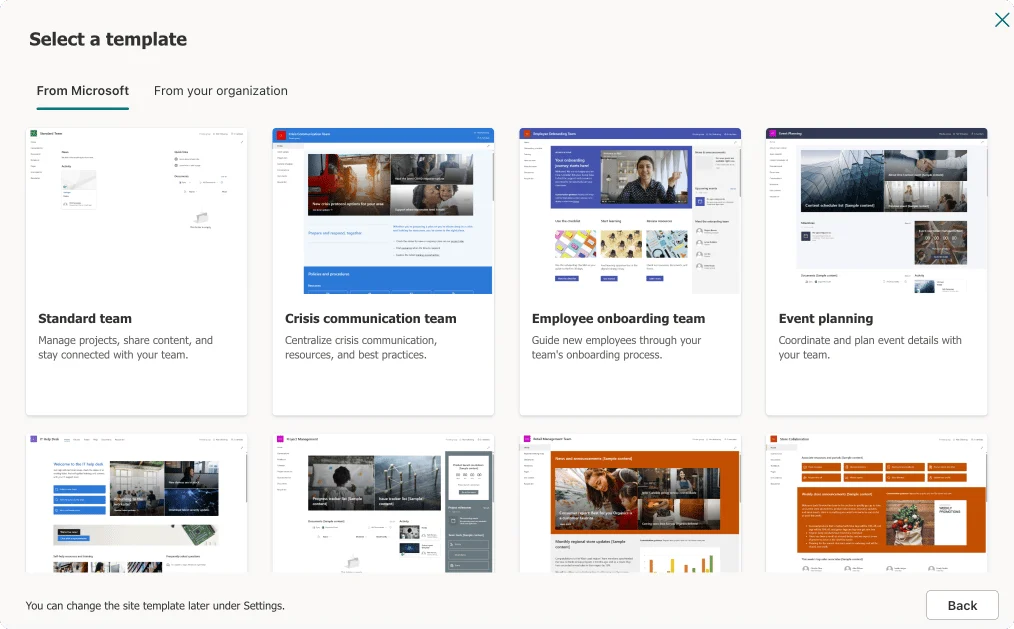
Pic. 1. Team Site templates.
Communication sites
Communication Sites are designed to broadcast information to a wide audience. Where Team Sites prioritize collaboration, communication sites focus on presenting news, updates and resources clearly and attractively. Key strengths include broad audience reach with audience targeting, a view-focused reading experience, highly customizable visual layouts, and interactive elements like polls, Q&A and embedded multimedia. Typical uses are company news portals, resource centers, internal portals and event announcements. Template starting points include Topic, Showcase and Blank.
For a deeper walkthrough of planning, templates and best practices, see our full SharePoint communication site guide, or compare the two side by side in team site vs communication site.
Other types of SharePoint sites
Beyond the two primary types, several specialized options cover specific needs:
- Hub Sites: not a distinct site type but a feature that connects existing team and communication sites under shared navigation, branding, cross-site search and content roll-up — ideal for building an intranet from departmental sites. See our dedicated SharePoint hub sites guide.
- Subsites (classic): sites nested inside a parent site collection. Microsoft now recommends hubs over subsites for scalability; details in our SharePoint subsite guide.
- Document Center Sites: classic-based sites for managing large document volumes and archives, with metadata navigation, version control and records management.
- Publishing Sites (classic): legacy sites for highly customized portals; modern Communication Sites are the recommended replacement for most scenarios.
- Project Web App (PWA) Sites: specialized project and portfolio management (requires a separate Project Online license), with scheduling, resource management, timesheets and Power BI reporting.
Planning a full intranet from these building blocks? See our SharePoint intranet guide.
How to tell what type a SharePoint site is
The quickest tell is the design and available features. Team Sites usually have left-hand navigation with quick access to libraries, lists and collaboration tools.
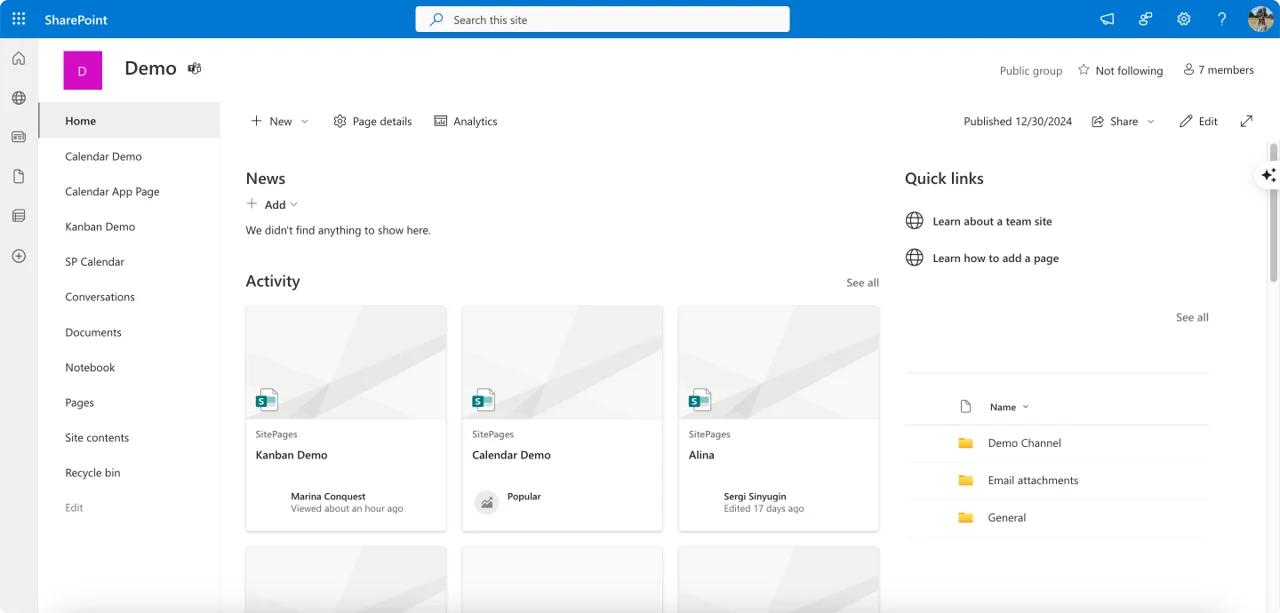
Pic. 2. Example Team Site.
Communication Sites favor visually rich layouts, often with top navigation and prominent areas for news, announcements and multimedia.
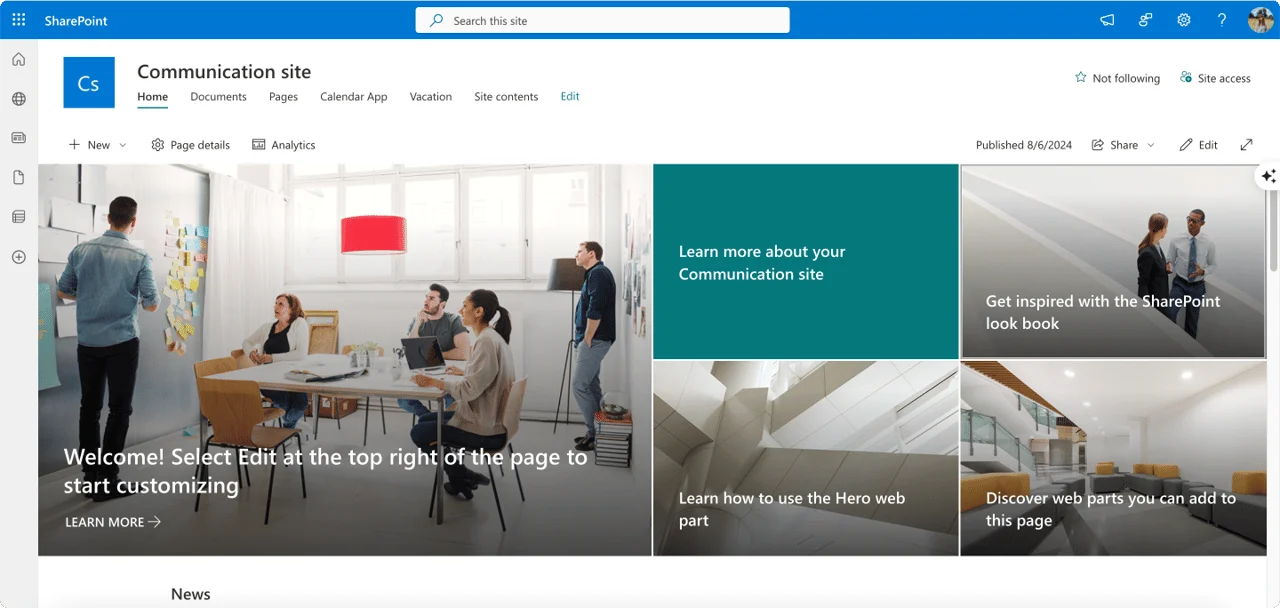
Pic. 3. Example Communication Site.
Still unsure? Open the “Site information” panel via the settings gear. It won’t always name the type outright, but options like hub association point to a team or communication site, while publishing settings suggest a classic Publishing Site.
Availability: SharePoint Online vs SharePoint On-Premise
SharePoint Online (cloud) delivers the latest features, a modern interface and simplified maintenance. SharePoint Server (on-premises) gives more control over configuration but needs more technical resources. To understand the underlying experience differences, see SharePoint modern vs classic. The table below compares site-type availability across both.
| Feature | SharePoint Online | SharePoint Server (On-Premises) |
|---|---|---|
| Team Sites | Fully supported with modern templates and integrations. | Supported; modern experience available but may require enabling. Classic still available. |
| Communication Sites | Fully supported with modern templates. | Not natively available; can be partially replicated with custom work. |
| Hub Sites | Fully supported for connecting related sites. | Not available (relies on cloud services). |
| Document Center Sites | Supported (classic template under the hood, modern features available). | Supported with more advanced classic configuration. |
| Publishing Sites | Supported (classic), largely replaced by Communication Sites. | Fully supported (classic); modernization recommended. |
| Project Web App (PWA) | Supported with Project Online integration. | Supported with Project Server integration. |
| Modern UI and features | Fully supported and continuously updated. | Available in recent versions; may need configuration. |
| Ease of maintenance | Managed by Microsoft; minimal upkeep. | Requires internal IT resources for updates and infrastructure. |
Fig. 1. Availability of site types across SharePoint Online and On-Premises.
Key takeaways
- SharePoint Online: best for a modern, cloud-based solution with automatic updates, the latest features and simple maintenance.
- SharePoint Server: best where strict compliance or on-premises control is required, at the cost of dedicated IT resources and modernization effort.
Site templates and their availability across versions
Site templates are pre-configured blueprints — pages, libraries, lists and web parts — that speed up site creation. SharePoint Online emphasizes modern, mobile-first templates (Team and Communication Sites) with responsive design, accessibility, Microsoft 365 integration, custom templates from existing sites and continuous updates. SharePoint Server relies mainly on classic templates, with modern experiences achievable through effort (enabling modern features, newer versions, SPFx), strong administrator control over template availability, and specialized enterprise templates such as PWA.
Customization spans branding and design (colors, fonts, logos, layouts, navigation, custom CSS), web parts, granular permissions and access control, and integration/extensibility via workflows, third-party apps, SPFx and APIs. The level possible depends on the version and the skills of your admins or developers.
Group-Connected vs Non-Group-Connected Team Sites
When setting up a team site, a key decision is whether to connect it to a Microsoft 365 Group. This shapes the site’s functionality, integrations and collaboration experience.
Microsoft 365 group-connected Team Sites
The modern standard. Connecting to a Microsoft 365 Group automatically links the site to Microsoft Teams, Outlook (shared mailbox and calendar), Planner and Power BI. You get centralized resources, streamlined communication, real-time co-authoring, and simplified membership management — adding or removing a group member updates permissions everywhere. Best for cross-team projects, ongoing collaboration with shared resources, and any scenario that benefits from the Microsoft 365 ecosystem.
Non-group-connected (classic) Team Sites
Standalone sites not linked to a Microsoft 365 Group. They provide core SharePoint functionality (libraries, lists, web parts, permissions) and can be simpler to administer for small, self-contained sites, but lack the integrated services above. They remain relevant mainly for existing classic sites being modernized, simple archives, or rare cases where group integration isn’t feasible.
| Feature | Microsoft 365 Group-Connected | Non-Group-Connected (Classic) |
|---|---|---|
| Microsoft 365 integration | Extensive (Teams, Outlook, Planner, etc.) | Limited |
| Collaboration features | Enhanced via integrated services | Basic SharePoint collaboration |
| Shared mailbox & calendar | Yes | No |
| User interface | Modern, responsive | Classic (unless modernized) |
| Creation method | Via M365 Group or directly in SharePoint | Directly in SharePoint |
| Recommended for new sites | Yes | Generally not recommended |
Fig. 2. Group-connected vs non-group-connected Team Sites.
For most new projects, a Microsoft 365 group-connected Team Site is the recommended approach. Reserve classic team sites for existing sites under modernization or specific cases where group integration isn’t possible.
How to create group-connected and non-group-connected Team Sites
Creating a group-connected Team Site
From the SharePoint start page in Microsoft 365:
- Click “+ Create site” and choose “Team site.”
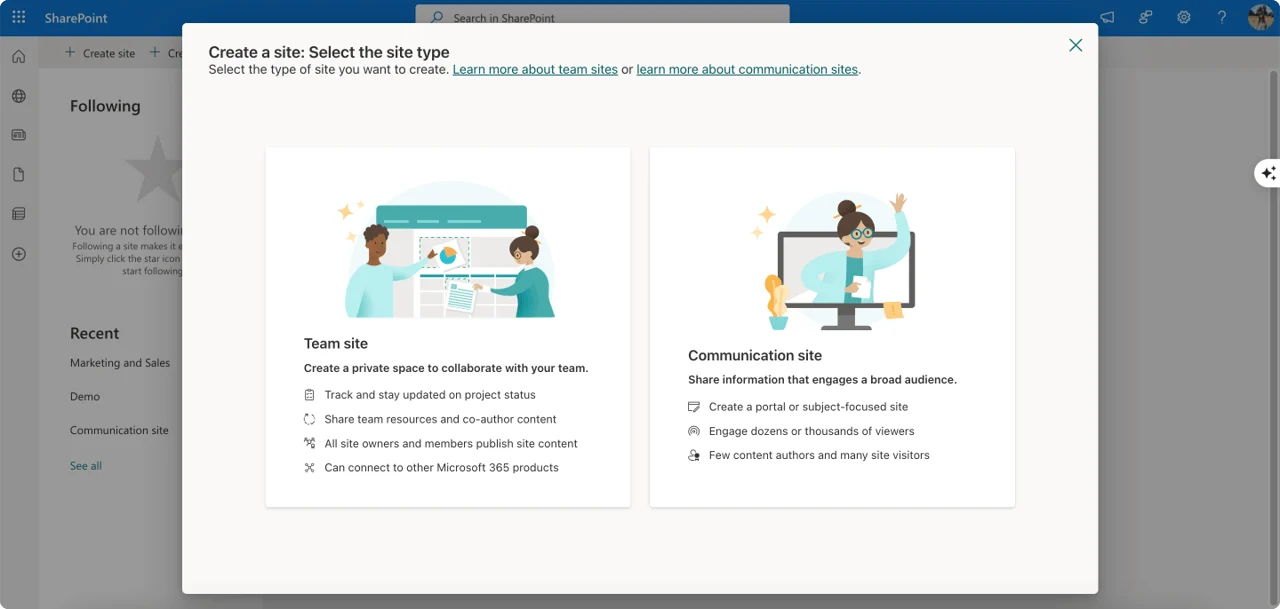
Pic. 4. Choosing site type.
- Select “Standard team” or a template, then provide a site name — SharePoint suggests a matching Microsoft 365 Group name and email.
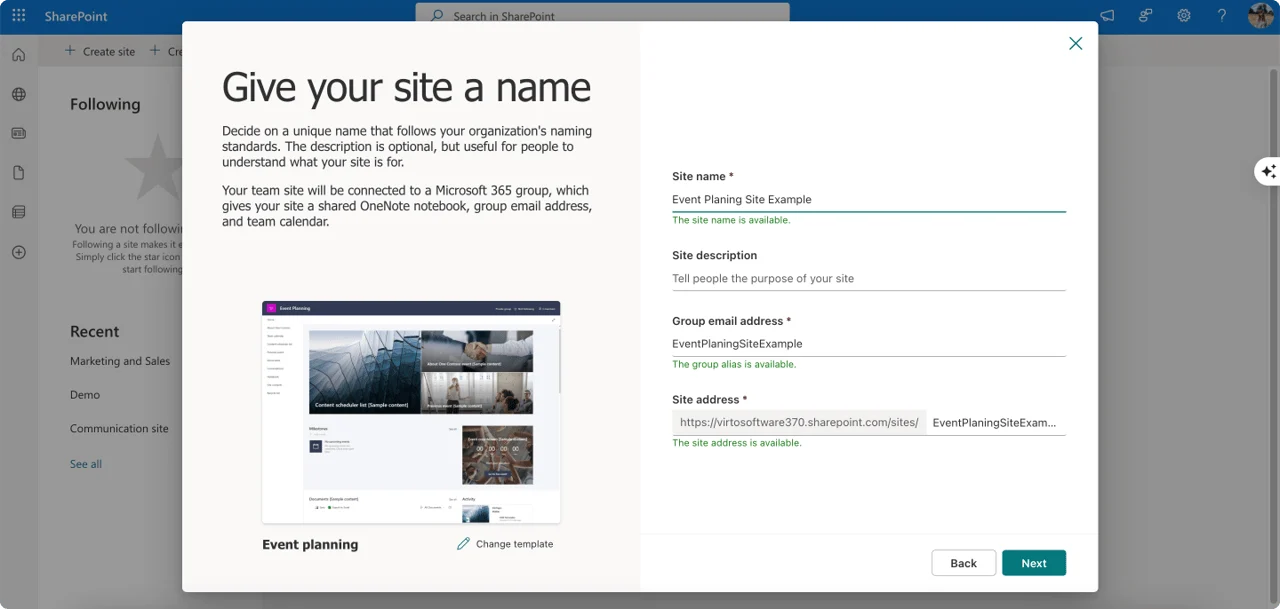
Pic. 5. Naming your site.
- Add a description and choose privacy (Public or Private).
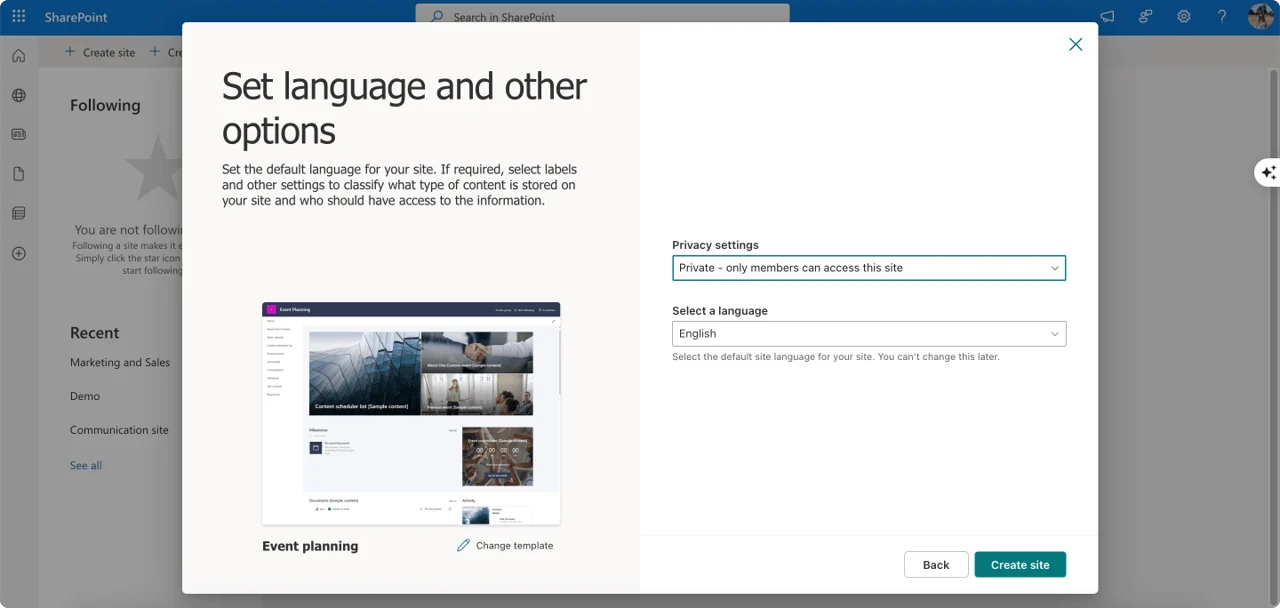
Pic. 6. Setting up privacy settings for your site.
- Click “Create site.” The Team Site and its Microsoft 365 Group are created together.
You can also create a Team in Microsoft Teams (or a Group in Outlook), which provisions a connected SharePoint team site in the background.
Creating a non-group-connected (classic) Team Site
You can no longer create classic team sites directly in the modern admin center. They typically persist only as existing, un-modernized sites. Microsoft discourages new classic sites; where one is truly required for technical or governance reasons, consult Microsoft support or SharePoint documentation — but prioritize modernizing existing classic sites instead.
How to Choose a Site Type for Your Project
The right SharePoint site depends on project scope, target audience, content needs and the level of Microsoft 365 integration you want. Use the criteria below to match a type to your requirements.
Key selection criteria
- Primary purpose: collaboration → Team Site; broad information sharing → Communication Site.
- Target audience: internal teams/departments → Team Site; wider internal or external audiences → Communication Site.
- Content needs: collaborative documents and lists → Team Site; published news, pages and multimedia → Communication Site.
A key advantage of modern Team Sites is Microsoft 365 group integration — a shared mailbox and calendar, Teams for real-time collaboration, and Planner for task management. Where possible, leverage a group connection rather than creating a group-less team site. For a focused comparison, read team site vs communication site.
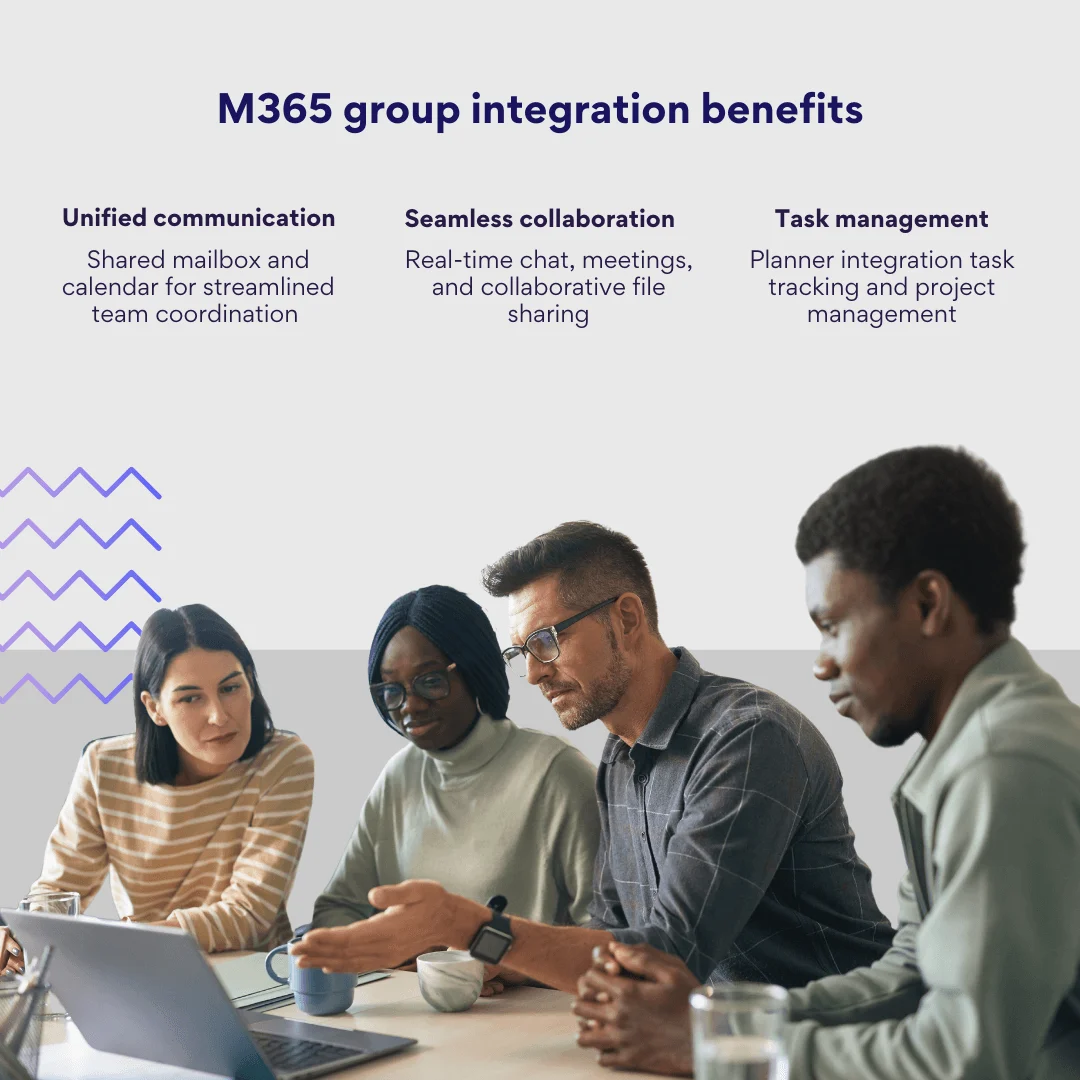
Pic. 7. M365 group integration benefits.
Using different site types together
Site types complement each other. For example, a project team collaborates in a Team Site while publishing updates to stakeholders through a separate Communication Site; or a department collaborates internally in a Team Site while hosting an organization-wide knowledge base in a Communication Site. A hub can then connect these related sites into one navigable structure.
A quick decision guide
| If your primary goal is… | Choose | Then consider |
|---|---|---|
| Collaboration within a team | Team Site | Connect to a Microsoft 365 Group for Teams, Planner and shared mailbox. |
| Broadcasting to a wide audience | Communication Site | Pick Topic, Showcase or Blank as your starting template. |
| Connecting several related sites | Hub Site | Plan navigation, branding and permissions across associated sites. |
Fig. 3. Fast decision guide for choosing a SharePoint site type.
Advantages and Disadvantages of SharePoint Site Types
Each site type has strengths and trade-offs. The table summarizes the differences; the notes below add the key pros and cons.
| Feature | Team Site | Communication Site | Hub Site |
|---|---|---|---|
| Purpose | Collaboration, docs, tasks | Broadcasting news & info | Connect related sites |
| Audience | Internal teams, projects | Broad internal/external | Users of associated sites |
| Content | Collaborative docs, lists | News, pages, multimedia | Lives on associated sites |
| Workflows | Power Automate, SharePoint | Power Automate, SharePoint | Inherits from associated sites |
| Branding | Customizable, modern | Visually focused templates | Consistent across sites |
| Integration | Teams, Planner, Outlook | Power BI | Inherits from associated sites |
Fig. 4. Comparison of different SharePoint sites.
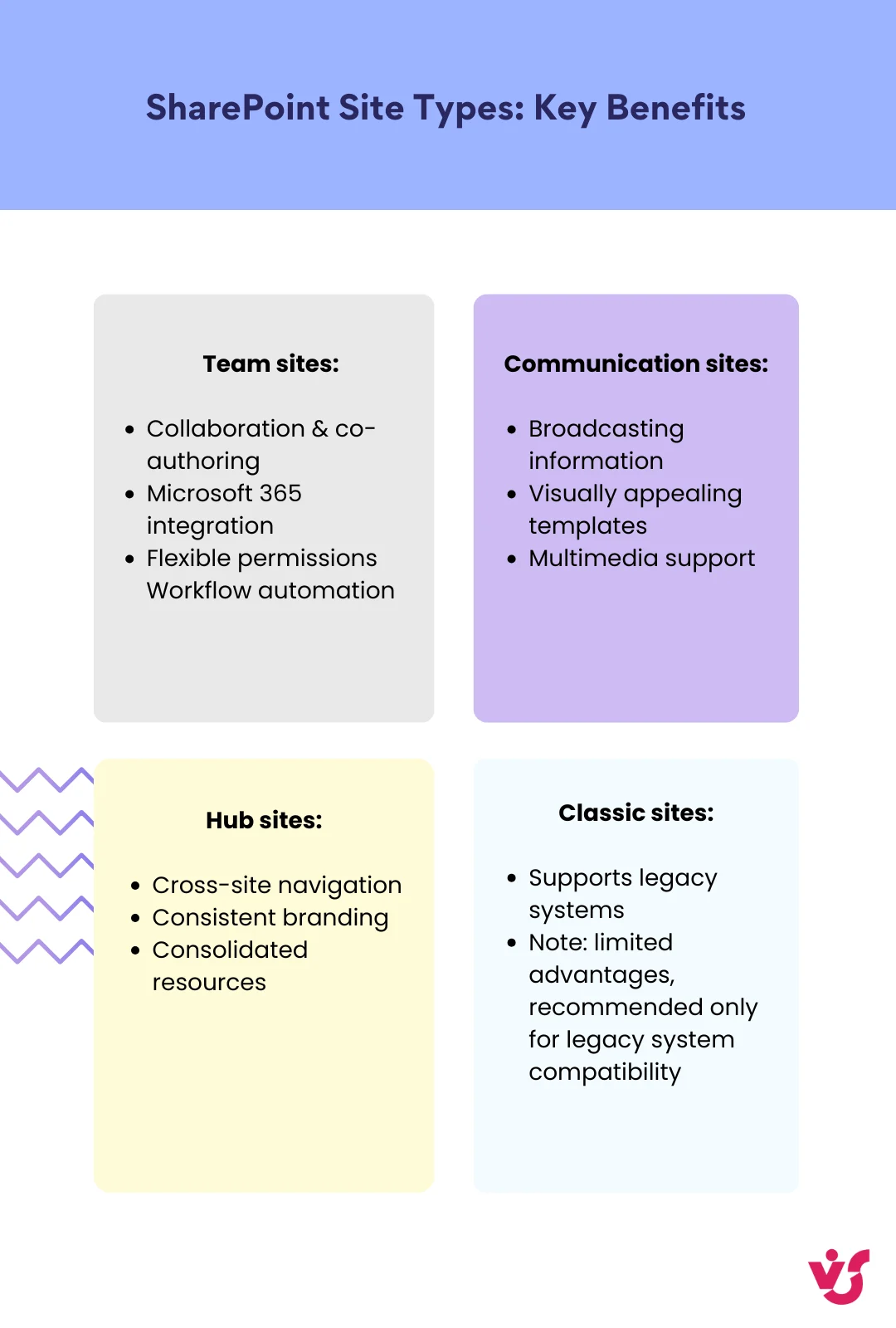
Pic. 8. Key benefits of SharePoint site types.
Team Sites
Pros: purpose-built collaboration (co-authoring, version history, shared libraries), deep Microsoft 365 integration, flexible granular permissions and Power Automate workflow automation.
Con: highly visual publishing takes more effort than on a Communication Site (though modern Team Sites are far more polished than classic).
Communication Sites
Pros: excellent for broadcasting information, visually appealing templates that need no design skills, and rich multimedia support.
Con: not optimized for complex team task management — pair with a Team Site plus Planner for that.
Hub Sites
Pros: cross-site navigation, consistent branding and consolidated news and resources from associated sites.
Con: require careful planning of permissions, structure and information architecture.
Classic Sites
Pros: may be needed for legacy systems and custom solutions not yet migrated.
Cons: outdated interface, limited Microsoft 365 integration and potential security gaps.
In short: choose a Team Site for teamwork and project management, a Communication Site to broadcast to a wide audience, and a Hub Site to connect multiple sites.
VirtoSoftware Tools for SharePoint: Enhancing Your Sites
SharePoint is powerful, but the right add-ons take your workflows further. VirtoSoftware offers tools for both SharePoint On-Premise and Microsoft 365 & SharePoint Online, transforming how you manage calendars, tasks and documents.
Streamlined calendar and task management
The Virto Calendar App is a central command center for scheduling: consolidate events from SharePoint lists, Exchange, Google Calendar and external iCal sources into one unified, color-coded view, with mini-calendars, flexible timescales and synchronization.
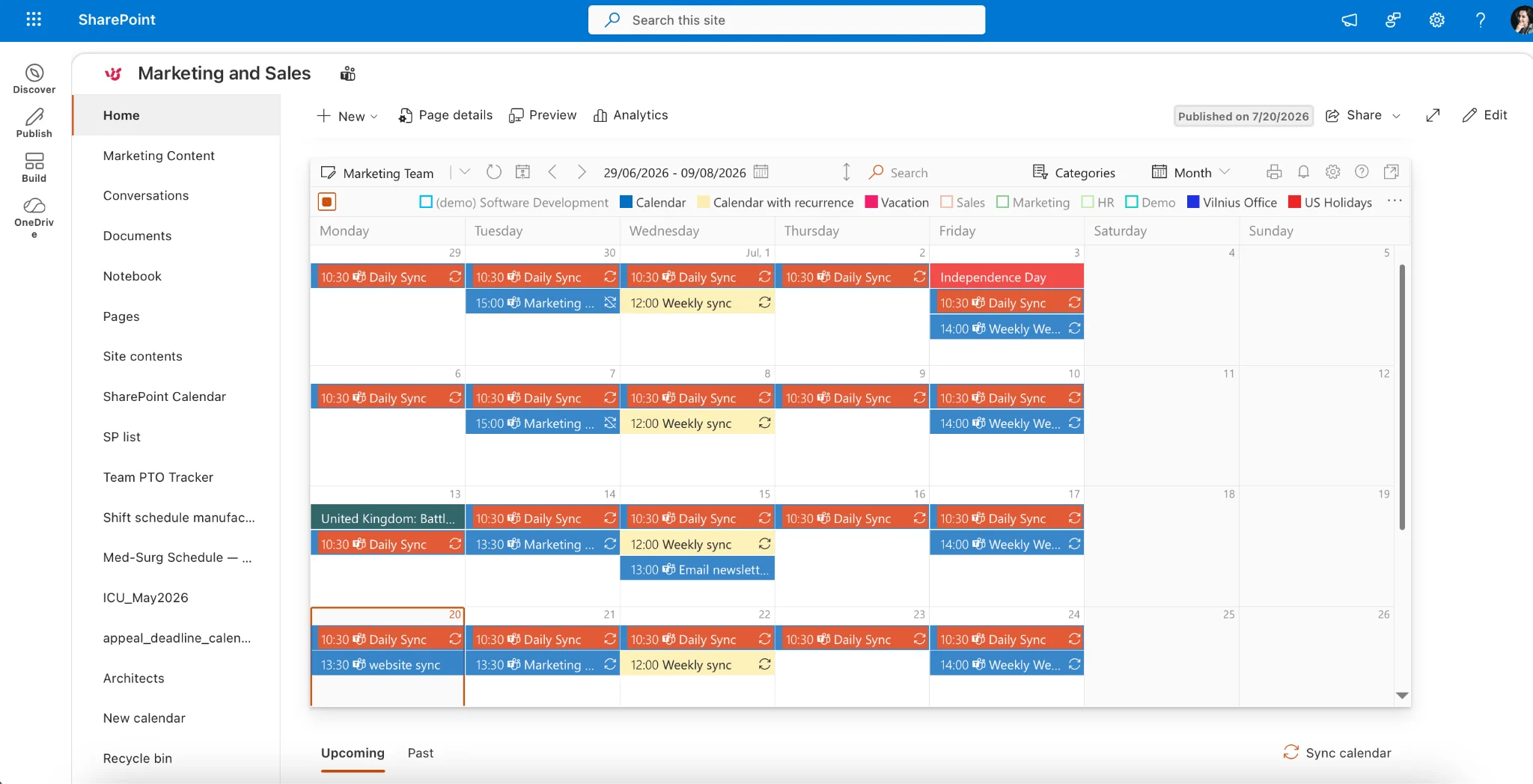
Pic. 10. Virto Calendar App — a unified, color-coded calendar overlay.
For visual task management, the Virto Kanban Board App provides an intuitive drag-and-drop board — update statuses, prioritize and collaborate in real time, making progress easy to track across hub-connected sites.
Improved document management
SharePoint Online & Microsoft 365 users can use the Virto Multiple File Upload App for bulk uploads of documents and whole folder structures, with custom metadata during upload. For SharePoint On-Premise, the Virto Multiple File Operations tool adds bulk downloads, deletions, copies, moves, check-ins, approvals and edits in one interface.
All VirtoSoftware apps come with a free 30-day trial. To see them on your own tenant, schedule a quick demo or browse the VirtoSoftware site to learn more and install a trial.
Conclusion
Getting SharePoint right starts with choosing the site type that fits the job — team collaboration, broadcasting, connecting sites or specialized scenarios. To extend any site, explore VirtoSoftware SharePoint On-Premise web parts and Microsoft 365 & SharePoint Online apps, which add automation and expand functionality across your environment.
Further reading
Official Microsoft resources:
- Create different kinds of SharePoint sites using site templates
- Overview of sites and site collections in SharePoint Server
Our blog articles:
- What Is SharePoint
- SharePoint Hub Site
- SharePoint Communication Site
- SharePoint Subsite
- SharePoint Team Site vs Communication Site
- SharePoint Classic vs Modern
- SharePoint provisioning: methods and governance best practices
- SharePoint External Sharing
- SharePoint Best Practices
- SharePoint vs OneDrive
- SharePoint Permissions Explained
FAQ
What are the types of SharePoint sites?
Mainly team sites (group collaboration), communication sites (broadcasting to a wide audience) and hub sites (connecting related sites). Classic subsites, Document Center and Publishing sites are legacy options.
How many types of SharePoint sites are there?
Two primary templates — Team Sites and Communication Sites — plus specialized options such as Hub Sites, Document Center and classic Publishing sites.
How do I choose a SharePoint site type?
Choose a team site to collaborate, a communication site to publish to a wide audience, and a hub site to connect related sites. Weigh your primary purpose, audience, content needs and Microsoft 365 integration.
What is the difference between a team site and a communication site?
Team sites are for collaboration inside a defined group; communication sites broadcast information to a wide audience. See team site vs communication site for a full comparison.