



A plain-English guide to what SharePoint is, what teams use it for, and how it works — sites, lists, libraries, and Microsoft 365 integration, explained for 2026.
Quick answer
SharePoint is a Microsoft 365 platform for storing, organising, and sharing content through sites, lists, and libraries. Teams use it for document management, intranets, and collaboration, and it integrates with the rest of Microsoft 365 (Teams, OneDrive, Outlook, and the Office apps).
Microsoft SharePoint is one of the most widely used platforms for business collaboration and content management. It gives organisations a central place to store documents, build internal websites and intranets, automate routine processes, and work together on files in real time. This guide answers the core questions — what SharePoint is, what it is used for, and how it works — and then points you to the right next step, whether that is exploring SharePoint web parts or comparing deployment options.
In this article, you’ll learn:
- What SharePoint is and why organisations use it.
- What SharePoint is used for — the everyday jobs it handles.
- How SharePoint works, including its structure and integrations.
- The main advantages and disadvantages to weigh up.
- Where to go next to get more out of the platform.
What Is SharePoint?
Microsoft SharePoint is a web-based platform for collaboration, document management, and information sharing that runs as part of the Microsoft 365 suite. Its purpose is to centralise business content and processes so teams can work efficiently while keeping organised, secure access to corporate information.
SharePoint comes in three deployment models:
- SharePoint Online: a cloud-based service included with Microsoft 365, hosted and maintained by Microsoft.
- SharePoint Server (On-Premises): installed on your own servers, giving full control at the cost of dedicated IT infrastructure and maintenance.
- Hybrid: a combination of both, letting organisations move to the cloud gradually or keep certain workloads on-premises.
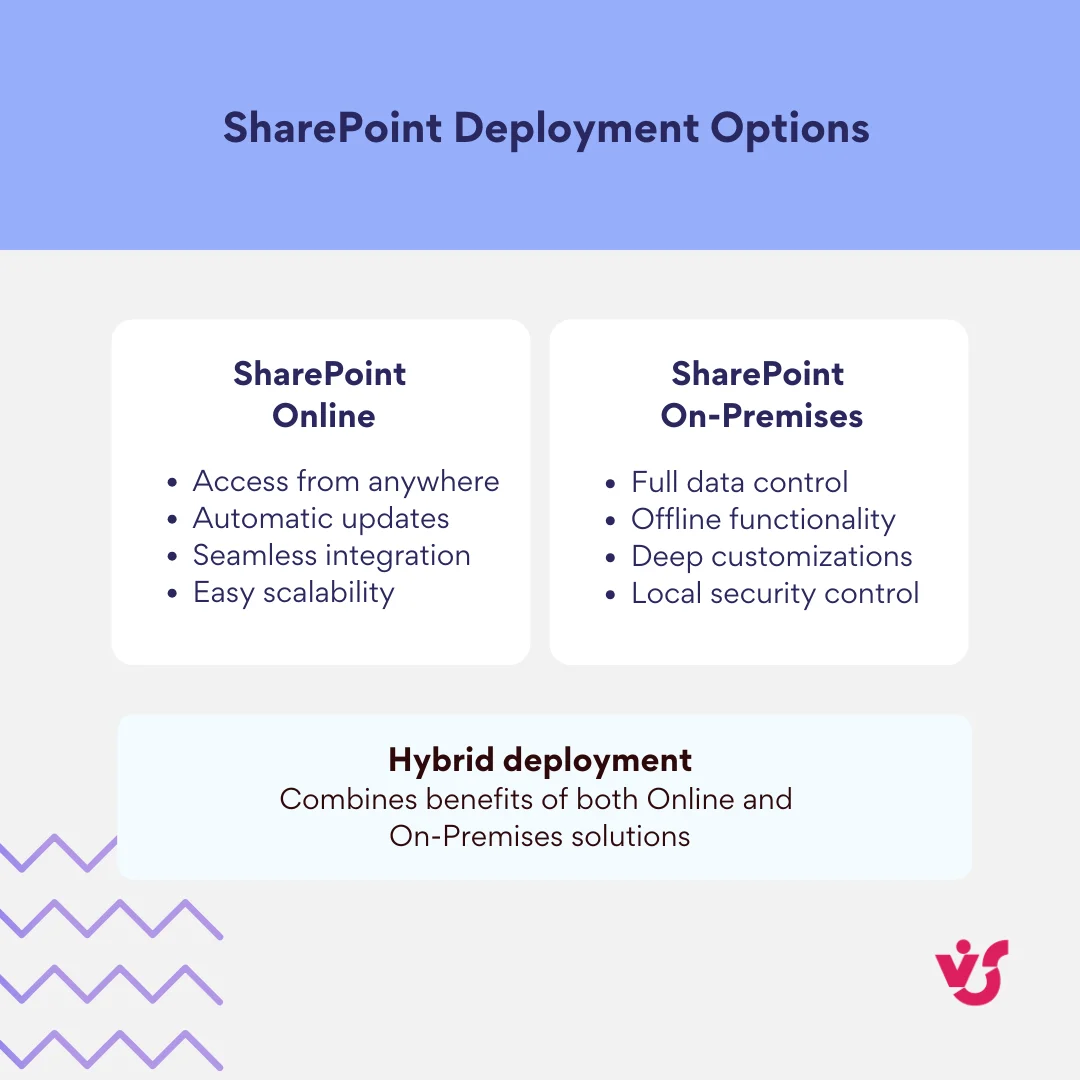
Pic. 1. SharePoint deployment options.
Yes, SharePoint is a Microsoft product and part of the Microsoft 365 family, designed for content management, collaboration, and workflow automation.
What Is SharePoint Used For?
SharePoint covers a broad set of everyday business jobs. The most common are:
Document and content management
Store, organise, and share files with version control, metadata tagging for search and filtering, and granular permissions so the right people reach the right content. Example: a finance team keeps reports in SharePoint, tracks approvals through version history, and tags documents by fiscal year and department for compliance.
Collaboration and communication
Co-author documents, share feedback, and work together in shared workspaces in real time. Example: a product team drafts a design spec together while discussing changes in Microsoft Teams.
Workflow and process automation
Manage projects and automate routine processes with task lists, calendars, and automated workflows built with Power Automate. Example: a construction firm tracks milestones, assigns tasks, and automates change-order approvals.
Intranets and internal portals
Build a central hub for announcements, resources, and company news. Example: a company intranet with an employee directory, HR policies, a newsfeed, and links to key apps. Learn more in our guide to the SharePoint intranet.
Custom solutions and integrations
Extend SharePoint with the wider Microsoft 365 stack — automate approvals with Power Automate, or visualise list data with Power BI — so the platform fits your specific needs.
What does SharePoint do, in one line? It lets businesses create sites, manage and co-author documents, automate workflows, and build intranets — all in one secure, Microsoft 365–connected place.
How Does SharePoint Work?
At its core, SharePoint is a centralised hub where teams store, share, and manage data securely. It’s built from a few structural components, controlled by a permission system, and made findable through search.
The building blocks: sites, libraries, lists, pages, and web parts
- Sites: workspaces for a team, project, or department. Team sites suit small-group collaboration; communication sites suit broadcasting news to a wide audience; hub sites connect related sites with shared navigation.
- Document libraries: storage areas within a site, with version history, metadata, and permissions.
- Lists: structured data such as tasks, issues, or contacts.
- Pages: individual canvases that present content and tools.
- Web parts: modular components you drop onto pages to add functionality — lists, calendars, forms, or Power BI reports. Third-party options such as the Virto Calendar web part add advanced capabilities. See our full overview of SharePoint web parts.
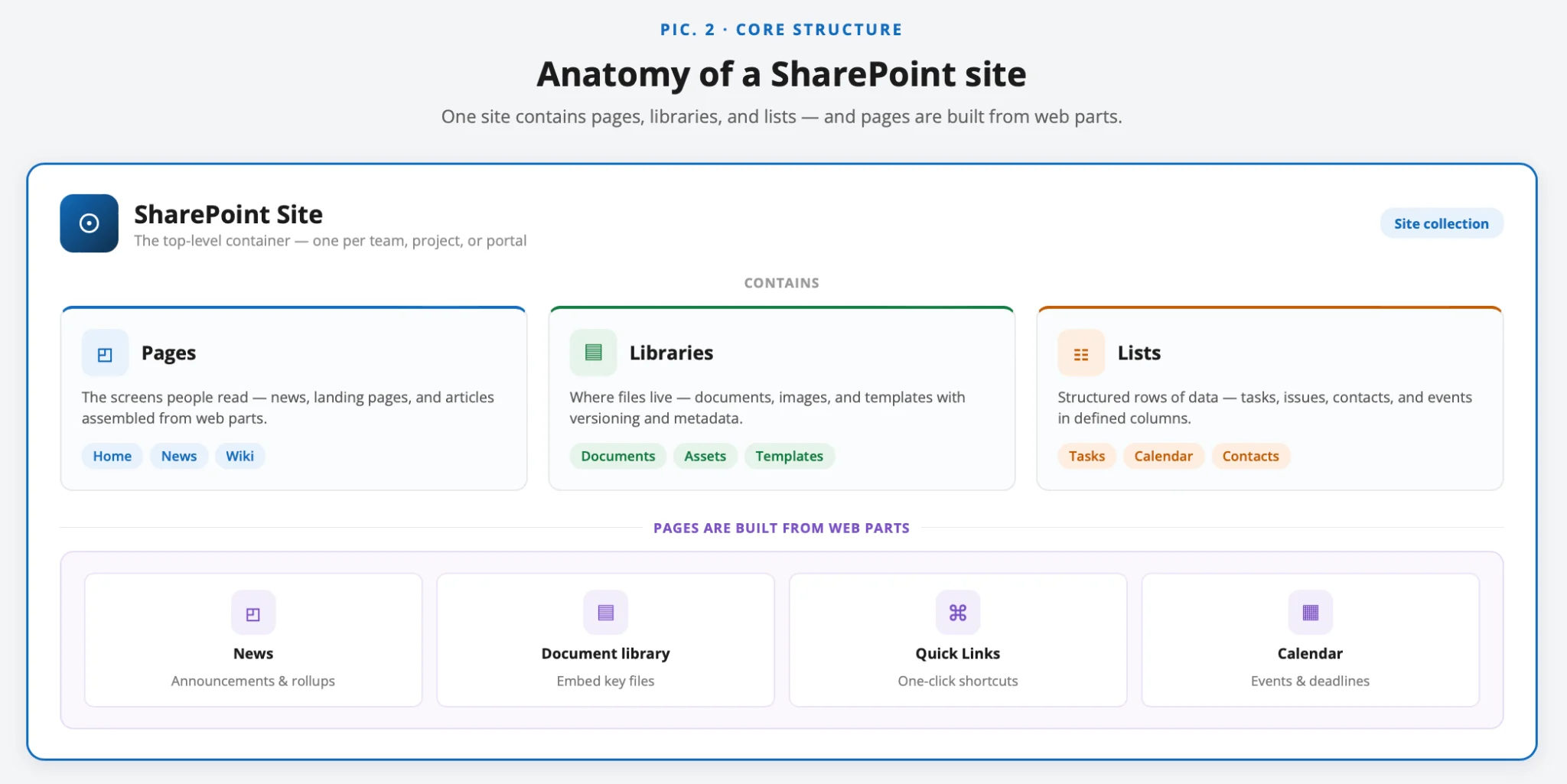
Pic. 2. How a SharePoint site is structured.
Access and permissions
SharePoint uses a hierarchy — site, library or folder, and item-level permissions — with roles such as Read, Edit, Contribute, and Full Control. Permissions can be inherited from a parent site to simplify management, or broken where tighter control is needed.
Search
Built-in search helps locate documents and people through metadata filters, full-text search, people search, and refinements by file type, date, or author.
Integrations with Microsoft 365
SharePoint’s real strength is how tightly it connects to the rest of Microsoft 365:
- OneDrive: sync libraries for offline access, co-authoring, and versioning.
- Outlook: connect calendars and save email attachments straight to libraries.
- Microsoft Teams: every Teams channel is backed by a SharePoint document library, so files live in one place.
- Office apps (Word, Excel, PowerPoint): open, co-author, and auto-save documents with full version history.
- Power Platform: automate processes with Power Automate and build custom apps on SharePoint data with Power Apps.
SharePoint Online vs SharePoint Server, at a glance
| Feature | SharePoint Online | SharePoint Server |
|---|---|---|
| Hosting | Microsoft cloud | Company servers |
| Updates | Automatic | Manual installation |
| Access | Global (internet) | Local network |
| Data control | Limited | Full |
| Cost | Subscription | Upfront licence + infrastructure |
| IT management | Reduced | Increased |
| Scalability | Easier | More complex |
For a deeper comparison, see SharePoint On-Premises vs. SharePoint Online.
Advantages and Disadvantages of SharePoint
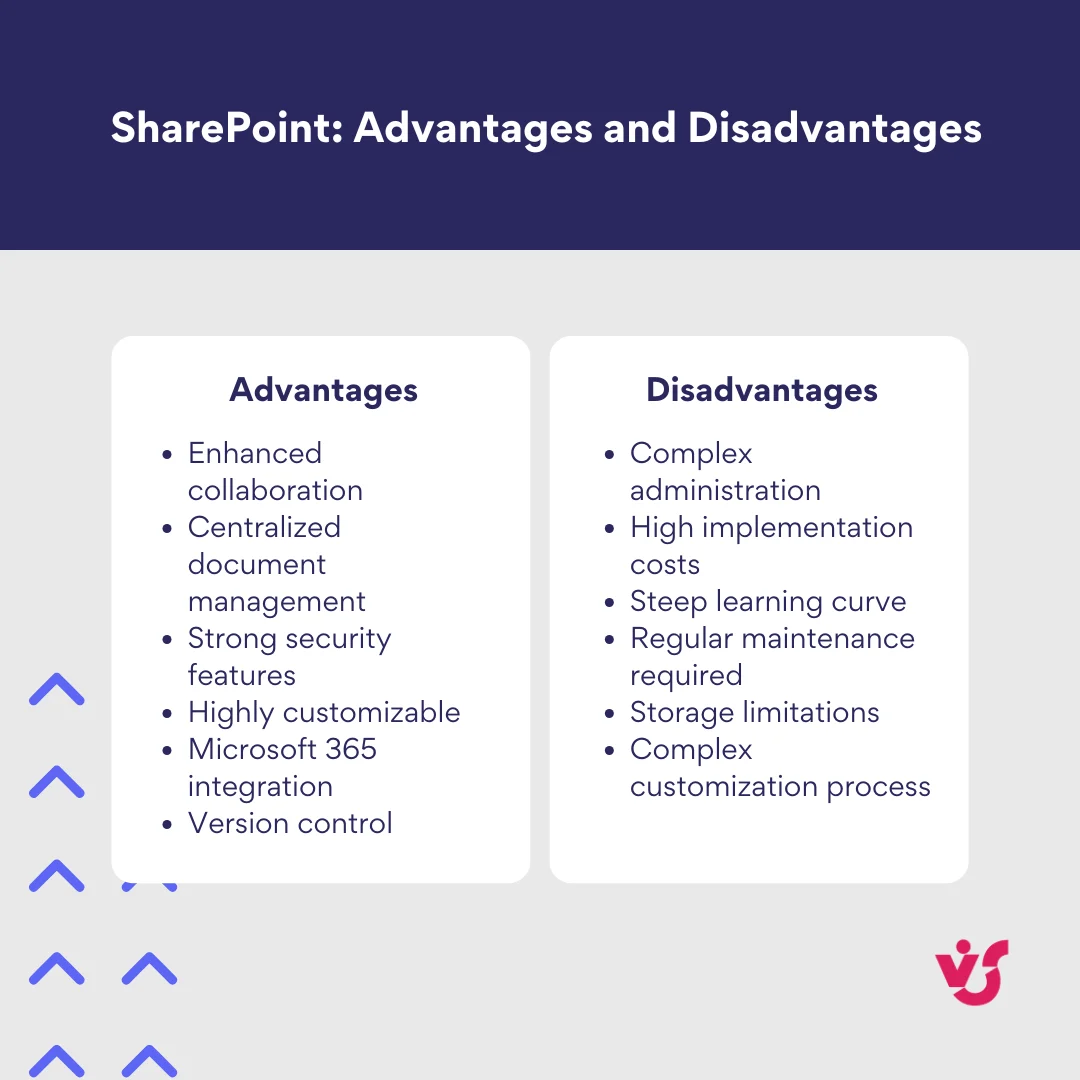
Pic. 3. SharePoint advantages and disadvantages.
Why organisations choose SharePoint
- Centralised data: one platform for all corporate content, replacing scattered file stores.
- Faster collaboration: real-time co-authoring, shared workspaces, and version control.
- Increased productivity: automated workflows cut time on repetitive tasks like approvals.
- Security and compliance: granular access control and data-retention policies.
- Customisation and scalability: tailor the platform and grow it as the organisation grows.
- Microsoft 365 integration: works seamlessly with Teams, OneDrive, Outlook, and Office.
- Low-code friendly: sites, lists, and simple workflows need little to no coding.
Disadvantages to consider
- Learning curve: the breadth of features can overwhelm new users and slow adoption.
- Cost: licences (especially On-Premises), integrations, and consultants add up.
- Add-ons for advanced needs: some capabilities require third-party tools or custom development.
- Technical support: complex configurations demand real IT expertise.
How to mitigate the downsides
- Invest in training: run sessions and share guides; point staff to Microsoft Learn.
- Use third-party tools: ready-made web parts such as VirtoSoftware’s SharePoint apps add Gantt charts, Kanban boards, and calendar overlays without custom code.
- Start small and scale: pilot with one team, then expand using lessons learned.
- Leverage built-in features first: exhaust out-of-the-box libraries, lists, and workflows before buying add-ons.
- Engage IT or consultants: bring in Microsoft-certified partners for complex setups and ongoing maintenance.
SharePoint vs OneDrive and Microsoft Office: The Short Version
SharePoint vs OneDrive. Both store files, but OneDrive is built for individual storage (private by default), while SharePoint is built for team collaboration, shared libraries, and process automation. In practice, people often draft in OneDrive and move finished work to SharePoint for the team. For a full breakdown, see SharePoint vs OneDrive.
Microsoft Office vs SharePoint. The Microsoft 365 (Office) apps — Word, Excel, PowerPoint, Outlook — are for creating and editing content on your own. SharePoint is where that content is stored, shared, and collaborated on. They’re complementary: create in Office, collaborate and manage in SharePoint.
Where to Go Next
Once you understand the basics, these are the natural next steps:
- How to use SharePoint — a beginner’s walkthrough of sites, libraries, lists, pages and sharing.
- Types of SharePoint sites — team vs communication sites and when to use each.
- SharePoint content management — content types, metadata, records, pages and workflow as one governed system.
- Copilot in SharePoint — what the AI assistant does in sites, pages and libraries, what it costs and how to roll it out.
- SharePoint intranet — how to build and manage a company portal.
- SharePoint web parts — the components you can add to pages, plus top picks.
- Virto web parts catalog — ready-to-use apps that extend SharePoint’s functionality.
Get more from SharePoint with VirtoSoftware apps
VirtoSoftware builds apps for SharePoint Online and On-Premises that add capabilities SharePoint doesn’t offer out of the box. Each comes with a free 30-day trial:
- Virto Calendar App — overlays multiple calendars into one unified, color-coded view. [For SharePoint Online | For SharePoint On-Premises]
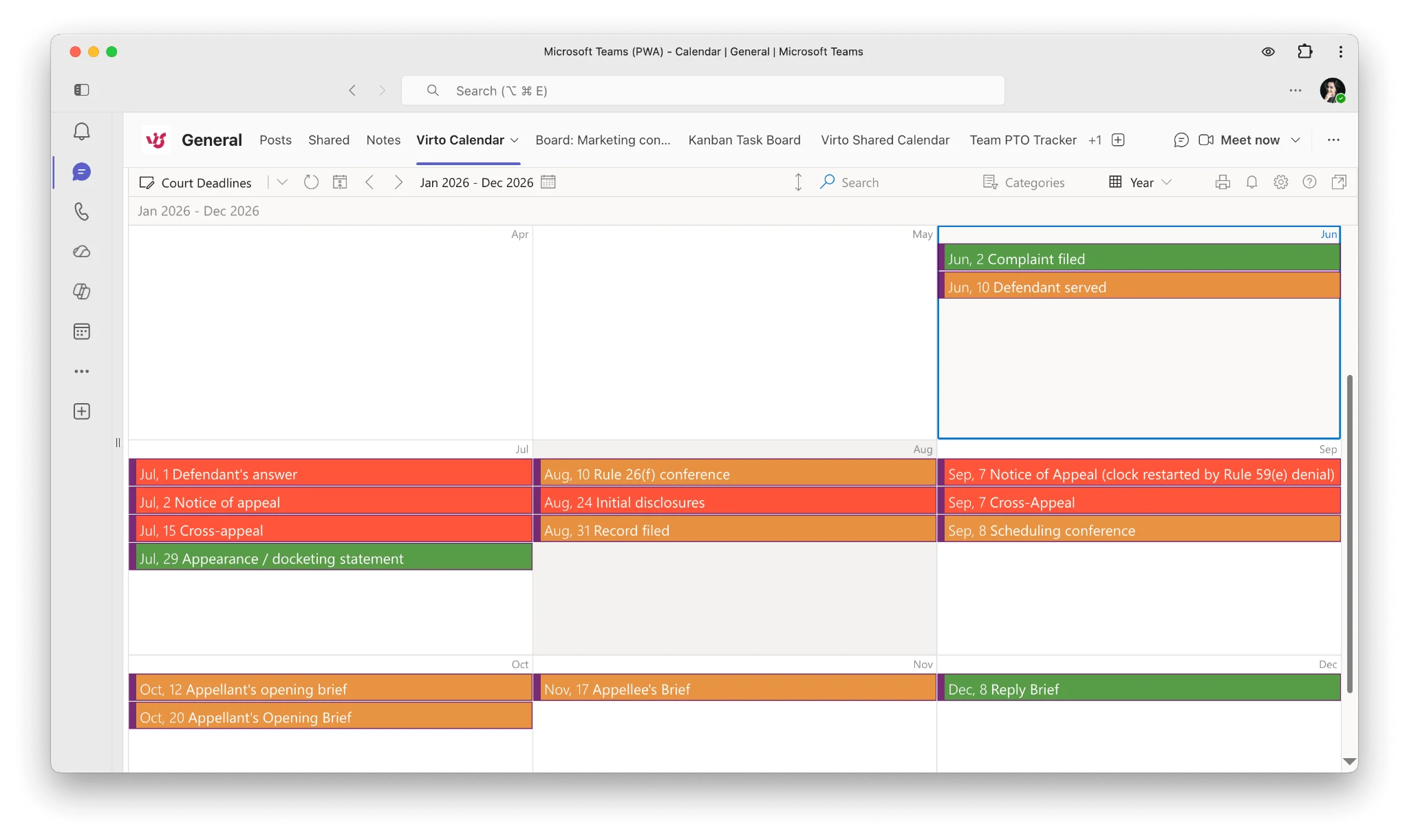
Pic. 4 Virto Calendar App
- Virto Kanban Board App — visual, drag-and-drop task management. [For SharePoint Online | For SharePoint On-Premises]
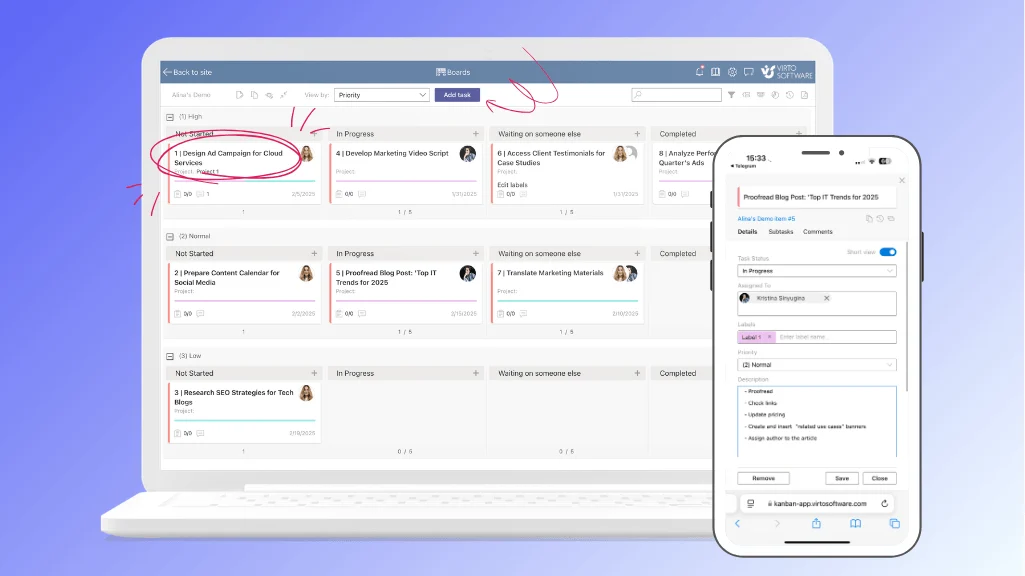
Pic. 5 Virto Kanban Board App
- Virto Alerts & Reminders App — custom alerts for tasks, deadlines, and document updates. [For SharePoint Online | For SharePoint On-Premises]
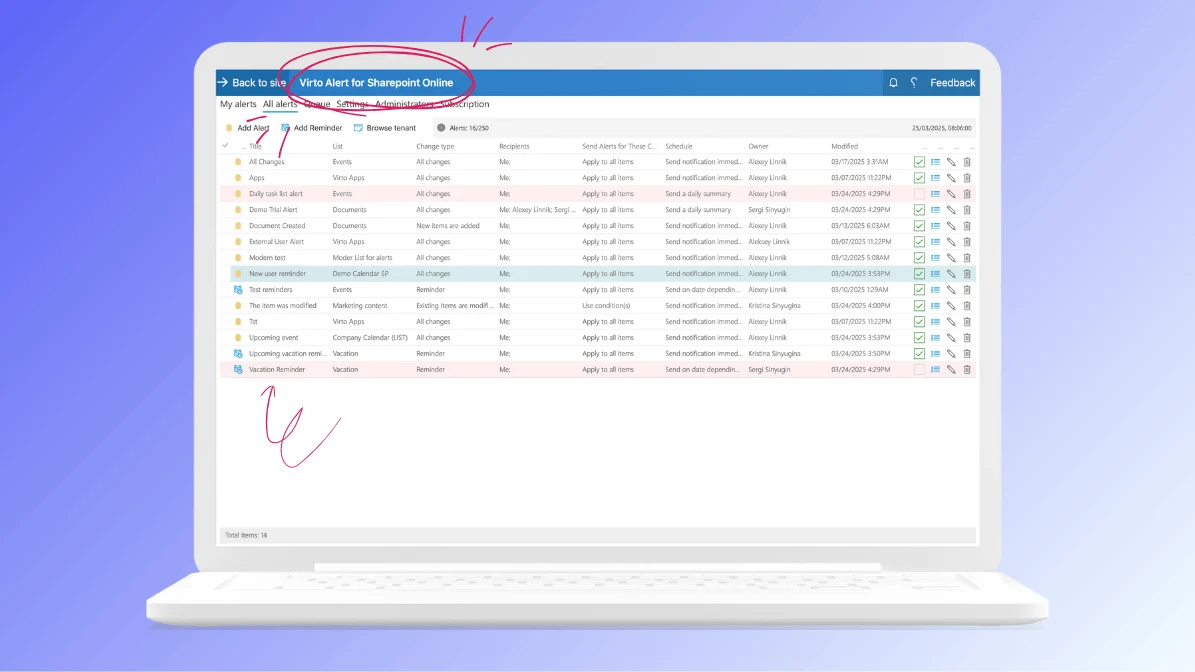
Pic. 6 Virto Alerts & Reminders App
FAQ
What is SharePoint?
SharePoint is a Microsoft 365 platform for storing, organising, and sharing documents and information through sites, lists, and libraries — used for intranets, team collaboration, and document management.
What is SharePoint used for?
It’s used for document management, team collaboration, intranets and internal portals, project tracking, and workflow automation, all connected to the wider Microsoft 365 ecosystem.
How does SharePoint work?
SharePoint stores content in sites made up of libraries, lists, pages, and web parts. A permission hierarchy controls access, search makes content findable, and built-in integrations connect it to Teams, OneDrive, Outlook, and Office.
Is SharePoint a cloud service?
It can be both. SharePoint Online is fully cloud-based as part of Microsoft 365, while SharePoint Server runs on your own on-premises infrastructure. A hybrid model combines the two.
Is SharePoint the same as OneDrive?
No. OneDrive is for individual file storage and sharing; SharePoint is for team collaboration, organisation-wide content, and process automation. They work well together — draft in OneDrive, collaborate in SharePoint.
Conclusion
SharePoint is a versatile foundation for collaboration and content management — a single place to store documents, automate processes, and build intranets across teams and departments. Its full value comes when it’s structured well and, where needed, extended with third-party tools such as VirtoSoftware’s SharePoint apps and web parts, each available with a free 30-day trial. To see them in action, you can book a quick demo or explore the VirtoSoftware website.